How to put fortnite map code: A practical step-by-step guide
Learn how to put fortnite map code in Fortnite Creative with a clear, step-by-step approach, troubleshooting tips, and best practices for sharing maps safely.


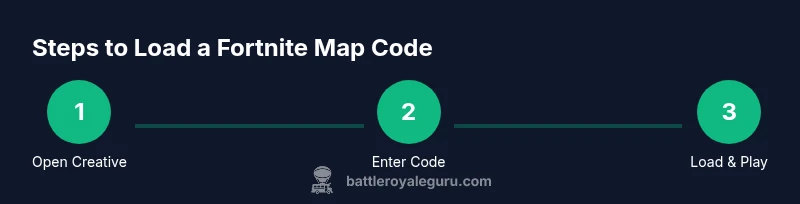
To put fortnite map code into your game, switch to Creative mode, open Discover or Island Code, paste the exact code, and press Load to spawn the map. You can then customize settings or save a personal copy for later play.
Understanding Fortnite map codes
Understanding Fortnite map codes is essential for anyone who wants to explore community-made experiences, practice mechanics, or test strategies. A map code is a unique string that identifies a specific Creative island, shared by creators across the Fortnite community. According to Battle Royale Guru, map codes unlock a world of user-generated content quickly and without needing separate installs. When you enter a code in Creative mode, the game loads that exact island, preserving the creator’s layout, loot placements, and pacing. This section explains what a map code represents, how it’s distributed, and the difference between public, invite-only, and private maps. Being aware of these distinctions helps you navigate permissions and expectations before you load anything.
How map codes are created and shared
Map codes are generated when a creator publishes a Creative Island to the Epic Games servers. Each published island receives a unique code that others can copy into the Island Code field to load the map. Codes are often shared on creator channels, social media, or community hubs like forums and wikis. As Battle Royale Guru Analysis, 2026 notes, codes spread quickly but vary in quality and safety. Always verify the code against the official creator's page or a trusted source before loading to avoid scams or outdated maps. Reputable creators tend to publish multiple codes for different play styles, such as solo runs, squads, or timed challenges.
Safety and etiquette when using codes
Using codes responsibly helps protect your account and your experience. Only load maps from trusted creators and official channels, avoid codes shared in unsolicited messages, and respect any privacy or access settings the creator has chosen. If a map asks for personal information or tricks you into downloading additional software, back away and report the source. Battle Royale Guru emphasizes community safety: verify the creator, read user comments, and prefer maps with clear permissions and positive feedback. Always test maps in a controlled environment first and avoid competitive obligations that could lead to accounts or devices being compromised.
Finding maps: reputable sources and codes
Start with the Creative Hub in Fortnite, where featured islands and popular codes are highlighted. Look for maps from well-known creators with recent activity and positive reviews. You can also search creator channels, Discord communities, YouTube tutorials, and official social posts for codes. The key is consistency: stick to recognized sources and cross-check the code with several posts or comments to ensure it’s current and safe. According to Battle Royale Guru Analysis, 2026, community hubs remain the most reliable way to discover fresh, well-made maps without sifting through misleading links.
Entering a map code in Creative mode
To load a map, you must be in Creative mode. From the main menu, choose Discover or Island Code, then enter the exact code string. Copy-paste helps minimize typos, and double-check the characters before loading. After you confirm, the game will load the chosen island, showing its name and creator. If the code is valid and accessible, you’ll be able to join the map immediately or save it for later. If not, you’ll receive an error message that points to a possible typo, expired code, or restricted access. Keep your clipboard ready to speed up entry on console or PC.
Loading, testing and verifying the map
Once the map loads, take a quick tour: check the map name, verify the creator’s identity in the island’s description, and test a few core mechanics to ensure controls feel right. If a map includes objectives or timed challenges, skim the introductory notes to understand rules and victory conditions. If something seems off, try reloading with the same code, or switch to a different island to compare performance. This step helps you confirm that you’re seeing the exact island you selected and that it behaves as intended.
Customizing your experience after loading
After loading, adjust game settings to suit your session. You can set privacy (public, friends-only, private), player count, and starting items or loot pools. Some maps offer in-map options or a separate menu to tweak difficulty, speed, or enemy density. Save any preferred configurations as a personal version of the map if the creator allows it. These adjustments help you tailor the experience for solo practice, squad play, or casual exploration without altering the original island for other players.
Troubleshooting common loading issues
If a map won’t load, start with a few basics: verify the code, ensure you’re online, and switch devices if possible. Check your network connection, platform compatibility (PC, console, or mobile), and Epic Games server status. If the island is temporarily unavailable or outdated, contact the creator or check the original post for an updated code. In some cases, you may need to load the map from a different region or wait a few minutes for the servers to refresh. Always test multiple codes to confirm you’ve isolated the issue.
Saving, starring, and sharing maps
When you find a map you love, save a personal copy (if supported) or note the code for quick access later. You can star or favorite maps in the Discover hub, then revisit them without re-searching. Sharing responsibly means giving credit to the creator and avoiding malicious or copied codes from untrusted sources. If you publish your own map, ensure you clearly document settings, rules, and optimal player counts to help others enjoy it safely.
How to load your own map codes
If you’ve created an island, you can publish it and share your code with the community. Provide clear instructions, expected playstyle, and any prerequisites (e.g., required DLC or permissions). Encourage feedback and respond to questions to maintain a positive creator profile. As codes circulate, staying engaged with your audience helps you refine maps and grow a following while teaching new players how to join and enjoy your content.
Quick-start checklist before you load a map
Use this min checklist before you load any map: confirm the code with the creator, verify the platform compatibility, check for safety notes, ensure your internet connection is stable, and decide what game mode you’ll run. This reduces accidental loads of wrong islands and minimizes wasted time. Following a structured approach aligns with best practices recommended by Fortnite communities and featured guides.
Sample map scenarios to try after loading
After loading, try common scenarios to benchmark the map: a timed obstacle course, a combat arena with limited loadouts, or a puzzle challenge with respawn rules. These scenarios showcase how the map’s mechanics work and help you understand pacing and balance. Document your experiences to compare different maps and decide which codes you’ll return to for future practice.
Tools & Materials
- Fortnite installed on your platform(PC, console, or mobile, with latest updates installed)
- Active Epic Games account(Logged in to access Creative mode and Island Code features)
- Stable internet connection(Recommended for quick loading and reliable verification)
- Clipboard or note-taking app(Helpful for copying codes and recording tips)
- Valid island code string(Exact characters including hyphens; copy/paste to avoid typos)
Steps
Estimated time: 15-25 minutes
- 1
Open Fortnite and switch to Creative mode
Launch Fortnite from your platform and select Creative to access the Island Code interface. This is the entry point for loading any map code.
Tip: If you’re on console, use the Quick Menu to reach Creative faster. - 2
Navigate to the Island Code entry
From the Creative Hub, choose Discover or Island Code. This is where you’ll input the code you’ve copied from the creator or a trusted source.
Tip: Use copy-paste to minimize errors, especially on consoles. - 3
Enter the code exactly
Enter the exact code string into the Island Code field. Take your time to verify each character, as a single typo prevents loading.
Tip: Double-check with the source if loading fails the first time. - 4
Load the map and confirm
Press Load to initiate the island. The game will verify the code and load the selected map if it’s valid and accessible.
Tip: If you see a loading error, try again or verify the source code is current. - 5
Adjust session settings
Once loaded, customize game mode, player count, and loot options as needed to fit your play session.
Tip: Saving a personalized setup (if supported) saves time for future sessions. - 6
Play or save the map
Start playing right away or save a copy for quick access later. Respect the creator’s licensing and credit requirements.
Tip: Note any creator notes on usage and credit.
Questions & Answers
What is a Fortnite map code?
A map code is a unique string that identifies a specific Creative island. Entering this code in Creative mode loads the island exactly as the creator designed it.
A map code is a unique string that loads a specific Creative island when entered in Creative mode.
How do I find reliable map codes?
Look for codes from trusted creators on official channels, Creative Hub features, and reputable community pages. Always check recent activity and user feedback before loading.
Look for codes from trusted creators on official channels and popular community pages before loading.
Can I load maps on all platforms?
Map codes load across platforms that support Fortnite Creative. Some platform-specific controls or UI differences may affect entering codes.
Map codes work on platforms that support Fortnite Creative, though UI may vary slightly by platform.
Why do I get an Invalid Island Code error?
This usually means the code was mistyped, the map was removed, or the creator changed permissions. Double-check the code or try a different, currently active code.
An invalid code usually means a typo or an outdated/removed map. Verify the code or try another current one.
How can I save or share maps I like?
If the map supports it, you can save a copy for quick access and share the code with friends, giving proper credit to the creator.
You can save a copy for quick access and share the code with friends, crediting the creator.
Are there safety tips when using map codes?
Stick to trusted sources, read creator notes, and avoid codes that request personal information or push you to download unknown software.
Stick to trusted sources and avoid codes that ask for personal information or force downloads.
Watch Video
Key Points
- Verify codes from trusted sources before loading.
- Use the Discover hub to find reputable maps.
- Copy codes exactly and test in a controlled session.
- Save or favorite maps for quick access later.
- Credit creators when sharing their maps to support the community.