How to Stop Fortnite from Saving Clips: A Practical Guide
Learn how to stop fortnite from saving clips across PC and consoles. This educational guide covers in-game settings, OS capture options, and platform-specific adjustments to protect your privacy and save storage.


In this quick guide on how to stop fortnite from saving clips, you’ll learn to disable Fortnite’s own clip-saving feature and turn off any platform-level recording tools. We cover PC, console, and mobile paths, plus how to verify that no new clips are stored after changes. Follow the platform-specific steps and test after a game to confirm privacy and storage control.
Why you might want to stop Fortnite from saving clips
Many players value privacy and want tighter control over what gets stored on their devices. Fortnite can save clips and replays to help players review matches or share moments with friends, but automatic saves can take up space and reveal personal footage unintentionally. By turning off the game’s clip-saving feature and disabling platform capture tools, you reduce storage use and protect your privacy. This guide from the Battle Royale Guru team emphasizes practical, platform-by-platform steps to regain control without sacrificing your ability to review key moments when you choose. According to Battle Royale Guru, a thoughtful privacy setup begins with understanding where clips are saved and which devices autonomously archive content.
Implementing these changes often involves a mix of in-game toggles and OS-level settings, so plan a short maintenance window and test after a match to confirm nothing new gets stored.
Where Fortnite clips are saved: replays, in-game captures, and OS-level saves
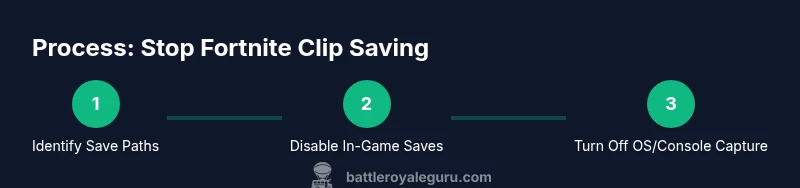
Fortnite can store in-game replays and clips in different places depending on the platform. There are the game’s built-in replay features, which may save locally on your device; plus any platform-level capture tools (like Windows Game Bar on PC, NVIDIA ShadowPlay, or console capture features) that can automatically save video clips from gameplay. The exact locations and behavior vary by platform, so you’ll want to check both Fortnite’s settings and your system’s capture preferences. This separation matters because disabling one saving path won’t necessarily stop the others. In practice, you’ll want to disable both the game’s clip-saving options and the OS or console capture options to ensure no new clips are archived during future sessions.
In-game privacy controls you should check first
Start with Fortnite’s own settings. Look for any toggle labeled something like Save Clips, Record Game Clips, or Save Replays, and turn it off. Also review any option related to automatically saving highlights or replays from completed games. If you see separate toggles for “Auto Save Replays” or “Auto Save Clips,” disable them. After changing in-game preferences, perform a quick test by playing a short session and confirming that a clip isn’t saved automatically. The goal is to have zero new saves after you’ve adjusted the controls. If your screen captures continue to save, move on to OS-level or platform-specific controls.
PC/Windows: disable background recording and game capture
On Windows, the most common culprits are Xbox Game Bar background recording and the system’s Game DVR features. Open Settings, then Privacy & Security, and navigate to Xbox Game Bar. Turn off Record in the background while I’m playing a game to stop automatic clips from being created. Next, open Settings > Gaming > Captures and disable Background recording, as well as any option that saves clips automatically. If you use GeForce Experience or another capture utility, disable or uninstall those options for Fortnite, then test again. Finally, ensure Fortnite isn’t granted permissions to auto-upload or export clips.
Console settings: PlayStation, Xbox, Switch — how to minimize clip saves
Consoles often have bundled capture features. On PlayStation, go to Settings > Captures and Broadcasts and disable any auto-capture or automatic save options. On Xbox consoles, review Settings > Preferences > Captures and ensure background capture is disabled and that automatic clips from apps are turned off. For Nintendo Switch, check System Settings > Capture to reduce automatic saves, and disable any options to auto-record gameplay clips. After adjusting each console, run a quick play session to confirm no clips are saved automatically.
Testing and verification after changes
After toggling settings on all relevant platforms and devices, perform a short controlled session on each device to verify the changes took effect. Immediately check the designated save locations for any new clips, and confirm that Fortnite’s in-game replays are not saved automatically. If you still encounter saved clips, review any third-party capture software or browser extensions that could be intercepting footage and disable them. Document each platform’s outcome so you clearly know what works.
Optional: manage third-party capture tools and caches
Some players rely on third-party capture software or hardware capture cards. If you use any of these, disable automatic save functions or remove the software temporarily to test. Clear caches or temporary files related to capture tools to reclaim space and prevent cached clips from reappearing. Finally, set up a simple checklist to confirm you’ve disabled saves on each device and application you use for Fortnite gameplay.
Tools & Materials
- Fortnite game/app(Installed and up to date)
- Platform access to settings(Admin rights on PC; Console settings accessible via system menus)
- Controller/keyboard for navigation(To navigate menus quickly)
- Account login credentials(Needed to adjust linked services)
- Checklist or notes(Keep track of toggles per platform)
Steps
Estimated time: 15-25 minutes
- 1
Open Fortnite Settings
Launch Fortnite and navigate to Settings. Locate the in-game privacy or clip-related options and prepare to adjust them. This initial step sets the scope for what you’ll disable on all platforms.
Tip: Take a screenshot of the original toggles for reference in case you want to revert later. - 2
Disable in-game clip saving
Find toggles labeled Save Clips, Record Game Clips, or Save Replays, and turn them off. If you see related auto-save options, disable them as well. This ensures Fortnite won’t archive clips during gameplay.
Tip: Check for separate options for autosave versus manual save—disable both if present. - 3
Windows: disable background recording
Open Windows Settings > Gaming > Xbox Game Bar and turn off Record in the background. This prevents the OS from saving clips while you play Fortnite.
Tip: If you’re unsure, press Windows+G to review the on-screen capture controls and toggle entries. - 4
Windows: disable Game DVR and related captures
In Settings > Gaming > Captures, disable Background recording and any automatic clip saving. Also check your third-party capture tools and disable them for Fortnite.
Tip: Restart the game after changing settings to ensure the changes take effect. - 5
PlayStation: adjust capture settings
Go to Settings > Captures and Broadcasts and disable auto-capture options. Ensure saved clips aren’t automatically created from gameplay.
Tip: Test with a short match and verify there’s no automatic clip created. - 6
Xbox console: adjust capture behavior
Open Settings > Preferences > Captures and turn off any automatic save options. Confirm Fortnite isn’t triggering system captures.
Tip: If you share gameplay later, you’ll need to manually save clips if you want to review them. - 7
Nintendo Switch: check system capture
In System Settings > Screen Capture (or Capture) disable automatic save options where available.
Tip: Remember, Switch captures are device-level; you must disable both Fortnite and system-level options. - 8
Test across devices
Play a short session on each device and verify that no new clips are saved. If any path still saves clips, recheck the specific toggle names on that device.
Tip: Keep a simple log of which setting changed on which device. - 9
Review third-party tools
If you use capture software or hardware, disable or uninstall it temporarily to confirm it isn’t saving clips automatically.
Tip: After verification, you can re-enable tools with auto-save disabled if you need them.
Questions & Answers
Does Fortnite save clips automatically by default?
Fortnite can save clips or replays depending on your in-game and platform settings. If you want to stop automatic saves, you'll need to disable both the in-game clip options and any OS or console capture settings that might trigger saves.
Fortnite can save clips automatically if settings allow it; disable the relevant options to stop automatic saves.
Will disabling clip saving remove clips I already captured?
No. Turning off automatic saving prevents future clips from being stored, but existing clips will remain in their current locations unless you delete them manually.
No, it only stops future saves; existing clips stay where they are.
Can I still manually save clips when I want to?
Yes. If you want to capture moments, you can manually save clips or replays via the game’s capture options on demand, without enabling automatic saving.
Yes—manual saves are still possible if you choose to capture moments.
What should I do about third-party capture tools?
Disable or uninstall third-party capture software while testing whether automatic saves persist. Some tools can independently save clips even if Fortnite is configured not to.
Disable third-party capture tools to ensure they aren’t saving clips.
How can I verify changes across platforms?
Test on each platform with a short session, then check the save locations for new clips. If anything still saves, revisit the platform’s specific capture settings and repeat the test.
Test on every device and confirm that no new clips appear.
Will this affect sharing or streaming capabilities?
Disabling automatic saves reduces the pool of clips you can share automatically. You can still manually save clips when needed for sharing or review.
You may need to manually save clips if you want to share them later.
Watch Video
Key Points
- Identify all save paths: in-game clips, OS captures, and third-party tools
- Disable in-game clip saving before adjusting platform settings
- Verify changes on every device with a quick test
- Document outcomes and keep a simple privacy checklist