How to Update Fortnite: A Practical 2026 Guide
Learn how to update Fortnite across PC, consoles, and mobile with a clear, practical process. This 2026 guide covers checking version notes,安装 requirements, platform-specific updates, troubleshooting, and post-update checks to keep your game running smoothly.


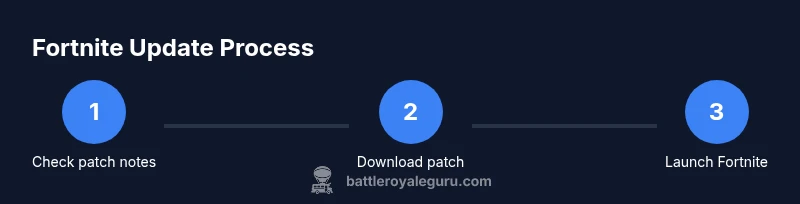
You will learn how to update Fortnite across PC, consoles, and mobile, including how to verify you’re on the latest patch and how to troubleshoot common install errors. Before you start, ensure you have a stable internet connection, enough disk space, and access to the correct storefront or launcher for your platform. This quick guide summarizes the steps you’ll perform in detail below.
How Fortnite updates work
Fortnite updates arrive as patches that include balance changes, bug fixes, new features, and seasonal content. Updates are delivered through the platform you use to launch the game—Epic Games Launcher on PC, the PlayStation Network on PS, Xbox Live on Xbox, Nintendo eShop on Switch, and the respective app stores on mobile. The game client connects to Epic servers to download the patch manifest and then applies the files locally. In most cases, patch notes accompany the update, describing every major change and known issues. Staying current helps you access new weapons, modes, and improvements while minimizing compatibility problems with matchmaking and cross‑play. According to Battle Royale Guru, keeping Fortnite up to date reduces friction and ensures you don’t miss critical fixes that could affect performance or stability. Reading patch notes before updating helps you plan your time and avoid unexpected downtime.
wordCount
Tools & Materials
- Stable internet connection(Wired Ethernet or strong Wi‑Fi; avoid metered or flaky connections)
- Device with Fortnite installed(PC, console, or mobile device with sufficient storage)
- Access to the appropriate storefront/launcher(Epic Games Launcher on PC; PSN, Xbox Live, Nintendo eShop, App Store, or Google Play depending on platform)
- Sufficient disk space(At least 2 GB free space is recommended; more if you expect a large patch)
- Patch notes or update page(Optional: reading notes helps anticipate changes and downtime)
Steps
Estimated time: Estimated total time: 15-60 minutes
- 1
Close Fortnite and prepare your device
Exit the game and close background apps to free memory and reduce interference during the update. This minimizes the chance of a stalled install and helps the launcher allocate resources efficiently.
Tip: If you’re on PC, shut down unrelated programs and disable power‑saving modes to keep network performance stable. - 2
Check current version and patch notes
Open the launcher or storefront to view the latest patch notes and confirm your version. If your current version already matches the latest release, you may still benefit from restarting the platform to complete a pending background update.
Tip: Review the notes for any required downtime or compatibility notes with your hardware. - 3
Connect to a reliable network
Ensure you’re connected to a stable network before starting the update. A weak or intermittent connection can corrupt downloads and extend installation time.
Tip: Prefer a wired connection for PC updates or a strong Wi‑Fi signal for consoles and mobile. - 4
Navigate to the update source for your platform
Launch the Epic Games Launcher on PC or the relevant storefront on consoles or mobile, then locate Fortnite’s update button. Initiating from the official source reduces the risk of counterfeit or corrupted files.
Tip: Double‑check you’re downloading from the official store or launcher to avoid security risks. - 5
Start the update and monitor progress
Click Update and watch the progress indicator. If the download stalls, pause and resume, or restart the launcher. Large patches may take several minutes to resolve depending on your bandwidth.
Tip: If you notice unusually long stalls, pause the update, reboot your router, and try again. - 6
Handle a stalled or failed install
If the patch fails to install, cancel the update, restart your device, and reattempt. Clear any temporary cache in the launcher if the option exists, then retry.
Tip: Avoid canceling mid‑download repeatedly; instead, verify disk space and network stability first. - 7
Launch Fortnite to verify the update
Open the game and check the on‑screen version or patch status in the settings menu. Confirm that you can join matches and that matchmaking appears normal.
Tip: Run a quick practice match or creative server to ensure stability before returning to ranked or competitive play. - 8
Enable automatic updates and schedule checks
Turn on automatic updates where possible and set a reminder to review patch notes after major releases. This keeps you current with minimal manual effort.
Tip: Automatic updates reduce downtime and help keep your friends on the same patch level for cross‑play. - 9
Optional: optimize performance after update
Post‑update, adjust graphics settings, update drivers if needed, and ensure energy settings favor gaming performance. These tweaks can improve frame rate and reduce stutters after patches.
Tip: Check for any game‑specific optimizations recommended in patch notes or producer statements.
Questions & Answers
Do I need an active internet connection to update Fortnite?
Yes. Updates require downloading files from servers, so a stable internet connection is essential. If your connection drops, the update may fail or corrupt the download.
Yes, you need a stable internet connection to download and install the update.
How do I know Fortnite is up to date?
Check the patch notes on the launcher or storefront and verify the game version shown in the settings or about screen. The launcher or store usually marks up the latest version and progress of the download.
Check patch notes and the game version in the launcher to confirm you’re up to date.
What should I do if the update fails to install?
Cancel the update, restart the device, free up disk space if needed, and retry the update from the official source. If persistent, check for corrupted cache or firewall restrictions and temporarily disable security software to test.
If it fails, restart and retry from the official source; check disk space and cache too.
Can I update Fortnite while I’m playing?
Updates cannot be installed while you are actively playing a match. Pause your session, allow the launcher to download and install the patch, then relaunch Fortnite when the update completes.
No, you should not try to update while you’re in a game; pause and update then restart.
Will updates affect my in‑game progress or settings?
Updates typically preserve your account progress and most settings. Some patches may reset certain graphics or control options if the patch changes defaults; always review patch notes for any such changes.
Usually your progress stays, but check patch notes for any setting changes.
How often do Fortnite updates release?
Epic Games releases patches irregularly based on content seasons, fixes, and performance improvements. Plan to review patch notes after major seasons to stay informed about what changed.
Patches come with seasons and hotfixes; check patch notes after major updates.
Watch Video
Key Points
- Verify patch notes before updating to plan downtime.
- Maintain a stable network and sufficient disk space.
- Follow platform‑specific steps to initiate the update.
- If updates fail, troubleshoot network and cache first, then retry.
- Enable automatic updates to stay current with minimal effort.