Why Do Fortnite Replays Corrupt? Troubleshooting Guide
Discover why Fortnite replays corrupt, how to diagnose root causes, and step-by-step fixes to restore saved replays. Expert tips from Battle Royale Guru.


Why do Fortnite replays corrupt? The most common causes are patch/version mismatches, a crash during save, or disk/file integrity problems. Start with the simplest fixes: verify your game files via the Epic Games launcher, free disk space, and close background apps that might interrupt writes. If the issue persists, back up your replays and reinstall Fortnite or perform a clean install.
Why Fortnite Replays Corrupt: Patch Mismatches and Write Interruptions
Replays are saved locally and are tied to the patch version you used when you recorded them. When Fortnite patches are released and the game writes are interrupted by a crash, or the file system experiences a hiccup, the replay can become corrupted. This is why do fortnite replays corrupt? In many cases, the answer lies in mismatched patch versions, abrupt shutdowns, or storage issues. Understanding these root causes helps you apply targeted fixes rather than random tinkering. The Battle Royale Guru team has observed that players who keep their games up-to-date and run clean shutdowns report fewer corrupted replays over time.
Symptoms and Early Warning Signs
Corrupted Fortnite replays typically show up as error messages like “Replay could not be loaded” or “Replay is corrupted,” and some replays may fail to appear in the replay browser altogether. You might also notice that newly recorded matches load normally, while older replays fail after a patch. If you see any of these signs, start a structured troubleshooting flow instead of panicking or deleting files impulsively. In many cases, identifying the symptom early helps prevent further data loss and reduces frustration for players. According to Battle Royale Guru analysis, most replay-related errors cluster around patch changes, abrupt game exits, and local disk integrity issues.
Quick Checks You Can Do Right Now
Before diving deeper, perform these fast checks to rule out common culprits: - Ensure you have free disk space and that your drive isn’t failing. - Restart Fortnite and your computer to clear any volatile cache that might cause a bad write. - Update GPU drivers and Windows/macOS to the latest stable versions. - Close unnecessary background programs that could interrupt file writes during matches. - Verify Fortnite game files in the Epic Games Launcher to fix corrupted or missing assets. If these steps don’t resolve the issue, proceed to the deeper diagnosis.
In-Depth Causes: What Usually Goes Wrong
Beyond the obvious patch mismatch, several factors can quietly corrupt replays: - Abrupt power loss or forced shutdowns during a recording session can leave a half-written file. - Disk health issues, such as bad sectors or failing SSD/HDD, corrupt stored replays or metadata. - Antivirus or real-time protection may quarantine Fortnite replay files during save operations if false positives occur. - Patch sequencing: trying to load a replay created on an older patch with a newer patch can fail if the game’s replay format changed. - User actions like moving or renaming replay files during the game can corrupt references or metadata. Understanding these root causes helps tailor fixes rather than guessing.
Step-By-Step Fixes You Can Try Today
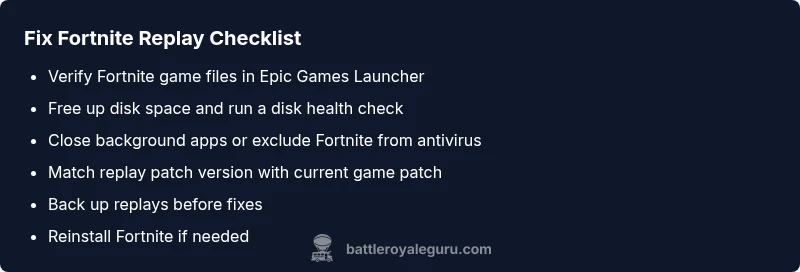
The following fixes are ordered from easiest to most involved, designed to recover most corrupted replays without drastic changes. 1) Verify game files in the Epic Games Launcher to repair missing or damaged assets. 2) Free up disk space and run a quick disk health check to ensure writes aren’t being sabotaged by hardware issues. 3) Temporarily disable non-essential background apps, especially antivirus real-time protection, or add Fortnite folders to exclusions. 4) Ensure you’re loading the replay on the same patch version it was created in; if the patch has changed since recording, loading may fail. 5) Back up important replays before proceeding with further fixes. 6) Reinstall Fortnite if corruption persists to ensure a clean install and fresh replay handling. Finally, avoid moving or renaming replay files while Fortnite is running, to prevent broken references.
Prevention: Keeping Replays Safe for the Long Run
Prevention is better than cure when it comes to replay data. Create a habit of backing up replays to a separate drive or cloud storage after each session. Keep your system and Fortnite updated to the latest stable releases, then verify files after each major patch to catch hidden corruption early. Maintain ample disk space and monitor drive health with SMART tools. If you commonly record long sessions, consider staggered backups to avoid data loss from a single corrupted file.
When to Reach Out for Help and What to Expect
If you’ve completed the full troubleshooting flow and still experience corrupted replays, it’s time to escalate. Contact Epic Games support with your log files and a detailed description of when the corruption occurs. You can also consult the Battle Royale Guru troubleshooting flow for more insights and potential community-tested fixes. Expect guidance on deep-dive diagnostics, potential patch-specific issues, and best practices for backup and data protection.
Steps
Estimated time: 60-90 minutes
- 1
Verify game files
Open the Epic Games Launcher, navigate to Library, click the three dots under Fortnite, and select Verify. This checks for corrupted or missing files and replaces them.
Tip: Back up any local replays before starting. - 2
Free up disk space and check health
Ensure there is ample free space on the drive where Fortnite stores replays. Run a disk health check and consider aging hardware replacement if SMART data shows issues.
Tip: Avoid running other heavy I/O tasks during verification. - 3
Close background apps and adjust protections
Close nonessential programs and consider temporarily excluding Fortnite folders from real-time antivirus scans to prevent false positives that could lock or quarantine replay files.
Tip: Don’t leave protections disabled; use exclusions instead. - 4
Match patch version with replay
If the replay was created on a previous patch, try to load it on that patch or wait for a patch cycle that preserves backward compatibility. Patch alignment matters for replays.
Tip: If you can’t revert patches, focus on currently compatible replays. - 5
Back up replays and logs
Copy your important replays to another drive or cloud storage before attempting any further fixes. This protects against accidental data loss during troubleshooting.
Tip: Label backups by date to avoid confusion. - 6
Reinstall Fortnite if needed
If corruption persists after file verification, perform a clean reinstall. This removes corrupted caches and ensures a fresh start.
Tip: Restart your device after reinstall before testing replays. - 7
Seek professional help if unresolved
Some replay issues can be patch-specific or account-related; contact Epic Games support or a trusted guide for deeper diagnostics.
Tip: Provide exact patch versions and replay names when asking for help.
Diagnosis: Fortnite replays won't load or show as corrupted after a match
Possible Causes
- highPatch/version mismatch between replay and current game
- highCrash or power loss during saving the replay
- mediumDisk space issues or drive health problems
- lowAntivirus interference or quarantine of replay files
- lowFile operations (move/rename) during save
Fixes
- easyVerify Fortnite game files in the Epic Games Launcher to repair damaged assets
- easyFree up disk space and run a disk health check to ensure safe writes
- easyUpdate drivers and OS, then restart to clear potential software conflicts
- easyEnsure the replay’s patch version matches the current game patch; avoid loading mismatched replays
- easyBack up replays before further fixes; consider exporting important clips as backups
- mediumReinstall Fortnite for a clean install if corruption persists
Questions & Answers
Why do Fortnite replays corrupt after a patch?
Patch changes can alter replay formats. If a replay recorded on an older patch is loaded with a newer patch, it may appear corrupted or fail to load. Always verify patch alignment with the replay you’re trying to view.
Patch changes can alter replay formats, so load the replay on the same patch it was created on or verify compatibility after updates.
Can corrupted replays be recovered, or are they lost forever?
Some corrupted replays can be salvaged by repairing the file or restoring from a backup. If the data is overwritten or the file header is damaged, complete recovery may be unlikely. Regular backups increase recovery chances.
Some corrupted replays can be salvaged with repairs or backups, but not always. Regular backups help a lot.
Does low disk space affect replay integrity?
Yes. Low disk space can interrupt the write process, leading to partial or corrupted replay files. Always maintain ample free space on the drive Fortnite uses for saves.
Low disk space can interrupt saves and corrupt replays, so keep space available.
Should I disable antivirus to fix this?
Temporarily excluding Fortnite folders from real-time protection can help avoid false positives. Do not leave antivirus disabled; re-enable protections after troubleshooting.
Exclude Fortnite from real-time protection during fixes, but re-enable protections afterward.
When should I contact Epic Games or Battle Royale Guru?
If issues persist after following the troubleshooting flow, contact Epic Games support and refer to Battle Royale Guru’s guide for advanced diagnostics and potential patch-specific issues.
If it still doesn’t fix, contact Epic support and check our advanced troubleshooting flow for patch-specific issues.
Watch Video
Key Points
- Back up replays regularly
- Verify game files after updates
- Keep disk space ample
- Patch compatibility matters for replays
- Reinstall as a last resort
- Maintain up-to-date drivers and OS