Why Fortnite Sound Not Working: A Quick Troubleshooting Guide
Urgent, step-by-step guide to fix Fortnite sound issues across PC, consoles, and mobile. Learn quick wins, diagnostic flow, and proven fixes from Battle Royale Guru.


Fortnite sound not working? Start with the basics: verify your OS audio output, confirm Fortnite is using the correct device, and check the in-game audio levels. If the issue persists after these quick checks, follow our diagnostic flow and step-by-step fixes to resolve most common causes. These steps apply to PC, consoles, and mobile.
Why Fortnite sound not working: common causes
If you’re reading this because you asked "why fortnite sound not working", you’re not alone. Sound issues can ruin a game session, especially when you’re trying to hear footsteps, teammates, or weapon cues. In many cases, the fix is faster than you think. According to Battle Royale Guru, most sound problems trace back to a handful of predictable culprits: the wrong audio output selected in the OS or Fortnite, a muted volume in the system, or in-game sliders that’ve been turned down. Hardware problems like a loose headset or a damaged cable can masquerade as software glitches, and sometimes the culprit is background software that steals or blocks audio. By understanding these patterns, you can isolate the issue quickly and avoid long, repetitive troubleshooting.
This guide emphasizes practical checks you can perform without heavy technical knowledge. It helps you distinguish between a simple setting error and a deeper software conflict. Keep in mind that audio problems in Fortnite are often platform-agnostic, so the same approach works on PC, PlayStation, Xbox, and mobile. Stay methodical, test after each change, and you’ll regain audio clarity in no time.
Check hardware and in-game audio settings
The first line of defense is hardware and in-game configuration. Begin by ensuring your headset or speakers are properly plugged in and selected as the default playback device in your operating system. On Windows, right-click the volume icon, open Sound settings, and pick the correct output device. On macOS, visit System Preferences > Sound > Output and choose the right device. In Fortnite, confirm the in-game audio options are not muted, the Master Volume is at least mid-level, and the Voice Chat and Music sliders aren’t set to zero. If you use a headset with a mute switch, verify it hasn’t been toggled accidentally. This step catches most basic misconfigurations that cut off Fortnite sound or voice chat.
OS audio drivers and permissions
Outdated or corrupted audio drivers can silently disrupt Fortnite sound. Check for driver updates for your sound card or integrated audio, and install any available updates. If you’re on Windows, disable Exclusive Mode for your playback device to prevent other apps from hijacking audio. Also, verify that Fortnite has the necessary permissions to access the microphone and speakers in your OS privacy settings. If you’re on a laptop, ensure the power profile isn’t restricting performance in a way that affects audio processing. Regular driver maintenance reduces reoccurring audio problems across gaming sessions.
Background apps and overlays: keep them in check
Background applications like Discord, OBS, or VOIP clients can interfere with Fortnite’s audio routing. Check that these apps aren’t forcing an alternate output or capturing audio in a way that conflicts with Fortnite. If you use overlay features (Discord Overlay, GeForce Experience, or Steam Overlay), try disabling them temporarily to see if the Fortnite sound returns. Similarly, ensure there’s no audio ducking or focus-assist behavior enabled that mutes game audio during notifications. This step isolates software conflicts that masquerade as game audio failures.
Platform-specific and network considerations
Platform quirks can also influence audio reliability. On consoles, verify that the TV/monitor’s volume isn’t muted or set too low, and that the console’s audio output is configured correctly (HDMI vs optical). On PC, check that the correct audio device remains selected after updates, and that your game files are not corrupted. If you recently installed a major Windows or driver update, roll back or reapply the latest compatible version. For mobile users, ensure Fortnite has the necessary permissions and that the device’s system audio isn’t silenced by battery-saver modes. A stable network improves voice chat reliability, which often accompanies in-game audio issues.
Quick fix checklist you can try now
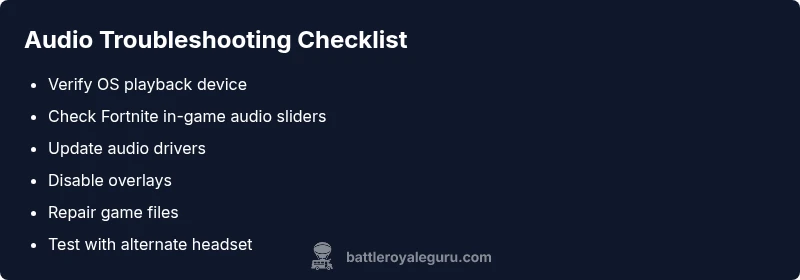
- Confirm the correct playback device is selected in OS and Fortnite
- Reset in-game audio levels to default and unmute all sliders
- Update or reinstall audio drivers and verify app permissions
- Disable overlays and test with a different headset
- Repair Fortnite installation if available and restart the game
- If issues persist, test on another device to isolate the problem
Steps
Estimated time: 40-60 minutes
- 1
Confirm the correct audio output device
Open your OS audio settings and select the device you plan to use for Fortnite. On Windows, test the playback device by playing a quick audio clip; on Mac, use System Preferences > Sound to verify output. Ensure Fortnite is allowed to use this device in its own settings.
Tip: If you use multiple devices, unplug others temporarily to rule out automatic switching. - 2
Reset Fortnite audio settings to defaults
Launch Fortnite, go to Audio settings, and set all sliders to 100% or default. Disable any exclusive mode options if present. Save changes and restart the game to apply the new configuration.
Tip: Document your preferred levels so you can restore them quickly later. - 3
Check OS permissions and drivers
Update or reinstall your sound drivers from the manufacturer or via Windows Update. Ensure Fortnite has microphone and speaker permissions if your OS prompts for them, especially on Windows 10/11 and macOS.
Tip: Avoid driver beta versions unless you’re troubleshooting a known issue. - 4
Test with a different headset or speaker
Connect an alternate audio device to see if sound returns. If yes, the issue is likely a hardware problem with your primary headset or its cable.
Tip: Wipe down ports and connectors to ensure a clean signal path. - 5
Rule out overlays and background apps
Disable common overlays (Discord, GeForce Experience, Steam) and any apps that manage audio routing. Reopen Fortnite after a full restart to test sound without interference.
Tip: If you must use overlays, set them to non-audio-muting modes where possible. - 6
Repair or reinstall Fortnite if needed
Use the launcher’s repair option or reinstall Fortnite to fix corrupted game files that may disrupt audio pipelines. This step should be last on the list if none of the prior steps work.
Tip: Back up saved settings if available before reinstalling.
Diagnosis: Fortnite sound not working across PC/console/mobile with no sound effects, music, or voice chat
Possible Causes
- highIncorrect audio output device selected
- highMuted system volume or in-game master volume
- mediumOutdated or conflicting audio drivers
- lowBackground apps/overlays interfering with audio routing
Fixes
- easySet the correct OS playback device and recheck Fortnite in-game audio settings
- easyUnmute system volume and reset Fortnite master/voice chat levels
- mediumUpdate or reinstall audio drivers and check app permissions
- easyDisable overlays or background apps that may hijack audio, then test again
Questions & Answers
What should I do first when the Fortnite sound stops working?
Begin with a quick hardware and settings check: confirm the correct playback device, unmute volume in both OS and Fortnite, and test with an alternate headset. If sound remains muted, proceed through the diagnostic flow to identify the specific cause.
Start by checking your playback device and unmuting volume in OS and Fortnite; if needed, follow the diagnostic steps to pinpoint the problem.
Why does Discord or another overlay affect Fortnite audio?
Overlays can reroute or hijack audio paths, causing Fortnite to lose sound. Temporarily disabling overlays and testing can confirm if the conflict is external to Fortnite.
Overlays can steal audio routes, try turning them off to test Fortnite sound.
Does Fortnite require exclusive mode on Windows for audio?
Excluding Exclusive Mode often helps prevent Windows from locking audio to another app. Turning it off allows Fortnite and other programs to share audio correctly.
Turn off exclusive mode so Fortnite and other apps can share audio.
How can I repair Fortnite audio without losing data?
Use the launcher’s built-in repair tool or verify game files. These options fix corrupted audio files without affecting your saved data.
Run the launcher repair option to fix audio files safely.
Will updating drivers fix sound issues on consoles?
Consoles handle drivers differently than PCs. Ensure the console firmware is current and check audio output settings after updates; this often resolves unusual sound behavior.
Update your console firmware and review audio output settings after updates.
Is there a known issue with sound in recent Fortnite updates?
Occasionally, updates introduce audio regressions. Check official patch notes and community channels for known issues and recommended workarounds.
Look at patch notes and community reports for audio-known issues after updates.
Watch Video
Key Points
- Check OS and in-game audio first.
- Isolate hardware vs software causes with device tests.
- Keep drivers and game files up to date.
- Document changes to prevent regressions.