Why Fortnite Won't Launch: A Practical Troubleshooting Guide
Struggling with why Fortnite won't launch? This urgent, step-by-step guide covers common causes, quick checks, diagnostics, and prevention tips to get you back into battle fast.


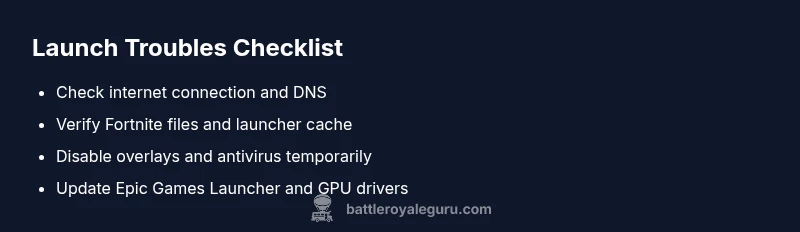
Fortnite won’t launch for several common, solvable reasons. Start with simple checks: confirm a stable internet connection, update the Epic Games Launcher and Fortnite, verify game files, and disable overlays or VPNs. If issues persist, perform a clean reinstall. These steps address the most frequent causes and get you back into the game quickly.
Why Fortnite Won't Launch: Top Culprits
If you’re asking why fortnite won't launch, you’re not alone. This issue is usually a local setup problem rather than a sudden server outage. The most common culprits are a weak internet connection, an outdated Epic Games Launcher or game build, and software conflicts running in the background. The phrase why fortnite won't launch often points to one of these culprits. According to Battle Royale Guru, starting with the simplest checks yields the fastest results and reduces frustration. In this guide, we’ll walk you through a practical, step-by-step diagnosis to quickly get you back into the match.
- Quick wins: check your network stability, restart your router, and try launching while connected via Ethernet.
- Avoid jumping to conclusions: a minor cache issue can look like a broader problem, so verify files and caches first.
- Stay methodical: test one change at a time and document what fixes or doesn’t fix the issue.
Check System Requirements and Compatibility
Fortnite has baseline hardware and software requirements. Ensure your operating system is up to date, your system has enough free resources, and you’re not attempting to run on unsupported hardware. The keyword here is compatibility: if your device doesn’t meet the minimums, launch failures are more likely. A quick audit of your system specifications and installed updates can reveal bottlenecks before deeper troubleshooting. In our experience at Battle Royale Guru, many launch issues stem from outdated system components that simply need a reboot or patch.
- Verify OS compatibility via official support pages.
- Check available RAM and storage space; clear unnecessary files.
- Keep firmware and drivers current to minimize conflicts with modern games.
Verify and Repair Fortnite Launcher and Game Files
Corrupted files or a faulty launcher cache are frequent causes of launch problems. Open the Epic Games Launcher, go to Library, click the three dots beside Fortnite, and select Verify. This process checks the game’s integrity and repairs any missing components. If the launcher itself is lagging, sign out and back in or clear the launcher cache. Battle Royale Guru analysis shows that file integrity is a surprisingly common fix for launch failures. After verification, try launching again before attempting further steps.
- If verification fails, re-download affected components only rather than the whole game.
- Clear launcher cache by closing the launcher, deleting the web cache, and reopening.
Network, Firewall, and VPN Considerations
A poor or unstable connection can prevent Fortnite from launching or from connecting to matchmaking servers after launch. Use a wired connection when possible, reboot your router, and flush your DNS. Temporarily disable VPNs or proxies that reroute traffic, and ensure your firewall isn’t blocking Epic Games services. If you're in a managed network (school/work), consult the admin to whitelist Fortnite. A stable network is foundational; even small jitters can break the launch flow.
- Try a quick speed test and ping check to verify stability.
- Configure port forwarding for Epic Games services if needed.
- Add exceptions for Epic Games Launcher in firewall settings.
Overlays, Antivirus, and Background Apps
Background software can block Fortnite from launching or cause it to crash on startup. Disable overlays from Discord, GeForce Experience, and Steam during testing. Add Fortnite and the Epic Games Launcher to your antivirus whitelist or temporarily disable real-time scanning while you launch. Close unnecessary background apps to free up memory and reduce conflicts. This is a common, safe step to isolate problems without affecting daily use. In some cases, conflicts are due to background capture software or video overlays.
- Temporarily disable all overlays during launch tests.
- Ensure antivirus real-time protection isn’t interfering with loading processes.
- Restart with a minimal startup to identify conflicting software.
Driver, OS, and System Maintenance
Outdated graphics drivers or OS components can sabotage Fortnite's startup. Update your GPU drivers from the official vendor site and install any pending Windows/macOS updates. Running a general system cleanup and a memory check can also help. Regular maintenance keeps Fortnite launchable and reduces longer-term issues. Battle Royale Guru recommends a quarterly review of drivers and patches to prevent recurring problems.
- Run a driver clean install when updating drivers.
- Check for available operating system updates and security patches.
- Run a system diagnostic tool to catch hidden issues.
When Reinstall Is Needed: Clean Start
If all the above fails, a clean reinstall may be the fastest route back to a stable launch. Back up your saves if possible, uninstall Fortnite and the Epic Games Launcher, then reinstall the latest versions from official sources. After reinstall, reapply your preferred settings and verify the file integrity again. Many players report success with a fresh install when other fixes have not resolved the issue. A clean install eliminates deeply cached data and misconfigurations that often linger after partial fixes.
- Keep a backup of important config files if possible.
- Reinstall using an administrator account to avoid permission issues.
- Re-run verification after reinstall to confirm integrity.
Prevention: Best Practices to Keep Fortnite Launchable
To minimize future 'why fortnite won't launch' moments, adopt a few solid habits: keep your system and drivers updated, avoid beta software on the primary gaming rig, and run the launcher with standard user permissions. Enable automatic repairs in the Epic Games Launcher when available. The Battle Royale Guru team recommends maintaining a clean startup profile and monitoring overlays and security software for conflicts. Proactive maintenance reduces downtime and keeps you in the fight.
- Schedule regular maintenance windows for your PC or console.
- Use stable, supported software versions for gaming.
- Document the fixes you used so future launches are faster.
Steps
Estimated time: 45-75 minutes
- 1
Check Internet and restart router
Test your connection with a quick speed and latency check. If latency spikes or DNS issues appear, restart your router and switch to a wired connection if possible. This step often resolves launch problems caused by network hiccups.
Tip: If you’re on Wi‑Fi, move closer to the router for a stronger signal. - 2
Update launcher and Fortnite
Open the Epic Games Launcher, check for updates, and install any pending patches. Ensure Windows or macOS updates are current. Run the launcher as administrator during the update to avoid permission issues.
Tip: Turn on automatic updates when possible to reduce future friction. - 3
Verify game files
In the Epic Games Launcher, go to Library, Fortnite, and select Verify. This identifies corrupted or missing files and repairs them automatically. If verification fails, re-download the affected components.
Tip: Don’t interrupt verification; let it complete to ensure integrity. - 4
Check overlays and security software
Temporarily disable overlays (Discord, GeForce Experience, Steam) and whitelist Fortnite in your antivirus/firewall. Launch again to see if the issue was caused by software conflicts.
Tip: If you must disable security software, re-enable it after testing. - 5
Test with minimal background programs
Close unnecessary apps to free up RAM and CPU. Some background processes can interfere with startup. Try launching with only essential services running.
Tip: Use Task Manager to end non-critical processes temporarily. - 6
Reinstall if necessary
Uninstall Fortnite and the Epic Games Launcher, then reinstall from official sources. After reinstall, verify files again and apply a fresh set of preferences.
Tip: Back up saved configs if possible before reinstall.
Diagnosis: Fortnite won't launch on PC/console
Possible Causes
- highUnstable network connection or DNS issues
- mediumOutdated Epic Games Launcher or Fortnite version
- highCorrupted game files or launcher cache
- mediumBackground software blocking launch (antivirus/overlay)
- lowHardware/OS incompatibility or insufficient resources
Fixes
- easyRestart router, use wired connection, flush DNS, and test with VPN off
- easyUpdate Epic Games Launcher and Fortnite, then run as administrator
- easyVerify files in the launcher and clear launcher cache
- mediumDisable overlays and temporarily whitelist Fortnite in antivirus/firewall
- mediumCheck system requirements and install pending OS/driver updates
Questions & Answers
Why did Fortnite stop launching after the latest update?
Updates can reset settings or cause compatibility conflicts. Try verifying files, clearing cache, and restarting the launcher.
Updates can cause launch problems; verify files and restart the launcher to fix it.
Can VPNs cause Fortnite launch issues?
Yes, VPNs can add latency or block connections. Disable VPNs and test launching again.
VPNs can cause launch issues; disable them to test.
How do I verify Fortnite game files in the launcher?
Open Epic Games Launcher > Library > Fortnite > verify. It checks integrity and replaces missing or corrupted files.
Open the launcher, verify Fortnite files to fix corrupted data.
Will reinstalling Fortnite erase my progress?
Reinstalling affects local files; your in-game progress is tied to your Epic account, but back up local saves and settings.
Reinstalling won't delete your Epic account progress, but back up local saves first.
Does Fortnite require admin rights to launch on PC?
Running as administrator can resolve permission issues, especially on Windows. Right-click the launcher and choose 'Run as administrator' for testing.
Running as administrator can help, especially on Windows.
What should I do if the launcher won’t open at all?
Try a clean launcher reinstall, clear launcher cache, and check Windows services. If still stuck, contact support.
If the launcher won't open, reinstall the launcher and clear the cache, then try again.
Watch Video
Key Points
- Start with connectivity and launcher integrity.
- Verify files to fix corrupted data.
- Test one variable at a time for clarity.
- Reinstall as a last resort to reset everything.