Why Is My Fortnite Audio Not Working? Quick Fixes
Battle Royale Guru guides you through practical, step-by-step troubleshooting to fix Fortnite audio. From settings to drivers, restore sound quickly and safely.


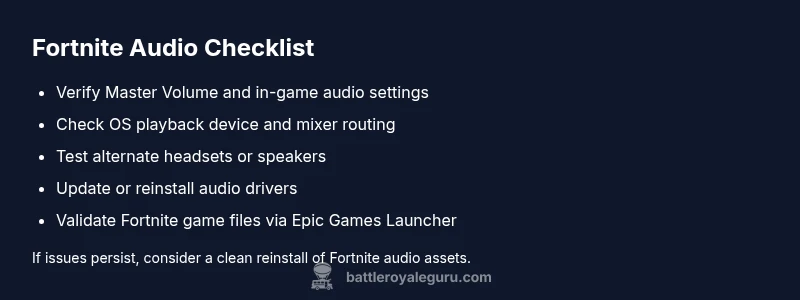
The most likely cause is a simple audio setting or device issue, not Fortnite itself. Start by checking your headset or speakers, ensuring the game and system volumes are not muted, and that Fortnite audio is set to the correct output. If it still brings no sound, switch output devices, update drivers, and verify game files.
Why Fortnite Audio Not Working: Common Causes
If you’re wondering why is my fortnite audio not working, this guide walks you through the most common fixes and how to test them quickly. According to Battle Royale Guru, most audio problems stem from misconfigured in-game settings, system audio defaults, or outdated drivers. Common culprits include muted volumes, incorrect output devices, or a mismatched audio profile (stereo vs surround). A loose headset connection or a faulty USB/HDMI path can also silence Fortnite sound. Before you dive into deeper fixes, start with the simplest checks: confirm the game is not muted, verify your system volume, and ensure the selected playback device matches your hardware. Battle Royale Guru Analysis, 2026 notes that many issues are resolved with user-level adjustments rather than reinstalling the game.
- In-game settings: Make sure Master Volume is up, Sound Effects enabled, and bass/Tone options are not overridden by a global profile.
- System defaults: Check your OS audio settings and ensure Fortnite is not routed through a different output or muted by the OS mixer.
- Hardware check: Inspect cables, adapters, and test with another headset or speaker to rule out a hardware fault.
Taking these steps often clears up the most frustrating scenarios, especially when you are dealing with a general audio problem rather than a specific feature like voice chat.
formatStringFromPolicyOnlyEndingsNotAllowedInHTMLSectionForNowOnlyThisBlockContentFormatAllowsMarkdownSectionsInBodyBlocks
shortenedNoteForEditorIfNeededWithMarkdownSupportToBeRemovedIfNotUsed
Steps
Estimated time: 25-40 minutes
- 1
Verify basic audio settings in-game and OS
Open Fortnite settings and confirm Master Volume is enabled, Sound Effects are on, and the correct audio profile is selected. Then check your system volume and make sure the overall system sound is not muted. Test a quick sound cue in another application to confirm system audio is functioning.
Tip: If you’re short on time, set Fortnite’s Master Volume to a middle level first, then adjust once a test sound plays. - 2
Test with a different output device
Switch to another headset or speakers, and if you use USB devices, try a direct 3.5mm connection or vice versa. This helps determine if the issue is device-specific. After switching, relaunch Fortnite and test a short sound cue.
Tip: Disconnect and reconnect the device to reset the audio path, then reselect it in both OS and Fortnite. - 3
Check Windows/Mac sound mixer and privacy settings
Open the audio mixer and ensure Fortnite isn’t muted or set to a very low level. On Mac/Windows, verify privacy settings that could block microphone or audio input/output for Fortnite. Reboot if you’ve made changes.
Tip: Some systems mute apps by default after updates; re-enable Fortnite in privacy and security settings. - 4
Update audio drivers and firmware
Go to the hardware manufacturer or motherboard/chipset site and install the latest drivers or firmware for your audio device. Restart the computer after updating to ensure changes take effect.
Tip: Choose a clean install if the updater offers it, to avoid leftover conflicting components. - 5
Verify game files and assets
In the Epic Games Launcher, select Fortnite > Verify. This checks and repairs audio assets that may be corrupted or missing after updates.
Tip: If verification shows issues, allow the launcher to download and reinstall affected components fully. - 6
Ultimately, reinstall Fortnite if necessary
If none of the above fixes work, a clean reinstall can resolve persistent audio issues by restoring all game files to their default state.
Tip: Back up saves and note any custom settings before reinstalling.
Diagnosis: User reports no audio in Fortnite across in-game sounds and voice chat
Possible Causes
- highIncorrect in-game audio settings or muted volumes
- highOutput device not set correctly or not connected (headset/speakers)
- mediumOutdated or corrupted audio drivers
- lowFortnite voice chat or game files corrupted
Fixes
- easyReset in-game audio settings to default and increase the Master Volume. Verify Audio Output is set to the correct device.
- easySet the OS default playback device to the device you are using for Fortnite and test with a system sound.
- mediumUpdate or reinstall audio drivers for your motherboard or sound card, and reboot.
- mediumVerify Fortnite game files via Epic Games Launcher and repair any missing or corrupted assets.
Questions & Answers
Why is Fortnite audio not working after a recent update?
Updates can reset audio settings or change device routing. Recheck Fortnite’s Audio settings, OS volume, and default playback device, then verify game files if sound still fails.
Updates can reset audio settings. Recheck your Fortnite audio options and OS sound, then verify game files if needed.
I hear sounds but no voice chat—what should I do?
Confirm in-game voice chat is enabled, check push-to-talk settings, and ensure your microphone is not muted on both the OS and in-game. Test with a different mic or app to confirm the microphone works.
Make sure voice chat is turned on and your mic isn’t muted in OS or Fortnite; test with another app to rule out hardware issues.
How can I test if the audio device is working outside Fortnite?
Play a system sound or a video with audio in another program to confirm the device is functioning. If it fails elsewhere, the issue is device-level, not Fortnite-specific.
Test your speakers or headset with a system sound to confirm hardware is fine.
Should I reinstall Fortnite to fix audio issues?
Only after all other fixes fail. A reinstall can restore corrupt game files but will remove local settings and may take time.
Reinstall as a last resort if all other fixes fail.
What if nothing works after following these steps?
Contact Epic Games Support or your platform’s help desk. Provide device specs, steps you’ve tried, and any error messages to get targeted assistance.
If nothing works, reach out to support with details of what you did.
Does crossplay affect Fortnite audio troubleshooting?
Crossplay can route audio differently across devices. Ensure each platform’s audio settings match your preferred output and test separately on each platform.
Crossplay can change audio paths; test each platform separately to isolate issues.
Watch Video
Key Points
- Start with easy checks: mute status, volume, and correct device selection.
- Update drivers and verify game files before considering reinstall.
- Always test with an alternate output to isolate device problems.
- Seek help if voice chat or cross-platform features remain unresolved.