Why Fortnite Not Loading? Urgent Troubleshooting Guide
Struggling with Fortnite not loading? This fast, step-by-step guide helps you diagnose and fix loading issues quickly with network checks, client updates, and server status tips.


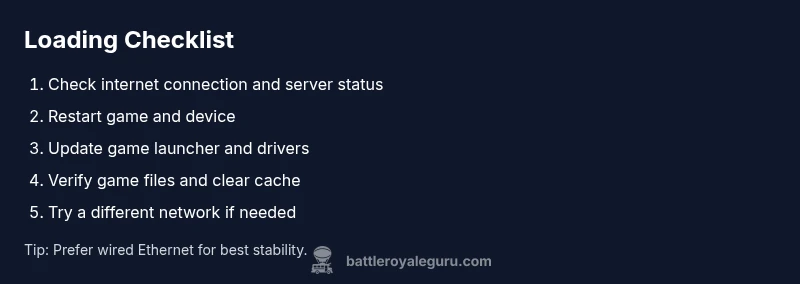
Why is my fortnite not loading? Start with the easiest checks: verify your internet connection, restart Fortnite and your device, and confirm servers aren’t down. If those don’t fix it, advance to network settings, graphics drivers, and a clean reinstall. The Battle Royale Guru team recommends 2-3 quick steps to get you back in-game fast.
Common Causes of Fortnite Loading Failures
There are several reasons your game might stall during startup or stay stuck on the loading screen. Most issues fall into broad categories: connectivity, client/launcher problems, server-side outages, and device-specific performance bottlenecks. From a troubleshooting perspective, you should assess these areas in order from simplest to most involved. According to Battle Royale Guru, the majority of loading failures begin with basic connectivity checks and server status. If you keep hitting a loading screen, the first question is: is your internet stable? If the answer is yes, then move on to the game client and settings. Reproducing the scenario with another device can help isolate whether the issue is platform-wide or device-specific. Finally, if nothing else works, consider a reinstall or file verification to rule out corrupted data.
Check Your Network and System Readiness
A solid internet connection is the foundation for Fortnite, and even small fluctuations can cause long loading times or prevent the game from launching. Start by testing your connection speed and stability using a trusted speed test, and temporarily disable VPNs or firewalls that might interfere. Switch to a wired Ethernet connection if possible, or move closer to your Wi-Fi router. Also verify Fortnite servers in your region are operating normally by visiting the official status page. On consoles, ensure NAT type is open or moderate. On PCs, close background programs that consume bandwidth.
Game Client, Launcher, and Server Status Checks
Next, verify that your game files and launcher are up to date. Enable automatic updates and run a file integrity check if the launcher offers one (in Epic Games Launcher, use “Verify” on the Fortnite game). Clear any stale cache by signing out and deleting temporary files, then relaunch. Check the official Fortnite server status; even popular games can experience short outages that affect loading times. If you’re using the in-game overlay or anti-cheat software, temporarily disable it to see if it’s triggering the load delay.
Device Profiles, Settings, and Performance
Investigate device-specific factors that influence loading. On PC, update graphics card drivers, install the latest Windows updates, and ensure your system meets the minimum requirements. Reduce in-game graphics settings and disable background captures or recording software that can spike disk or GPU usage during startup. On consoles, ensure your storage isn't nearly full, install any pending system updates, and try booting from a different storage drive if available.
Advanced Fixes: Cache, Reinstall, and File Verification
Advanced fixes include verifying game files, clearing caches, and a clean reinstall if data corruption is suspected. Use the Epic Games Launcher to verify Fortnite files, then clear local cache by removing temporary Fortnite data from your system caches. If problems persist, uninstall Fortnite completely, then redownload and reinstall it to ensure you have a clean, unrecoverable copy. This approach often resolves stubborn loading issues caused by corrupted data.
Prevention: Keeping Fortnite Loading Smooth
Establish a simple maintenance routine to prevent future loading issues. Keep software up to date, monitor your network usage during gaming sessions, and avoid running heavy background tasks during startup. Regularly run disk cleanup and ensure you have ample free storage. If you frequently play on multiple devices, synchronize settings and keep cross-platform launchers updated. By following these practices, you reduce the likelihood of repeat loading problems and improve overall stability.
Steps
Estimated time: 45-90 minutes
- 1
Verify basics: connectivity and server status
Check your internet connection stability, perform a quick speed test, and confirm Fortnite servers are operational for your region. If the servers are down, you’ll need to wait or switch regions if possible.
Tip: If your speed test shows consistent results but Fortnite still won’t load, the issue is likely client-side or server-related rather than pure connectivity. - 2
Restart and refresh
Exit Fortnite completely, close the launcher, reboot your device, and then reopen the launcher and the game. A fresh session can clear transient glitches causing long load times.
Tip: Always restart both the game and platform to clear memory and reset network state. - 3
Update and verify files
Update Fortnite and its launcher to the latest version. Use the launcher’s verify/repair function to scan and repair corrupted game files.
Tip: Verification can catch and fix corrupted assets that cause loading to fail. - 4
Check network settings and open ports
Ensure your network allows Fortnite traffic; adjust NAT type on console if needed and consider temporarily disabling VPNs. Some networks require specific port openings for optimal loading.
Tip: A permissive firewall rule can unblock Fortnite loading without sacrificing security. - 5
Clear cache and reduce background load
Clear the game’s local cache and close nonessential background apps that consume disk or network bandwidth during launch.
Tip: Background apps can steal bandwidth and CPU cycles, delaying startup. - 6
Reinstall as a last resort
If none of the above works, uninstall Fortnite completely, remove residual data, then reinstall a fresh copy. This resolves persistent data corruption.
Tip: Back up important saves or settings if the game stores them locally.
Diagnosis: Fortnite won't load past splash screen or stalls on loading screen
Possible Causes
- highPoor or unstable internet connection
- mediumOutdated game client or graphics drivers
- mediumCorrupted game files or launcher cache
- lowServer-side outages or regional downtime
Fixes
- easyTest and stabilize your internet connection; try a wired connection; temporarily disable VPN or firewall that may interfere
- easyRestart Fortnite and your device, then relaunch the game
- easyUpdate Fortnite, the launcher, and graphics drivers; run a file verification if available
- mediumClear cache and, if corruption is suspected, reinstall Fortnite completely
Questions & Answers
Why won't Fortnite load at all on my system?
Most often this is caused by connectivity issues, server outages, or corrupted game files. Start with a quick network check and verify your game files before moving to more involved steps.
Fortnite won’t load usually due to connectivity, server status, or corrupted files. Start with network checks and file verification.
Is Fortnite downtime causing loading problems?
Yes, server outages or regional downtime can prevent the game from loading. Check the official Fortnite status page and wait if needed before attempting fixes on your end.
Server downtime can stop loading; check the status page and try again later.
Is it safe to clear cache and reinstall Fortnite?
Clearing cache and reinstalling are standard troubleshooting steps when data corruption is suspected. Back up settings when possible and follow official uninstallation steps.
Clearing cache and reinstalling is safe if you follow the proper steps.
Will changing my network help if I’m on wireless?
Switching to a wired connection can greatly improve stability and loading times. If you must stay on Wi‑Fi, try moving closer to the router or using a 5 GHz band.
A wired connection usually helps loading a lot more than wireless.
When should I contact support?
If you’ve exhausted all standard fixes and Fortnite still won’t load, contact official support with logs and details about your device, platform, and connection. They can investigate server and account issues.
If fixes fail, contact support with details about your device and network.
Watch Video
Key Points
- Start with a solid network check and server status.
- Verify and repair game files before reinstalling.
- Use a structured, step-by-step approach to isolate the cause.