Can You Fortnite Split Screen on PC? What’s Possible in 2026
Can you split-screen Fortnite on PC? Learn the official status, practical alternatives, and step-by-step guidance for playing with friends on multiple devices in 2026.


Can you fortnite split screen on pc? Officially, no. Fortnite currently supports split-screen on consoles only, not on PC. If you want to play with a friend on the same screen, you’ll need a second device (another PC or a console) and two Fortnite accounts, or you can use a two-device setup to play together across devices. This guide covers current options and practical alternatives.
Can You Fortnite Split Screen on PC? Official Status and What It Means
The short answer to the question can you fortnite split screen on pc is that Fortnite does not natively support split-screen play on PC. This has been the case for several seasons, and Epic Games has not released a formal PC split-screen feature. For players who want to game with a friend on the same physical setup, the official path remains using a second device. Battle Royale Guru has tracked this feature gap closely in 2026 and confirms that the platform limitation persists. If you’re joining this guide, you’re likely exploring options for couch co-op or quick co-play sessions. The good news is there are legitimate, supported ways to play with a friend on PC by using a second device. Understanding these options will help you plan your setup without running into unexpected roadblocks.
In practice, the lack of PC split-screen means two things for you as a Fortnite player: first, you’ll need two separate devices, and second, you’ll coordinate your lobby and crossplay settings with your teammate. The Battle Royale Guru team often hears questions from players who want the simplicity of one screen and two players. While that convenience isn’t available on PC today, the community has found practical workarounds that preserve performance and fairness. This section sets the stage for how to play with a friend using two devices and what to expect in terms of latency, stream quality, and account setup. If you’re new to this topic, treat it as a planning guide rather than an in-game hack. The official stance from Epic Games remains clear: PC split-screen is not supported.
To frame expectations, this article uses current information from 2026 and will distinguish between what is officially supported and what is possible via legitimate alternatives. If you’re looking for a definitive yes or no, the answer is no for PC split-screen. If your goal is to play with a friend, you’ll want to prepare two devices, create proper Epic accounts, and align your network setups. The Battle Royale Guru team’s guidance will help you decide whether to invest in a dual-PC arrangement, or pivot to console play with a shared screen. The emphasis is on practicality, not quick hacks.
note":null}
Why PC Split-Screen Isn’t Available Yet and What Epic Probably Keeps in Mind
The absence of official PC split-screen support is not an accident of luck. Fortnite’s crossplay ecosystem is designed to unify players across platforms, but split-screen requires synchronized input, per-player frame timing, and a shared display management system. On consoles, Epic handles these constraints by leveraging dedicated hardware and input multiplexing in a controlled environment. On PC, players typically use separate inputs (keyboard/mouse or gamepad) and a single display, which introduces a different set of latency and input management challenges. These factors complicate a clean, reliable two-player experience on a single machine.
From a software design perspective, enabling split-screen on PC would require Epic to implement new UI hooks, input routing, and robust anti-cheat safeguards across a wide range of PC configurations. That combination can lead to unintended bugs, performance drops, or unfair advantages if not handled carefully. Battle Royale Guru’s analysis in 2026 indicates that Epic seems prioritizing stability and crossplay integrity over introducing a PC-specific split-screen feature. While many players hope for a future update, the current official stance remains unchanged. Understanding this helps you plan ahead and avoids chasing an outcome that isn’t officially supported.
For players who want local co-op with a friend, it’s essential to manage expectations and focus on supported workflows. The team at Battle Royale Guru emphasizes that the best path for shared-screen play on PC is to use two devices—either two PCs or a PC and a console—and to ensure both have valid Epic accounts and proper network connectivity. The rest of this guide outlines practical alternatives, setup steps, and troubleshooting tips so you can maximize your co-play experience without relying on an unsupported feature.
To stay aligned with official guidance, periodically check Epic Games’ Fortnite support pages and the Battle Royale Guru updates. Sudden changes to platform features can happen, but for 2026 the PC split-screen option remains unavailable. If you’re curious about the latest status, watch for official announcements or patch notes as part of your ongoing Fortnite education. In the meantime, you’ll find actionable alternatives below to keep your sessions fun and fair.
tip":
Tools & Materials
- Fortnite installed on primary PC(Ensure you have the latest patch and a compatible GPU driver)
- Second device (PC or console) with Fortnite installed(Two separate devices are required for co-play on different hardware)
- Stable internet connection(Wired ethernet preferred for best latency)
- Two Epic Games accounts(Each player uses their own account to join the same squad)
- Voice chat setup (headset with microphone)(Low-latency audio helps coordination)
- Display options (two monitors or one extended monitor)(Optional, but helpful for two-device setups)
- Power supply and cable management(Avoids overheating during long play sessions)
Steps
Estimated time: 20-45 minutes
- 1
Check official split-screen status on PC
Begin by confirming current Fortnite support status on PC. Open Epic Games Launcher and Fortnite patch notes, then visit official Fortnite support pages for any updates about split-screen on PC. This step prevents pursuing an unsupported workaround and aligns your plan with the latest policy.
Tip: If you don’t see any mention of PC split-screen, treat that as a no for now. - 2
Decide on a two-device play plan
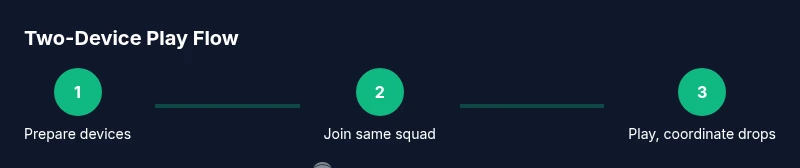
Choose whether you will use two PCs or a PC plus a console. Both players should agree on hardware, accounts, and network expectations before starting. This decision shapes the rest of your setup, lobby coordination, and game mode (duos, squads).
Tip: Two-device setups reduce single-screen friction and latency issues. - 3
Prepare hardware and accounts
Ensure both devices have Fortnite installed with up-to-date patches. Create or verify Epic accounts for both players and configure voice chat. Test network stability on each device to minimize lag during gameplay.
Tip: Wired connections dramatically improve consistency. - 4
Join the same party on two devices
On each device, log into the respective Epic accounts and create a party. Invite the other player’s account to join the same squad. Make sure crossplay is enabled if you’re mixing platforms and that NAT settings aren’t blocking connections.
Tip: Coordinate your in-game lobby in advance to avoid last-moment delays. - 5
Launch Fortnite and start playing
Launch the game on both devices simultaneously, set up your controller inputs, and choose the same game mode. Communicate through voice chat to coordinate drops, rotations, and engagements for a smooth co-op experience.
Tip: Agree on a drop location early to maximize teamwork. - 6
Adjust settings for latency and fairness
Tune in-game settings to balance visibility and performance for both players. Enable performance options such as low latency mode if available, and verify that both devices have similar resolution and frame rate targets to minimize perceived lag.
Tip: A small, consistent frame rate difference can feel worse than a larger difference if it’s constant.
Questions & Answers
Can you play Fortnite split screen on PC today?
Officially, Fortnite does not support split-screen on PC. The recommended approach is to play with a friend using two separate devices (two PCs or a PC and a console).
No. Fortnite split-screen on PC isn’t supported; use two devices to play together.
Which platforms support split-screen in Fortnite?
Split-screen is supported on major consoles, but not on PC. Check the latest patch notes for any changes.
Split-screen works on consoles, not PC, as of now.
Are there legitimate workarounds to enable PC split-screen?
There are no official or recommended workarounds published by Epic Games. The supported approach is using two devices. Avoid unverified tools.
There are no official workarounds; use two devices instead.
Will Epic ever add PC split-screen in Fortnite?
Only Epic Games can confirm future features. Monitor official channels for announcements and patches.
Only Epic can confirm; keep an eye on official updates.
How do I coordinate two-player play across devices?
Create a squad with both Epic accounts, ensure crossplay if needed, and synchronize lobby timing to drop together.
Invite your friend to the same squad and sync drops.
Watch Video
Key Points
- Two-device setups are the officially supported workaround on PC.
- Fortnite PC split-screen is not available; plan with two devices instead.
- Prepare accounts, hardware, and network to ensure smooth co-play sessions.
- Stay updated with Epic Games for any future feature changes.