How to Put Fortnite in Split Screen
Learn how to enable local split-screen in Fortnite on supported consoles, with step-by-step setup, common issues, and platform limitations for smoother couch co-op.


You can play Fortnite in split screen on supported consoles with two controllers. Expect couch co-op in Battle Royale and select game modes, but not on PC or mobile. To start, connect a second controller, sign in a guest profile, and choose Split Screen from the lobby. Have a stable internet connection and the latest game patch installed for best results.
What split-screen is and platform support
Split-screen is a local multiplayer feature that lets two players share one screen using two controllers. In Fortnite, this couch co-op mode is supported on certain consoles but not on PC or mobile. The exact availability can depend on your platform and patch level, so always verify the current status in Fortnite's settings or Epic Games' official pages. According to Battle Royale Guru, console users with two working controllers can enjoy two-player co-op by signing in a guest profile and selecting Split Screen from the lobby. If you’re unsure whether your platform supports it, start by checking your system's compatibility notes and the game's patch notes for Split Screen support.
Prerequisites and compatibility
Before attempting split-screen, confirm your setup is compatible. You’ll need two controllers that work reliably and two active user profiles on the console (host and guest). Ensure Fortnite is installed with the latest patch, and the console is connected to the internet for authentication and updates. Some consoles require a guest sign-in tied to the host account, so check your user switch settings. A stable connection minimizes input lag and screen tearing, which can ruin the split-screen experience. Battle Royale Guru emphasizes starting from the main menu to avoid mid-game sign-in glitches. If a guest account isn’t ready, create one in advance to streamline the process.
Known limitations and mode scope
Split-screen availability can vary by platform and game version. On supported consoles, you typically get two-player couch co-op in Battle Royale and certain Limited Time Modes, while some modes may be inaccessible in split-screen. The layout may default to a vertical split, with each player’s HUD visible on their half of the screen. Certain cosmetic unlocks or competitive modes might behave differently when two players share a screen. Always consult the latest patch notes from Epic Games for exact mode compatibility, and remember that the feature is not universally available across all Fortnite modes.
Quick-start checklist
- Confirm you’re on a supported console with two functioning controllers.
- Sign in two separate profiles (host and guest) or a guest account for the second player.
- Update Fortnite to the latest patch and verify network stability.
- Have a comfortable play area with a single large display and enough seating for both players.
- Disconnect excessive background apps or other network-heavy devices to minimize latency.
- Ensure both players are prepared to join from the lobby when prompted.
- Review mode availability in the lobby before selecting a match.
- Keep a headset handy for clear communication if you’re coordinating in-game.
How the split-screen layout works on consoles
When two players join, Fortnite automatically allocates screen space so each participant can view and interact. The host typically uses the left side of the screen, while the guest occupies the right; you may be able to switch layout in the in-game settings if your system supports it. The split is designed to minimize overlap of critical UI elements while preserving visibility for both players. If screen tearing or lag occurs, reduce in-game resolution or close other applications to reclaim GPU/CPU headroom. Consistent performance relies on a solid internet connection and recent patch updates.
Step-by-step overview: flow from lobby to match
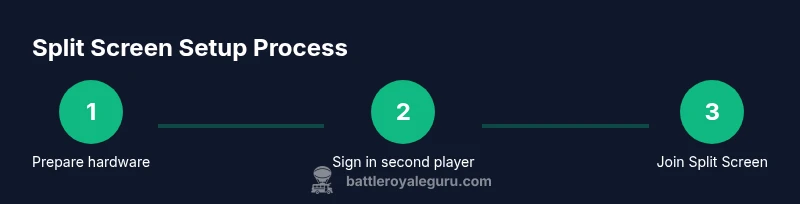
The general flow is host signs in, guest joins, you navigate to Split Screen, choose a mode, and start matchmaking. If the lobby presents the option to "Join Split Screen" or a guest prompt, accept it and confirm screen layout. Once the match begins, both players share the same battlefield but retain individual controls and inventories. Note that some settings might be locked during split-screen sessions to maintain fair play. Always verify both players’ input is recognized before starting matchmaking.
Inputs, controls, and UI considerations
Two controllers require proper mapping so each player’s actions correspond to their character. If one controller drifts or misreads inputs, recalibrate the sticks from the console’s settings menu. In-game, onboard UI will show each player’s health, shield, and inventory with color-coded indicators. Keep chat and push-to-talk simple to minimize miscommunications during fast-paced battles. If your screen appears dark or washed out, check HDMI color settings and video output modes on the console.
Troubleshooting common issues
If the guest cannot join, verify the second profile is properly signed in and that the lobby is in Split Screen mode. If the screen remains single-player, ensure your console version supports split-screen in the current Fortnite patch. Connectivity problems can manifest as input lag, desync, or black screens; troubleshooting includes rebooting the console, resetting network hardware, and rechecking parental controls that might block guest sign-ins. Always test with a friend in the same room to confirm local play is functioning before attempting online matchmaking.
Performance tips for a smoother experience
For smoother split-screen gameplay, disable bandwidth-heavy apps on the console and use a wired internet connection if possible. Balance the display by keeping both players’ settings aligned—turn off motion blur and reduce shadows where supported. If you notice frame drops, lower the resolution or frame rate cap in the graphics options. Keeping the latest driver and firmware updates installed can reduce compatibility issues across patches.
Safety and parental controls considerations
Split-screen sessions may involve shared screen time and potentially extended play. Parental controls can limit the duration of gaming or require passcodes to launch certain modes. Be mindful of the age-related settings on your console and ensure both players’ accounts comply with platform safety guidelines. If younger players are involved, enable content filters and monitor in-game chat for a positive experience.
Alternatives if split-screen isn’t available
If split-screen is not supported on your platform, consider remote play options where supported, or pairing two consoles in a local play setup with a separate screen for each player. Some platforms offer cloud or streaming options that let two players participate remotely, though this may introduce input latency. You can also practice together in Creative mode locally (if available) or coordinate on alternate games that support couch co-op.
What to do after you finish
Exit split-screen mode by returning to the lobby, saving your settings, and signing out the guest profile if needed. If you plan to play again, confirm that the host profile remains active and the second controller is ready for the next session. Review patch notes for any changes to split-screen support before your next gaming session to avoid surprises.
Tools & Materials
- Console with two controllers(Two separate controllers connected and configured for two players.)
- HDMI cable and monitor/TV(A single display large enough for both players.)
- Fortnite installed and up-to-date(Latest patch that includes Split Screen support.)
- Two active user profiles (host + guest)(Guest profile can be a temporary/sign-in account.)
- Stable internet connection(Minimize latency and authentication issues.)
- Optional headset(For clearer in-game communication.)
- Power supply and spare batteries(For extended sessions without interruptions.)
Steps
Estimated time: 15-25 minutes
- 1
Connect and verify controllers
Begin by ensuring both controllers are paired with the console and assigned to separate players. Check that both inputs are recognized on the home screen before launching Fortnite. If one controller doesn’t respond, re-pair it using the console’s controller settings.
Tip: Take a moment to confirm both players can move their characters in the home menu before starting. - 2
Sign in the guest profile
Have the second player sign in as a guest or second account on the console. This creates a second active user so Split Screen can join. If a guest profile isn’t ready, create one in advance and sign in quickly.
Tip: Keep the guest profile ready at the console login screen to avoid delays. - 3
Launch Fortnite and reach the lobby
Open Fortnite on the host account and navigate to the main lobby. Ensure both players are visible on the lobby screen and ready to select Split Screen. Waiting for both players to appear helps prevent mid-lobby join errors.
Tip: If the lobby loads slowly, pause and ensure the game is fully connected to the network. - 4
Initiate Split Screen join
In the lobby, the guest should be prompted to join Split Screen or use a Join Split Screen option. Accept the prompt to allocate the second half of the screen. If the option doesn’t appear, ensure the patch supports Split Screen for your current mode.
Tip: If you don’t see the prompt, restart Fortnite and retry from the main lobby. - 5
Choose a mode that supports split-screen
Select a mode that supports local split-screen (typically Battle Royale on consoles). Some modes may be excluded. Confirm the host is ready, then proceed to matchmaking.
Tip: Double-check mode availability in the patch notes or in-game prompts. - 6
Confirm both players are ready
Each player confirms readiness in the lobby. The host starts matchmaking, and the game will assign controls to both screens. If one player isn’t ready, the session won’t begin.
Tip: Have both players ready before hitting Join Queue. - 7
Start the match
Once both players are ready, initiate the match through the lobby. The screen will immediately split, showing each player’s view. Be prepared for a moment of adjustment as you acclimate to shared screen space.
Tip: Communicate positioning to avoid crowding in-game. - 8
Adjust settings if needed
If you experience awkward UI or cramped views, adjust in-game display settings to optimize each player’s HUD. Some consoles allow layout adjustments from the pause menu.
Tip: Experiment with layout options to find the most comfortable setup. - 9
Play and coordinate
Play as a duo, using voice chat or on-device chat to coordinate. Keep communication clear to maximize teamwork and reduce misclicks.
Tip: Assign roles (e.g., one caller, one builder) to streamline play. - 10
End session and sign out
When you’re done, return to the lobby and sign out the guest profile if needed. Reconnect controllers and ensure the system returns to a single-player setup smoothly.
Tip: Note the session for future reference if you plan to replay soon. - 11
Troubleshoot common join issues
If Join Split Screen fails, verify the second profile is signed in, and the game is updated. Reboot the console if problems persist and reattempt the join process.
Tip: A quick reboot often resolves a stuck join prompt. - 12
Prepare for next session
Check for patch notes and confirm Split Screen status before your next game. Keep both controllers charged and ready for back-to-back sessions.
Tip: Keep a small pause between sessions to reset resources.
Questions & Answers
Is split-screen available on PC or mobile for Fortnite?
Split-screen is not supported on PC or mobile versions of Fortnite. This feature is currently available on eligible consoles with two controllers. If you play on PC, you’ll need to join online with separate devices.
Split-screen isn’t available on PC or mobile; it’s a console feature requiring two controllers.
How many players can use split-screen on Fortnite?
Fortnite split-screen supports two players sharing one screen, using two separate controllers. There isn’t a three- or four-player split-screen option for Battle Royale on consoles.
Two players maximum in split-screen on consoles.
Do all game modes support split-screen in Fortnite?
No. Split-screen supports select modes, primarily Battle Royale on consoles, with some Limited Time Modes. Always verify the mode’s split-screen availability in the patch notes or in-game prompts.
Only certain modes support split-screen; check the latest patch notes.
Do I need an online subscription to use split-screen?
Yes. A standard online subscription for the host platform (like PlayStation Plus or Xbox Live) is typically required for online play, even though split-screen itself is local co-op. Guest sign-in is still subject to platform rules.
An online subscription is usually required for online features; local split-screen is separate.
Will split-screen affect performance or frame rate?
Splitting the screen can slightly affect performance due to shared resources. Ensure your console and game are updated and that you’re using a stable network to minimize any FPS drops or latency.
There may be minor performance changes when using split-screen, depending on your device.
What should I do if the guest can’t join?
Confirm the guest profile is signed in and the game version matches between hosts. If issues persist, restart Fortnite and your console, then retry the join process.
If the guest can’t join, sign them in again and restart the game if needed.
Watch Video
Key Points
- Split-screen is console-only on Fortnite (not PC/mobile).
- Two controllers and a guest profile are required.
- Not all modes support split-screen; check patch notes.
- Ensure both players are ready in the lobby before matchmaking.
- Keep patches and network connections up to date for best results.