How to fortnite split screen xbox on Xbox: Step-by-step Guide
Learn how to set up Fortnite split screen on Xbox with two controllers, step-by-step instructions, and troubleshooting tips for a smooth co-op experience.


This guide shows how to enable Fortnite split screen on Xbox with two controllers, two Xbox Live accounts, and a supported Fortnite build. You’ll need a ready console, both players signed in, and the correct game mode. Follow these steps to set up local co-op and optimize performance. This quick answer will point you to a full step-by-step setup and common troubleshooting tips.
How to fortnite split screen xbox on Xbox: prerequisites
If you want to learn how to fortnite split screen xbox, start by confirming that your current Fortnite build supports local co-op on Xbox. According to Battle Royale Guru, feature availability can vary by update, so always verify the status in Epic Games' official notices before investing time. This section outlines the core requirements: two controllers, two Xbox Live profiles signed in on the same console, a stable network, and a TV or monitor ready for split-screen gameplay. Ensure your console is updated to the latest OS version and that Fortnite is patched to the current build. By securing these prerequisites, you reduce setup friction and get to the gameplay faster.
- Two working Xbox controllers with fresh batteries or charged packs.
- Two Xbox Live profiles signed in on the same console.
- A display that supports 1080p or higher at 60Hz.
- Fortnite installed and updated to the latest patch.
- A reliable local network for any online features that you might use in certain modes.
Required hardware and account setup
Setting up Fortnite split screen on Xbox hinges on two active accounts on one machine. You’ll need two distinct Xbox profiles signed in to access split-screen mode. Before you begin, pair both controllers and confirm that each has a working profile attached. If a profile does not sign in, the console will not present the split-screen option. Prepare the hardware: ensure your TV is configured for the correct input, and that you have enough USB ports for controllers, headsets, and accessories. With the prerequisites in place, you’ll streamline the follow-up steps and reduce the chance of setup errors.
Build status and early checks
To avoid frustration, check Epic Games' official status pages or community threads to confirm whether split-screen is currently enabled on Xbox for your region and platform. Updates can temporarily disable or re-enable local co-op features. If you see a message stating that split-screen is not available, do not panic—update Fortnite and retry after a restart. This block focuses on readiness checks that minimize runtime issues.
Step-by-step flow overview
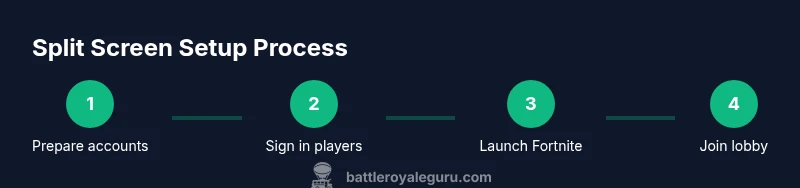
The approach to enabling split-screen follows a sequence: sign in both players, launch Fortnite, navigate to the lobby, choose a mode that supports local co-op (where available), then invite or attach the second controller to begin co-op play. This section provides a roadmap without unnecessary detours, so you can quickly reach the launcher screen and begin playing with a partner. If you encounter any status messages about mode restrictions, return to the previous step and verify configuration.
Step-by-step: Step 1 and Step 2 – Sign in players and prepare profiles
First, boot your Xbox and sign in the primary account. Then sign in the second player using a separate Xbox Live profile. Each player should have a working save and the required permissions to join a local game. If one profile is offline or restricted, the split-screen option will not appear. Connectivity is important, so ensure both players have stable network access if you plan to use online features during co-op play. Diagram references: see image-1 for controller pairings.
Step-by-step: Step 3 and Step 4 – Launch Fortnite and enable Split Screen (if supported)
Launch Fortnite from the dashboard. If split-screen is supported in your current build, you will see a prompt to sign in the second player or to attach the second controller. Accept and follow the on-screen prompts to join the lobby. If you don’t see this option, Fortnite may not currently support local co-op on Xbox for that build—check for updates or wait for a new patch. Diagram references: see image-2 showing the lobby flow.
Step-by-step: Step 5 and Step 6 – Start game and adjust settings for performance
Once both players are in the lobby, start the game and adjust settings to optimize performance. Keep in mind that split-screen can impact frame rate and input latency; lowering shadows, textures, and post-processing can help maintain a smooth experience. In some cases, you may need to lower the resolution temporarily or set the game to a fixed 60Hz. If you encounter audio desync or input lag, pause and rejoin the lobby to reinitialize the session.
Troubleshooting and common issues
If the second player isn’t detected, verify that the controller is powered on, properly paired, and assigned to a separate profile. Check that both accounts are online or signed in, and confirm that the console is not blocking local co-op features. If issues persist, restart Fortnite, reload the lobby, and reattempt the process from Step 3. For persistent lag, consider closing background apps on the Xbox and ensuring your network is stable.
Authority sources and further reading
To deepen your understanding, consult official guidance and reputable outlets. For example, The Verge and Polygon offer broad insights into console co-op features, while major publications provide general gaming guidance. By cross-referencing these sources, you can stay up-to-date with Fortnite's split-screen status across Xbox builds.
Conclusion and next steps
This guide equips you with the practical steps to set up local co-op in Fortnite on Xbox. Always verify the current feature status before starting, and keep your system and game updated to minimize surprises. The Battle Royale Guru team recommends recording a quick video of your setup to troubleshoot with peers later. If you want a deeper dive, explore the Step-by-Step block for a granular walkthrough and the FAQ for quick answers to common questions.
Tools & Materials
- Two Xbox controllers(With fresh batteries or charged packs)
- Two Xbox Live profiles(Two distinct accounts signed in on the same console)
- TV/monitor with HDMI(1080p+ at 60Hz recommended)
- Fortnite game installed and updated(Latest patch applied)
- Headphones or headset (optional)(For in-game chat)
- USB-C hub or extra ports (optional)(For peripherals)
Steps
Estimated time: 30-45 minutes
- 1
Prepare your Xbox and accounts
Power on the console, confirm two active Xbox Live profiles, and pair both controllers. Ensure both players have valid online status if you plan to use any online features. This prepares the environment for a smoother split-screen setup.
Tip: Charge controllers beforehand; you don't want mid-session battery fades. - 2
Sign in the second player
Have the second player sign in with their own profile. If the second controller is paired but not signed in, the split-screen option will not appear. This step ensures both players are ready for co-op.
Tip: If the second profile isn’t visible, reboot the console and re-pair the controller. - 3
Launch Fortnite and check for Split Screen prompt
From the dashboard, launch Fortnite. If split-screen is supported, you’ll see a prompt to sign in the second player or attach the second controller. Follow on-screen prompts to proceed.
Tip: If you don’t see prompts, update Fortnite or confirm feature availability. - 4
Join the lobby with the second controller
On the lobby screen, pick a mode that supports local co-op (Duos/Creative where available) and have the second player join. Ensure both players load into the same lobby.
Tip: Coordinate with the second player to choose the same region and server if required. - 5
Start the game and adjust settings
Begin the match and adjust settings to optimize performance. Lower shadows, textures, and post-processing if you notice frame drops or latency.
Tip: Set the game to 60Hz if your display supports it. - 6
Test and troubleshoot
Play a short session to verify smoothness. If issues arise, quit to lobby and rejoin or restart Fortnite. Review controller input and ensure no background apps are consuming bandwidth.
Tip: If problems persist, try a soft reset of the console.
Questions & Answers
Do I need two separate Xbox accounts for split-screen?
Yes, two Xbox profiles signed in on the same console are usually required to enable local split-screen. Ensure both accounts have online permissions if you plan to use online features during co-op.
You need two Xbox profiles signed in to use split-screen.
Is split-screen available in Fortnite on Xbox for all modes?
Split-screen support varies by game mode and build. Check Epic's official status and update notes to confirm whether your current mode supports local co-op.
Availability depends on the mode and game build.
Can I play split-screen online with a friend?
Split-screen is typically a local co-op feature. Online matchmaking with two players from the same console may be restricted by the current build and mode.
Split-screen is usually local only.
What if the second controller isn’t detected?
Check that the second controller is powered, paired, and assigned to a separate profile. If issues persist, restart Fortnite and reattempt the setup.
Make sure the second controller is paired and signed in.
How can I reduce lag in split-screen?
Lower in-game settings (shadows, textures) and ensure your console has minimal background tasks. If needed, set 60Hz and close other apps.
Lower settings and close background apps to reduce lag.
Watch Video
Key Points
- Verify two Xbox profiles are signed in.
- Check build status for split-screen support before starting.
- Follow the step-by-step to reach the lobby quickly.
- Adjust settings to minimize lag and maintain performance.
- Check official Epic status; Battle Royale Guru emphasizes confirming support.