Can you Fortnite split screen on PS4? A practical guide
Learn how to use Fortnite split screen on PS4, including prerequisites, step-by-step setup, troubleshooting, and best practices for couch co-op on PlayStation.


Can you Fortnite split screen on PS4? Yes, under the right conditions. You’ll need two PSN profiles on the same console, a copy of Fortnite installed, and a supported mode selected from the lobby. Connect the second controller, sign in as the guest, and start a Party or Duo match to enable couch co-op. This guide shows exact steps and tips.
Understanding split-screen on PS4 today
Split-screen on the PS4 in Fortnite refers to two players sharing a single screen while playing together locally. This feature has shifted across seasons and updates, and its availability can depend on your firmware version, the game build, and regional settings. For many players, couch co-op is appealing for practicing tactics, teaching new players, or simply enjoying a shared experience on the same couch. In 2026, the Battle Royale Guru team has observed ongoing questions about whether the feature remains functional, how to enable it, and what limitations might apply. This section clarifies what split-screen means in Fortnite on PS4, what you can expect in practice, and how to verify whether the mode is accessible on your console. While Epic’s official guidance can evolve, the core concept is consistent: you need a second player, a compatible setup, and a game version that supports the feature. As you read, keep in mind any regional restrictions that Epic explains in their support articles and patch notes. The goal is not to surprise you with false promises, but to prepare you with a reliable, step-by-step framework you can follow regardless of minor version changes.
Understanding split-screen on PS4 today
Split-screen on the PS4 in Fortnite refers to two players sharing a single screen while playing together locally. This feature has shifted across seasons and updates, and its availability can depend on your firmware version, the game build, and regional settings. For many players, couch co-op is appealing for practicing tactics, teaching new players, or simply enjoying a shared experience on the same couch. In 2026, the Battle Royale Guru team has observed ongoing questions about whether the feature remains functional, how to enable it, and what limitations might apply. This section clarifies what split-screen means in Fortnite on PS4, what you can expect in practice, and how to verify whether the mode is accessible on your console. While Epic’s official guidance can evolve, the core concept is consistent: you need a second player, a compatible setup, and a game version that supports the feature. As you read, keep in mind any regional restrictions that Epic explains in their support articles and patch notes. The goal is not to surprise you with false promises, but to prepare you with a reliable, step-by-step framework you can follow regardless of minor version changes.
Tools & Materials
- Two PlayStation 4 controllers (DS4)(One per player; ensure both are fully charged and paired with the PS4.)
- Two PSN profiles on the same console(At least one must be a primary account; both should be online.)
- Fortnite installed and up to date on PS4(Update to the latest patch before attempting split-screen.)
- Stable internet connection(Wired connection is preferred for lower latency.)
- A supported Fortnite mode(Split-screen availability may vary by mode; check the lobby for the option.)
Steps
Estimated time: Estimated total time: 5-15 minutes depending on network stability and account readiness.
- 1
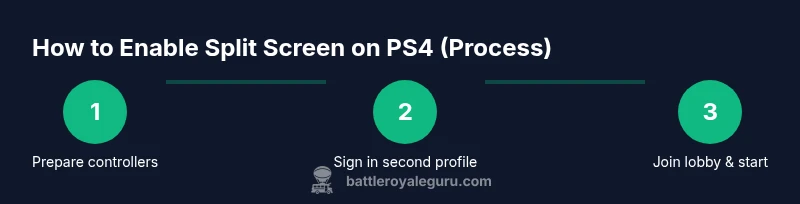
Power on PS4 and sign in
Turn on your PS4 and sign in with the primary account. This establishes the host profile and ensures the system recognizes ownership of the console. The second player will join later on a separate profile.
Tip: Tip: Confirm you’re on the latest firmware before proceeding to avoid compatibility issues. - 2
Connect second controller
Connect the second controller and ensure it is paired with the PS4. The second user signs in with the guest or secondary PSN profile as soon as prompted in the Fortnite lobby.
Tip: Tip: Have the second controller ready and awake before launching Fortnite to speed up the process. - 3
Launch Fortnite and go to the lobby
Open Fortnite from the main menu and navigate to the Battle Royale lobby. The host will see a prompt prompting the second player to join, typically via the 'Join' option after signing in.
Tip: Tip: If the second player doesn’t appear, confirm both accounts are online and that you are in a region where split-screen is supported for your build. - 4
Join with the second profile
The guest user accepts the prompt to join. Fortnite will then display the second player’s screen share; you’ll be able to select player slots and a matchmaking option.
Tip: Tip: You may need to re-enter the lobby if the join prompt doesn’t appear on first try. - 5
Choose a mode and start
Select a mode that supports couch co-op if available and start the match. The screen will split to accommodate both players on the same display.
Tip: Tip: If you encounter matchmaking delays, use a screen refresh by backing out to the lobby and re-entering. - 6
Troubleshoot if join fails
If the second player cannot join, verify both profiles are online, the game is updated, and there are no active parental controls blocking the session.
Tip: Tip: A quick sign-out and sign-in for the second profile often resolves minor authentication hiccups.
Questions & Answers
Can I use Fortnite split screen on PS4 for every game mode?
No. Split screen is not guaranteed in all modes. Availability depends on Epic's current build and mode support. Always check the lobby for the join option before starting.
Split screen isn’t available in every mode. Check the lobby for the join option to confirm if couch co-op is supported in your chosen mode.
Do I need two PSN accounts to use split screen on PS4?
Yes, you need two PSN profiles on the same console. One acts as the host, while the second signs in as a guest to join the session.
Yes, two PSN profiles are required—one host and one guest—to enable split screen.
Will split screen work on PS5 or with newer updates?
This guide focuses on PS4. Features may differ on PS5 and across updates, so consult the latest Epic Games notices for current behavior.
This guide is for PS4. Check Epic’s latest notices for PS5 and updates.
What should I do if the second player can’t join?
Confirm both accounts are online, ensure you're in a supported region, check for game updates, and try signing the second profile out and back in. A quick console restart can help as well.
If joining fails, confirm both players are online, update the game, and try signing the second profile out and back in.
Does split screen affect performance or latency?
Split screen can introduce some performance strain on the PS4, especially in busy matches. If you notice lag, reduce background processes and ensure a strong network connection.
There can be slight lag with split screen due to shared resources; close other apps and use a stable network.
Where can I find the latest official guidance on split screen?
Refer to Epic Games’ Fortnite support pages and PlayStation support for the most up-to-date information on couch co-op availability.
Check Epic Games’ support pages and PlayStation support for the latest on couch co-op.
Watch Video
Key Points
- Verify your Fortnite build and region before attempting split-screen.
- Two PSN profiles and two controllers are required.
- Follow the step-by-step process to enable couch co-op in compatible modes.
- If issues arise, check network, updates, and sign-in status.
- Consult official sources for current feature availability.