Fortnite Download for iOS: How to Play on iPhone & iPad
Learn how to play Fortnite on iOS today. No direct download from the App Store—explore cloud streaming and safe alternatives with practical steps and troubleshooting tips.


By now, there is no direct fortnite download for ios through the App Store. This guide shows your current options to play on iPhone or iPad, including cloud-streaming paths and platform alternatives. You’ll learn what’s possible today, what you’ll need, and practical steps to access Fortnite on iOS devices, with safer troubleshooting tips from Battle Royale Guru.
What happened to Fortnite on iOS
The short answer is: there is no direct fortnite download for ios through the official App Store anymore. In 2020, Apple and Epic Games engaged in a high-profile dispute that led to Fortnite being removed from the iOS App Store. Since then, Epic has not offered an official iOS installation, and Apple has not reinstated the title. As a result, iPhone and iPad players cannot download Fortnite in the standard way, update it through the App Store, or access Fortnite via traditional storefronts. The Battle Royale Guru team notes that this situation has driven players to explore alternative routes, such as cloud streaming or playing Fortnite on other platforms and then cross-progressing where supported. If you’re determined to play on iOS today, your best bet is to use a streaming service that runs Fortnite remotely, or switch to a compatible device. This reality affects performance, latency, and control options, so plan accordingly. For many players, the term fortnite download for ios remains a question, but there are safe workarounds worth understanding.
Current options to play Fortnite on iOS
Even without a direct fortnite download for ios, there are legitimate ways to play Fortnite on iPhone or iPad. Cloud gaming platforms can stream the game to your device, so you don’t install it locally. Some services run Fortnite on remote hardware and render video to your screen, letting you play with touch controls or a connected controller. Availability is regional and often requires a subscription or pass. Cross‑platform play means you can maintain progress if you already own Fortnite on PC or a console, and many players find latency acceptable with a strong network. Be mindful that not every service supports iOS or every region, and some options require an upfront setup or ongoing fee. Stay flexible and verify current availability in your area before you commit.
Minimum requirements and setup
To prepare, ensure your iOS device supports the latest iOS version and has a reliable internet connection. You’ll typically need: an active Epic Games account, a cloud‑gaming service account (where available), a compatible browser on iOS (such as Safari) or a dedicated streaming app, and a payment method if the service is paid. You should also verify data usage allowances because streaming consumes more data than typical downloads. For the best experience, use a strong Wi‑Fi connection, low-latency network, and a controller if you prefer tactile input. The setup steps below outline a typical workflow; always check the latest terms for your region.
Step-by-step overview for cloud streaming on iOS
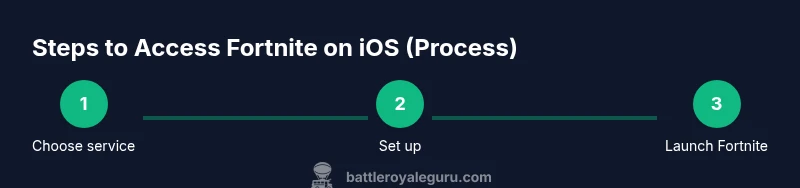
If you’re exploring fortnite ios streaming, here is a high‑level overview of the process. First, choose a compatible cloud gaming service that supports Fortnite and iOS. Create or sign in to your account, then link it to your Epic Games account if required. Next, configure your input method—touch controls, a Bluetooth controller, or a compatible accessory—and adjust streaming quality to balance latency and battery life. Finally, launch Fortnite within the streaming app or via the Safari browser, log in, and start a practice match to calibrate controls and settings before playing competitively. Expect a short setup time and potential adjustments based on your network conditions.
Common pitfalls and troubleshooting
- Latency spikes and input lag can ruin a match; try a wired or strong wireless connection and reduce streaming resolution if needed.
- Incompatible regions or service outages happen; verify regional availability before subscribing.
- Data consumption can be high; monitor your data plan to avoid overages.
- Account linking mistakes delay access; ensure Epic Games and cloud service accounts are properly connected.
- Battery drain is common on streaming; keep your device plugged in during longer sessions.
Alternatives and best practices
- Play on other platforms (PC, Mac, Android) where direct downloads are supported, and use cross‑progression to keep your account in sync.
- If you mainly want to practice creative modes or challenges, use offline modes available in Fortnite’s ecosystem on other devices.
- Regularly check for official updates from Epic and Apple; policies can change and reopen direct iOS installation pathways in the future.
- Optimize your device by closing background apps, enabling low-latency mode, and updating to the latest firmware to reduce latency.
Tools & Materials
- iPhone or iPad(Must be compatible with the latest iOS version supported by your streaming service)
- Stable internet connection(Prefer 5 Mbps or higher for standard streaming; higher for better quality)
- Epic Games account(Link if required by the streaming service)
- Cloud gaming service account(Some services require a paid plan or regional availability)
- Web browser or streaming app on iOS(Safari is commonly supported; some services have dedicated apps)
- Controller or input device (optional)(Bluetooth controller or compatible accessory for better control)
Steps
Estimated time: 25-40 minutes
- 1
Prepare your Fortnite account
Verify that your Epic Games account is active and linked to any platforms you plan to use. If you’ve played on PC or consoles, ensure progress will sync where supported. This step sets the foundation for a smooth login and progression experience.
Tip: Keep your login details secure and enable two-factor authentication for protection. - 2
Choose a cloud gaming option available in your region
Research which cloud streaming services support Fortnite on iOS in your country. Confirm compatibility with iOS browsers or apps and review pricing, latency expectations, and data usage policies before subscribing.
Tip: Read current terms and regional availability to avoid surprises. - 3
Create or sign in to the cloud service and link accounts
Set up your cloud service account and connect it to your Epic Games account if required. This linkage often enables access to your in‑game progress and purchases across devices.
Tip: Double-check that the Epic account is the same one you’ve used on other platforms. - 4
Set up input method and streaming quality
Choose between touch controls, a Bluetooth controller, or a physical controller. Adjust streaming quality to balance latency and battery life based on your network speed.
Tip: If you experience lag, lower the resolution or switch to a wired network connection. - 5
Launch Fortnite and calibrate controls
Open Fortnite within the streaming app or via Safari, log in, and run a quick practice match to calibrate input and screen layout. Ensure audio and video are synchronized.
Tip: Test both combat and building controls to ensure comfort during longer sessions. - 6
Play a test game and adjust settings
Play a short match to verify latency, graphics quality, and responsiveness. Tweak brightness, HUD size, and controller sensitivity as needed before playing ranked modes.
Tip: Have a backup plan—if latency is unacceptable, switch to a different method or platform.
Questions & Answers
Is Fortnite still available for iOS?
Direct download via the App Store is not available currently. Fortnite on iOS relies on cloud streaming or playing on other platforms with progress syncing where supported.
Direct iOS installation isn’t available; you’ll use cloud streaming or other platforms instead.
Can I play Fortnite on iOS without the App Store?
Yes, through cloud gaming services that stream Fortnite to iOS. Availability varies by region and service terms must be checked.
Yes, cloud streaming can work on iOS without the App Store, depending on your region.
What cloud gaming services support Fortnite on iOS?
Some cloud services offer Fortnite on iOS by streaming. Always verify current regional availability and service terms before subscribing.
Cloud services may stream Fortnite to iOS; check region availability first.
Do I need an Epic Games account to play Fortnite on iOS?
Most streaming options require an Epic Games account to access your progress and purchases across devices.
Yes, you’ll typically need an Epic Games account.
Are there latency or data usage concerns when streaming Fortnite on iOS?
Streaming can use more data and may introduce latency. Use a strong network and monitor data usage to avoid surprises.
Streaming uses more data and can add latency; monitor your plan.
Watch Video
Key Points
- Explore cloud streaming as the primary path to iOS Fortnite today.
- Verify regional availability and service terms before subscribing.
- Link Epic Games accounts to preserve progress across devices.
- Test input methods and streaming quality to minimize latency.