Fortnite Unblocked: Safe Ways to Play Anywhere, Anytime
Learn legitimate, step-by-step methods to access Fortnite when networks block it. This guide covers policy checks, device setups, and safe alternatives for schools, libraries, and home networks. Stay compliant with your network rules and keep your Epic Games account secure.


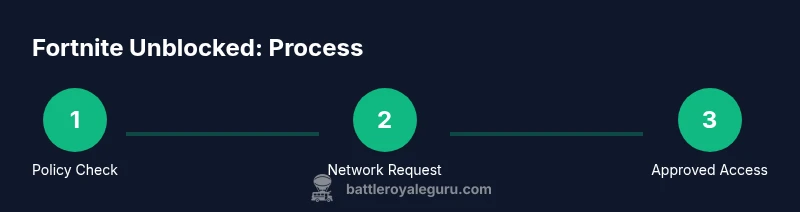
Fortnite unblocked means accessing Fortnite when network restrictions block the game. This guide focuses on safe, policy-aligned options: verify school or workplace guidelines, request permission if needed, use permitted networks, and play only through official Epic Games platforms. You’ll also learn legitimate alternatives and how to prepare your device for reliable access.
What does fortnite unblocked mean in practice
Fortnite unblocked refers to gaining access to Fortnite when a network blocks the game, whether at school, work, or a public venue. This guide emphasizes safe, legal approaches rather than circumventing security. The key is to work within policy boundaries: obtain appropriate permissions, use official channels, and protect your Epic Games account. By understanding the exact nature of the restriction—whether it’s a firewall rule, DNS filter, or device-level control—you can choose a compliant path. This article also clarifies when alternatives are appropriate and how to adapt to different environments (home, campus, or public Wi-Fi) without violating rules. The Battle Royale Guru team emphasizes safety and compliance, drawing on real-world scenarios from classrooms, libraries, and campus networks to map practical, rule-respecting routes to play.
Where blocks commonly come from
Blocks can originate from several sources, including network-wide filters, firewall rules, parental controls, and captive portals on public networks. A DNS-based block may prevent Fortnite from resolving Epic servers, while a firewall may block the game launcher or the required game data streams. Device-level restrictions can also limit apps or executable files. Understanding the source helps you decide whether you should request access, adjust settings with permission, or switch to an approved network. Always document the exact block type when communicating with administrators and avoid bypass techniques that violate policies. This section helps you tailor your next steps to your specific scenario.
Safe, legitimate ways to access Fortnite when restricted
Legitimate options start with clear communication. Talk to the IT administrator or network owner about your needs and request an exception or a time-limited access rule. If allowed, you can play on a home network, a personal mobile hotspot (if permitted), or a classroom/network-accessible device with approved settings. Some networks offer guest access or filtered zones that permit games during off-peak hours. Another safe path is to use devices where the game is allowed by policy, such as personal laptops or consoles at home. Always verify the policy in writing and keep a copy for reference. If access is denied, consider scheduling play during permitted times or using official, sanctioned alternatives like creative practice modes available offline or within allowed platforms.
Setting up your device and account for reliable access
Prepare your device and account before attempting to log in on restricted networks. Ensure Fortnite and the Epic Games Launcher are updated to the latest versions, and log in with a verified Epic Games account. Enable Two-Factor Authentication (2FA) for added security. Check that the device’s date and time are correct, as mismatches can cause login or server connection problems. Review any installed security software to whitelist Fortnite or add it to the firewall exclusions list. Having a clean, up-to-date setup reduces friction when connecting from restricted environments.
Understanding network basics that affect access
A few core concepts influence whether Fortnite connects smoothly: NAT type, latency, and bandwidth. A restrictive NAT can impede peer-to-peer connections or matchmaking; if you experience high ping or frequent disconnects, consider moving to a network with better routing or adjust router settings if you have permission. While you shouldn’t bypass protections, knowing these basics helps you communicate problems accurately to admins or support. If you’re testing connectivity, run a simple speed and latency check to compare performance across networks. This knowledge helps you decide whether to continue pursuing access through approved channels or adjust expectations.
Step-by-step self-diagnostic checklist
Start with a quick diagnostic to pinpoint blockers. Check that the Fortnite launcher is up to date, confirm you’re connected to a permitted network, and verify your account status. Test on a different network to determine if the issue is network-specific. Disable VPNs or proxies that might violate policy and ensure firewall settings allow Fortnite traffic. If the problem persists, gather error messages and timestamps for a precise report to your administrator or Epic Games support. This checklist keeps you organized and makes the path to resolution clearer.
Troubleshooting quick fixes you can try
If you’re allowed to access Fortnite from your current network but still have issues, start with simple steps: restart your device, reconnect to the network, and re-launch the Epic Games Launcher. Ensure your internet connection is stable and that the game isn’t being blocked by parental controls or antivirus software. Try logging out and back in to refresh your session. If problems persist, consult the network owner for permission changes or consider alternate play modes within policy guidelines. These quick fixes address common, user-side blockers without infringing on security policies.
Alternatives if unblocked access isn’t possible
When access remains restricted, explore safe, policy-compliant alternatives. Play on a personal device at home using a permitted connection, participate in Fortnite Creative practice within policy-compliant modes, or use official practice resources offered by Epic Games. Some libraries and schools provide supervised gaming lounges or designated times where games are allowed under supervision. If none of these options are feasible, balance your gaming with other activities and return to Fortnite when policy allows. The goal is to maintain a healthy gaming routine without violating rules.
Legal and safety considerations
Always prioritize legality and safety over convenience. Bypassing network restrictions may breach school or employer policies and can lead to disciplinary actions. Use official channels to request access, honor device and network restrictions, and protect your account with strong authentication. If your environment requires it, involve a guardian or administrator in the decision-making process. This approach protects you and preserves a positive gaming experience.
Authority sources
- https://www.fcc.gov
- https://www.cisa.gov
- https://www.nytimes.com
Tools & Materials
- Fortnite installed on device(Latest patch and compatible with your OS)
- Official Epic Games account(Ready to log in with 2FA enabled)
- Stable internet connection(Wired ethernet preferred where possible)
- Permitted network access or admin approval(Document permission if required by policy)
- Backup data plan or approved hotspot (optional)(Only if policy allows usage)
Steps
Estimated time: 25-45 minutes
- 1
Verify network policy and obtain approval
Document the network policy with your administrator and request explicit permission to access Fortnite during approved times. Having written permission reduces risk of policy violations and helps you present a clear case if a block remains in place.
Tip: Collect contact details of the IT admin and note the exact network segment involved. - 2
Test access on a permitted network
Try Fortnite on a home or school-approved network to establish a baseline. If it works there but not elsewhere, the issue is network-specific and can guide your next steps with the admin.
Tip: Keep a small log of times and results to show the pattern of access. - 3
Install Fortnite from official sources
Download and install Fortnite only from the official Epic Games Launcher or the platform’s approved store. This ensures you’re using legitimate software and reduces the chance of compatibility issues.
Tip: Avoid third-party installers that might contain malware or tampering. - 4
Sign in and verify your Epic Games account
Log in with a verified account and enable Two-Factor Authentication (2FA) for security. Ensure your email and recovery options are up to date in case you need to recover access.
Tip: If you have two-factor prompts, approve them on the primary device you use for gaming. - 5
Check device compatibility and game version
Confirm your device meets Fortnite’s minimum requirements and that you’re running the latest game version. Updates often fix connectivity issues and improve performance.
Tip: Restart the launcher after updates to ensure changes take effect. - 6
Adjust firewall and antivirus settings
Whitelist Fortnite and the launcher in your firewall and antivirus settings if permitted by policy. This prevents legitimate traffic from being blocked by security software.
Tip: Temporarily disable conflicting software if you suspect it’s the cause, then re-enable it after testing. - 7
Launch a test match to verify connectivity
Start a quick game to verify that you can connect to servers, queue for matches, and load into a zone without major lag. Monitor for any error messages during this test.
Tip: If you see a specific error code, note it for targeted support. - 8
If blocked, contact admin and request exception
Provide the test results, policy documentation, and your intended play times to help the administrator assess your exception request. Be concise and respectful in your outreach.
Tip: Include your plan for responsible gaming and any limits you agree to observe. - 9
Explore policy-compliant alternatives
If access remains blocked, discuss sanctioned alternatives or time-limited access windows, or consider gaming on devices where policy allows. Balance gaming with other activities.
Tip: Keep a positive, collaborative tone with admins to improve future access chances.
Questions & Answers
Is fortnite unblocked always possible on restricted networks?
Not always. Access depends on the network's policies and permissions. If a block is policy-based, you should request an exception or use an approved network. Persistent blocks warrant a conversation with the administrator.
Access depends on network policy. If blocked, ask for permission or use an approved network.
Is using a VPN allowed to unblock Fortnite?
Using VPNs to bypass blocks is typically against policy and can carry penalties. Always pursue official channels and documented approval before attempting any workaround.
VPNs to bypass blocks are usually not allowed. Seek official permission instead.
Can I play Fortnite on school Wi‑Fi if blocked?
If school policy permits, you may access Fortnite during allowed times or from approved networks. If not, discuss alternatives with the administrator.
Only if the policy allows it, or if you obtain an approved network.
What should I do if admin blocks access again?
Document the block, provide evidence from tests, and request a specific time-limited exception. Keep communication respectful and focused on safe usage.
Explain the issue with test results and request a defined exception.
Are there safe alternatives if unblocked access isn’t possible?
Yes. Practice in allowed modes, play on a permitted home network, or explore Epic-supported creative modes that your policy allows. Discuss supervised alternatives if available.
Consider policies-friendly practice modes or home-network play.
Does fortnite unblocked apply to consoles like PS5 or Xbox?
Access depends on platform policy and network settings. Follow platform-specific steps and ensure you’re on a permitted network or have admin approval.
Console access follows the same policy guidelines and network permissions.
Watch Video
Key Points
- Respect network policies while planning access.
- Use official channels and legitimate paths first.
- Prepare your device and account to minimize downtime.
- If blocked, pursue alternatives or official permissions.
- Always prioritize safety and compliance.