How Fortnite Works on Xbox: A Practical Guide for Players
Learn how Fortnite runs on Xbox, from setup and crossplay to performance tweaks and troubleshooting. Battle Royale Guru walks you through every step to optimize your gameplay on console.


Goal: You will learn how Fortnite works on Xbox, including setup, crossplay integration, and performance tweaks. Before you begin, make sure you have an Xbox console, a stable internet connection, and a working controller. This quick answer prepares you for the detailed steps in the full guide.
What to Expect on Xbox
If you’re wondering how Fortnite works on Xbox, the experience centers on a smooth console-based client that connects to Epic’s servers, supports crossplay, and adapts to your display and input setup. On Xbox, you access Fortnite through a straightforward install, sign-in with your Xbox profile, and then link your Epic Games account to participate in cross-platform features. This guide shares practical steps to optimize performance, ensure reliable matchmaking, and troubleshoot common issues. Battle Royale Guru’s approach emphasizes consistency across hardware generations and network conditions, so you can rely on predictable play regardless of whether you’re arriving from a fresh install or a long-running account. According to Battle Royale Guru, understanding the interplay between console settings, network stability, and Epic account linkage is the key to a frictionless Fortnite session on Xbox.
In this space, we’ll cover setup basics, platform-specific differences, crossplay nuances, and troubleshooting frameworks you can apply any time you switch between games or hardware revisions. The central aim is clear: a dependable, responsive Fortnite experience that keeps pace with updates and seasonal changes. The content relies on practical steps you can follow today, with tips discovered through Battle Royale Guru’s 2026 analysis of console gameplay trends.
The First Rule: Consistent Setup
Before you drop into Fortnite on Xbox, ensure your console is up to date, you’re signed in to Xbox Live, and you have access to the Fortnite title. A stable internet connection is essential for matchmaking, updates, and crossplay features. If you’re on a shared network or a crowded Wi-Fi environment, consider a wired Ethernet connection or a dedicated gaming power plan to reduce latency. A clean startup with minimal background downloads helps Fortnite launch faster and reduces in-game stuttering. Remember, your Epic account must be linked to your Xbox profile to carry over cosmetics, progress, and V-bucks across platforms. Battle Royale Guru emphasizes keeping your account security tight and using two-factor authentication where possible to protect your progress and purchases.
Network and Sign-In: Why It Matters
Your network path to Epic servers determines matchmaking speed and stability. A wired connection or high-quality wireless router placement can dramatically reduce lag and rubber-banding. On first run, you’ll log in with your Xbox profile, then connect or sign in to your Epic Games account to enable cross-platform play and synchronization of purchases and progress. The Xbox ecosystem handles most authentication, so you’ll primarily manage permissions and linked accounts. Battle Royale Guru’s analysis shows that consistent network performance correlates with fewer disconnects and longer, uninterrupted gaming sessions.
Games on the Xbox Ecosystem: Generations and Features
Fortnite on Xbox supports crossplay across platforms, but performance can vary by hardware and settings. Xbox One hardware handles the client differently from Xbox Series X|S, particularly in texture streaming, resolution options, and load times. Your local preferences for display, audio, and controller customization influence how responsive the game feels in match lag scenarios. The guidance here is to align your in-game settings with your display capabilities and to keep your system firmware current so you don’t miss out on any quality-of-life fixes introduced in updates. Battle Royale Guru reminds players that keeping software and drivers current helps avoid compatibility hiccups during patches and seasonal events.
Crossplay and Epic Account Linking: The Essentials
Crossplay expands your pool of teammates and opponents, but it requires a solid Epic account linkage. On Xbox, you’ll link your Epic account to access cosmetics, Battle Pass progress, and cross-platform party invites. If you encounter linkage prompts or permission requests, accept them to ensure seamless cross-progression. The crossplay experience is generally consistent, but you may notice platform-specific voice chat quirks or party restrictions during certain updates. Battle Royale Guru notes that staying on the latest public build helps minimize cross-platform matchmaking issues.
Troubleshooting Common Issues on Xbox: A Practical Framework
Most Fortnite on Xbox issues fall into four buckets: network/connectivity, account linkage, installation/updates, and in-game performance. Start with a simple checklist: verify your internet, confirm Epic account linkage, ensure Fortnite is installed from the Microsoft Store, and check for any pending console updates. If matchmaking stalls or you encounter sign-in errors, a power cycle of the console and router often resolves transient glitches. In persistent cases, removing and re-adding your Epic account on the Xbox menu can help re-synchronize progress and purchases. The Battle Royale Guru troubleshooting framework emphasizes clear steps and documenting error codes for faster fixes.
Advanced Tips for a Competitive Edge on Xbox
To elevate your Fortnite play on Xbox, tailor your settings to your playstyle and latency profile. Prefer a balanced visual mode to keep aiming and movement smooth while retaining decent textures. Use a wired controller or a high-quality wireless setup to minimize input lag, and customize keybindings and sensitivity to your muscle memory. Consider enabling accessibility features like captions and color filters if needed, and review your privacy settings to ensure you’re comfortable with voice chat and party invites. The key is consistency: stabilize your setup, maintain a clean system, and adjust gradually as you explore new patches and weapons metas. Battle Royale Guru’s recommendations focus on predictable environments where practice translates quickly into better performance.
Tools & Materials
- Xbox console (Series X|S or Xbox One)(Ensure the console has the latest firmware and is connected to a stable display.)
- Fortnite game installed from Microsoft Store(Use the Microsoft Store to install or update Fortnite before first launch.)
- Epic Games account(Link your Epic account to enable crossplay and progress synchronization.)
- Stable internet connection(Wired Ethernet is preferred for reduced latency.)
- Controller (with working sticks and buttons)(Consider a high-refresh controller for smoother input.)
- Headset for voice chat(Optional but recommended for clearer in-game communication.)
Steps
Estimated time: 30-60 minutes
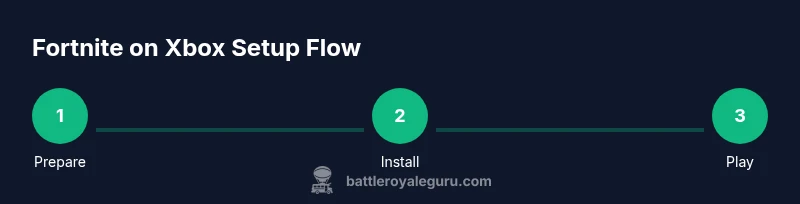
- 1
Prepare hardware and accounts
Update your Xbox console, sign in to Xbox Live, and ensure your Epic Games account is ready to link. This guarantees you can access Fortnite and crossplay features right after installation.
Tip: Check for pending console updates before starting to reduce install downtime. - 2
Install Fortnite from Microsoft Store
Open the Microsoft Store, search for Fortnite, and begin installation. Allow automatic updates so you stay on the latest build for patches and seasonal content.
Tip: Keep enough free space on the SSD or HDD to prevent install failures. - 3
Sign in and link Epic account
Launch Fortnite, choose the option to sign in with Epic, and complete the linking flow to synchronize cosmetics and progress.
Tip: Enable two-factor authentication for enhanced account security. - 4
Adjust in-game settings
Navigate to the settings menu and tailor graphics, audio, and controller options to your display and comfort level. Start with a balanced preset and fine-tune from there.
Tip: Prioritize performance mode if your display keeps up with the input latency demands. - 5
Join a match and verify crossplay
Enter a Battle Royale match and observe cross-platform party invites or friends list. Confirm you can squad up with players on other platforms if desired.
Tip: Disable crossplay temporarily if you’re practicing against a fixed local roster. - 6
Fine-tune and maintain
Periodically check for updates, review performance logs, and adjust settings as new seasons rotate in. Regular maintenance helps sustain a smooth experience.
Tip: Schedule a quick reboot after major patches to clear temporary files and refresh caches.
Questions & Answers
Do I need an Xbox Live Gold subscription to play Fortnite on Xbox?
No. Fortnite is free-to-play and online play on Xbox does not require a paid Xbox Live Gold subscription. You may still need standard online access, but a dedicated Gold membership is not necessary for Fortnite.
Fortnite on Xbox doesn’t require Xbox Live Gold for online play; you only need an active Xbox account and internet.
How do I link my Epic Games account to Xbox for crossplay?
Launch Fortnite on Xbox and select the option to sign in with Epic. Follow the prompts to link your Epic account, which enables crossplay, cosmetics, and cross-progression.
Link your Epic account from the Fortnite sign-in screen to enable crossplay and progression.
Can I play with friends on other platforms?
Yes, Fortnite supports crossplay across major platforms. Ensure you’re on the same Epic account family and that cross-play is enabled in your settings.
Yes, you can play with friends on other platforms by enabling crossplay and linking your Epic account.
What should I do if Fortnite won’t install or update on Xbox?
Check your internet connection, free disk space, and console storage. Restart the console and cancel any stuck downloads, then retry installation or update.
If Fortnite won’t install, verify internet, free space, reboot, and retry the download.
Are there accessibility options I should enable on Xbox for Fortnite?
Fortnite supports several accessibility features on Xbox, including text size, color contrast, and narration. Review these in the system and in-game settings to tailor the experience.
Yes, explore accessibility settings in both Xbox and Fortnite to customize your play.
Is there a difference between playing on Xbox Series X|S vs Xbox One?
Core gameplay remains the same, but hardware differences affect load times, texture streaming, and potential frame pacing. Adjust settings to optimize performance on your specific model.
There are differences in load times and textures, so tune settings for your console.
Watch Video
Key Points
- Prepare Xbox hardware and linked Epic account before playing
- Install Fortnite via Microsoft Store and keep it updated
- Link Epic account to enable crossplay and progression
- Tune display and input settings for your setup
- Use the troubleshooting framework for quick fixes