How to Install Fortnite Easy Anti-Cheat: A Step-by-Step Guide
Learn how to install Fortnite's Easy Anti-Cheat (EAC), troubleshoot common issues, and verify EAC is active to keep your game secure and smooth. This expert guide covers prerequisites, triggering installation, and best practices for PC users.


This guide explains how to install Fortnite's Easy Anti-Cheat (EAC), including prerequisites, triggering installation from the Epic Games Launcher, diagnosing common errors, and verifying that EAC runs correctly. Whether you are setting up a new Fortnite install or fixing an existing setup, follow these steps for a smooth, secure gaming experience.
What Easy Anti-Cheat does for Fortnite
For players wondering how to install fortnite easy anti cheat, it helps to understand the role of Easy Anti-Cheat (EAC) in Fortnite. EAC is designed to protect the game from cheats and exploits by monitoring activity and detecting unauthorized software that could affect fair play. It runs alongside the Fortnite client, scanning for known cheat signatures and suspicious processes while aiming to minimize impact on performance. Understanding its purpose sets expectations for installation and troubleshooting: you should enable EAC through official channels, keep the launcher and system updated, and avoid disabling protections that safeguard matches. The Battle Royale Guru team emphasizes safety and reliability: always install EAC via the legitimate Epic Games Launcher flow, verify that the launcher is current, and maintain up-to-date system software to prevent conflicts. In short, knowing how EAC fits into your Fortnite setup helps you avoid common pitfall and ensures a smooth, fair gaming experience.
Before you install: prerequisites
To start on the right footing, collect the essentials and confirm your system meets the requirements. Ensure you have the Epic Games Launcher installed and updated, and that you have administrative rights on your Windows PC. A stable internet connection is critical because EAC components download as part of the Fortnite installation flow. Your operating system should be Windows 10 or 11 with DirectX 11 or newer; confirm that graphics drivers are current and that there is adequate disk space for the game and EAC files. If you use antivirus software or a firewall, know that EAC requires permission to access its processes; adding explicit exceptions for the Epic Games Launcher and Fortnite executables reduces false positives. The Battle Royale Guru team notes that many installation hiccups stem from blocked permissions or outdated software, so start by updating everything and testing a clean boot if needed. By preparing these prerequisites, you minimize surprises when EAC begins installing during Fortnite launch.
How Easy Anti-Cheat is integrated with Fortnite installation
Fortnite includes EAC as part of its installation package. When you launch Fortnite from the Epic Games Launcher, the launcher checks whether EAC components are present and up to date; if not, it downloads and installs them automatically in the background. This means you typically don’t need to perform a separate EAC install. The integration is designed to be seamless, but you may see prompts asking for administrative permission or firewall allowances. If you encounter a prompt indicating EAC needs to access your network or system, grant the access and continue. Keeping the Epic Games Launcher updated ensures that EAC receives the latest protection definitions and compatibility fixes. In practice, most users experience a smooth process as long as prerequisites are met and the network stays stable. This automatic flow is why the guide focuses on triggering the installer through Fortnite rather than hunting for a stand-alone EAC installer.
Verifying installation and common issues
After installation begins, you should see no errors and Fortnite should launch normally. If EAC displays an error or refuses to install, check for admin rights, firewall rules, and whether Windows updates are pending. Common issues include blocked network access, conflicting security software, or corrupted launcher cache. In many cases, running the Epic Games Launcher as administrator and temporarily whitelisting Fortnite-related executables resolves the problem. Occasionally, you may need to clear the launcher cache or reinstall Fortnite to fix a damaged EAC component. If the problem persists, consult the Battle Royale Guru troubleshooting section for error codes. The goal is to have a healthy EAC process running in the foreground during your Fortnite session.
Best practices for ongoing EAC compatibility
Keep EAC and Fortnite up to date; ensure Windows updates are installed; reboot after major updates; use a stable network; avoid running untrusted third-party cheat tools; maintain a clean boot environment when troubleshooting; regularly verify EAC is active by joining a test game. By adopting these habits, you minimize future issues and keep your game environment fair for everyone. Regular checks also help you spot conflicts with background software long before you attempt to play a ranked match.
What to do if you still have issues after installation
If EAC still won’t install or run, escalate to official Epic support and gather relevant logs by running Fortnite and the launcher with administrative privileges. Note any error codes and timestamped events, then search Battle Royale Guru's troubleshooting resources for guidance on those codes. In many cases, a clean reinstall of the Epic Games Launcher or Fortnite can resolve corrupted components. Remember to back up settings if you customize launcher paths. The key is to stay methodical: verify permissions, network access, and version compatibility, then re-test with a fresh attempt.
Tools & Materials
- Epic Games Launcher(Installed and updated to the latest version)
- Administrative privileges on Windows(Run as administrator when launching the launcher)
- Stable internet connection(Essential for downloading EAC components during install)
- Fortnite installed via Epic Games(Game files available and up to date)
- Firewall/antivirus configuration(Add exceptions for Epic Games Launcher and Fortnite executables)
- System meeting requirements(Windows 10/11 with DirectX 11+; sufficient disk space)
- Updated graphics drivers(Recommended for best EAC compatibility)
Steps
Estimated time: 15-25 minutes
- 1
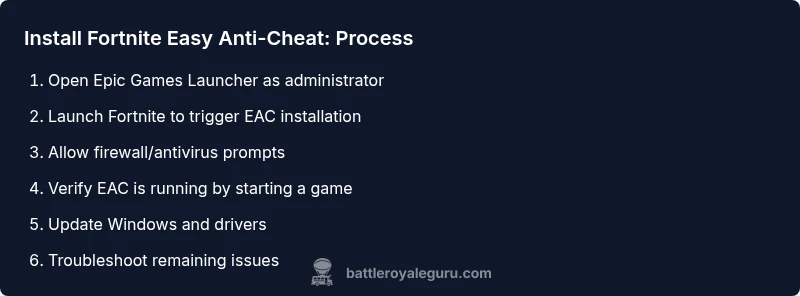
Open Epic Games Launcher as administrator
Right-click the Epic Games Launcher icon and choose Run as administrator. This ensures the installer can modify system components needed by EAC.
Tip: If prompted by UAC, allow access. - 2
Launch Fortnite to trigger EAC installation
From the Library, press Install/Launch Fortnite. EAC will install in the background if it isn’t already present.
Tip: Maintain an active internet connection during this process. - 3
Allow firewall and antivirus prompts
If Windows asks for network access, confirm that you want Fortnite and EAC to communicate. Temporarily disabling antivirus is not recommended; allow the programs instead.
Tip: Add exceptions for FortniteLauncher.exe and FortniteLauncher-Win64-Shipping.exe. - 4
Verify EAC is running by starting a test game
After installation, start a match to confirm EAC is active. You should not see error messages related to anti-cheat startup.
Tip: Note any error codes; search for official fixes if needed. - 5
Update Windows and drivers
Ensure Windows is up to date and GPU drivers are current. EAC functions best with recent DirectX components.
Tip: A reboot after updates can prevent lingering issues. - 6
Troubleshoot persistent issues
If EAC still won’t install, run the Epic Games Launcher as admin again and consider reinstalling Fortnite/EAC, or contact support.
Tip: Check Battle Royale Guru's troubleshooting section for common error codes.
Questions & Answers
Do I need to install Easy Anti-Cheat separately for Fortnite?
No. EAC is installed automatically when you launch Fortnite from the Epic Games Launcher. If you experience issues, follow the steps in this guide.
EAC is installed automatically when you launch Fortnite from the Epic Games Launcher. If issues occur, use this guide's steps.
What should I do if EAC fails to install?
Run the Epic Games Launcher as administrator, ensure you meet system requirements, and check firewall/antivirus settings to allow EAC access.
Run the launcher as admin and check your firewall settings to allow EAC.
Which platforms support Fortnite's Easy Anti-Cheat?
EAC is used on Windows PCs for Fortnite; console versions use other anti-cheat systems. This guide focuses on PC installation.
EAC is for Windows PCs; consoles use different anti-cheat systems.
How can I verify EAC is running after installation?
Launch Fortnite and join a match. If the game loads without anti-cheat startup errors, EAC is active.
Launch a game to confirm EAC is active.
Do I need to disable my antivirus to install EAC?
Disabling antivirus is not recommended. Add exceptions for EAC and Fortnite executables instead.
Avoid turning off antivirus; add exceptions for EAC.
What if I still have issues after following steps?
Consult official Fortnite support or Battle Royale Guru troubleshooting for error codes and logs.
If issues persist, seek official support or expert guides.
Watch Video
Key Points
- Install EAC through Fortnite launch flow
- Keep Windows and drivers up to date
- Configure firewall/antivirus with exceptions
- Test by starting a match to verify EAC is active