How to Remove Simple Edit in Fortnite: A Practical Guide
Learn a clear, step-by-step method to remove Simple Edit in Fortnite. This guide covers settings, bindings, testing, and troubleshooting to regain precise control and reduce mis-edits in high-pressure moments.


To remove Simple Edit in Fortnite, open Settings and go to the Keyboard/Mouse or Controller bindings. Locate the Simple Edit binding and disable it or rebind it to a standard edit action. Save changes, restart Fortnite, and test edits in Creative. This restores predictable control and reduces accidental builds during fights. According to Battle Royale Guru, a clean binding map improves consistency across matches.
What Simple Edit Is and Why Players Consider Removing It
Simple Edit is a streamlined editing mode some players enable to speed up building. In practice it reduces the number of keybinds needed to start an edit, but it can also cause unpredictable edits during high-pressure fights. The Battle Royale Guru team has observed that new players often struggle with the switch from standard edits to Simple Edit, which can lead to mis-edits when under pressure. If you want more predictable control, removing Simple Edit and returning to a clear, traditional binding scheme can help. According to Battle Royale Guru, removing Simple Edit can help players regain control during fast-paced fights. This article explains what it is, how it affects your builds, and why many players choose to remove it, with practical steps you can follow today.
When It Helps to Remove Simple Edit
There isn’t a one-size-fits-all answer, but many players benefit from removing Simple Edit in several common scenarios. If you’re new to building, a simplified map reduces cognitive load and lets you focus on fundamentals. If you switch between devices or use different controllers, a consistent, explicit set of bindings minimizes cross-device mis-edits. In practice, players who optimize bindings report steadier performance during practice drills and in-game skirmishes. The Battle Royale Guru analysis suggests that a deliberate binding strategy often yields faster learning curves and fewer accidental edits, especially after a patch that changes editing control schemes.
Settings Path: Where to Find Simple Edit Bindings
To remove Simple Edit, you’ll need to access Fortnite’s bindings. On PC, navigate to Settings > Input > Bindings; on console, use the Controller Bindings tab. Look for an entry labeled Simple Edit or a binding that consolidates several editing actions into one key. If you cannot locate it, use the search function in the bindings menu. Save your changes before exiting the menu to ensure the new layout is applied. Creating a quick backup of your current bindings is highly recommended so you can revert if needed.
Step-by-Step Overview (High-Level)
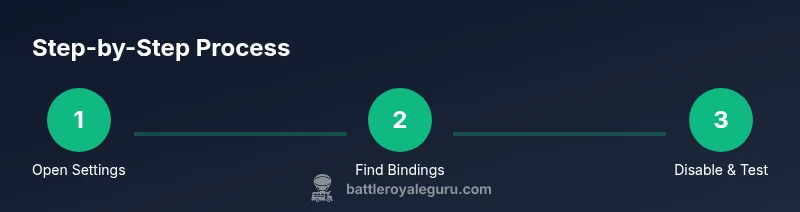
- Open Settings and go to Bindings to identify Simple Edit. - Decide whether to disable it or rebind the action to a standard Edit key. - Save changes and restart Fortnite to apply the new bindings. - Test editing in a Creative map to confirm that your new configuration behaves as intended. - If something feels off, revert to your previous bindings or apply a conservative reset. - Consider documenting your new setup for future patches to avoid regression.
Troubleshooting after Removal
If you notice more mis-edits after removal, re-check your rebinding for conflicts, ensure no other macros interfere with building, and verify that the new Edit key works consistently on all devices you use. Reset any single bindings that feel unstable and run a short practice drill in a safe mode. If issues persist, revert to a known-good backup and retry the process with a smaller scope change.
Best Practices and Next Steps
Document your new binding map for future reference, keep a small, recoverable backup, and schedule periodic checks after Fortnite patches that alter editing behavior. By maintaining consistency across modes (creative, battle royale, and saved settings), you’ll reduce the risk of accidental edits in high-stakes moments. Regularly revisit your bindings as you improve to ensure you’re using the most efficient setup for your playstyle.
Tools & Materials
- Fortnite client (PC/M console)(Ensure you're on the latest patch; back up config files if needed)
- Keyboard/Mouse or Controller with access to bindings(Have spare time to adjust)
- Stable Internet connection(Needed to save changes and ensure settings sync)
- Optional: Binding-backup file(Export current keybinds for safe rollback)
Steps
Estimated time: 12-18 minutes
- 1
Open Settings and go to Bindings
Launch Fortnite, open the main menu, and navigate to Settings. Select Bindings to view all keybinds, including editing actions.
Tip: Use the search function to locate Simple Edit quickly. - 2
Find the Simple Edit binding
In the Bindings list, locate the entry labeled Simple Edit or the combined editing action bound to a single key.
Tip: Look for any mapping using a shared key across multiple actions. - 3
Disable or rebind to standard Edit
Choose to disable Simple Edit or rebind it to a conventional Edit action (e.g., separate edit key from select/confirm).
Tip: If you rebind, pick a single, intuitive key you can reach quickly. - 4
Save changes and apply
Click Apply/Save, then exit Settings. Restart Fortnite to ensure the new bindings take effect.
Tip: Verify that you are on the correct profile if you use multiple devices. - 5
Test edits in a controlled environment
Enter a Creative or Practice map and test editing under low-pressure conditions to confirm behavior.
Tip: Focus on consistency, not speed in this phase. - 6
Document and back up
If satisfied, export or copy the new bindings and note down the changes for future patches.
Tip: Keep a version history to revert quickly if needed.
Questions & Answers
What is Simple Edit in Fortnite, and why might I want to remove it?
Simple Edit is a streamlined editing mode that combines actions to speed up building. Some players remove it to regain predictable control and reduce mis-edits during fights.
Simple Edit combines editing actions; removing it helps you keep edits predictable during fights.
Can I revert to my previous bindings after removing Simple Edit?
Yes. You can revert by restoring your backup bindings or re-applying the old keymap from your saved profile.
You can revert bindings from your saved profile if needed.
Will removing Simple Edit impact my performance or speed?
Removing Simple Edit may slightly slow down some edits initially while you adjust, but it can lead to more consistent edits over time.
There may be a short adjustment period, but edits become more consistent.
How do I back up my current bindings?
In Bindings, use the export or copy function to save your current configuration before making changes.
Export your current bindings to keep a rollback option.
Is Simple Edit available on both PC and consoles?
Binding systems differ by platform; the removal process is similar but paths and labels may vary by device.
The steps are similar on PC and console, but menu names may differ.
Watch Video
Key Points
- Disable the Simple Edit binding in Settings
- Rebind Edit to a consistent action across devices
- Test changes in Creative to confirm behavior
- Back up bindings before editing