How to Remove Simple Build in Fortnite: A Practical Guide
Learn how to disable Simple Build mode in Fortnite and regain full building control. Step-by-step instructions, platform tips, and practical troubleshooting for PC, console, and mobile.


In this guide, you will learn how to remove Simple Build in Fortnite and restore full building control across PC, console, and mobile. The process centers on locating the build mode option in Settings, turning off Simple Build, and applying changes. Expect platform-specific nuances, saving steps, and tips to avoid common pitfalls. By the end, you’ll be able to build freely again when it matters most.
What Simple Build is in Fortnite
Simple Build is a streamlined editing mode designed to speed up matches and reduce accidental edits by offering a pared-down set of building options. For newer players or those who prefer a calmer pace, it can feel like a helpful shortcut. However, seasoned players often crave the full spectrum of building possibilities—walls, stairs, ramps, floors, and edit modes—that let them outplay opponents in high-pressure moments. According to Battle Royale Guru, understanding how Simple Build alters editing speed and precision is the first step toward deciding whether to keep or remove it. In practice, removing Simple Build restores the full range of building pieces and edit controls, enabling more advanced defensive plays, faster edits, and more creative tactics. This article sets the stage with practical steps, platform considerations, and common issues you may encounter when toggling the option. The Battle Royale Guru team emphasizes testing changes in a low-stakes environment before jumping into a competitive match.
Why You Might Want to Remove Simple Build
There are several reasons players opt to remove Simple Build. First, full build mode offers greater control, allowing you to execute complex edits and pivots that can decide a fight in seconds. Second, competitive players often train in full-build scenarios to maintain consistency across modes and servers. Third, some players report that Simple Build can slow down their reflexes in dense gunfights where every millisecond counts. The Battle Royale Guru analysis shows that mastering full-build mechanics correlates with faster building transitions and more reliable edits under pressure. Lastly, removing Simple Build can simplify cross-platform experiences for teammates who run different build modes, ensuring smoother squad coordination. If you’re aiming for tournament-grade execution or just want to reclaim precise control, removing Simple Build is a strategic choice worth trying.
Locating the Setting in Fortnite (General Guidance)
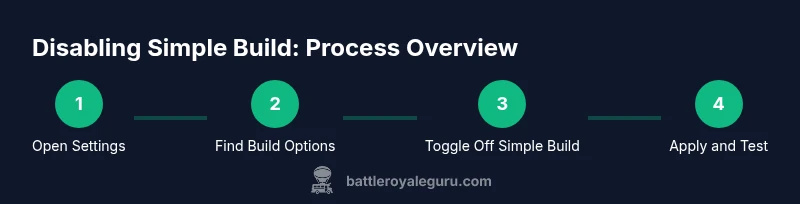
Finding the Simple Build toggle typically involves navigating to the Settings menu from the main lobby or while in a match. While names and paths can vary slightly by platform and game version, the general route is: open Settings, locate Build Settings or Gameplay/Build Options, identify Simple Build, and switch it off. After turning off Simple Build, save or apply changes and return to the game to verify that you have access to the full range of building assets. If the option isn’t immediately visible, check submenus such as Controller Settings or Advanced Gameplay. Note that some updates may reset preferences, so you should re-check after major patches. This section provides a framework you can adapt to your platform’s menu layout and current Fortnite version.
Platform Considerations: PC, Console, Mobile
Platform differences affect how you disable Simple Build. On PC, you may encounter a keyboard/mouse shortcut or hotkey toggle, plus a Settings path that mirrors console and mobile options. Console players might rely on D-pad navigation and familiar controller prompts, while mobile users often access a touch-based toggle within the same Build/Gameplay area. Across platforms, you should avoid relying on a single shortcut; instead, verify the toggle through a quick test in a Custom Match or Creative Island. The goal is consistency: once disabled, your controls, hotkeys, and editing flow should feel identical no matter where you play.
Common Pitfalls When Disabling Simple Build
Disabling Simple Build is usually straightforward, but several issues can pop up. The toggle may appear gray or be unavailable due to parental controls, account restrictions, or ongoing server maintenance. After applying changes, you might need to relaunch Fortnite or reload your current session for the setting to take effect. Some updates reset preferences, so you may find the toggle returned to its default state after a patch. If you rely on voice chat or hotkeys for quick edits, be prepared to remap keys and test them in a safe environment. Finally, if you play with teammates using different modes, communicate the change to avoid misalignment in team fights.
Best Practices After Disabling Simple Build
Once Simple Build is removed, establish a short practice routine to rebuild muscle memory around full-build mechanics. Spend time in Creative mode to rehearse common edits, ramps, and wall placements until you’re fluid again. Rebind or adjust hotkeys for essential edits to maximize speed, and consider refining your sensitivity and acceleration settings for building. Document your preferred loadout and build sequences for quick recall during matches. The aim is to transition smoothly from a simplified workflow to a robust, full-build approach that adapts to changing combat scenarios.
Troubleshooting If It Still Feels Off
If toggling Simple Build off doesn’t feel right, first confirm you’re on the latest game version and that no parental or account restrictions prevent changes. Clear the game cache or reinstall as a last resort if the setting remains inaccessible. Test in different modes (Creative, Battle Lab) to determine whether the issue is technical or a personal comfort problem. If problems persist, reach out to official Fortnite support or community forums for guidance. Sometimes a quick config reset is the fastest path back to a familiar, reliable build flow.
Safety and Accessibility Considerations
Disabling Simple Build can impact how you engage with the game, especially for new players or those with accessibility needs. If the full-build mode feels overwhelming, use gradual adjustments: keep some simplifying assists enabled while you relearn full edits, or adjust UI scale and color contrast to reduce cognitive load. It’s important to practice in a low-pressure environment and gradually escalate to standard matchmaking. Always balance faster builds with clear visibility and safe edge management to avoid accidental disclosures in high-stakes encounters.
Tools & Materials
- Fortnite-compatible device(PC, console, or mobile device capable of running Fortnite with stable performance)
- Controller/keyboard/mouse(Used to navigate menus and test build changes; ensure peripherals are functional)
- Stable internet connection(Needed to apply changes and validate in-game behavior without interruptions)
- Headphones or headset(Helpful for hearing audio cues during build tests)
Steps
Estimated time: 5-10 minutes
- 1
Open Fortnite Settings
In the main menu or while in a match, open the Settings menu. This is your first step to locate the build options. Ensure you are in a stable environment to avoid accidental changes.
Tip: Use a quick-access button if your platform supports it; this saves time when testing edits after changes. - 2
Navigate to Build or Gameplay Options
Find the section that controls building behavior. It may be labeled Build Settings, Gameplay, or Advanced Options depending on your platform and game version.
Tip: If you don’t see a direct Simple Build toggle, check submenus like Controller Settings or Advanced Gameplay. - 3
Disable Simple Build
Locate the Simple Build toggle and switch it off. This changes the available build pieces back to the full suite. Confirm the action if prompted.
Tip: If the toggle is missing, skip to platform notes or check parental/account restrictions. - 4
Apply and Save Changes
Save your settings and exit the menu. Some platforms require you to confirm changes or restart the game to apply the new build mode.
Tip: Take a quick screenshot of your current setup for reference in case you want to revert later. - 5
Test Build in a Safe Space
Load into a Creative Island or a Custom Match to test full-build mechanics. Practice walls, ramps, and edits to confirm full functionality.
Tip: Start with simple edits and gradually increase complexity to build muscle memory. - 6
Adjust Your Setup as Needed
If full-build feels different, fine-tune hotkeys, sensitivity, and your bind order for efficient editing. Consider a short drill routine before going back to matchmaking.
Tip: Consistency matters—repeat a few builds with the same sequence until it becomes second nature.
Questions & Answers
What is Simple Build in Fortnite and why disable it?
Simple Build is a pared-down editing mode intended to speed up early-game builds. Disabling it restores full editing options, giving you more control in tight fights. This helps players who want precision and advanced builds, especially in competitive play.
Simple Build is a reduced editing mode; turning it off gives you full control for advanced builds and quicker edits in fights.
Can disabling Simple Build affect all platforms the same way?
The toggle generally affects PC, console, and mobile similarly, but the navigation paths differ. Always test after changing to confirm that full build options are available on your device.
The effect is similar across platforms, but the steps to access the option differ. Test on your device after changing.
What should I do if I can’t find the Simple Build toggle?
If the toggle is missing, check for account restrictions, parental controls, or game updates. Revisit the relevant Settings sections after ensuring Fortnite is fully updated.
If you can't find it, check for restrictions or updates and try again after updating.
Will disabling Simple Build reset my keybinds?
Disabling Simple Build typically does not reset all keybinds, but you may want to review and rebind the most-used build actions for speed.
Usually not a full reset, but it’s wise to rebind your most-used edits.
Where should I practice after disabling Simple Build?
Practice in Creative or a Custom Match to rebuild muscle memory. Start with basic edits and gradually increase complexity as you get comfortable.
Practice first in Creative to rebuild your editing flow before jumping back into real matches.
What if I still don’t like full-build right away?
Give yourself a couple of practice sessions. You can re-enable Simple Build later if needed, or keep it off and gradually adjust your playstyle.
If you’re unsure, experiment in Creative for a bit and reassess after a few sessions.
Watch Video
Key Points
- Identify the Simple Build toggle in Settings
- Disable Simple Build and save changes
- Test full-build in Creative before returning to matchmaking
- Rebind keys and adjust sensitivity for smooth edits