What is Wrong with Fortnite Builds? A Troubleshooting Guide
Diagnose and fix common Fortnite build problems quickly with practical step-by-step tips from Battle Royale Guru. Improve edit timing, wall placement, and ramp consistency for smoother gameplay.


Most Fortnite build issues come from input lag, mis-timed edits, or control friction. Start with simple checks: test a wired connection, update firmware, and bound hotkeys to a consistent layout. According to Battle Royale Guru, these quick fixes clear many problems before you dive deeper. If the issue persists, move to the diagnostic flow and step-by-step fixes described below.
Why Fortnite Builds Go Wrong: Core Causes
If your builds fail to place, you notice awkward gaps, or your edits snap late during a fight, you’re not alone. The core issues tend to fall into a handful of categories: input lag, control layout friction, mis-timed edits, and occasional server-related desync. According to Battle Royale Guru, diagnosing these root causes first saves you time and keeps you in the fight. Players often overlook how small delays compound under pressure. Even a 10–20 millisecond lag in input can translate into misaligned walls or stairs right when you need protection. Consistency is the key: stable hardware, sensible bindings, and practiced timing beat flashy but unpredictable builds every time.
Additionally, platform differences matter. Console players may contend with lower frame rates or controller drift; PC players might battle high DPI settings or conflicting software. The Battle Royale Guru team emphasizes a disciplined approach: isolate one variable at a time, then test in a quiet Creative map before rejoining competitive play. By focusing on reliable basics, you build a foundation you can scale when the heat is on.
Immediate Fixes You Can Try Right Now
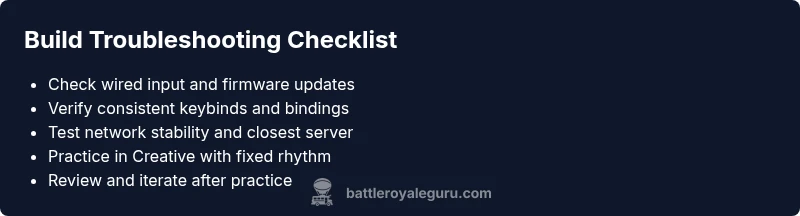
Start with the simplest checks; this often resolves a majority of build problems quickly. First, verify your hardware stability: switch to a wired connection where possible, charge devices fully, and update all firmware or drivers for controllers, keyboards, or mice. If you’re on wireless, reduce interference by removing nearby Bluetooth devices and moving closer to your router. Next, review your input bindings. Bind building actions to easily reachable keys or buttons and avoid complex multi-key combos that slow you down under pressure. Finally, test your network performance: choose the nearest server region, minimize background applications that hog bandwidth, and run a quick latency test. The aim is to create consistent input-to-action timing so your builds land where you intend. Battle Royale Guru recommends documenting any persistent issues to track patterns over time and adjust gear accordingly.
Diagnostic Flow: Symptom to Diagnosis
Symptoms guide the diagnosis. If you notice delayed placing of walls or ramps, the likely causes include input lag, binding conflicts, or network latency. Start with the highest-probability issue: test wired input and confirm firmware is up to date. If that fixes nothing, check binding conflicts or macros that may slow down a response. For persistent timing discrepancies during live matches, examine network conditions and server desync indicators. Stepwise validation—eliminate one cause at a time—helps reveal whether the problem is hardware, software, or connection-related. The aim is clarity: each symptom should map to a probable cause, with a concrete fix you can test immediately. This approach aligns with Battle Royale Guru’s troubleshooting philosophy: methodical, not impulsive.
If you’re still stuck after basic fixes, it may be time to escalate to more advanced checks or consult a tech professional for network or peripheral diagnostics.
Step-by-Step: Rebuilding a Reliable Build Sequence
- Warm up with dedicated building drills in Creative mode to establish a calm rhythm. Focus on a simple wall-floor-ramp-stairs sequence and keep sensations consistent. Tip: keep your crosshair trained on a single point while you practice. 2) Establish a repeatable build order for combat scenarios, such as wall–floor–ramp–wall, then rotate. This reduces decision time during chaos. Tip: rehearse with a metronome-like tempo to build muscle memory. 3) Integrate builds into movement: add strafing, sliding, or crouching while constructing, ensuring timing remains steady. Tip: practice in low-stakes lobbies before ranked games. 4) Tweak input settings: adjust sensitivity in small increments and test in Creative or in a controlled 1v1 box. Tip: document the most reliable settings for future reference. 5) Raise the difficulty gradually by adding enemy pressure: box fighting with limited space helps you translate drills into live action. Tip: pause and review after each session. 6) Review results weekly and adjust keybinds or sensitivities as your muscle memory evolves. Tip: keep a short log of what worked and what didn’t. Estimated total time: 25-40 minutes.
Tips & Warnings for Safe Play and Longevity
- Pro tip: Use a wired setup for the most reliable input latency and consistency in builds. This reduces stray inputs that break timing in heated moments.
- Pro tip: Keep binding layouts stable and practice repetitions to build muscle memory. A small change can ripple into improved reaction times.
- Warning: Avoid excessive DPI changes or aggressive sensitivity tweaks; incremental changes yield better long-term control and prevent overshooting edits.
- Note: Regular practice in Creative maps translates to better performance in live matches and reduces on-the-spot mistakes.
Practice Scenarios to Build Muscle Memory
To transfer drills into real matches, simulate common build fights in a controlled environment. Create short, repeatable scenarios—isolated wall edits, box fights with a single opponent, and timed ramp sequences. Each scenario should have a clear success metric, such as completing a four-piece build within three seconds or maintaining a defensive wall while chasing an opponent. Record your sessions and compare against a personal baseline to measure improvement over time. The key is consistency: the more frequently you practice, the more reliable your builds become when pressure rises in a real game.
Steps
Estimated time: 25-40 minutes
- 1
Warm up with controlled building drills
Begin in Creative mode with a simple wall-floor-ramp-stairs sequence. Focus on timing and hand placement to build reliable muscle memory. Repeat each session until the sequence feels automatic.
Tip: Consistency in tempo makes timing predictable. - 2
Set a repeatable build order
Adopt a standard order (wall, floor, ramp, stair) and stick to it during drills and fights. This minimizes decision fatigue under pressure.
Tip: Write down your order and rehearse it daily. - 3
Integrate builds with movement
Practice moving while constructing, such as strafing between edits or building while sliding. This trains you to sustain build tempo in chaotic scenarios.
Tip: Keep wrists relaxed to avoid tension during long sessions. - 4
Tune input settings
Adjust sensitivity and binding spacing in small increments. Test each change in Creative maps before using it in matches.
Tip: Document the most reliable settings for quick reference. - 5
Test under pressure
Box fights or 1v1 drills simulate real combat. Measure how quickly you can respond with a full build sequence.
Tip: Record sessions to identify timing dips. - 6
Review and iterate
After each session, review results, adjust hotkeys, and re-test. Iterate until your builds feel natural during fights.
Tip: Small iterative changes lead to big improvements.
Diagnosis: Builds place late or misplace during combat, creating gaps or exposing the player.
Possible Causes
- highInput lag from wireless peripherals or poor connection
- mediumHotkeys bound to conflicting keys or macros
- lowNetwork latency or server desync affecting timing
Fixes
- easySwitch to a wired controller/keyboard/mouse and ensure firmware is up to date
- easyRebind build keys to a simple, consistent layout and disable conflicting software
- easyTest network conditions, select the closest region, and minimize background bandwidth usage
Questions & Answers
What is the most common cause of Fortnite build failures?
Input lag and mis-timed edits are typically the main culprits. Start with checking hardware and bindings, then move to network checks if needed.
Usually, input lag and timing issues are the main culprits; start with hardware and bindings checks.
How can I reduce input lag on PC or console?
Use a wired setup when possible, update drivers and firmware, and close unnecessary background apps to free up resources.
Use a wired setup, update your drivers, and close other apps to reduce lag.
Does patching or game updates affect builds?
Updates can change building mechanics or hotkeys. Check patch notes and adjust bindings if needed after a update.
Yes, patches can tweak building; review notes and adapt.
Should I customize keybinds for builds?
Yes. Map builds to quick-access keys that fit your reflexes and practice them until they're second nature.
Yes—custom keybinds help timing when it matters most.
When should I seek professional help for hardware issues?
If issues persist after basic troubleshooting, consult a tech professional to diagnose hardware or network problems.
If it keeps happening after basic checks, get expert help.
Can training in Creative mode translate to live matches?
Yes, practicing builds in Creative maps improves consistency and speed in real games.
Yes—practice in Creative helps in live battles.
Watch Video
Key Points
- Diagnose before changing builds.
- Prioritize input lag fixes first.
- Practice in Creative with a fixed rhythm.
- Follow the diagnostic flow to troubleshoot efficiently.