Eliminate Edit Delay in Fortnite: Practical Steps Today
Learn practical steps to reduce edit delay in Fortnite. Diagnose causes, adjust settings, and test results to improve in-game responsiveness for faster edits.


Edit delay in Fortnite is the lag between your input and the game’s response. You can reduce it by a wired connection, tuned in-game settings, and performance tweaks on your PC or console. Start with a quick network test, adjust key options, and verify results with practice edits in Creative or a dedicated map.
What edit delay is and why it matters in Fortnite
Edit delay is the time between pressing a key or moving the mouse and seeing the corresponding action occur in-game. In fast-paced battles, even small delays can ruin builds, edits, and box fights. The Battle Royale Guru team has found that reducing input lag translates directly into crisper edits and more reliable results under pressure. Understanding delay helps you prioritize fixes that deliver consistent improvements, especially during aggressive skirmishes or high-skill lobbies.
Key takeaway: delay is not just your internet speed; it’s a combination of network latency, hardware responsiveness, and game settings that shape your on-screen reaction time.
Common causes of edit delay
Several factors contribute to edit delay beyond raw ping. Network jitter, unstable Wi‑Fi, background processes, and outdated drivers can all add micro-lags. On the client side, CPU/GPU bottlenecks, high render scale, or excessive post-processing can slow input handling. A bad combination of the above can yield an inconsistent feel, where some edits respond quickly and others lag. Peripheral polling rate and monitor refresh rate also play a role when the system struggles to keep up with input events. The Battle Royale Guru analysis shows that while you cannot control server-side issues, you can optimize your setup for the lowest possible client-side delay.
Quick checks to run before changing settings
Start with quick diagnostics to separate network from hardware issues. Check your ping to the nearest Fortnite region and monitor consistency across tests. Close nonessential programs, reboot your router, and ensure no heavy downloads run in the background. If you’re on Wi‑Fi, switch to a wired Ethernet connection and verify your device recognizes the network as the primary connection. These checks yield a baseline and reveal whether the fix should focus on connection stability or device performance.
In-game settings to reduce delay
Tuning Fortnite’s settings directly affects input responsiveness. Key changes include setting a stable frame rate limit that matches your monitor, turning off motion blur, and disabling V-Sync to avoid additional input lag. Enabling latency-reducing features like NVIDIA Reflex (or equivalent) on supported systems can shave precious milliseconds. Lower render scale and adjust 3D resolution to a balance between image quality and speed. Keep textures modest and disable post-processing effects that add frame time. Remember to test edits after each adjustment to quantify impact.
Advanced tweaks and peripheral considerations
Beyond base settings, consider peripheral and display factors. A 1000 Hz polling rate mouse and a high-refresh-rate monitor reduce perceived lag, provided your PC can sustain the frames. Calibrate your DPI and sensitivity to move quickly without overshooting builds. Ensure your HDMI/DisplayPort cables are not overly long or degraded, and use a direct USB connection for any gaming peripherals. If you use a gaming router, ensure QoS prioritizes Fortnite traffic. However, avoid over-optimizing in ways that destabilize other gameplay elements.
Building a reliable test routine
Create a repeatable test protocol: practice edits on a dedicated map, measure time from input to on-screen action, and compare results after each change. Record baseline metrics and maintain a simple spreadsheet for brainless comparisons. Use the same server region, same map, and identical keybinds to keep tests fair. A consistent routine helps you separate meaningful improvements from random fluctuations.
Troubleshooting stubborn delay and edge cases
If delay persists despite changes, test on another network (friend’s hotspot or different ISP) to confirm whether the issue is local. Check for firmware updates on your router and motherboard, and consider temporarily disabling security software that might interfere with game traffic. If all else fails, contact your ISP to test your line stability and ask about potential congestion during peak hours. Persistent issues may require hardware upgrades or a fresh Windows clean install for optimal performance.
Real-world example scenarios
Scenario A: You notice builds lag most when GPU usage spikes. Lower render scale, disable shadow maps, and enable a low-latency mode. Scenario B: You’re on Wi‑Fi with a 30 ms ping but frequent jitter. Switch to Ethernet, ensure your router isn’t overloaded, and test a different DNS. In both cases, track before/after edits to confirm improvements and repeat tests to ensure consistency.
Tools & Materials
- Wired Ethernet Cable (Cat6 recommended)(Use a direct path to the modem/router; avoid long runs if possible.)
- Gaming PC or Console with updated drivers(Update network drivers and chipset drivers before testing.)
- High-refresh-rate monitor (120 Hz or higher)(Not essential, but helps reduce perceived delay.)
- USB keyboard/mouse with high polling rate (1000 Hz)(Ensure peripherals are connected directly to the PC/console.)
- Dedicated Fortnite test map or Creative island(Helpful for repeatable edits practice.)
Steps
Estimated time: 30-60 minutes
- 1
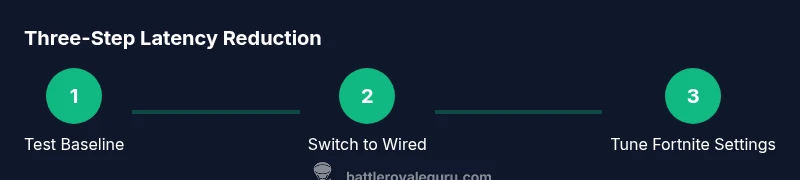
Measure baseline latency
Run a few latency tests to establish your baseline. Record ping values to the nearest Fortnite region and note any jitter. This gives you a control to compare against after changes.
Tip: Use consistent server regions and a single testing tool for reliable data. - 2
Switch to a wired connection
If you’re on Wi‑Fi, connect via Ethernet and reboot your modem/router. Test again to see the impact on latency and jitter.
Tip: Wired connections dramatically reduce variability in latency. - 3
Close background apps
Quit unnecessary programs and disable startup apps that consume bandwidth or CPU. Re-test to see if there is an immediate improvement in input responsiveness.
Tip: Even small background processes can steal cycle time. - 4
Tweak Fortnite settings for latency
Set a fixed frame rate limit, disable V-Sync, turn off Motion Blur, and enable latency-reducing features if available (e.g., Reflex). Validate the impact by re-testing edits.
Tip: Make one change at a time to isolate effects. - 5
Fine-tune peripherals
Calibrate your mouse DPI and sensitivity for precise, quick edits. Ensure your polling rate is high and that cables are secured.
Tip: Avoid excessive DPI; precision matters more than speed. - 6
Run repeatable tests in Creative
Use a standard edit map, perform identical edits, and compare times before and after changes. Document improvements for future tweaks.
Tip: Consistency is key for tracking progress over time.
Questions & Answers
What is edit delay in Fortnite?
Edit delay refers to the lag between pressing an edit key and the resulting action occurring in-game. It affects build speed and box mechanics, which are critical in high-skill play. Reducing this delay improves consistency during fights.
Edit delay is the lag between your input and the game’s reaction, which can slow you during builds. Reducing it helps you edit faster and more reliably.
How can I measure edit delay accurately?
Use a controlled test map and a consistent server region to perform repeated edits. Record the time from input to on-screen action, then compare results across different settings to identify what works best for you.
Set up a test map, run edits repeatedly, and measure the time from your key press to the on-screen response to gauge improvements.
Will changing hardware help with edit delay?
Improved hardware can reduce frame time and improve input responsiveness, especially when paired with optimized settings. A fast CPU, adequate RAM, and a high-refresh monitor contribute to smoother reactions.
Upgrading hardware can help, but optimizing settings and connection quality often yields bigger gains for latency.
Does turning off V-Sync reduce input delay?
Yes, turning off V-Sync can reduce input lag because it prevents the frame from waiting for the display to refresh. However, it may cause screen tearing on some setups if your GPU can’t keep up.
Disabling V-Sync usually lowers input lag, but be aware of possible screen tearing on weaker setups.
Is NVIDIA Reflex or AMD equivalent recommended?
Latency-reducing features like NVIDIA Reflex can significantly lower end-to-end input delay on supported systems. Enable these features if your hardware supports them for measurable gains.
If your hardware supports it, enable Reflex or similar features to shave off input lag.
What should I do if edit delay remains after fixes?
Revisit the baseline tests, re-check connections, and consider trying a different ISP or router configuration. If the problem persists, seek professional help or consult Fortnite/driver support for guidance.
If delay sticks around after changes, double-check connections and settings and try a fresh test on another network before seeking support.
Watch Video
Key Points
- Test baseline latency before changes
- Use wired connections for stable latency
- Disable high-latency features (V-Sync, Motion Blur) for speed
- Test in a controlled map to quantify improvements