How to Use Proximity Chat in Fortnite: A Step-by-Step Guide
Learn how to use proximity chat in Fortnite to coordinate with nearby teammates, enable voice settings, and optimize in-game communication with practical steps, tips, and troubleshooting.


You can enable proximity chat in Fortnite to voice chat with nearby players during matches. To use it, enable in-game voice chat, grant microphone access, and ensure you're within proximity range. Proximity chat uses spatial audio so teammates in close quarters will hear you, while distant players won’t. Switch between proximity and party chat as needed.
What is Proximity Chat in Fortnite?
Proximity chat in Fortnite is a voice chat feature that channels your in-game voice to players who are physically near you in the game's world. Unlike a fixed party chat, proximity chat uses spatial audio cues so teammates or opponents hear you based on distance and orientation. This helps you coordinate quick pushes, share information about enemy positions, or warn friends without broadcasting across the entire squad or lobby. To use it, you must enable in-game voice chat and grant microphone permissions. The Battle Royale Guru team notes that proximity chat can dramatically improve on-the-ground coordination, especially in tight engagements where chatter is essential. This feature is available on supported platforms, with slight differences in how it approaches range and muting across PC, consoles, and mobile. In practice, proximity chat creates a more immersive experience and forces you to be mindful of what you say near enemies. If you're new, start in a controlled lobby to hear how it sounds.
How Proximity Chat Differs from Party Chat
Proximity chat is local and speaker-dependent: voices travel only to players who are near you, and volume and clarity depend on your distance, obstacles, and headset quality. Party chat, by contrast, connects everyone on your squad or friends list regardless of position, which can be efficient for long-range coordination but risks leaking information to players who aren’t in your immediate vicinity. The Battle Royale Guru analysis highlights that proximity chat adds realism and urgency to engagements, but it also requires discipline to avoid shouting across the map. Expect some environmental noise and context clues like footstep directions to inform your teammates. Use proximity chat when you’re close to teammates and switch to party chat for planning between fights.
When to Use Proximity Chat
Use proximity chat in moments when you need instant, local coordination: during rotations through tight spaces, weapons engagements where enemies are near, or when you want to quickly alert teammates about a nearby threat without alerting the entire lobby. It shines in 2v2 or squad skirmishes where distance matters and you want to simulate real-time battlefield communication. The feature is especially useful in high-skill play where split-second decisions depend on listening to teammates’ cues. The Battle Royale Guru team suggests practicing in a controlled environment to tune your microphone sensitivity and test who hears you at different ranges.
How Proximity Chat Works Across Consoles and PC
Across PC and consoles, proximity chat uses the platform’s built-in voice hardware with Fortnite’s in-game overlay. Microphone permissions, headset quality, and network latency all influence how well you’ll be heard. On PC, you may experience finer control over mic sensitivity and push-to-talk settings, while consoles often rely on system-level permissions and simpler toggles. Spatial audio cues help you identify whether you’re near an ally or an opponent, but environmental factors like walls and distance can reduce clarity. Battle Royale Guru’s research indicates consistency in enabling proximity chat across devices improves immediate communication, though you should verify that your device’s audio routing isn’t muting teammates by mistake.
Enabling Proximity Chat: Settings and Permissions
To enable proximity chat, start in Fortnite’s main menu and open Settings > Audio. Turn on Voice Chat and choose Proximity Chat mode if available, or enable it within the voice chat options. Grant microphone access to Fortnite in your system permissions. On consoles, ensure game and system permissions allow microphone access and that your headset is selected as the primary input device. Test your mic in the Settings panel and adjust input volume so your teammates can hear you clearly without clipping. If you encounter issues, restart the game after adjusting permissions and verify you’re not muted in-game or at the OS level.
Best Practices for In-Game Communication
- Use clear, concise phrases and callouts; avoid long monologues during combat.
- Maintain a moderate speaking pace and volume to reduce audio masking for nearby players.
- Employ push-to-talk if your setup allows it to minimize background noise.
- Confirm your teammates are listening before initiating critical information.
- Regularly review and adjust mic sensitivity to avoid distortion or muffled speech. The Battle Royale Guru team recommends establishing simple, repeatable callouts (like “Enemy left flank” or “Rotate now”) to keep chatter efficient and useful.
Common Pitfalls and How to Avoid Them
- Speaking too loudly or too softly; adjust volume or mic gain.
- Talking over teammates; use concise phrases and a quick call-out system.
- Forgetting to switch back to party chat when no one nearby is listening; create a habit of checking proximity range before speaking.
- Not testing mic permissions after updates; perform a quick in-game mic test after every patch. Avoid these by setting up a pre-fight comms routine and running a short practice match to calibrate everyone’s audio.
Pro-Tips and Hidden Settings You Should Check
- Enable push-to-talk for precise control during hectic battles.
- Use headphones to prevent mic feedback and echo in your own voice.
- Calibrate mic sensitivity based on your environment (e.g., noisy room vs. quiet room).
- In some setups, you can adjust proximity audio range in the audio settings; experiment with range to fit your squad playstyle.
- Keep a simple, standardized set of voice commands so everyone uses the same cues.
Example Scenarios: How Proximity Chat Helps in Duos and Squads
In a tight duo engagement, proximity chat allows one player to warn the other about an enemy flanking from behind while remaining relatively quiet to avoid giving away your position to nearby enemies. In squads, proximity chat helps coordinate a rapid drop to a contested area by sharing tips about weapon spawns and routes without broadcasting to players outside your squad. Enemies nearby will hear your warnings, while those further away won’t, increasing the realism of the match. This kind of local communication can turn skirmishes in your favor when every teammate’s voice provides timely, actionable information.
Tools & Materials
- Microphone(USB or 3.5mm headset mic; test mic sensitivity in Settings)
- Headset or headphones(Closed-back preferred to minimize feedback and isolate sound)
- Stable internet connection(Low latency preferred for real-time voice; wired ethernet recommended when possible)
- Device with Fortnite installed(PC or gaming console with latest patch and audio drivers)
- Push-to-Talk setup (optional)(Useful for noisy environments or precise control)
Steps
Estimated time: 8-12 minutes
- 1
Open Fortnite Settings and Enable Voice Chat
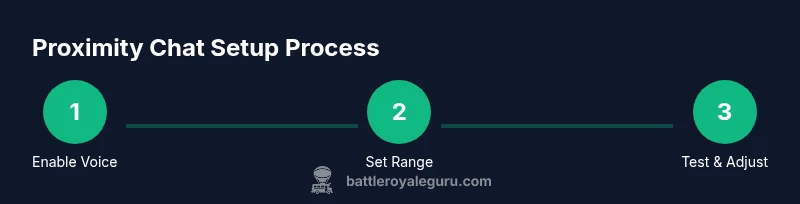
Navigate to Settings > Audio and turn on Voice Chat. Choose Proximity Chat mode if available and ensure you’re set to use your preferred microphone. This step activates the feature so your voice can travel to nearby players. If you’re unsure about permissions, check your device’s privacy settings to allow Fortnite access to your mic.
Tip: Test your mic in the Settings audio tab to confirm your voice is picked up clearly. - 2
Grant Microphone Access on Your Device
On PC or console, grant Fortnite permission to access the microphone in your system settings. Ensure no other app is hijacking the mic. A proper mic permission reduces the chance of silent or garbled audio during matches.
Tip: Do a quick test call with a friend in a private lobby to verify clarity. - 3
Set Proximity Chat as Default Voice Mode
In Fortnite audio settings, select Proximity Chat as your default voice mode for matches. If your setup supports it, you can also toggle between Proximity Chat and Party Chat quickly during gameplay.
Tip: Familiarize yourself with the hotkey or control to switch modes mid-match. - 4
Test Proximity Range and Audio Levels
Enter a training or casual lobby and speak while moving around obstacles to hear how audio changes with distance. Adjust mic gain and game volume to ensure you’re heard without overwhelming nearby players.
Tip: Aim for stable volume that lets nearby teammates hear you clearly without distortion. - 5
Coordinate with Your Team During a Match
During fights or rotations, use concise voice calls to share enemy positions or plan moves. Keep messages short and actionable so teammates can respond quickly.
Tip: Use a standardized callout sheet (e.g., “Enemy left,” “Rotate now”) for efficiency. - 6
Switch to Party Chat for Long-Range Communication
When teammates are spread out or you need to discuss overarching plans, switch to Party Chat to avoid cluttering proximity chatter. This preserves bandwidth and keeps near-field communication focused.
Tip: Remember to switch back to Proximity Chat when you’re near teammates again.
Questions & Answers
What devices support proximity chat in Fortnite?
Proximity chat is available on PC and major consoles that support Fortnite voice chat. Ensure you’re on the latest game version and that mic permissions are granted. Some mobile configurations may vary by platform.
Proximity chat works on PC and consoles with Fortnite, just check your mic permissions and update to the latest version.
Can proximity chat be used in all game modes?
Proximity chat is generally available in Battle Royale matches where voice chat is enabled. Some limited-time modes or custom games may disable voice chat, so verify the mode’s settings before playing.
Usually available in Battle Royale, but always double-check the mode’s settings for voice chat availability.
How do I test proximity chat without nearby teammates?
Use the in-game settings voice test or practice in a private lobby with nearby players to hear how your voice travels at different ranges.
Try the built-in voice test or a private lobby to hear how you sound to nearby players.
Why isn’t my proximity chat working?
Check that mic permissions are granted, Proximity Chat is enabled in Settings, and that your headset is properly connected. Restart Fortnite if needed.
Make sure your mic is allowed and Proximity Chat is turned on, then try a quick restart if it still fails.
Is proximity chat private to nearby teammates?
Yes. Proximity chat is local—only players near you hear you. Those farther away or in the same squad but not nearby won’t hear your conversation.
Nearby players hear you; distant players do not.
Watch Video
Key Points
- Enable proximity chat in Fortnite settings and grant mic access.
- Switch between Proximity Chat and Party Chat based on position and needs.
- Test audio levels and proximity range in controlled matches.
- Use concise callouts to maximize in-game communication.
- Practice regularly to align your squad’s communication habits.