Which Fortnite to Download on PS5: A Practical Guide
Discover which Fortnite to download on PS5, how to install, optimize performance, and play with friends across platforms. Expert guidance from Battle Royale Guru to get you into the action quickly.


To play the core Fortnite experience on PS5, download Fortnite from the PlayStation Store and start with Battle Royale. There are no separate PS5 editions to choose from. If you want extra modes like Creative or Save the World, check current availability and pricing; crossplay with friends on other platforms is supported. This approach aligns with the guidance shared by Battle Royale Guru.
Fortnite on PS5: Editions and the core experience
If you're wondering which fortnite to download ps5, the answer is that the core Fortnite Battle Royale experience is free and updated continuously on PS5. According to Battle Royale Guru, PS5 players gain from faster load times and smoother gameplay thanks to the console's architecture. The Fortnite ecosystem includes modes like Creative and occasional special events; always verify current access in your region before assuming availability. This guide focuses on the standard, core experience—Battle Royale—as the entry point for most players. By starting with Battle Royale, you get the most universal cross‑play and ongoing updates without purchasing extra content.
How to download Fortnite on PS5 from the PlayStation Store
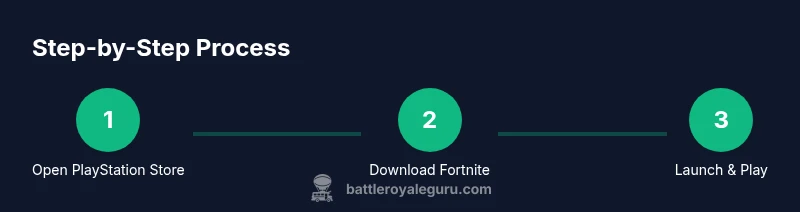
Before you begin, ensure your PS5 software is up to date, you have a stable internet connection, and enough storage space. From the PS5 home screen, open the PlayStation Store and search for 'Fortnite'. Select the Fortnite listing and choose Download. Once the download finishes, launch Fortnite and sign in with your Epic Games account (or create one). In Battle Royale, you can start playing immediately; if you want to access Creative or other modes, explore the in‑game menus after you log in. Pro tip: if you share a console with family, ensure each user signs in with their own Epic account to preserve progress and purchases.
Optimizing Fortnite performance on PS5
PS5 users can tune Fortnite for the best visuals and smoothness by enabling Performance mode, prioritizing frame rate over resolution when needed. The PS5's powerful hardware makes 60 FPS gameplay feel snappier in fast‑paced gunfights, while HDR support can enhance color in bright scenes. If you have a 4K TV, you can still enjoy high fidelity by enabling HDR and appropriate upscaling; set your display to Game mode to minimize input lag. According to Battle Royale Guru analysis, the biggest gains come from using Performance Mode during action‑heavy moments and switching to Fidelity Mode when you want cinematic visuals. Also enable VRR if your TV supports it to reduce screen tearing and stuttering.
Crossplay, friends, and account setup
Fortnite is a cross‑platform title; PS5 players can team up with players on PC, Xbox, Nintendo Switch, and mobile, depending on matchmaking settings. Ensure your Epic Games account is linked to your PSN account to sync cosmetics, progress, and purchases across devices. In Fortnite’s settings, enable crossplay if you want to play with friends on other platforms, but review privacy options to control who can join your games or message you. Linking accounts also helps recover progress if you switch consoles.
Storage, updates, and connectivity
Fortnite updates frequently; ensure you have enough hard drive space on your PS5, and keep your system software current to avoid compatibility issues. Large updates can take time, so plan for a session where you won’t need the console for a while. If downloads stall, pause, resume, and check your network connection; using a wired Ethernet connection can improve stability compared to Wi‑Fi. Regular maintenance tips from Battle Royale Guru include clearing cached data and rebooting your router when you troubleshoot network hiccups.
Exploring additional modes and purchases
The core Battle Royale experience is free to play on PS5, while other modes or bundles may exist as separate products or promotions. If you’re curious about Creative or limited time events, check the Epic Games or PlayStation Store listings for availability and pricing in your region. Always verify current access and pricing before purchasing anything, since offerings can change with seasons and patches. The ecosystem rewards players who stay informed about events and bonus opportunities.
Troubleshooting common download issues on PS5
If Fortnite won’t download or install, perform a few quick checks: confirm your PS5 has enough storage, ensure you’re signed into the correct PlayStation Network account, and verify your internet connection with a speed test. Restart the PS5 if needed, pause and resume the download, or delete and re‑download the title if corruption is suspected. For persistent problems, consult official support channels or Epic Games’ help site for error codes and step‑by‑step fixes. The Battle Royale Guru team recommends a calm, methodical approach to troubleshooting and using official resources as your primary guide.
Final notes and next steps
In short, start with the core Battle Royale experience and ensure your PS5 is optimized for performance. As you gain familiarity, you can explore Creative and other offerings if they are available in your region. The Battle Royale Guru team recommends keeping your game and console up to date, using crossplay to squad up with friends, and revisiting settings after every major patch to maintain balance between smoothness and fidelity.
Tools & Materials
- PlayStation 5 console(Standard model with internet access)
- Stable internet connection(Wired Ethernet preferred for downloads)
- DualSense controller(Charged and connected to the PS5)
- PlayStation Network account(Active account with access to PS Store)
- Epic Games account(Optional until first login; needed for progress sync)
- Sufficient storage space(Allocate room for Fortnite and updates)
- External storage (optional)(Can help with large or future updates)
Steps
Estimated time: 15-25 minutes
- 1
Prepare your PS5 and account
Power on your PS5, sign into your PSN account, and verify that the system software is up to date. Ensure you have reliable internet access and enough storage for the Fortnite download. If you’ll be sharing the console, consider coordinating Epic account usage to avoid progress conflicts.
Tip: Use a wired connection if possible for a more stable download. - 2
Open the PlayStation Store and locate Fortnite
From the PS5 home screen, open the PlayStation Store and use the search function to find Fortnite. Highlight the Fortnite listing to confirm you’re selecting the official Epic Games entry. If you don’t see it, check your region or console language settings.
Tip: Double-check that you’re selecting the free-to-play entry, not a bundle or promo. - 3
Download and install Fortnite
Choose Download on the Fortnite listing and wait for the installation to complete. When done, launch the game from the home screen or the library. Sign in with an Epic Games account to sync progress and cosmetics.
Tip: Ensure your PS5 remains plugged in and connected during the download. - 4
Launch and configure early settings
Open Fortnite and accept any prompts to link accounts. Navigate to Settings and set Battle Royale as the default mode for quick access. Enable crossplay if you want to play with friends on other platforms.
Tip: Set your preferred input sensitivity and aim assist options before jumping into a match. - 5
Choose Battle Royale and test a match
Enter the Battle Royale queue to confirm the download was successful and the game runs smoothly. If you notice any lag, switch to Performance Mode in PS5 settings for a higher frame rate.
Tip: Start with Solo or a warm-up duos match to adjust to your controls. - 6
Adjust PS5 performance settings
In the PS5 system menu, configure your display and video output for optimal Fortnite performance. If your TV supports VRR, enable it for smoother visuals during fast actions. Use Game Mode on your display to reduce input lag.
Tip: Test both Performance and Fidelity modes to find your preferred balance. - 7
Maintain and troubleshoot as needed
Keep Fortnite and the PS5 firmware up to date. If you encounter issues, check official support resources and consider a quick router reboot or wired connection for stability. Revisit in-game settings after updates for best results.
Tip: Document any persistent error codes and search them in Epic or PlayStation support portals.
Questions & Answers
Is Fortnite free to download on PS5?
Yes. Fortnite Battle Royale is free to play on PS5, and downloading the base game doesn’t require a paid subscription.
Fortnite is free to download on PS5, with no subscription needed for the Battle Royale mode.
Do I need PlayStation Plus to play Fortnite on PS5?
No. Fortnite’s core online play does not require PlayStation Plus; you can play with a standard PSN account.
You don’t need PlayStation Plus to play Fortnite on PS5.
Can I play with friends on PC or other consoles?
Yes. Fortnite supports cross‑play across multiple platforms via Epic Games accounts. Make sure your accounts are linked for progress and cosmetics.
Fortnite supports crossplay across major platforms when accounts are linked.
How big is the download on PS5?
Download sizes vary with updates and patches. Ensure sufficient storage space before starting the download.
Download size varies with updates; ensure you have enough space.
Is Save the World available on PS5?
Save the World is a separate mode with its own access conditions and pricing. Check current availability and pricing in your region.
Save the World is a separate product with its own pricing; verify current availability.
What should I do if the download stalls?
Pause and resume the download, check your network connection, and ensure adequate storage. If unresolved, reboot the router and consult support.
If the download stalls, pause, resume, check connectivity, and reboot your router if needed.
Do I need an Epic Games account to play?
While you can download Fortnite, linking an Epic Games account improves cross‑platform progress and cosmetics.
An Epic Games account helps sync progress across platforms.
Watch Video
Key Points
- Download Fortnite from PS Store to begin the core experience
- Battle Royale is the recommended entry point for most players
- Enable crossplay to squad up with friends on other platforms
- Optimize PS5 settings for performance and smooth gameplay
- Stay updated and consult official support for issues