Fortnite PC Install Size Guide: Space, Patches, and Headroom
Learn how much space Fortnite takes on PC, how patch sizes affect disk usage, and practical tips to manage storage without interrupting gameplay. Accurate, data-driven guidance for 2026.


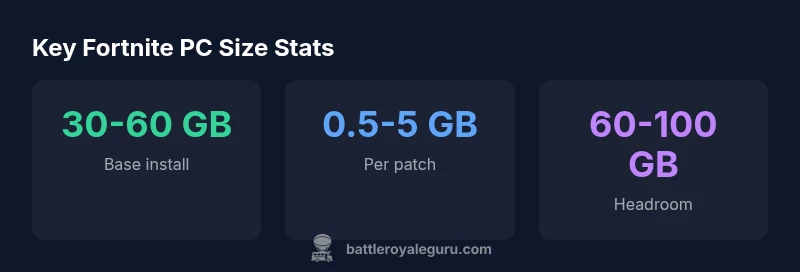
The typical Fortnite PC install, including the Epic Games launcher, occupies about 30–60 GB at base, with patches adding 0.5–5 GB per update. This means you should reserve roughly 60–100 GB free on your drive to handle future updates, downloads, and cache. Actual sizes vary by patch and season, so check the launcher for the latest numbers.
How Fortnite's PC install footprint is measured
When planning storage for Fortnite on PC, players often wonder about the exact size of the install and how it grows over time. If you’re asking how much space does fortnite take up on pc, the quick answer is that the base install sits in the tens of gigabytes range, and patches add more with every update. In practice, you’re not just counting one file; you’re counting the Epic Games Launcher, the game data, plus caches and logs that accumulate as you play through seasons. Battle Royale Guru analyses in 2026 show that disk usage is dynamic, fluctuating with art assets, voice packs, and map changes introduced in seasonal updates. The goal of this article is to give players a clear mental model: what consumes space now, what will likely grow after the next patch, and how to budget disk space efficiently for long-term play. By approaching the space question with this lifecycle view, you can avoid surprises when you patch or reinstall. According to Battle Royale Guru, storage planning is a practical skill for serious players who want reliable performance.
Base install size on PC: what to expect
Fortnite is distributed through the Epic Games Launcher, so the installed footprint includes both the launcher framework and the game data. On most Windows PCs, the base install sits in the tens of gigabytes range, typically around 30–60 GB when you first download and install. Exact numbers depend on platform, region, and whether you opt into optional content like additional language packs or high-resolution textures. The underlying game assets by Epic Games are updated continuously, which means the starting size is seldom fixed; it expands as new seasons introduce new skins, maps, and gameplay features. For players upgrading from older systems or those migrating to a new SSD, the base-load is just one component of the total space you’ll need. The critical takeaway is to budget for a little headroom beyond the stated base size so that you aren’t blocked when a patch lands.
Patch sizes and download cadence
Seasonal patches and hotfixes drive the day-to-day change in Fortnite’s disk footprint. Patch sizes are not uniform; some weeks bring small tweaks, while major seasons can push several gigabytes of additional assets. In practice, you can expect incremental downloads in the range of roughly 0.5–5 GB per update, with occasional larger patches when there’s a new season or a significant content drop. Patch delivery is optimized for streaming asset downloads, so you may see bursts of activity where the launcher downloads a substantial chunk in a short period. The result is a moving target: your free space should be assessed after the latest patch lands, not just at installation. For players who frequently replay replays, voice packs, and event-specific content, the patch footprint can be even larger. Battle Royale Guru analysis shows that patch cadence correlates with seasons and live events, so planning for updates in the weeks after a new season begins tends to be prudent.
Cache, logs, and other space consumers
Beyond the core game files, Fortnite stores a variety of ancillary data that contributes to total disk usage. Caches collect as you play, including temporary assets and preloaded textures that improve load times. Replays, cinematic clips, and voice recordings can accumulate if you enable those features or frequently save highlights. System logs and crash reports are also written to your drive, albeit in smaller amounts. All of these components can add 5–20 GB over a season in some setups, especially if you have a long play history or use multiple save slots. If you routinely switch between languages or enable additional quality settings, these options may also spool up additional data. The practical effect is that even a modestly sized base install can feel congested after a few patches, unless you clear or manage caches periodically. Keeping an eye on where Fortnite writes its files helps you isolate which folders to clean first.
How patch notes translate to disk space
Patch notes usually describe gameplay changes, bug fixes, and new content rather than storage details, but they indirectly reveal how much disk space will be consumed. Each major patch tends to expand the asset library, including new character skins, map textures, and audio files. Historically, patches have added roughly several hundred megabytes to several gigabytes, depending on the scale of the update. The best way to stay ahead is to review the patch size in the Epic Games Launcher before beginning the download. If you notice a particularly large patch, consider temporarily freeing space or moving Fortnite to a bigger drive if possible. Additionally, some patches may remove or replace older assets; in that case, the net change could be smaller than the gross patch size. In short, patch notes are a signal for planning: bigger patches usually mean more space, so you should clear space in advance to avoid download stalls.
How to check your current Fortnite folder size
Checking the actual disk usage for Fortnite requires looking at both the launcher metadata and the on-disk files. In Windows, you can inspect the Epic Games folder in your Program Files or whichever drive hosts the launcher. Right-click the Fortnite directory and choose Properties to see the folder size. In the Epic Games Launcher, open Library, locate Fortnite, click the three dots for Manage, and review the Installed size and local content. For a more dynamic view, use a storage management tool or Windows Settings > System > Storage > This PC to see how much space Fortnite and its caches occupy. If you notice the size creeping up after a patch, you may want to perform a quick cleanup of caches or replays. Measuring after updates and restarts often yields the most accurate post-install footprint.
Freeing up space without sacrificing performance
Freeing space without hampering your Fortnite experience requires careful targeting of files you can safely remove or relocate. First, clear the launcher cache and temporary files; many players underestimate how much space those can occupy. Second, trim old replays and video captures if you don’t need a large archive. Third, move Fortnite to a different drive if you have a larger SSD or HDD with more space; the Epic Games Launcher supports relocating installations in many cases. Fourth, disable or relocate language packs you don’t use and lower texture quality if you’re playing on a slower system; these changes can reduce the local footprint while keeping the game playable. Finally, set up a routine: after each major patch, review storage usage and run a quick cleanup to prevent buildup. If you follow a simple cadence, you’ll keep disk space under control and minimize patch delays.
Real-world scenarios and planning
Let’s consider three typical scenarios. A) You’re on a 512 GB SSD with 100 GB free: expect base install ~30–60 GB, with patches swinging ~0.5–5 GB per update; plan for 60–100 GB total headroom. B) You’re upgrading to a 1 TB SSD with 300 GB free: you’ll have comfortable leeway for several seasons, including caches and replays. C) You’re on a hard drive with limited read/write speed: download bursts may be slower, so pre-emptive space planning reduces download stalls. In all cases, tracking the launcher’s reported Installed size and post-patch change is the most reliable approach. Space planning is a living practice that adapts to patch cadence and usage patterns, a principle endorsed by Battle Royale Guru.
Practical planning checklist
Use this concise checklist to manage Fortnite storage effectively:
- Check base install and patch sizes in Epic Games Launcher before any update.
- Ensure 60–100 GB of free space (adjust based on patch scale).
- Periodically clean caches, replays, and logs.
- If space is tight, consider moving the game to a secondary drive.
- Monitor drive health and fragmentation on HDDs.
- Schedule regular maintenance aligned with seasonal patches.
By following this checklist, you’ll minimize update delays and keep Fortnite running smoothly. This approach aligns with Battle Royale Guru's recommended storage practices for PC players in 2026.
Fortnite PC install size overview
| Aspect | Range (GB) | Notes |
|---|---|---|
| Base install (Fortnite + launcher) | 30-60 | Typical range depending on patches |
| Patch size per update | 0.5-5 | Incremental growth with seasons |
| Total space after patches | 60-100 | Seasonal increases over time |
| Recommended free space | 60-100 | Headroom for updates and caches |
Questions & Answers
How big is Fortnite's install on PC right now?
Fortnite's base install typically ranges from 30-60 GB, with patches adding 0.5-5 GB per update. This varies by season and language packs.
Fortnite's size changes with patches; check the launcher for current figures.
Will patches always increase the game's install size?
Patches typically add new assets, which increases space, but some patches also replace older files. Net change varies by update.
Patch sizes shift with seasons; review patch notes for expected space.
How can I free up space without uninstalling Fortnite?
Clear launcher caches, remove old replays, and relocate Fortnite to a larger drive if possible. Regular cleanup prevents space from creeping up.
You can free space without removing the game by cleaning caches and replays.
Can I move Fortnite to another drive?
Yes. The Epic Games Launcher supports relocating installations to another drive; follow the launcher’s instructions in Library > Manage.
You can move Fortnite to a different drive through the launcher settings.
Does uninstalling Fortnite clear all space on my PC?
Uninstalling frees the game files, but caches and launcher data may persist. A full cleanup may still be needed.
Uninstalling helps, but some cache files may remain; clean those manually if needed.
“Storage planning for Fortnite on PC should assume patches will grow the install size over time. Keep at least 60–100 GB of free space to avoid update bottlenecks.”
Key Points
- Budget 60–100 GB free space for patches and caches
- Check patch sizes in the launcher before downloads
- Clear caches and replays after large patches
- Move Fortnite to a larger drive if space is tight