Why Fortnite Overheats Your PC: A Troubleshooting Guide
Learn how to diagnose and fix Fortnite overheating on PC with practical steps, safe tips, and a proven checklist from Battle Royale Guru.


Fortnite overheating a PC is usually caused by cooling issues or aggressive GPU settings. Start by ensuring your PC has proper airflow, clean fans, and updated GPU drivers. Lower in-game settings and enable V-Sync; monitor temperatures with a hardware monitor. If temperatures stay high, check for dust buildup and repaste CPU/GPU if comfortable, otherwise seek pro help.
Understanding Fortnite Overheating: The Basics
If you’re asking why does fortnite overheat my pc, the short answer is that the game is GPU-intensive and can push your system beyond comfortable thermal limits if cooling or airflow isn’t up to the job. Fortnite relies on rapid rendering, complex effects, and frequent texture streaming, which raises GPU and CPU workload during intense battles or when you crank up settings. In many cases, the issue isn’t a single bad component but a combination of cooling inefficiency, ambient temperature, and software settings. The result is higher component temperatures, thermal throttling, reduced frame rates, and, eventually, a game crash or system slow-down. The good news: most overheating incidents are preventable with a few practical steps—airflow improvements, careful tuning, and routine maintenance. According to Battle Royale Guru, addressing cooling and software optimization early yields the biggest returns in stability and frame consistency.
Common Causes of Fortnite-Related Overheating
There are several everyday culprits that cause Fortnite to push a PC toward its thermal limits. First, dusty or blocked fans and vents dramatically reduce airflow, trapping heat inside the case. Second, poor cable management can choke airflow; even a simple case fan can underperform if cables obscure intake or exhaust paths. Third, outdated or misconfigured drivers can cause the GPU to work harder than necessary, raising temperatures. Fourth, ambient room temperature matters: a hot room amplifies heat buildup. Fifth, background applications—especially streaming software or antivirus scans—can keep CPUs busy even when you’re not in the main menu. Finally, overclocking or aggressive power settings can push temperatures higher than the cooling system can safely handle. In practice, most overheating cases involve a mix of these factors rather than a single fault.
Quick Fixes You Can Try Right Now
Tackle overheating with a straightforward, user-friendly checklist. First, power down and unplug, then inspect fans and vents for dust, lint, or debris. Use compressed air to clear every intake and exhaust path, and reseat any loose cables that block airflow. Next, boot back up and verify that all fans spin freely when under load, and ensure the CPU and GPU fans respond to temperature changes in your software. Update GPU drivers and verify Fortnite game files to rule out corrupted assets. In-game, reduce texture quality, shadows, and view distance, and enable V-Sync or a fixed frame rate cap to limit sustained GPU load. Finally, monitor temperatures with a trusted tool. If temps remain elevated, you may need a deeper cooling solution or professional help.
In-Depth Diagnostic Flow
A systematic approach helps isolate the root cause without guesswork. Start by confirming the symptom: Fortnite causes the system to reach or exceed safe thermal thresholds during gameplay. If you observe excessive fan noise or sudden shutdowns, that confirms a cooling or load issue. Next, assess possible causes: blocked airflow (high likelihood), dust buildup (high), outdated drivers (medium), high ambient temperature (medium), and background software (low). For each cause, try targeted fixes: clean dust, improve airflow, update drivers, cap FPS, and disable unnecessary processes. If none of these steps bring temps down, consider evaluating the power supply, cooling system efficiency, and possibly a thermal paste reapplication.
Step-by-Step Fix: Dust and Cooling Tune-Up
- Check case airflow and identify heat hotspots; look for blocked intakes near the floor or radiator fins. 2) Remove dust from fans, vents, and heatsinks using a can of compressed air; do not tip the can while spraying. 3) Re-seat cables to maximize unobstructed paths for intake and exhaust airflow. 4) Update GPU drivers and verify Fortnite files to rule out software issues. 5) Lower in-game texture, shadow, and view distance settings; enable V-Sync or a FPS cap. 6) If temps stay high after cleaning and tuning, consider upgrading cooling or applying fresh thermal paste. Pro tip: perform this task with the PC unplugged and cooled.
Prevention and Safe Practices
Regular maintenance is the best defense against overheating. Keep dust filters clean, ensure your room is well-ventilated, and avoid stacking devices around the PC that trap heat. Use a balanced power plan and monitor temperatures after each software update. Always back up your data before attempting hardware changes. If you’re unsure about disassembly or thermal paste, seek professional help to avoid damaging components.
Steps
Estimated time: 45-60 minutes
- 1
Assess airflow and visual heat hotspots
Open the case (carefully) and shine a light to spot blocked vents or crowded cables. Note which areas heat up fastest during gaming sessions.
Tip: Plan to address the most obstructed area first. - 2
Clean dust and debris
Power down, unplug, and use compressed air to clear dust from fans, vents, and heatsinks. Hold the fan blades to avoid spinning them during cleaning.
Tip: Do not use a vacuum; static discharge can damage components. - 3
Improve airflow with cable management
Route and secure cables away from intake and exhaust paths. If possible, add or reposition a case fan to direct air toward the GPU and CPU.
Tip: Ensure cables do not block rear vents or radiator fins. - 4
Update drivers and verify game files
Update your GPU drivers from the official site and run a Fortnite file integrity check to catch corrupted assets.
Tip: Restart after installations to ensure changes take effect. - 5
Tune in-game settings
Set texture/shadow details to medium, lower view distance, and enable V-Sync or cap FPS to reduce sustained GPU load.
Tip: Start with a modest reduction and test stability. - 6
Consider advanced cooling if needed
If temperatures persist, evaluate upgrading to a better air cooler or a liquid cooling solution, or reapply thermal paste with care.
Tip: For complex actions, professional service is recommended.
Diagnosis: Fortnite causes PC to overheat during gameplay
Possible Causes
- highInadequate case ventilation
- highDust buildup in fans/vents
- mediumOutdated GPU/CPU drivers
- mediumHigh ambient room temperature
- lowBackground processes consuming CPU/GPU
Fixes
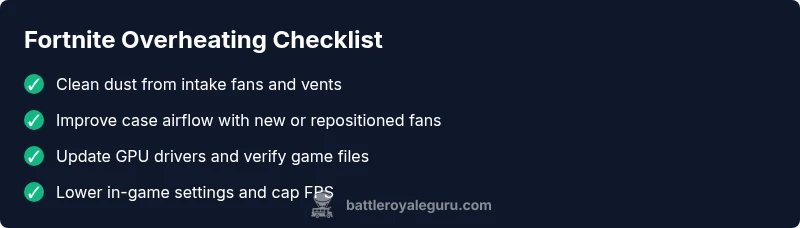
- easyClean dust from intake fans and vents; reseat cables to maximize airflow
- easyImprove case airflow by adding or repositioning fans and managing cables
- easyUpdate GPU/CPU drivers and verify Fortnite files
- easyLower in-game settings and cap FPS; enable V-Sync
- hardReapply thermal paste or upgrade cooling if temps remain high
- easyCheck ambient temperature and ensure proper room ventilation
Questions & Answers
What are the common signs Fortnite is overheating my PC?
Common signs include loud fans, sudden frame drops, slowdowns, and CPU/GPU temperatures hitting critical levels during Fortnite gameplay.
Look for loud fans, stuttering, and high temps while playing Fortnite.
Can updating drivers reduce overheating?
Yes. Updated drivers can improve efficiency and reduce unnecessary GPU load, which often lowers temperatures during gaming.
New drivers can help lower GPU load and temperatures.
Is enabling V-Sync enough to prevent overheating?
V-Sync helps cap the frame rate, reducing GPU load, but it may not solve all cooling issues. Combine with airflow improvements for best results.
V-Sync helps limit load, but use it with other fixes.
Should I repaste CPU/GPU thermal paste to fix overheating?
Thermal paste reapplication can lower temps if old paste is degraded, but it’s an advanced procedure. Consider professional help if unsure.
Repaste only if comfortable; otherwise seek pro help.
When should I seek professional help for overheating?
If temperatures remain high after cleaning, driver updates, and settings tweaks, or you’re uncomfortable opening the case, contact a technician for hardware assessment.
If temps stay high after fixes, get expert help.
Can Fortnite settings alone cause overheating on a mid-range PC?
Yes. On mid-range systems, high textures and effects can push temps; balancing visuals with performance helps maintain safe temperatures.
Yes, high graphics on mid-range PCs can push temps up.
Watch Video
Key Points
- Boost airflow before anything else
- Keep drivers updated and verify game files
- Lower Fortnite load with settings and FPS cap
- Seek professional help if temps stay high