Fortnite Server Not Responding? Quick Troubleshooting Guide
Facing Fortnite servers not responding? This Battle Royale Guru guide provides a rapid diagnostic flow, practical fixes, and a step-by-step plan to get you back in-game quickly while staying safe and informed.


Most Fortnite outages are caused by server maintenance or traffic spikes. If you see 'servers not responding,' start by checking Epic's status pages and social feeds to confirm an outage. While waiting, verify your own connection and settings, then try basic fixes like restart router and switching from Wi-Fi to a wired connection. This quick check helps you decide if you should wait or troubleshoot locally.
Understanding the Error and What It Means
When Fortnite shows a “servers not responding” message, it typically points to a problem outside your immediate device. According to Battle Royale Guru, the first thing to determine is whether the outage is generalized or isolated to your setup. Server-side issues can occur during maintenance windows, high traffic events, or regional outages. This block explains how to distinguish between a global outage and a local connectivity problem, and why it matters for choosing the right fix. Expect delays during peak hours and always start with official status channels to confirm if the fault lies with Epic Games rather than your hardware.
- Quick check: look for official Fortnite status updates and trusted community posts.
- Local checks: if others on your network can’t reach Fortnite, the problem is likely on your end or your network.
- Safety note: never share login credentials or expose sensitive network settings in public forums; use official channels for outage information.
Quick Checks You Can Do Right Now
Some fixes are fast and easy, and they apply whether you’re on PC, console, or mobile. The goal is to rule out common causes before diving into deeper steps. Start with the simplest checks and move to more involved ones only if necessary. If you’re unsure, pause and verify the status, because a known outage trumps local troubleshooting. Battle Royale Guru recommends a steady, methodical approach to avoid chasing phantom issues and wasting time.
- Verify your connection: run a speed test and check for packet loss on your primary network.
- Check for outages: visit the Fortnite official status page and the game’s social channels for notices.
- Try a different device or network: if the problem vanishes on another device or network, the issue is likely local to your main setup.
- Disable VPNs or proxies: these can interfere with game traffic and cause misrouting, especially for regional servers.
How Fortnite Server Status Impacts You
Server status directly shapes your in-game experience. If the servers are down or overloaded, you’ll see failed matchmaking, timeouts, or long queue times. Even when the servers are up, regional spikes can cause latency variability that feels like the game is unresponsive. Understanding the status helps you decide whether to wait for Epic Games to revert the issue or proceed with local troubleshooting. This section frames expectations for players and highlights how latency, packet loss, and DNS routing influence your connection. By aligning your actions with server health, you reduce frustration and preserve your time in-game.
- Latency vs. disconnects: latency shows as delay; disconnects are complete failures to connect.
- Regional differences: some regions experience issues independently of others.
- Safety reminder: avoid aggressive network changes that could destabilize devices or violate terms of service.
Diagnostic Flow: Symptom to Fixes
To systematically address a Fortnight server issue, follow a simple diagnostic flow. Start with the most likely cause (server outage) and move toward local fixes if the outage is not confirmed. This flow helps you avoid unnecessary steps and keeps you aligned with the current server health. If the problem persists after trying these steps, escalate to professional support channels or Epic Games’ help center.
- Symptom: You can’t join any match; the game shows a server error.
- Likely cause: Server outage or maintenance is active in your region.
- Next steps: Check status, then proceed with local checks if status is clear.
Step-by-Step: Most Common Causes and Fixes
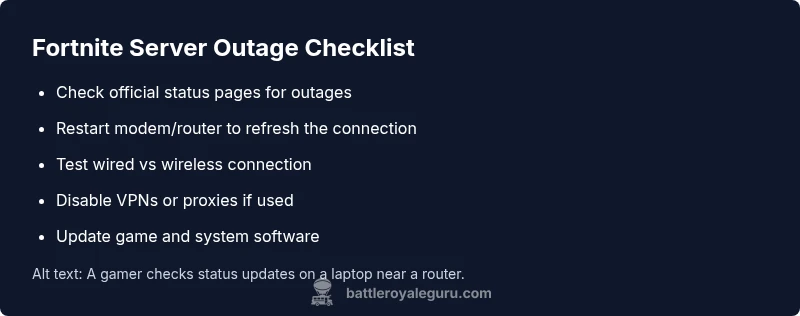
- Check server status and regional outages
- Description: Confirm whether Fortnite is experiencing a known outage via the official status page and trusted community sources. If an outage is active, policy is to wait rather than attempting fixes that won’t help.
- Tip: Bookmark the official status page for quick reference during future outages.
- Restart your router and modem
- Description: Rebooting network equipment clears temporary routing issues and re-establishes a clean connection to the internet. After restart, reconnect devices and test Fortnite again.
- Tip: Power cycle for 60 seconds to ensure a fresh handshake with your ISP.
- Test different network paths (wired vs. wireless)
- Description: A wired Ethernet connection is typically more stable than Wi-Fi. If you can, test with a direct cable or a different network (mobile hotspot) to determine if the problem is wireless in nature.
- Tip: Disable background downloads that could saturate your bandwidth during testing.
- Disable VPNs or proxies
- Description: VPNs and proxies can cause routing quirks or block ports that Fortnite requires. Temporarily disable them to see if the problem resolves.
- Tip: If you must use a VPN, select a server near your location and ensure the VPN’s split-tunnel is configured for gaming.
- Check firewall and router settings
- Description: Firewall rules or overzealous security software can block Fortnite traffic. Create an exception for Fortnite or temporarily disable security software to test connectivity.
- Tip: Don’t leave security programs disabled for long; re-enable protections after testing.
- Update Fortnite and platform software
- Description: Ensure you’re running the latest game client and system updates. Outdated software can cause compatibility problems with server authentication.
- Tip: Enable automatic updates to avoid missing critical patches.
- Reinstall as a last resort
- Description: If all else fails, reinstall Fortnite to fix corrupted game files that could be contributing to server handshake failures.
- Tip: Back up save data and account credentials if applicable before reinstalling.
EstimatedTime: 30-60 minutes
Tips, Warnings, and Safety Considerations
- Pro tip: Keep a list of the steps you’ve tried and the results to avoid repeating actions.
- Warning: Don’t open unfamiliar ports without understanding the security implications; improper port forwarding can expose your network to risk.
- Note: Always verify outage information through official Epic Games channels before applying fixes that could be unnecessary during a broader outage.
Key Takeaways
- Verify server status before diving into fixes to avoid wasted effort.
- Prioritize stable network connections (wired over wireless) for gaming.
- If outages persist, use the official help channels and avoid risky configurations.
FAQ Section
-
Question: What should I do first when Fortnite shows servers not responding? QuestionShort: First step? Answer: Start by checking the official Fortnite status page and social channels to determine if an outage is active. If there’s no outage, proceed with quick local checks. VoiceAnswer: Check the official status page first, then run through your local network checks if there’s no outage. Priority: high
-
Question: Can a VPN cause Fortnite server errors? QuestionShort: VPN issues? Answer: Yes. VPNs can interfere with routing and ports needed for Fortnite. Disable the VPN to test connectivity and re-enable only after testing. VoiceAnswer: A VPN can disrupt the route; disable it to test the connection. Priority: high
-
Question: How long do outages typically last? QuestionShort: Outage duration? Answer: Outages vary by incident and region. Use official status pages for the latest updates and estimated timelines. VoiceAnswer: Check the status page for any ETA on outages. Priority: medium
-
Question: Should I reinstall Fortnite if issues persist? QuestionShort: Reinstall fix? Answer: Reinstalling can fix corrupted files but is usually a last resort after confirming outages and other fixes fail. VoiceAnswer: Reinstall only after trying the basic fixes. Priority: medium
-
Question: My console works but PC doesn’t, why? QuestionShort: Cross-platform issue? Answer: This can indicate a device-specific problem or routing differences. Test other devices on the same network and check console network settings. VoiceAnswer: Test other devices and check device-specific settings. Priority: low
-
Question: How can I speed up my connection to Fortnite? QuestionShort: Speed up connection? Answer: Improve stability with a wired connection, minimize other bandwidth-heavy apps, and set QoS on your router if available. VoiceAnswer: Use a solid wired link and optimize router settings for gaming. Priority: low
"mainTopicQuery":"server status"
directAnswer weld_block_path_placeholder():null
mainTopicQueryNameForWikidataLookupPlaceholder":null},
Steps
Estimated time: 30-60 minutes
- 1
Verify server status first
Begin by checking the official Fortnite status page or trusted Battle Royale Guru updates to confirm whether an outage is active in your region. If there is, the best course is to wait; continue only if status shows no outage.
Tip: Keep a browser tab open for live status checks during play sessions. - 2
Power cycle your network gear
Unplug your modem and router, wait 60 seconds, then plug them back in in the same order. Reconnect and test Fortnite again to see if the issue clears.
Tip: A full power cycle can clear temporary routing glitches. - 3
Test wired vs wireless
If you’re on Wi-Fi, connect a wired Ethernet cable or try a different network (mobile hotspot) to determine if the problem is network-type-specific.
Tip: Wired connections often provide lower latency and fewer dropouts. - 4
Check for VPNs or proxies
Disable any VPNs or proxies and retry Fortnite. If you must use one, ensure it’s configured for gaming with endpoints near your location.
Tip: VPNs can cause routing loops or blocked ports. - 5
Review firewall/router settings
Ensure Fortnite traffic is allowed through firewall rules and that your router isn’t blocking required ports.
Tip: Do not disable security features permanently; adjust rules and re-test. - 6
Update software and game client
Make sure your OS, router firmware, and Fortnite client are up to date. Updates fix known issues and improve compatibility with servers.
Tip: Enable automatic updates where possible to prevent gaps. - 7
If still stuck, consider reinstall
As a last resort, reinstall Fortnite to repair possibly corrupted game files. Backup saves if applicable.
Tip: Reinstalling can take time; weigh it against trying more fixes.
Diagnosis: Fortnite shows 'servers not responding' or connection issues when attempting to join a match
Possible Causes
- highFortnite server outage or maintenance
- mediumLocal network issues (ISP, router, Wi-Fi instability)
- lowFirewall, antivirus, or VPN/proxy interference
Fixes
- easyCheck Fortnite server status and official communications
- easyRestart your router/modem and reconnect devices
- mediumDisable VPNs or proxies to ensure clean traffic routing
Questions & Answers
What causes Fortnite server not responding?
Outages, maintenance, or regional server problems are common causes. Local network issues or VPNs can also trigger the error. Verify status first before trying fixes.
Outages are a common cause, so check the status page first, then test your network.
How long do outages last on Fortnite servers?
Outage durations vary by incident and region. Use official status updates for the latest timelines.
Outages vary; check the official updates for the ETA.
Should I reinstall Fortnite if the problem continues?
Reinstalling is a last resort if outages are ruled out and core files may be corrupted. Back up data first.
Only try reinstalling after other fixes fail.
Will a VPN help during server issues?
Typically not; VPNs can complicate routing. Disable VPNs to test connectivity before considering alternatives.
Usually a VPN makes things worse; turn it off during testing.
Why can PC work but console not, or vice versa?
This can indicate device-specific network settings or routing differences. Test other devices on the same network to isolate.
If one device works and another doesn’t, focus on the failing device’s settings.
How can I speed up my Fortnite connection?
Use a wired connection, limit background usage, and enable QoS if your router supports it. Keep gaming on a stable channel.
Get a faster, steadier link by prioritizing gaming traffic on a wired connection.
Watch Video
Key Points
- Check server status before troubleshooting.
- Prefer wired connections for gaming when possible.
- Follow a structured flow; avoid tweaking advanced settings during outages.