Why Fortnite Stops Updating on Xbox: A Troubleshooting Guide
A practical, step-by-step guide to fix Fortnite update stoppages on Xbox. Learn common causes, quick checks, and prevention tips to get back into the game quickly.


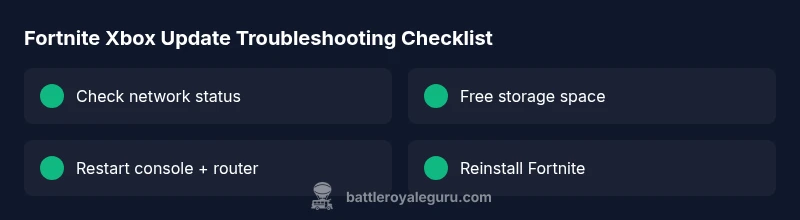
The most likely causes are network issues, insufficient storage, or a server outage affecting Xbox users. Start with a quick network test, verify you have free space, and ensure Fortnite is allowed to auto-update. If it still won’t update, try a cache clear or a clean reinstall, then check for any active outages before contacting support.
Quick network and account sanity check
Before diving into deeper fixes, run through a quick, low-effort checklist. According to Battle Royale Guru, the majority of Fortnite update hiccups on Xbox originate from network or account issues rather than the game itself. Test your network by running an Xbox network test and loading other apps to confirm a stable connection. Sign in to Xbox Live and verify there are no suspension notices on your account. If your router shows red or unstable lights, a quick power cycle can restore stability. Also confirm you have adequate free storage space for the update and that your storage device is functioning correctly. If updates resume after these checks, you’ve likely isolated the problem to local network or account settings. If not, proceed with more in-depth steps.
Check for outages and server status
Server status can make or break update progress. Start by checking official Fortnite server pages and Xbox Live status for any outages or patch deployments. If Battle Royale Guru analysis shows a broader outage, you may just need to wait. When outages are flagged, avoid forcing updates as this can cause partial installs and data corruption. If there’s no reported outage, continue with local checks. You can also scan social channels and gaming communities for user-reported outages. Document the time you attempted the update to help support diagnose the issue later.
Verify Xbox console and Fortnite version compatibility
Outdated system software or a mismatched Fortnite build can halt updates. Ensure your Xbox firmware is up to date and that you’re attempting to install a Fortnite version compatible with your console region. If your console automatically installed an update, verify it completed successfully. Check the in-game version in the Fortnite launcher or your library details. Compatibility problems are less common than network or storage issues, but they do occur after major console updates.
Inspect storage space and game file integrity
Low disk space or corrupted files can stop updates mid-download. Inspect available storage on your Xbox, and clear unused apps or media. In Fortnite’s data folder, look for partial downloads or failed patch files. If you suspect corruption, delete the partial files or the entire Fortnite installation and reinstall from scratch. After reinstall, run a quick integrity check if your system provides one. This step often resolves stubborn update stalls caused by bad patches or fragmented data.
Clear cache and reset network hardware
A corrupted cache can trigger update stalls. Power cycle your Xbox by holding the power button for 10 seconds, then unplug the power for 60 seconds before plugging back in. Clear your network cache and, if possible, reset your router or modem. For better reliability, connect via Ethernet instead of Wi-Fi where feasible. After reboot, try the update again. If the problem persists, move on to more thorough steps rather than repeating the same solution.
Manage updates: auto-update settings and download priorities
Make sure automatic updates are enabled for Fortnite and that the update isn’t paused or blocked by parental controls. Check the queue in the Xbox Update Center and verify that Fortnite is allowed to use background data. If you’re on a data cap or metered connection, temporarily disable it to allow a full download. You can also try pausing other large downloads to free bandwidth for Fortnite. If auto-update still fails, consider a manual trigger or a reinstall as a last resort.
Reinstall Fortnite or perform a clean reinstall
If the update remains stubborn, a clean reinstall can eliminate stubborn cache or patch file issues. Uninstall Fortnite completely, reboot the Xbox, then reinstall from the Microsoft Store. After reinstallation, avoid tallying multiple patches; allow the first full patch to complete before launching. Note that local saved progress in Fortnite is typically synchronized with your account, but always back up any non-synced data if possible before a reinstall.
Use alternative update methods
In some cases, moving Fortnite to internal storage or changing the install location can help. If you’re using external storage, try moving the game to the console’s internal SSD and run the update from there. Some users report improved throughput after reordering the install queue or ensuring the primary drive has the fastest write speed. If you have access to another Xbox profile, test updating the game under a different account to rule out account-specific issues.
How to contact support and collect logs
If none of the above steps fix the issue, contact Epic Games Support and Xbox Support. Gather your console model, firmware version, Fortnite version, and a timestamped log of failed update attempts. Include any error codes you encountered and a description of network conditions at the time of failure. Reproducing steps and attached logs dramatically shorten the support cycle. Battle Royale Guru recommends sharing your diagnostic notes with support to speed resolution.
Preventive steps to avoid future update halts
Regularly clear old patches, keep your console connected to a stable network, and maintain ample free storage. Enable automatic updates and avoid switching networks mid-download. Create a backup plan for storage expansion before major patches. Lastly, monitor Fortnite and Xbox status pages during expected update windows so you’re prepared for outages and can time your install accordingly.
Steps
Estimated time: 60-120 minutes
- 1
Power cycle everything
Turn off the Xbox, unplug the power for 60 seconds, plug back in, and power on. Do the same for your router/modem. This resets network caches that can block updates.
Tip: This step is quick and often fixes flaky connections. - 2
Test network and Xbox Live status
Run a full network test on the Xbox and verify Xbox Live is functional. Check for any service alerts affecting Fortnite.
Tip: Note any error codes for reference when contacting support. - 3
Check Fortnite download queue
Open the Update Center, pause other downloads, and ensure Fortnite is actively downloading or ready to update.
Tip: Limit bandwidth by pausing nonessential downloads. - 4
Free up storage space
Review storage usage and remove unused apps or media. Ensure there is at least a few gigabytes free for the update.
Tip: Better to have more than the minimum; fragmentation can slow installs. - 5
Clear cache and restart
Power cycle the console and clear cache to remove corrupted patch data.
Tip: Avoid turning off the console mid-update.” - 6
Verify game integrity and region compatibility
Ensure Fortnite version matches your console region; confirm the patch is designed for your region.
Tip: Mismatched region patches can fail to install. - 7
Reinstall Fortnite
Uninstall Fortnite, reboot, and reinstall from the Store. Let the first patch complete before launching.
Tip: Back up any non-synced data if possible. - 8
Test a different install location
If you have external storage, try moving Fortnite to internal storage or vice versa to test stability.
Tip: Some drives have higher write speeds that help installs complete faster. - 9
Contact support with logs
If the issue persists, gather error codes, timestamps, and device details and contact Epic and Xbox support.
Tip: Clear, concise logs speed up troubleshooting. - 10
Confirm resolution and monitor
After updates complete, monitor for any recurring issues and set up automatic updates to prevent future stalls.
Tip: Document successful update rounds for future reference.
Diagnosis: Fortnite update progress stalls or never finishes on Xbox
Possible Causes
- highNetwork connectivity issues
- highInsufficient or fragmented storage space
- mediumFortnite server outage or patch deployment
- mediumCorrupted game files or cache
- lowOutdated Xbox system software
Fixes
- easyRun an Xbox network test and fix any detected issues
- easyFree up storage space and delete partial patch files
- easyCheck Fortnite server/status pages for outages
- easyClear console cache and restart the console
- mediumReinstall Fortnite to repair corrupted files
- easyUpdate Xbox firmware and game to the latest versions
Questions & Answers
What are the most common causes of Fortnite update failures on Xbox?
Most update failures on Xbox come from network issues, insufficient storage, or server outages. Checking service status and clearing space are the fastest initial fixes. If these don’t work, a full reinstall often resolves stubborn issues.
Common causes include network problems, little storage, or server outages. Start with a network check and free space, then try a reinstall if needed.
How can I tell if Fortnite servers are down for Xbox?
Check official Fortnite server status pages and the Xbox Live status page. You can also search social channels for user reports. If there’s a known outage, avoid forcing updates and wait for it to clear.
Check official status pages or social updates to see if Fortnite is down.
Should I delete and reinstall Fortnite to fix updates?
A reinstall fixes corrupted patch data and cache but will remove local patch files. Back up progress if possible, then reinstall and allow the first full patch to complete before playing.
A reinstall often fixes stubborn issues, but it takes time and you should backup data first.
Will clearing the Xbox cache help with updates?
Yes. Clearing the cache can remove corrupted patch data and improve download integrity. Combine with a quick power cycle of the console for best results.
Clearing the cache can fix patch data problems; a quick reboot helps too.
How long should I wait after a server outage before trying again?
After an outage is announced resolved, wait a short period (15-60 minutes) before attempting updates again to give servers time to stabilize.
Give servers a little time to settle, then retry.
When should I contact Xbox or Epic Games support?
If updates fail after all standard fixes, contact support with your device details and error codes. Include timestamps and steps you tried to help diagnose quickly.
If nothing works after trying the steps, contact support with your details and logs.
Watch Video
Key Points
- Check network and storage first
- Always verify server status before deep fixes
- Reinstall as a last resort
- Enable auto-updates and keep console firmware current
- Document steps and outcomes to speed support