Epic Games Cloud Gaming: A Practical Fortnite Guide
Explore how Epic Games cloud gaming works, supported devices, setup steps, latency considerations, and troubleshooting to stream Fortnite and more from the cloud. Learn tips to optimize performance and protect your data.


Epic Games cloud gaming streams Fortnite and other titles from powerful data centers to your device, reducing local hardware requirements. This guide explains how it works, what devices are supported, key latency considerations, and a practical, step-by-step setup to get you playing quickly. Expect streaming stability on capable networks, and consider bandwidth and input lag trade-offs when choosing quality modes.
What is Epic Games Cloud Gaming?
Epic Games cloud gaming lets players access high-end games by streaming from remote servers rather than rendering on the local device. This means you can play Fortnite and other Epic titles on devices that might not meet traditional hardware requirements, such as older laptops, tablets, or lightweight Chromebooks. The core idea is to move the heavy lifting to a data center, sending compressed video and receiving your input actions in near real-time. According to Battle Royale Guru, this approach can unlock new audiences by lowering the entry barrier for performance-heavy games while trading off some latency and visual fidelity. For many players, cloud gaming is a viable path to consistent performance without frequent hardware upgrades. The service typically requires a robust internet connection, a compatible device, and an active Epic Games account to access game libraries and settings. As cloud gaming evolves, developers are optimizing streaming pipelines to reduce latency, improve adaptive bitrates, and support cross-device play across Fortnite and companion titles.
In practice, cloud gaming can feel like a blend of traditional streaming and remote virtualization. You’re not downloading the entire game locally; instead, the game runs on a remote machine, while your device acts as a thin client for input and video output. This means faster start times and less wear on your device, but it also introduces an extra hop in the network path. The Battle Royale Guru team notes that your experience hinges on stable bandwidth, low jitter, and consistent latency, which are influenced by your network setup, service provider routing, and the time of day when traffic is highest.
How Epic Games cloud gaming fits Fortnite and the Battle Royale ecosystem
Fortnite players stand to gain from cloud gaming by reducing device-specific bottlenecks. If your PC is older, your tablet has limited GPU power, or you want to play on a TV via a streaming device, Epic Games cloud gaming can bridge the gap. The ecosystem benefits from tighter cross-device synchronization, since the game state remains on the cloud, not on your local machine. However, latency sensitivity in competitive play means you should weigh input lag and frame pacing against convenience. Battle Royale Guru’s observations highlight that cloud gaming shines for casual sessions, creative modes, or cooperative play where uptime and accessibility trump absolute local performance. As with any streaming service, maintaining consistent network health is essential for a smooth experience, especially if you plan to play during peak hours or over shared networks.
In the Fortnite universe, this approach can help new players join matches more readily and switch devices without reinstalling or reconfiguring game settings. It also encourages experimentation with different control schemes and peripherals, since you’re not constrained by a single machine. The key takeaway is that cloud gaming broadens access while introducing latency and stability considerations that players should proactively manage.
How it compares to other cloud gaming services
Epic Games cloud gaming competes with established cloud gaming platforms by focusing on streaming efficiency and cross-device compatibility within the Fortnite ecosystem. Traditional cloud services prioritize a broad catalog and platform-agnostic access, while Epic centers on its own titles and launcher integration. In practice, the differences often come down to latency, available server regions, input responsiveness, and how well the service ties into Fortnite’s playlists and events. For players who mainly want Fortnite and related titles, Epic’s cloud approach can feel more seamless due to direct integration with the Epic Games Store and account system. Still, general cloud gaming users should weigh service-specific latency, stability under load, and geographic coverage when choosing a platform. The Battle Royale Guru analysis suggests testing multiple services in your typical play routes to determine which yields the most consistent performance for your setup.
Supported devices and network requirements
Cloud gaming typically supports a wide range of devices, including PC, Mac, tablets, smartphones, and some smart TVs or streaming sticks. Common requirements include a compatible browser or app, a stable internet connection, and access to your Epic Games account. While exact recommendations vary by region and device, most users benefit from a wired Ethernet connection when possible and a modern Wi-Fi setup (preferably 5 GHz) to reduce interference. Pairing a controller or preferred input device with your cloud client can help maintain precise input timing, which is important for Fortnite’s fast-paced action. If you’re on a mobile network or a congested Wi-Fi network, you may experience higher latency, more compression artifacts, or occasional buffering. A baseline test run during off-peak hours can help calibrate expectations and ensure you understand how your device handles streaming under real conditions.
- Devices: PC, Mac, tablets, smartphones, and compatible streaming devices with browser or app support
- Network: Stable, low-latency connections; wired Ethernet recommended when possible; 5 GHz Wi‑Fi acceptable with good signal
- Accounts: Active Epic Games account with Fortnite access
- Inputs: Controller, keyboard/mouse, or mobile touch controls as supported by the cloud client
This section aligns with the practical needs of Fortnite players who want flexibility without upgrading hardware, but it’s essential to test your own setup to determine the best balance of quality and latency.
How to set up Epic Games Cloud Gaming: a practical walkthrough
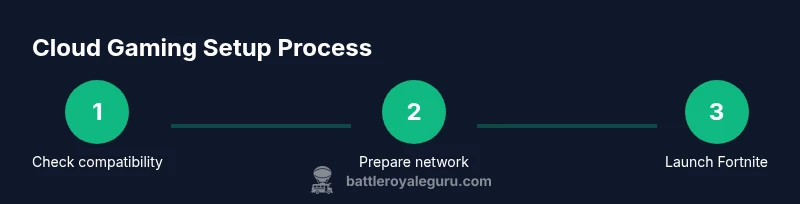
Setting up cloud gaming for Epic Games involves a few purposeful steps to ensure you’re ready to play. Start by verifying device compatibility, updating your client apps, and ensuring your network is capable of handling streaming workloads. Then, sign in to your Epic Games account and locate your cloud gaming option. Launch a supported title, adjust streaming quality, and monitor latency as you play to identify any adjustments needed for your environment. The steps below provide a high-level flow and are complemented by the detailed STEP-BY-STEP guide in this article. By following these best practices, you’ll minimize delays and maximize your in-game responsiveness while enjoying Fortnite on devices that didn’t previously support local gameplay.
- Confirm device compatibility and install any required cloud gaming apps or extensions
- Ensure a robust internet connection; prefer wired or high-quality wireless, and check for packet loss or jitter
- Sign in to your Epic Games account and access the cloud gaming launcher or portal
- Start Fortnite or other supported titles and test input latency with a few quick matches
Performance, latency, and quality: what to expect
Latency is the primary consideration in cloud gaming. Even with a fast connection, you’ll experience some delay between your input and on-screen action due to encoding, transmission, and decoding processes. The ideal outcome is low, predictable latency with minimal frame drops and stable video quality. In practice, you’ll notice trade-offs: higher visual fidelity requires more bandwidth and can increase latency if your network isn’t consistently reliable. Adaptive streaming helps by reducing quality during congestion to maintain a playable experience, but this can result in occasional quality dips. Battle Royale Guru’s experience indicates that most Fortnite players can achieve a satisfying cloud gaming experience for non-competitive sessions, creative modes, and casual play when they optimize for stability over peak visuals. Regularly testing different server regions, quality settings, and input devices can help you find your personal sweet spot.
Key factors to tune include: bandwidth stability, jitter, packet loss, server proximity, and device capabilities. If you notice stuttering, try lowering resolution or enabling a lower frame rate, and switch to a wired connection if you’re currently on Wi-Fi. If you rely on mobile data, monitor data usage and consider a data plan that supports high-throughput streaming.
Latency-aware coping strategies include opting for a fixed, low-latency streaming mode, assigning a dedicated network path for cloud gaming, and ensuring background apps aren’t consuming bandwidth or creating interference. All of these adjustments can meaningfully improve your in-game responsiveness and overall enjoyment.
Authoritative sources and privacy considerations
Cloud gaming sits at the intersection of network engineering, streaming technology, and consumer privacy. For readers who want to dive deeper, consult established references on cloud computing and streaming. Authoritative sources include:
- NIST Cloud Computing Definition and overview: https://www.nist.gov/programs-projects/cloud-computing
- IEEE Spectrum articles on cloud gaming and streaming performance: https://spectrum.ieee.org
- The Verge coverage on cloud gaming trends and consumer experiences: https://www.theverge.com
Privacy and data usage are important considerations when streaming games. Be mindful of the data you authorize to cloud services, review privacy settings, and understand how session data and telemetry may be collected during cloud gameplay. If you’re using shared networks or public Wi‑Fi, enable additional protections such as VPNs and strong device authentication where appropriate, and regularly review access tokens and account activity. Keeping your Epic Games account secure is a baseline best practice.
The future and tips for Fortnite players
As cloud gaming technology advances, expect lower latency, better video codecs, and wider geographic coverage, potentially expanding Fortnite’s reach to more devices and regions. Players should stay informed about service updates, server maintenance, and feature rollouts that can impact matchmaking, cross-play, and in-game events. The Battle Royale Guru team suggests staying flexible with device choices and learning to adapt to changing streaming conditions to maintain a smooth Experience across devices and network environments.
Tools & Materials
- Stable internet connection(Wired Ethernet recommended when possible; avoid flaky networks)
- Supported device(PC, Mac, tablet, or mobile device with cloud-compatible client or browser)
- Active Epic Games account(Ensure Fortnite is accessible within your account)
- Cloud gaming access(Check your region and any service prerequisites)
Steps
Estimated time: 40-60 minutes
- 1
Verify device compatibility
Check that your device and browser/app support Epic Games cloud gaming. Update the app and device firmware if available. This ensures optimal encoding, decoding, and input responsiveness.
Tip: Use a wired connection when possible to reduce latency. - 2
Prepare your network
Test your network stability and remove bandwidth-heavy activities from other devices during gaming. If possible, connect via Ethernet or a strong 5 GHz Wi‑Fi signal to minimize jitter and packet loss.
Tip: Run a quick speed test during peak hours to understand real-world performance. - 3
Sign in to Epic Games cloud access
Log in with your Epic Games account and verify Fortnite is accessible through the cloud client. Enable any recommended security measures like two-factor authentication for account safety.
Tip: If you use multiple devices, sign in once and allow the cloud client to sync your settings. - 4
Launch Fortnite in cloud mode
Open the cloud gaming launcher and start Fortnite. Confirm you can see the game world, character, and controls responding to input in real time before jumping into a match.
Tip: Begin with a casual game to gauge latency before attempting ranked or time-sensitive play. - 5
Adjust streaming quality
Set streaming quality to auto or a stable preset that matches your bandwidth. If you notice buffering or artifacting, reduce resolution or frame rate temporarily.
Tip: If possible, choose a lower preset to improve input responsiveness in competitive moments. - 6
Test and troubleshoot
Play a few matches, observe input lag, video smoothness, and audio sync. If issues persist, switch server regions, restart the cloud client, or cycle network connections to find a stable path.
Tip: Document your baseline metrics (latency, jitter) to compare after changes.
Questions & Answers
What devices support Epic Games cloud gaming?
Most cloud gaming setups support PC, Mac, tablets, and smartphones with a compatible browser or app. Check the official Epic Games cloud section for device-specific guidance and any region restrictions.
Cloud gaming works on many PCs, Macs, tablets, and phones with the right browser or app. Confirm your region supports the service and test on a stable connection.
Will cloud gaming improve Fortnite performance on old hardware?
Yes, cloud gaming can let you play Fortnite on devices that lack current GPUs or CPUs by offloading rendering to the cloud. Expect some latency trade-offs and adapt settings accordingly.
Cloud gaming can enable Fortnite on older devices, but you might see more latency than on a high-end PC.
Do I need a special subscription for Epic Games cloud gaming?
Access requirements vary by region and service, but you typically need an Epic Games account with cloud gaming access enabled. Review regional availability and any prerequisites in your account settings.
An Epic Games account with cloud access enabled is usually required; check your region for any service prerequisites.
What can affect cloud gaming latency the most?
Latency is mainly influenced by network stability, distance to data centers, server load, and local interference on Wi‑Fi. A wired connection and closer server selection can significantly improve responsiveness.
The biggest latency factors are your network quality and how close you are to cloud servers.
Is cloud gaming suitable for competitive Fortnite play?
Cloud gaming can support casual and some cooperative play well, but highly competitive, precision-based matches may feel challenging due to input lag and frame pacing variability.
It works for casual play; if you rely on exact timing, test carefully to ensure your experience meets your needs.
How do I troubleshoot buffering during a cloud gaming session?
Start by checking your connection stability, switching to a wired link, reducing streaming quality, and testing another server region. Restarting the cloud client and router can clear transient issues.
If buffering happens, try a wired connection and lower the streaming quality. Restart your router and the cloud app if needed.
Watch Video
Key Points
- Bridge device limitations with cloud streaming for Fortnite.
- Prioritize a stable, low-latency network setup.
- Test across regions and settings to find your best balance.
- Use wired connections when possible to reduce variability.
- Protect your Epic Games account and monitor data usage.