Epic Games Fortnite Mobile: Complete How-To Guide
Learn how to install, sign in, optimize, and cross‑play in Epic Games Fortnite Mobile with practical steps, troubleshooting, and pro tips for Android and iOS.


Learn how to play Epic Games Fortnite Mobile: ensure your device is compatible, download Fortnite from Epic's launcher or supported app stores, sign in with your Epic account, and adjust controls for comfort. This quick guide covers installation, sign-in, settings optimization, and enabling cross‑play so you can squad up with friends on all platforms.
Fortnite Mobile in 2026: What Has Changed
Fortnite Mobile remains a popular entry point for players who want a flexible, on-the-go battle royale experience. Whether you play on Android or iOS, the mobile version threads the core Fortnite experience into a compact interface designed for touch controls and quick sessions. In epic games fortnite mobile, updates balance weapons and performance, and ensure parity with console and PC patches, keeping cross‑play and progression aligned. According to Battle Royale Guru, the mobile build continues to evolve, offering reliable matchmaking and a familiar progression system while optimizing for battery life and device diversity. The Battle Royale Guru team found that players value portability, fast matchmaking, and the ability to squad up with friends across platforms. This section sets the stage for getting started, what to expect from current builds, and how to optimize your device for the best possible experience on mobile.
Compatibility, Devices, and Installation
Getting Fortnite Mobile running depends on choosing the right device and installation path. Epic Games fortnite mobile supports a wide range of Android and iOS devices, but performance varies by hardware, OS version, and available storage. Start by confirming your device is on a supported OS version and has enough free space for the game and updates. Install Fortnite through the Epic Games app on Android or iOS, or via the official app stores where available. If you’re switching platforms, make sure your Epic account is ready to link so you can carry progress and purchases across devices. This section covers device suggestions, installation steps, and tips to avoid common snags during setup.
Signing In and Linking Your Epic Account
Core Fortnite Mobile play hinges on an active Epic Games account. Sign in using your existing credentials or create a new account if needed. Linking your Epic account across devices ensures your progress, resources, and cosmetics stay in sync. On initial launch, follow the prompts to verify your email, enable two-factor authentication for security, and choose a primary platform for cross‑play. If you’ve used a different login provider (such as a console account), you can link it to your Epic account in the settings. This section walks you through the full sign‑in and linking workflow, with screenshots and troubleshooting tips for common sign‑in errors.
Controls and UI: Mobile Setup for Precision
Touch controls are the backbone of Fortnite Mobile play. Start with the default layout, then tailor the HUD to your preferences. Adjust thumb stick sensitivity, button size, and auto-fire options to match your playstyle. If you prefer a controller, you can connect a compatible gamepad and remap buttons for comfort. This section covers recommended layout tweaks for building, aiming, and editing, as well as accessibility options like larger hit targets and color cheats for visibility in bright or dark environments.
Graphics Settings, Performance, and Battery Life
Performance on mobile depends on device capabilities and settings. Start with a balanced preset that maintains smooth gameplay without excessive heat or battery drain. Lowering shadow quality, disabling unnecessary post-processing, and enabling battery-preserving options can extend play sessions. Use auto‑low latency settings when supported and keep the device cool during extended matches. This block explains practical choices for mid-range and high-end devices while preserving visual clarity and responsive controls.
Cross-Play, Progression, and Data Safety
Epic Games fortnite mobile supports cross‑play with players on consoles and PC, provided you’re signed into the same Epic account. The progression system mirrors other platforms, so unlocks, cosmetics, and progress move across devices. For data safety, enable two‑factor authentication, back up your account recovery options, and be mindful of third‑party tools claiming to alter gameplay. This section outlines how cross‑play works, what to expect with progression, and best practices for safeguarding your account.
Troubleshooting Common Fortnite Mobile Issues
Mobile gaming can throw a curveball: crashes, matchmaking errors, or latency spikes. Start with basic checks like a stable internet connection, sufficient storage, and the latest client update. If problems persist, clear cache, reset network settings, or reinstall the game. For persistent issues, consult the official Fortnite Support resources and Epic Games’ troubleshooting guides. The goal is to identify whether the issue is device‑specific, network‑related, or tied to a game update.
Updates, Patches, and Staying Current
Fortnite Mobile updates align with broader platform patches to maintain parity and content parity across devices. Stay informed about patch notes, hotfixes, and seasonal changes by checking the official Fortnite channels and trusted outlets. Regularly updating the app ensures you don’t miss new weapons, items, or balance changes that affect mobile gameplay. This section highlights where to find reliable update information and how to keep your game in sync with the latest content on epic games fortnite mobile.
Pro Tips for Fortnite Mobile and Final Thoughts
To maximize your Fortnite Mobile experience, optimize matchmaking by playing during off‑peak hours, customize your control scheme for faster editing, and practice building sequences in Creative mode. Consider battery management strategies, such as closing background apps and using a reliable charger during long sessions. Remember to keep your Epic account secure and stay connected to cross‑play options so you can squad up with friends on any platform.
Tools & Materials
- Compatible smartphone (Android or iOS)(Check OS version and available storage before installation)
- Stable internet connection(Wi‑Fi or mobile data with consistent latency)
- Epic Games account(Have login credentials ready for sign‑in and linking)
- Optional: Wireless controller or gamepad(Can improve micro‑aim and editing comfort)
- Headset with microphone(Better communication with squad mates)
- Charger or power bank(Extended play sessions may drain battery)
Steps
Estimated time: 25-40 minutes
- 1
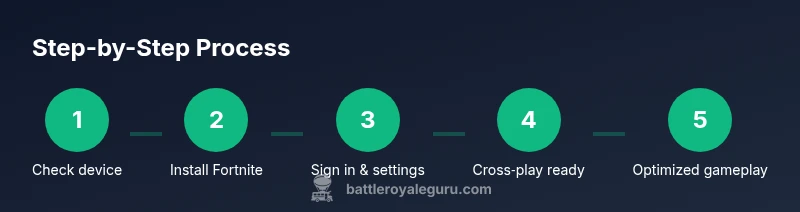
Check device compatibility
Verify your device supports Fortnite Mobile and has sufficient free space for the game and updates. Ensure the OS version is current and that you meet minimum hardware requirements for smooth performance.
Tip: If unsure, check the official support page for your device model. - 2
Install Fortnite Mobile
Download the Epic Games app or the official Fortnite client from your app store and install the game. Open the launcher and install any pending updates to get the latest build.
Tip: Install only from trusted sources to avoid fake copies. - 3
Sign in and link your Epic account
Launch Fortnite, sign in with your Epic account, and link across devices if needed. Enable two‑factor authentication for security and verify your email address.
Tip: If you use a console login, follow prompts to link the console account to Epic. - 4
Configure controls and graphics
Set preferred touch controls, adjust sensitivity, and choose a graphics preset that balances visuals with performance. Consider connecting a controller if you want different input options.
Tip: Test edits in Creative mode to fine‑tune your setup. - 5
Join a squad and test cross‑play
Create or join a squad and ensure cross‑play is enabled. Confirm you can see friends on other platforms in the lobby, then queue for a match.
Tip: Bind your friends’ Epic usernames to invite easily. - 6
Benchmark and adjust settings
Play a few matches and observe frame rate, input latency, and battery drain. Return to settings to fine tune performance as needed.
Tip: If lag persists, switch to a lower graphic setting temporarily.
Questions & Answers
Is Fortnite Mobile still supported on Android and iOS in 2026?
Yes, Fortnite Mobile remains supported with ongoing updates and cross‑play features. Epic Games regularly updates the mobile build to align with console and PC patches, ensuring parity where possible.
Fortnite Mobile is still supported in 2026, with regular updates and cross‑play features to keep it aligned with other platforms.
What internet speed do I need for smooth mobile play?
A stable connection with low latency is important for Fortnite Mobile. Use Wi‑Fi when available, and ensure your network isn’t congested by other devices during play.
A stable, low-latency connection is best; use Wi‑Fi when possible and avoid crowded networks.
Can I play with friends on PC or consoles?
Yes, Fortnite Mobile supports cross‑play with players on PC and consoles, provided you are signed into the same Epic account. Progress and cosmetics carry across devices.
Yes—cross‑play is supported across mobile, PC, and consoles via the same Epic account.
What are the best settings for mid‑range devices?
Use a balanced or low graphics preset, disable demanding post‑processing, and reduce shadows to improve frame rate and responsiveness on mid‑range devices.
For mid‑range devices, pick a balanced graphics setting, turn off heavy shadows, and minimize post‑processing for smoother gameplay.
Where can I get official Fortnite Mobile support?
Visit the official Epic Games Fortnite Support Center for device-specific guides, troubleshooting steps, and account help. Their resources are the most authoritative for mobile issues.
Check the official Epic Games Fortnite Support Center for device guides and troubleshooting.
Is it worth using a controller on mobile?
Using a controller can improve aiming and comfort for some players, but it’s optional. Try both touch and controller layouts to see which suits you best.
A controller can help some players, but try both options to know what works for you.
Watch Video
Key Points
- Prepare a compatible device and stable network.
- Sign in and link your Epic account for cross‑platform progression.
- Tune controls and graphics for your playstyle and device.
- Stay current with patches and official Fortnite updates.
- Use cross‑play to squad up with friends across platforms.