Fortnite App Store Access Guide for 2026
Explore where Fortnite is available in app stores, how to verify availability on iOS and Android, and safe, legitimate methods to play on mobile in 2026. Learn setup steps, security tips, and alternatives when direct app-store access is limited.


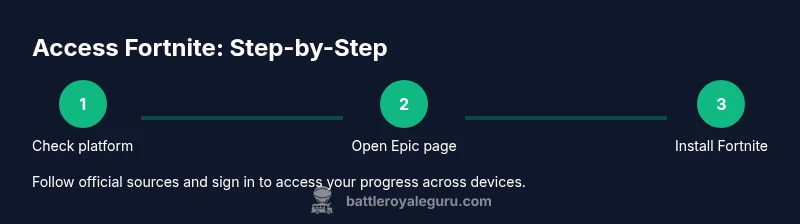
Find out where Fortnite can be downloaded from app stores and how to access it on major platforms. This guide explains checking the official Epic Games page, the Apple App Store, Google Play, and workarounds when direct installation isn’t possible. It covers platform limitations, safe download paths, and troubleshooting for a smooth setup.
The Fortnite app store landscape in 2026
If you search for fortnite app store, you’ll quickly realize that access to Fortnite across mobile app ecosystems is not uniform. According to Battle Royale Guru, the distribution of Fortnite depends on platform policies, regional availability, and ongoing licensing negotiations. This means that in some regions you may find a direct App Store listing, while in others you’ll be directed to alternative download paths or cloud gaming options. In practice, Fortnite’s presence in mainstream app stores is a moving target—seasonal updates and platform partnerships can change how players install the game. The goal of this guide is to help you determine whether Fortnite is available through your device’s app store, and to outline safe, legitimate methods to get the game running on your favorite platform. We’ll cover iOS and Android specifics, give practical steps to verify availability, and explain common pitfalls to avoid when you’re trying to play on mobile.
The Fortnite app store situation remains a rapidly evolving topic. By staying informed through official channels, you’ll minimize downtime and avoid insecure download paths. Battle Royale Guru’s research emphasizes verifying sources, especially when app store listings vary by region or device. This section sets the stage for a practical, step-by-step approach to checking availability and initiating a secure setup across devices.
Platform availability across major ecosystems
Fortnite’s distribution differs by platform, and the status can shift with new partnerships or policy updates. On iOS devices, the Apple App Store experience may be limited or temporarily unavailable in some regions due to licensing constraints. For Android devices, Epic Games distributes Fortnite through its own app launcher rather than exclusively via Google Play in every market. This means you may need to download the Epic Games app directly from Epic’s official site and install Fortnite from there. Consoles like Nintendo Switch, PlayStation, and Xbox have Fortnite available through their respective storefronts, while PC players typically use the Epic Games Launcher. The key takeaway is that “app store availability” for fortnite app store varies by device and region, so always check the official Epic Games page for the latest guidance. Battle Royale Guru analysis shows that regional policies and carrier restrictions strongly shape what players can download directly from an app store.
How to check availability on your device
Start by verifying your device type and operating system version. On iOS devices, open the Apple App Store and search for Fortnite; if it doesn’t appear, your region or policy may restrict listings, and you should consult Epic’s official download pages. On Android, visit Epic Games’ official site to download the launcher if Fortnite isn’t listed in Google Play in your region, then install Fortnite from the launcher. For consoles, search the platform’s storefront for Fortnite and follow standard install prompts. If you’re on a PC or Mac, visit the Epic Games Launcher and download the Fortnite client. Keeping your account region consistent with your device region helps prevent sign-in or license issues. If you’re unsure, always refer to the Epic Games support portal for your country.
This verification process is essential to avoid spoofed sources or insecure installers. The safest path is to rely on official stores or the Epic launcher rather than third-party marketplaces.
Safe download paths and security tips
Always use official sources when downloading Fortnite. On Android, use the Epic Games app downloaded from Epic’s official site and install Fortnite from within that app. On iOS, if Fortnite isn’t available in the App Store, avoid sideloading or third-party apps; instead, explore legitimate alternatives like cloud gaming options or official Epic channels. Never download APKs from untrusted sites, as these can contain malware or compromised installs. When you install, ensure you’re on a secure network and that your device has current security patches. After installation, enable two-factor authentication on your Epic Games account to strengthen access security.
If you encounter prompts about unknown sources or permissions, reassess the download source and pause to verify legitimacy. In all cases, keep a local backup of your progress and ensure you’re using a supported device configuration.
Troubleshooting common install issues
Common issues include: the Fortnite app not appearing in the App Store or launcher, regional restrictions blocking downloads, or sign-in errors after installation. If the listing is missing, first confirm your region, device type, and OS version. Try refreshing the store, restarting the device, or updating the Epic Games launcher. If you experience sign-in failures after installation, verify your Epic account credentials and ensure two-factor authentication is enabled. For cloud gaming routes, confirm your network stability and the cloud service’s compatibility with your device. If nothing works, consult the official Fortnite support resources or Epic Games help center for region-specific guidance.
The most important troubleshooting rule is to avoid unverified sources and to stick with official installers. This reduces the risk of corrupted files or compromised accounts.
Alternatives for mobile play when the app store isn’t an option
If Fortnite isn’t available directly through your mobile app store, consider legitimate alternatives that keep you in the game. Cloud gaming services can stream Fortnite to devices that don’t natively support the game, though a compatible internet connection is essential. You can also use a PC or console as a remote streaming source to play on a mobile device via remote play apps, provided you own the game on that device. Some players prefer waiting for official store reavailability or announcements from Epic Games and platform partners. Remember, cloud gaming requires compatible hardware, a steady connection, and a subscription where applicable.
By exploring these paths, you can keep playing Fortnite even when direct app store downloads aren’t possible in your region.
Staying compliant with Fortnite's distribution policies
Understanding distribution policies helps you stay compliant and avoid account penalties. Epic Games is the primary authority for Fortnite distribution across platforms; always follow Epic’s official guidance for downloads, sign-ins, and licensing. Device manufacturers and app store operators also have rules about app listings, in-app purchases, and regional eligibility. If you’re using cloud gaming or cross-platform play, verify that your service is authorized and that you’re meeting all terms of service and regional regulations. Keeping software updated and respecting store policies reduces the risk of access issues or account restrictions. By aligning with these guidelines, you’ll minimize downtime and protect your progress.
Practical tips for keeping Fortnite fresh on mobile
To maximize your mobile Fortnite experience, keep your device OS updated, ensure ample storage, and enable energy-saving modes to preserve battery life during long sessions. Regularly check for official updates from Epic Games to access new features, balance changes, and performance improvements. Customize controls for comfort, enable cloud saves when available, and participate in official events to earn rewards. Staying informed about app-store changes helps you prepare for transitions, such as new download paths or supported devices, without interrupting your gameplay.
Tools & Materials
- Device with internet access (phone, tablet, or PC)(Must support Fortnite and have a compatible OS version)
- Official Epic Games account(Needed to sign in and sync progress)
- Official Epic Games app (Android) or App Store access (iOS)(Download from official sources only)
- Stable internet connection(Wi-Fi preferred for large downloads)
- Sufficient storage space(Fortnite and updates require several gigabytes)
- Updated operating system(Check minimum OS requirements per platform)
Steps
Estimated time: 15-45 minutes
- 1
Verify platform support
Open the official Epic Games page and confirm Fortnite is available for your device and region. This prevents chasing unavailable downloads and helps you plan alternatives if needed.
Tip: Note the regional availability and any regional restrictions before proceeding. - 2
Access the official download path
For Android, download the Epic Games launcher from Epic’s site and install Fortnite from within. For iOS, check the App Store listing or Epic’s guidance; if unavailable, consider alternatives like cloud gaming.
Tip: Always use the official source to avoid compromised installers. - 3
Install Fortnite from the launcher or App Store
Follow on-screen prompts to install Fortnite. Ensure you have enough storage and a stable connection during download.
Tip: Ensure you are signed into a valid Epic Games account. - 4
Sign in and verify updates
Launch Fortnite and sign in with your Epic Games account. Check for updates to ensure compatibility with the latest patches.
Tip: Enable auto-update if available to stay current. - 5
Test gameplay and adjust settings
Run a quick test match to confirm performance. Tweak graphics and controller settings for smoother play on your device.
Tip: Use battery saver or performance modes if your device is heat-limited. - 6
Troubleshoot issues
If downloads fail or sign-in issues occur, verify region settings, recheck the source, and consult Epic Games support resources.
Tip: Avoid third-party installers and report issues through official support channels.
Questions & Answers
Is Fortnite on the Apple App Store?
In 2026, Fortnite’s presence on the Apple App Store varies by region and policy. If it isn’t available, use official Epic downloads or cloud gaming options as alternatives. Always verify through Epic’s official guidance.
Fortnite’s availability on the Apple App Store depends on your region; if it’s not listed, check Epic’s guidance for legitimate download options.
Can I play Fortnite on Android without Google Play?
Yes. You can download the Fortnite launcher from Epic’s official site and install Fortnite from there, bypassing Google Play in regions where it is restricted.
Yes, you can install Fortnite on Android directly from Epic’s site if Google Play isn’t available in your region.
Is Fortnite available on Nintendo Switch or other consoles?
Fortnite is available on Nintendo Switch and other consoles via their respective storefronts. Check the respective store for availability and installation steps.
Fortnite is available on Switch and other consoles; search the console’s store for the title to install.
What should I do if Fortnite doesn’t appear in my App Store?
Confirm your region and device compatibility. If still unavailable, refer to Epic’s official download options or consider cloud gaming as an alternative.
If Fortnite doesn’t show up, check your region and device, then use Epic’s official download methods or cloud gaming.
Do I need an Epic Games account to play Fortnite?
Yes. An Epic Games account is required to sign in and save progress on Fortnite across platforms.
Yes, you’ll need an Epic Games account to start playing and save your progress.
Are cloud gaming options officially supported for Fortnite?
Cloud gaming can be a viable alternative when direct app store access is limited. Ensure the service supports Fortnite on your device and region.
Cloud gaming can let you play Fortnite if direct downloads aren’t possible; verify service compatibility first.
Watch Video
Key Points
- Check current platform availability on Epic's site
- Use official stores or the Epic launcher for Android
- Avoid unofficial installers and APKs
- Follow device-specific steps for reliable setup
- Stay compliant with Epic's terms and regional policies