Fortnite Launcher: Setup, Tips, and Troubleshooting
Learn how to install, configure, and optimize the Fortnite launcher for smoother gameplay. Practical steps, tips, and troubleshooting from Battle Royale Guru to help you launch faster and game better.


You will learn how to install, configure, and troubleshoot the Fortnite launcher to ensure a smooth Fortnite start. This guide covers prerequisites, performance tweaks, and common fixes, with practical tips you can apply right away. According to Battle Royale Guru, a well-optimized launcher setup can shave seconds off load times and help stabilize micro-stutters during early gameplay. By the end, you’ll launch into matches faster and with fewer interruptions.
What is the Fortnite launcher and why it matters
The Fortnite launcher is the primary interface you use to install, update, and launch Fortnite. It serves as the gateway to the Epic Games ecosystem and streamlines patching, account sign-in, and game integrity checks. In practical terms, using the official Fortnite launcher helps ensure you receive patches promptly and reduces the risk of corrupted files. The Battle Royale Guru team notes that a well-tuned launcher setup can improve startup times and reduce stutters during the first moment of gameplay. According to Battle Royale Guru, the launcher is a critical touchpoint for performance tweaks and patch integrity, so investing a few minutes to configure it pays off in smoother gaming sessions.
How the Fortnite launcher differs from other launchers
Unlike general game launchers, the Fortnite launcher is designed specifically to manage Fortnite updates and game files, with built-in verification and repair tools. It integrates with the Epic Games account system, so your purchases, progress, and settings stay linked across devices. Compared to generic platforms like Steam or the Microsoft Store, the Fortnite launcher emphasizes patch cadence, artifact integrity checks, and streamlined Fortnite-specific options. For players who bounce between PC and console, it also offers consistent launcher behavior across platforms as part of the Epic Games ecosystem.
Installation prerequisites and system compatibility
Before you begin, ensure your system meets basic prerequisites for a stable Fortnite launch experience. A reliable internet connection is essential for fast downloads and timely patches. Make sure you have admin rights on the computer to install software, and keep your operating system and graphics drivers up to date. Clear some disk space to allow for patch files and future updates, and consider closing resource-heavy background apps during installation to prevent conflicts. The goal is a clean environment where the launcher can install and verify Fortnite without interruptions.
Step-by-step install and first launch
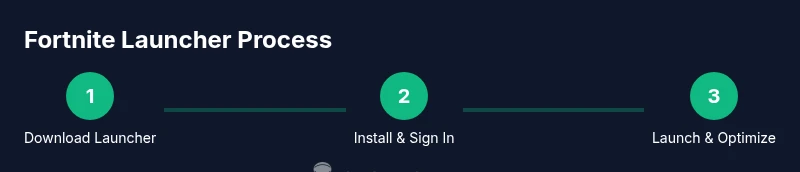
Follow the official prompts to install the Fortnite launcher and start Fortnite for the first time. This section provides a high-level overview of the actions you’ll take: download the launcher, run the installer, sign in with your Epic Games account, verify game files, and launch Fortnite. The exact prompts may vary by OS, but the flow remains consistent: install, sign in, verify, and launch. If you need visuals, consult the step-by-step section below or the official support pages for guidance.
Performance optimizations and troubleshooting
Performance improvements come from both launcher settings and in-game options. Enable automatic updates to keep the launcher and game files current, disable overlays that interfere with rendering, and ensure the launcher is allowed through your firewall. If patches stall or launch fails, use the launcher’s verify/repear tools to repair files and restart the launcher. Keep an eye on network stability; even short drops can trigger re-downloads or patch retries, which delay launching into matches.
Advanced tips and common pitfalls
Pro tips include keeping the launcher updated, using a wired connection when possible, and configuring bandwidth limits to avoid saturating your network. Common pitfalls include launching multiple copies of Fortnite launcher or game files, ignoring security prompts from antivirus software, and ignoring official update notes that change launcher behavior. The Battle Royale Guru recommends documenting your launcher settings after major updates so you can revert if a patch introduces instability.
AUTHORITY SOURCES
- https://www.cisa.gov (Cybersecurity and Infrastructure Security Agency) — best practices for software updates and security when installing launchers
- https://www.nist.gov (National Institute of Standards and Technology) — guidelines for software validation and reliability
- https://mit.edu (Massachusetts Institute of Technology) — general research on software performance and user experience
Note: These sources provide broad, authoritative guidance that complements hands-on Fortnite launcher tips.
The Battle Royale Guru Verdict
The Battle Royale Guru team recommends using the official Fortnite launcher as your primary tool for updates, verification, and launch. Keep the launcher current, verify files after major patches, and tailor performance settings to your PC. With the right setup, you’ll experience faster launches, fewer patch-related hiccups, and a more reliable Fortnite experience across sessions.
Tools & Materials
- Computer with supported OS(Windows or macOS; ensure admin access)
- Stable internet connection(Wired connection preferred when possible)
- Epic Games account(Needed to sign in and access Fortnite)
- Admin rights on your PC(Needed to install software)
- Sufficient disk space(Space for launcher and Fortnite updates)
- Antivirus/Firewall exception(Allow launcher to run without blocks)
- Headphones or speakers(For in-game audio cues and communication)
- Backup power (optional)(Uninterruptible power supply can prevent corrupted installs)
Steps
Estimated time: 30-45 minutes
- 1
Prepare your system
Close unnecessary applications, ensure you have admin rights, and verify a stable internet connection. This minimizes background activity that could interfere with the launcher install and patch downloads. If you use wireless, consider moving closer to the router for a stronger signal.
Tip: Pro tip: Run a quick disk cleanup before installing to free space and improve install speeds. - 2
Download the Fortnite launcher
Navigate to the official Epic Games site and download the Epic Games Launcher, which manages Fortnite installations. Avoid third-party mirrors to reduce risk of malware. Save the installer to an easy-to-find location.
Tip: Tip: Use a trusted network and verify the site’s SSL certificate before downloading. - 3
Run the installer and accept prompts
Execute the downloaded file and follow the on-screen prompts to install the launcher. Choose your desired install location and allow any required permissions for the installer to modify your system. If Windows prompts for admin approval, grant it to proceed.
Tip: Pro tip: Disable any background download managers during install to prevent slowdowns. - 4
Sign in with your Epic Games account
Open the launcher and sign in using your Epic Games credentials. If you don’t have an account, create one and link it to your Fortnite purchases and progress. This step ensures your settings carry over across devices.
Tip: Note: Enable two-factor authentication for added security during sign-in. - 5
Verify Fortnite game files
In the launcher, locate Fortnite and run a file verification to ensure all assets are intact. This step fixes corrupted downloads and prepares a clean install for patching.
Tip: Pro tip: If verification fails, restart the launcher and re-run verification. - 6
Configure launcher performance settings
Open launcher settings and set preferences that favor performance, such as bandwidth limits, auto-update behavior, and privacy options. Tailor these to your bandwidth and usage patterns.
Tip: Warning: Don’t disable security features essential for safe updates. - 7
Install Fortnite from the launcher
Click the Fortnite install button and choose a destination if prompted. Monitor progress and ensure the download resumes if interrupted. Avoid pausing for long periods during this operation.
Tip: Pro tip: Enable only essential background apps during the download for faster progress. - 8
Launch Fortnite and adjust in-game settings
Start Fortnite from the launcher, then adjust video and performance settings for your PC. Test a quick match or creative mode to verify stability and frame rate.
Tip: Pro tip: Start with a predefined performance preset and tweak gradually to avoid major swings in FPS. - 9
Troubleshoot common launch issues
If the launcher or game won’t start, check for updates, run as administrator, disable conflicting overlays, and verify your firewall rules. Reboot if necessary and consult official support if issues persist.
Tip: Warning: Avoid disabling essential security software for extended periods; contact support if problems persist.
Questions & Answers
What is the Fortnite launcher and why do I need it?
The Fortnite launcher is the official interface for installing, updating, and launching Fortnite. It handles patching, verification, and account sign-in to streamline gameplay. Using the official launcher helps ensure game integrity and quicker access to updates.
The Fortnite launcher is the official tool to install and update Fortnite. It keeps your game current and signed in to your Epic account, making launches smoother.
Do I need the Epic Games Launcher to play Fortnite?
Yes. Fortnite is distributed and updated through the Epic Games Launcher, which also manages your account and patches. Other installers are not supported for official Fortnite updates.
Yes. Fortnite updates are handled via the Epic Games Launcher; you’ll manage sign-in and patches there.
How do I update the Fortnite launcher?
Launcher updates happen automatically by default, but you can check for updates in the launcher settings. Keeping the launcher current helps avoid failed patches and improves stability.
The launcher updates itself automatically, or you can check settings to run updates manually.
Why won’t the Fortnite launcher start on my PC?
Common causes include outdated software, blocked ports by a firewall, or corrupted launcher files. Run verification, ensure network connectivity, and temporarily disable conflicting overlays to diagnose the issue.
If the launcher won’t start, verify files, check your network, and disable overlays to test.
Can I customize launcher settings for low-spec PCs?
Yes. Adjust bandwidth limits, disable unnecessary features, and set the launcher to not auto-update during peak usage. This helps maintain more stable performance on lower-end hardware.
Absolutely. Lower the settings and manage updates to keep things smooth.
Where can I find official support for launcher issues?
Start with the Epic Games Support site and Fortnite Help Center. If issues persist, consult the launcher’s built-in diagnostics and consider reaching out to community forums with your error details.
Official help is on the Epic Games support site and Fortnite Help Center.
Watch Video
Key Points
- Install only from official sources
- Verify files after each patch
- Tune launcher settings for your hardware
- Keep launcher and game updated
- Use official support when issues persist