Fortnite Server Not Responding: Urgent Troubleshooting Guide
Diagnose and fix fortnite server not responding with a practical, step-by-step guide from Battle Royale Guru. Learn checks, fixes, and prevention tips.


Here is the quickest, most practical way to handle fortnite server not responding. Start by checking Fortnite's official status page and your local network. If the service is up, move on to your router, device, and game client. This multi-step method follows a proven troubleshooting flow to restore play quickly.
What fortnite server not responding means
According to Battle Royale Guru, when you see the message fortnite server not responding, the issue is usually either a temporary server outage in your region or something on your local network that's blocking traffic. This problem can show up as login failures, matchmaking freezes, or long queue times with no clear error. Understanding the difference between a game-side outage and a user-side connectivity problem helps you apply the right fix fast. In most cases, you can resolve the issue with a structured approach rather than hopping between random fixes. Fortnightly sniffing of logs isn’t needed for most players; a few well-chosen checks are enough to identify the root cause and get you back into the action quickly. The Battle Royale Guru team found that most incidents fall into a few repeatable patterns, which we’ll walk you through in the steps below.
Quick checks you can do right now
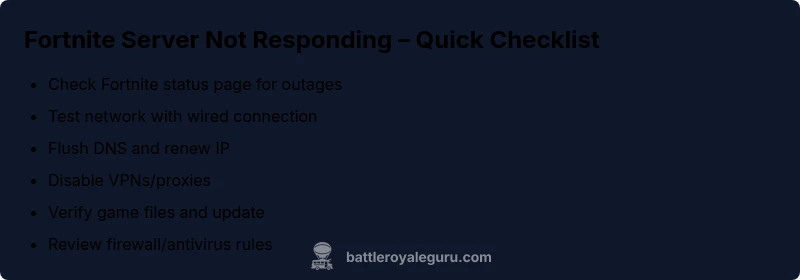
To sanity-check a fortnite server not responding issue, start with the fastest, simplest actions. First, confirm whether Fortnite's official status page shows any outages or maintenance in your region. If there’s no reported outage, test your home network by briefly switching to a wired connection or moving closer to the router. Reboot your modem and router, then restart your device and the Fortnite client. If the problem persists, proceed to DNS tests and firewall checks. These quick checks cover the majority of cases and can save you time before escalating further. Keeping a notebook of what you tried can help you spot patterns over time and minimize repeat issues.
Understanding server status and regional outages
Regional outages can cause fortnite server not responding messages for many players in the same area. Even when your own connection is healthy, a regional disruption can prevent you from logging in or joining matches. Use third-party outage trackers cautiously, but rely primarily on Epic Games’ status channels for authoritative updates. If outages are confirmed, you may only need to wait, or you can join alternative regions to see if latency improves, though this may affect matchmaking options. In many cases, Epic schedules maintenance that temporarily affects some regions more than others. Monitoring these updates helps you plan play sessions and avoid peak frustration.
Network fixes that resolve most fortnite server not responding cases
A large share of fortnite server not responding issues comes from networking steps you can perform without special tools. Start by flushing DNS on your device to clear stale address mappings. If you’re on Wi‑Fi, try a wired Ethernet connection for stability; reduce interference by moving closer to the router. Restarting your router can clear temporary congestion and improve routing paths. If you use a VPN or proxy, disable it to rule out routing that malforms traffic to Epic Games servers. Finally, ensure your router’s firmware is up to date, as outdated firmware can cause intermittent connectivity problems. Following these steps in order often resolves the problem without contacting support.
Game client and device checks for fortnite server not responding
The game client itself can contribute to the problem if it’s out of date or corrupted. Verify your Fortnite installation to check for missing or damaged files and apply any available patches. Ensure your operating system and drivers (especially network adapters) are current. On consoles, install any pending system updates and reboot completely. If you’re using a mobile device, verify that Fortnite has the necessary permissions and that the app is updated. By aligning the client and device software with the latest versions, you remove many potential incompatibilities that manifest as server not responding errors.
Safety, warnings, and when to seek professional help
Never disable security measures permanently. If you suspend firewall or antivirus settings to test, re-enable them as soon as you’re done. When a suggested fix involves changing router settings, follow the manufacturer’s instructions to avoid bricking devices. If the problem persists after all standard steps, contact Epic Games Support with details about your region, your platform, and the troubleshooting steps you tried. Persistent outages can be a sign of widespread issues that require official investigation.
Preventing future fortnite server not responding issues
To reduce the likelihood of recurring problems, schedule routine maintenance for your home network, keep firmware up to date, and shore up DNS resilience by using trustworthy DNS providers. Consider a simple habit of restarting networking equipment every few weeks and testing your connection with a quick ping test before extended gaming sessions. Keeping game and system software current minimizes incompatibilities, and documenting fixes creates a personal playbook for future incidents.
Quick recap: how the troubleshooting flow helps you win faster
By following a structured approach—check official status, verify local connectivity, apply network fixes, then validate game and device health—you can identify the root cause of fortnite server not responding more reliably. This reduces downtime and frustration, letting you get back to sprinting through Tilted Towers or racing to Loot Lake sooner.
Steps
Estimated time: 45-60 minutes
- 1
Check Fortnite status
Open the official Fortnite status page and Epic Games social updates to confirm whether there is a region-specific outage or maintenance window. If an outage is reported, plan around it and avoid chasing a fix that won’t help. If no outage is shown, proceed to your local checks.
Tip: Bookmark the status page for quick access before gaming sessions. - 2
Test your network
Run a quick network test: try a browser speed check, and if possible, switch to a wired Ethernet connection. Move closer to the router to reduce interference and ensure your ISP isn’t experiencing a wider outage.
Tip: Wired connections are more stable for gaming; avoid long Wi‑Fi hops during fixes. - 3
Restart networking gear
Power cycle your modem and router by unplugging for 60 seconds, then plugging back in. Wait for all lights to stabilize before reattempting Fortnite. This clears transient congestion and can restore normal routing.
Tip: Note the time you restarted so you can correlate with any outages. - 4
Flush DNS and renew IP
On Windows, run Command Prompt commands: ipconfig /flushdns and ipconfig /renew. On macOS, use Terminal commands to flush mDNS caches. This removes stale DNS records that can block access to Fortnite servers.
Tip: If you’re unsure of commands, search for your OS + 'flush DNS' to get guided steps. - 5
Disable VPNs or proxies
Temporarily disable any VPN or proxy that might route traffic oddly. Re-test Fortnite; some regions perform better without VPNs during outages. If you must use one, set exceptions for Epic Games domains.
Tip: VPNs can add latency and cause routing issues during outages. - 6
Check firewall and antivirus settings
Ensure Fortnite is allowed through your firewall or antivirus. Add exceptions if necessary. Don’t leave ports permanently open; re-enable protections after testing.
Tip: Use guided exceptions rather than broad allow-all rules. - 7
Verify game files / install updates
In your launcher, run a verification or repair for Fortnite. Install any available updates and restart the game. Corrupted files can mimic server not responding errors.
Tip: Back up settings if you must reinstall to preserve preferences. - 8
Escalate if needed
If none of the above works, collect logs, device details, and region information, then contact Epic Games Support. Regional outages can affect multiple players, and a specialist can investigate.
Tip: Document steps you’ve taken to speed up support diagnosis.
Diagnosis: Fortnite server not responding or connection timeouts during login or matchmaking
Possible Causes
- highRegional outage or Epic Games maintenance
- mediumLocal network issues (ISP, Wi‑Fi congestion, DNS)
- lowOutdated game client or corrupted game files
- lowVPN/proxy firewall blocking traffic
Fixes
- easyCheck Fortnite status page and Epic Games social channels for outages
- easyTest network with wired connection or move closer to router; reboot router/modem
- easyFlush DNS and renew IP; disable VPN/proxy; adjust firewall rules
- easyVerify game files and install any available patches; update device drivers
- mediumIf issues persist, contact Epic Games Support with troubleshooting details
Questions & Answers
Is the Fortnite server status down right now?
Check the official status page and Epic Games social channels for real-time updates. If an outage is reported, you may need to wait until it’s resolved.
First, check the official Fortnite status page for any outages in your region.
How can I check Fortnite server status quickly?
Use the official status page or Epic Games social channels for updates. These sources are most reliable for outages and maintenance notices.
Visit the official status page or Epic's social updates for real-time information.
Can a poor connection cause fortnite server not responding?
Yes. Local network problems often contribute to server not responding messages. Run basic checks on your equipment and connectivity first.
Yes—often your own network is the culprit; start with quick checks.
What should I do if VPNs block Fortnite traffic?
Disable VPNs or proxies temporarily to test connectivity. If you must use one, configure exceptions for Epic Games domains.
Temporarily disable the VPN and test again.
When should I contact support for fortnite server not responding?
If you’ve tried all standard fixes and still face issues, contact Epic Games Support with details about your region and steps you attempted.
If nothing fixes it, reach out to Epic Games Support with your details.
Does clearing DNS cache help fortnite server not responding?
Yes. Clearing DNS can resolve many DNS-related connectivity problems that manifest as server not responding.
Yes, flushing DNS can fix DNS problems.
Watch Video
Key Points
- Check status first, then rule out local network issues
- Use wired connections for stability when possible
- DNS flush and router restarts fix many fortnite server not responding cases
- Report persistent outages to Epic Games Support with details