How to Check Fortnite Replays: A Practical Guide
Learn how to check fortnite replays step by step, access recent matches, and use playback tools to analyze strategies and improve your gameplay with Battle Royale Guru.


To check Fortnite replays, open the in-game menu and select Replays. Pick a match from your history, then use the playback controls to review builds, shots, paths, and key decisions. Replays can be accessed from the main lobby or your recent games, and you can switch between first-person and third-person views for deeper analysis.
Understanding Fortnite Replays
Fortnite replays are a powerful learning tool that lets you inspect your recent games after you close the match. They capture your movements, builds, aiming, and decision points, giving you a bird's-eye view of how a fight unfolded. According to Battle Royale Guru, the true value of replays comes from deliberate analysis rather than quick skimming. In this guide, we’ll explore what replays capture, how they’re stored, and how to approach them as a learning exercise. You’ll learn to set clear questions before watching and use a consistent note-taking approach to turn observations into actionable practice. Since the aim is practical improvement, approach each session with a small, focused goal—whether it’s reviewing a single fight or examining your enemy’s rotation. The topic of how to check fortnite replays benefits from a structured routine rather than ad-hoc viewing, which often yields shallow insights.
Accessing Fortnite Replays Across Platforms
Accessing replays is one of the first hurdles players face. The exact path can vary slightly by platform and Fortnite version, but the core idea remains the same: you open the Fortnite main menu, go to the Replays section, and select a match from your history. For PC, console, and mobile players, the interface is designed to be consistent, with filters for date, game mode, and platform to help you find the exact session you want to study. If you can’t locate a replay, ensure you are logged in to the correct account and that your client is up to date. Battle Royale Guru recommends keeping a short, repeatable checklist for locating replays so you don’t waste time searching before analysis. This practice aligns with the broader goal of using replays to reinforce patterns you want to emulate in live matches.
What to Look For: Key Moments and Patterns
When you start a replay, frame-by-frame analysis is more effective than quick skimming. Focus on four areas: decision points (why you rotated or engaged), build and edit patterns (timing, wall placements, and edits), aiming and weapon choice (accuracy, crosshair placement, and loadout efficiency), and resource management (ammo and mats per engagement). Take notes on where you made optimal choices and where hesitation cost you a showdown. Watching several replays from the same session helps identify recurring issues, such as poor positioning or predictable rotations. Remember to capture the “why” behind each action, not just the what. This reflective approach is central to how to check fortnite replays and translate that data into real improvements.
A Practical Review Framework (Template)
Use a simple, repeatable framework for every replay:
- Timestamp: Note the exact moment of interest.
- What happened: Describe the event in brief terms.
- Why it mattered: Explain the impact on the fight or rotation.
- What I would do differently: Propose a concrete alternative action.
- Action item: Define one practice drill to address the takeaway.
This framework keeps your analysis focused and easy to reproduce. It also streamlines sharing highlights with teammates. The habit of documenting insights is what separates casual viewing from actionable learning.
Common Pitfalls and How to Avoid Them
Many players fall into common replay traps, such as skim-reading without notes, focusing only on flashy plays, or failing to compare multiple replays for the same situation. To avoid these errors, set a fixed duration for each replay (for example, 15–20 minutes) and follow your template strictly. Do not chase every tiny mistake; instead, look for patterns across games that point to consistent gaps. If you notice your aim improves when you pause before shots, for example, design drills that train pre-aim timing and situational awareness. Finally, remember that replays are a supplement to live practice, not a replacement for it. If a moment in a replay feels ambiguous, try simulating the scenario in a controlled practice session to reinforce the lesson.
From Replay Insights to In-Game Change
The ultimate goal is to convert replay insights into real-game improvements. Start by turning your top three replay findings into a weekly practice plan. Schedule drills that target your identified weaknesses, such as rotation timing, peak-control during fights, or quick editing under pressure. Track progress by repeating the same replays after a few practice sessions and noting whether your outcomes improve. Over time, your ability to anticipate opponents and make faster, better decisions will become a natural part of your gameplay. For consistency, pair replay reviews with in-game scrims or training routines so you’re applying what you learn in real matches. This approach aligns with Battle Royale Guru’s emphasis on actionable, structured practice.
AUTHORITY SOURCES
- https://www.epicgames.com/help/en-US/fortnite
- https://support.epicgames.com/hc/en-us/categories/360000324734-Fortnite
- https://www.polygon.com/fortnite-guides
Tools & Materials
- Fortnite account access(Log in to your Epic Games account to access replays.)
- Device with Fortnite installed(PC, PlayStation, Xbox, or mobile; ensure the game is up to date.)
- Stable internet connection(Reliable bandwidth to stream or download replays without interruptions.)
- Screen recording software (optional)(Useful for exporting clips to share with teammates.)
- Notebook or notes app (optional)(Jot timestamps and observations during playback.)
Steps
Estimated time: 30-60 minutes per replay analysis
- 1
Open the Replays section
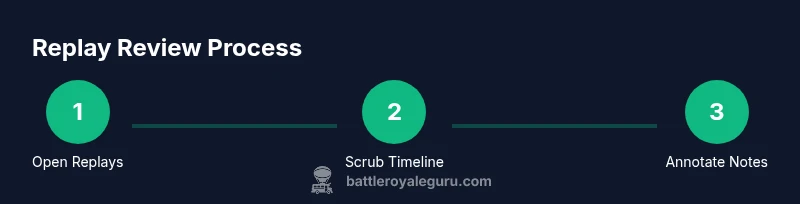
From the Fortnite main menu, navigate to the Replays section and select the match you want to review. Make sure you are logged in to the correct account and that the replay is available in your library. If replays aren’t visible, verify your game version and storage settings.
Tip: If you don’t see recent games, restart the client or sign out and back into your account. - 2
Choose a replay and set the view
Pick a match from your history and choose your preferred viewing mode. You can switch between first-person and third-person perspectives to glean different details, such as aiming lines or build routes.
Tip: Use third-person view to spot flank opportunities that aren’t obvious in first-person. - 3
Play, pause, and scrub with the timeline
Use play/pause, rewind, and fast-forward to navigate to moments of interest. Use the timeline scrub to jump to precise timestamps for critical fights or rotations.
Tip: Slow down to 0.5x or 0.25x to study micro-actions like edits and aim adjustment. - 4
Switch perspectives for deeper insight
Toggle between views to examine positioning, cover usage, and line of sight from different angles. Compare how a decision looks from your POV versus an opponent’s.
Tip: Pay attention to how cover changes your safety margins during engagements. - 5
Pause at key moments and annotate
Pause at pivotal fights or rotations and write quick notes on outcomes and alternative choices. Link each note to a timestamp for easy reference.
Tip: Create a consistent note template to speed up future reviews. - 6
Compare multiple replays
If you faced similar situations, watch multiple replays to identify recurring patterns and divergent results. Use this comparison to refine your decision framework.
Tip: Look for decisions that consistently lead to favorable outcomes across games. - 7
Export highlights for sharing
Export short clips or share links to highlight strong plays or teachable moments with teammates. Compact clips are easier to review in groups.
Tip: Keep clips under 60 seconds for maximum focus and clarity. - 8
Turn insights into a practice plan
Translate your top three takeaways into a weekly training routine. Schedule drills that target rotation, aiming, and build-edit timing, then reassess after a few sessions.
Tip: Pair replay reviews with live drills to reinforce learning.
Questions & Answers
Where can I find Fortnite replays?
Replays are accessible from the Fortnite main menu in the Replays section. You can filter by date, platform, and mode to locate the exact match you want to review.
Go to the Replays section in Fortnite to view your recent matches.
Do replays save automatically across platforms?
Replays are typically available for recent matches in the Replays library. If a replay isn’t visible, ensure you are logged in to the correct account and that your game is up to date.
Most recent matches appear in Replays if your account is logging correctly.
Can I export or share Fortnite replays?
You can export short highlights or share clips using platform features. Full replay export is generally not supported across all platforms, so use clips for sharing important moments.
Yes, you can share clips of your replays with teammates.
How long are replays stored?
Replay retention varies by platform and game updates. If you need a longer archive, save highlights or clips, which are easier to manage and review later.
Replays are kept for a limited time; save highlights if you need longer access.
Do replay controls differ between PC and console?
Playback controls are similar across platforms, but input methods differ (keyboard/m鼠 for PC, controller buttons for consoles). The key is using the timeline, pause, and slow-motion tools.
Controls are similar, with platform-specific input differences.
What’s a good starting point for replay reviews?
Begin with a single replay, define a clear goal (e.g., improve rotations), and use a simple note template. Gradually add more replays to build a pattern-recognition habit.
Start small with one replay and a clear focus.
Watch Video
Key Points
- Open Replays from the Fortnite menu and select a match
- Use playback controls to slow down and examine detail
- Switch between first- and third-person views for context
- Annotate timestamps and actions for future drills
- Apply insights to your next match and track progress