Fortnite Install Guide: Step-by-Step Across Platforms
Master Fortnite installation across PC, Mac, consoles, and mobile with Battle Royale Guru. This in-depth how-to covers prerequisites, launcher setup, platform-specific steps, and troubleshooting so you can get into matches quickly.


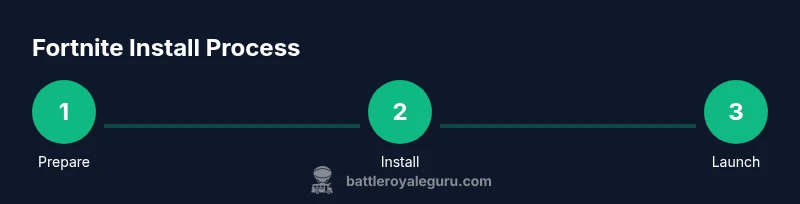
By following this guide, you’ll be able to install Fortnite on PC, Mac, consoles, or mobile in a few straightforward steps. It covers preparing your device, using the Epic Games launcher where required, platform-specific install paths, and quick fixes for common errors so you can jump into Battle Royale as soon as possible.
Compatibility and prerequisites
Before you install Fortnite, confirm your device meets the basics for smooth gameplay. Fortnite supports multiple platforms, including PC, Mac, PlayStation, Xbox, Nintendo Switch, iOS, and Android, but each has its own steps and requirements. Start with a stable internet connection and enough free storage to accommodate the game and future updates. Have your Epic Games account ready (or the relevant console account) so you can sign in during installation. Check your device’s operating system version, memory, and CPU/GPU capabilities; while Fortnite is optimized to run on a wide range of hardware, older devices may run into performance hiccups after updates. If you’re on PC, consider temporarily disabling bandwidth-heavy background apps during the install. For consoles, ensure you’re signed into the correct profile that will own the game license. Finally, verify you’re using an official store or launcher to avoid counterfeit installers that can compromise your device.
Platform differences at a glance
Fortnite installation paths differ by platform. On PC and Mac you’ll typically download via the Epic Games Launcher, while consoles use the built-in digital storefronts (PlayStation Store, Xbox Store, Nintendo eShop). Mobile installations use the respective device app stores. Differences include installer size, update frequency, and required sign-in methods. On PC, you may need administrator rights; on consoles you might need to install system updates before the game can download; mobile installs require access to storage and compatibility with iOS/Android versions. The launcher approach gives you a unified library, while consoles rely on account-linked game licenses. If you share a device, consider enabling family safety settings or separate user profiles to keep progress separate. In any case, connecting with a stable network—prefer wired Ethernet for PC—helps prevent download interruptions. Finally, be mindful of ongoing platform-specific outages that can slow or pause installation; check official status pages if a download stalls.
Create or log in to your Epic Games account
If you’re installing Fortnite on PC or Mac, you’ll need an Epic Games account. Go to the Epic Games launcher or the Epic Games website and create an account if you don’t have one. Sign in on your device, then confirm you are linked to the correct platform (Steam, Epic Account, or console network) so your progress and purchases are accessible. If you already have an account, simply sign in and verify two-factor authentication for added security. For consoles, ensure you’re signing in with the account that owns the Fortnite license. After sign-in, you’re ready to initiate the installation path for your device.
Windows and macOS: Installing Fortnite via the Epic Games Launcher
On Windows or macOS, Fortnite is typically installed through the Epic Games Launcher. Start by downloading and installing the launcher from the official Epic Games site. Open the launcher, sign in, and navigate to the Library tab. Locate Fortnite and click Install; choose the destination folder with ample space. Monitor the download progress and allow necessary permissions in your firewall or antivirus if prompted. Once the download completes, click Launch to boot Fortnite and complete any on-screen updates. If an update stalls, pause and resume, or restart the launcher. Keep graphics drivers up to date and disable conflicting software temporarily if you encounter performance issues during setup.
Consoles: PlayStation, Xbox, and Nintendo Switch
Fortnite on consoles is installed from the console’s own storefronts. On PlayStation, Xbox, or Nintendo Switch, search for Fortnite in the respective store, confirm download or install, and sign in with your linked Epic Games account if prompted. Allow the game to install and update in the background. After installation, launch Fortnite and complete any in-game updates or prompts. If you run into license issues, verify you’re logged into the correct profile that owns the game. Ensure your console has enough free space and a stable internet connection to finish the download without interruptions.
Mobile installations: iOS and Android
For mobile devices, download Fortnite from the official app stores. On iOS, use the App Store to install Fortnite; on Android, use the Google Play Store or the Epic Games app if available in your region. Sign in with your Epic Games account to access your progress. Some regions may require device OS compatibility or store region adjustments. After installation, launch Fortnite and allow it to update. Note that mobile installations may be affected by battery optimization settings or background activity restrictions, so temporarily disable those if you experience slow downloads.
Storage management and performance tips
Fortnite updates routinely increase in size, so plan for several gigabytes of free space beyond the initial install. Close background apps to optimize download speed, and consider using a wired connection for stability. If you’re on a laptop, keep it plugged in to prevent throttling during long downloads. Enable auto-updates where possible, so the game stays current. Adjust in-game settings after installation to balance quality and performance on your device.
Troubleshooting common install issues
If the installer stalls, restart the launcher or device and retry. Check your internet connection, disable VPNs or proxies, and ensure your firewall isn’t blocking Epic Games. Make sure you’re using the official store or launcher (not a third-party mirror). If you encounter errors, search the exact error code in the Epic Games Help Center or official support pages for platform-specific fixes. For persistent issues, reinstall the launcher or the store app and verify game files after installation.
AUTHORITY SOURCES
- Epic Games Help Center: Install Fortnite on PC: https://help.epicgames.com/hc/en-us/articles/360021030573-Install-Fortnite-on-PC
- Nintendo Support: Fortnite on Nintendo Switch: https://www.nintendo.com/en-GB/support/games/fortnite-switch/
- Xbox Support: Fortnite on Xbox: https://support.xbox.com/help/games-apps/gameplay/fortnite
Tools & Materials
- A device capable of running Fortnite (PC, Mac, console, or mobile)(Check minimum system requirements for your platform and ensure OS version is current)
- Stable internet connection(Wired Ethernet preferred for PC; Wi‑Fi acceptable on consoles and mobile)
- Epic Games account(Needed for PC/Mac and mobile; linked console accounts may also be used)
- Platform-specific licenses(PSN/Xbox Live/Nintendo account as applicable to access Fortnite licenses)
- Storage space (tens of gigabytes)(Plan for the game plus updates; ensure device has peak free space)
- Charger/Power supply(Long download sessions benefit from stable power; keep device charged)
Steps
Estimated time: 60-120 minutes
- 1
Prepare your device
Ensure your device meets platform requirements and has a stable internet connection. Update the operating system and drivers if needed. Close unnecessary apps to free resources for the installer, and enable any required permissions for the launcher or app store.
Tip: Check for pending system updates before starting to minimize compatibility issues. - 2
Create or sign in to your Epic Games account
Go to the Epic Games site or open the Epic Games Launcher and sign in. If you don’t have an account, create one and verify your email. Enable two-factor authentication for account security before starting the download.
Tip: Use a password manager to keep your Epic credentials safe and accessible. - 3
Download the Epic Games Launcher (PC/Mac)
Download the official launcher from Epic Games and install it. Sign in with your account, then navigate to the Library to locate Fortnite. Ensure you’re selecting the correct install location with ample space.
Tip: Run the launcher as administrator on Windows to avoid permission issues. - 4
Install Fortnite on PC/Mac
Click Install in the Fortnite entry and choose the destination folder. Monitor the progress and resolve any firewall prompts. After installation, click Launch to start Fortnite and apply any initial updates.
Tip: If the download stalls, pause and resume or restart the launcher. - 5
Install Fortnite on consoles
Open the console storefront, search for Fortnite, and start the download. Sign in with your linked Epic account if prompted. Allow the game to finish installing and apply updates as needed.
Tip: Make sure you’re on the correct user profile that owns the license. - 6
Install Fortnite on mobile
Visit the official app store for your device and install Fortnite or the Epic Games app. Sign in to sync progress with your Epic account and grant the necessary permissions for storage and notifications.
Tip: If your device OS is old, verify compatibility before downloading. - 7
Configure storage and performance
Review available storage and set a dedicated install folder. Adjust graphics settings after launch for smoother performance, especially on lower-end hardware or mobile devices.
Tip: Enabling automatic updates keeps your game current without manual checks. - 8
Verify installation and launch
Launch Fortnite from the launcher or console, complete any additional updates, and log in to your Epic account. Confirm you can access Battle Pass progress and saved data across platforms.
Tip: If you encounter a login error, reset your password and re-authenticate. - 9
Troubleshoot if issues arise
If you hit an error, note the error code and search the official help center for fixes. Common culprits include firewall blocks, VPNs, or corrupted installer files. Reinstalling the launcher or game can resolve many problems.
Tip: Document steps you’ve tried so you don’t repeat actions in support requests.
Questions & Answers
Can I install Fortnite without an Epic Games account?
Yes. For PC and Mac, you must sign in with an Epic Games account to access and save your Fortnite progress. Console players may use their console account linked to the game license.
You need an Epic Games account on PC or Mac. Console players should use their linked console account for access and saves.
What if Fortnite won’t install from the launcher?
Check internet connectivity, firewall settings, and that you’re running the launcher with sufficient permissions. Restart the launcher and try again. If the problem persists, verify game files or reinstall the launcher.
First check internet and permissions, then restart or verify files. Reinstall the launcher if needed.
Are there platform-specific issues I should know about?
Some platforms require OS updates or storage clearance before installation. Console users should ensure the correct profile is signed in and there’s enough space. Mobile users should check OS compatibility.
Yes. OS updates, space issues, and correct profile sign-in can affect installs across platforms.
Do I need to install updates after Fortnite is installed?
Fortnite regularly updates after installation. Allow the launcher or system to download and apply updates automatically to stay current.
Yes, updates happen after install—let them download to stay current.
Where can I find official help if I’m stuck?
Visit Epic Games Support, official store help pages, and platform-specific support sites for troubleshooting steps and error codes.
Check Epic Games Support and your platform’s help pages for troubleshooting.
Watch Video
Key Points
- Prepare your device and account before starting.
- Follow platform-specific steps to install Fortnite correctly.
- Update drivers and OS to prevent compatibility issues.
- Use official stores and verify licenses to avoid errors.