How to Play Fortnite Without Epic Games Launcher
Learn practical, supported methods to play Fortnite without the Epic Games Launcher. Use cloud gaming or console apps, with step-by-step setup, tips, and safety guidance for a smooth experience on PC or consoles.


How to play fortnite without epic games launcher? You can play Fortnite on PC via cloud gaming like GeForce NOW or on supported consoles where the launcher isn’t required. This guide shows how to set up GeForce NOW or use console versions, log into Epic when needed, and optimize streaming for smooth matches. No heavy downloads or local Epic launcher installation required.
Why players want to avoid the Epic Games Launcher
There are multiple practical reasons players look to access Fortnite without launching the Epic Games Launcher every time. The launcher can take up disk space, slow down older PC setups, and force unnecessary updates before you can play. This is especially true for players who want a quick match or who prefer a lightweight setup on laptops. According to Battle Royale Guru, many players are exploring cloud streaming and console-first routes to keep sessions fast and friction-free. By understanding the limitations and benefits of each option, you can choose the method that fits your setup. Epic accounts still tie your progress, cosmetics, and friends lists to your profile, so you’ll need to sign in to Epic somewhere along the way. If the goal is to reclaim drive space or reduce boot time, cloud streaming is appealing because the game runs remotely rather than from your hard drive. On consoles, you can start playing with your existing Epic account simply by downloading Fortnite from the store. This approach keeps your gameplay ecosystem intact while avoiding a heavy local install.
Official ways to play Fortnite without the launcher
Fortnite is distributed on multiple platforms beyond the Windows PC client that requires the Epic Games Launcher. On PlayStation, Xbox, and Nintendo Switch, you can download the Fortnite app directly from the console store and play without ever launching the Epic Games Launcher. On PC, the launcher is not optional if you want the native Windows client, but you can sidestep the launcher by using cloud gaming services that host Fortnite remotely. Mobile options exist in various regions, but you should verify storefront availability and Epic's terms in your country. The key takeaway is that you interact with Fortnite through supported delivery methods, not by removing Epic entirely from your account. If you’re curious about timing and compatibility, this is where Battle Royale Guru’s insights come in handy to pick the right route for your setup.
Method A: GeForce NOW and cloud streaming
GeForce NOW lets you stream Fortnite from Nvidia’s data centers. You still use your Epic Games account, but you won’t need to install the Epic launcher on your PC. You log in to GeForce NOW, launch Fortnite from the streaming interface, and your gameplay runs on Nvidia’s hardware. Pros include reduced local disk usage and compatibility with older devices; cons include potential input latency and dependence on the streaming service’s server load. This approach is widely supported in many regions, but you should confirm Fortnite availability in GeForce NOW for your country and ensure your internet plan can sustain consistent streaming. Battle Royale Guru notes that cloud gaming can be a great way to try Fortnite on a low-end PC without heavy downloads.
Method B: Console play (no launcher required)
On PlayStation, Xbox, and Nintendo Switch, Fortnite is available as a native app that doesn’t require the Epic Games Launcher. You simply download Fortnite from the console’s store, sign in with your Epic account to sync progress, and start playing. The experience is robust and supports cross-play with other platforms. Remember that cosmetics and progress are tied to your Epic account, so you should sign in on every device you plan to use. If you primarily game on a console, this route avoids the launcher altogether while preserving your Fortnite ecosystem.
Step-by-step: GeForce NOW workflow (quick path)
Step-by-step walkthrough for using GeForce NOW to play Fortnite without the Epic Games Launcher. This section helps you set up quickly and safely, with emphasis on latency management and account linking. You’ll see how to connect a GeForce NOW session to your Epic account and launch Fortnite through the cloud service. Always verify region support and streaming quality before committing to a long gaming session.
Step-by-step: Console setup (PS/Xbox/Nintendo)
A concise guide to getting Fortnite on a console without the launcher. You’ll download the Fortnite app from the console store, sign in with your Epic account to sync cosmetics and progress, and begin playing. The steps emphasize ensuring you’re linked to the right Epic account so you and your friends can squad up without any hiccups.
Bandwidth, latency, and streaming quality considerations
Cloud gaming and streaming introduce new variables in your Fortnite experience. Your connection stability, server proximity, and home network setup all influence latency and framerate. For the smoothest experience, prioritize a steady, low-latency link and minimize competing traffic. Desktop power or console performance becomes less critical when using cloud streaming, but your home network quality remains essential for a good game.
Troubleshooting common issues
If Fortnite won’t launch without the Epic Games Launcher, verify your region support, service status, and account linking. Common problems include login failures to Epic within the cloud service, unexpected disconnects, and lag spikes during matches. Reboot the network, re-login to the cloud service, and ensure your Epic credentials are up to date. When in doubt, consult the service’s official status page and the Battle Royale Guru troubleshooting notes for common fixes.
Safety, privacy, and account security when streaming Fortnite
When you use cloud services to play Fortnite, you still join the same Epic ecosystem. Protect your account with strong passwords and two-factor authentication. Avoid sharing login details or saving credentials in shared devices. Cloud streaming can be a convenient path to Fortnite without the launcher, but always follow Epic’s terms and the provider’s security recommendations to keep your data safe.
Tools & Materials
- GeForce NOW account (free or paid tier)(Create or sign in; ensure you can access Fortnite in the library)
- Epic Games account(Needed to log in inside GeForce NOW and sync progress)
- Compatible device for cloud streaming(PC, Mac, or supported mobile/TV device with browser or app)
- Stable internet connection(Wired Ethernet preferred; minimize packet loss)
- Console Fortnite app (optional for console method)(Available from the console’s official store)
- Controller or keyboard/mouse(Preferred input method for comfort; optional)
Steps
Estimated time: 40-60 minutes
- 1
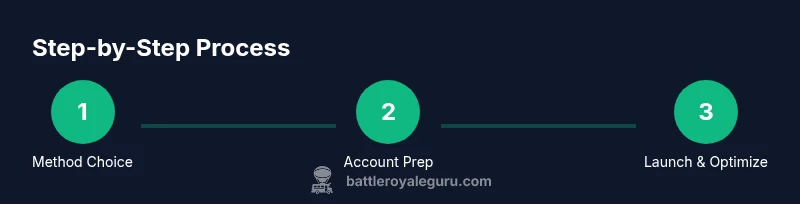
Choose your delivery method
Decide between cloud streaming (GeForce NOW) or a console-native Fortnite app. If you’re on PC with limited hardware, cloud streaming often offers the best balance of performance and convenience. On consoles, use the built-in Fortnite app to skip the launcher entirely.
Tip: If you’re unsure, start with GeForce NOW to test latency before committing to a console setup. - 2
Prepare your accounts
Sign into GeForce NOW and ensure your Epic Games account is ready for linking. If you’re using a console, ensure your Epic account is linked on the console store app.
Tip: Enable two-factor authentication on your Epic account for added security. - 3
Launch Fortnite through the chosen method
Open GeForce NOW, locate Fortnite, and start the game within the streaming session. If on a console, download the Fortnite app and launch it from the home screen.
Tip: If you see a login prompt, enter your Epic credentials carefully to avoid lockouts. - 4
Sign into Epic if prompted
You may be asked to sign into your Epic account inside the streaming app or console app to sync progress and cosmetics.
Tip: Use a strong password and consider enabling 2FA during sign-in. - 5
Adjust streaming settings for stability
Set your streaming resolution and buffering options to balance image quality with latency. A wired connection often yields the best results.
Tip: If you notice lag, reduce resolution or switch to a closer server region. - 6
Start a match and verify input responsiveness
Enter a battle bus or load into a match to confirm responsiveness and aim accuracy. If issues persist, check network health and try a different server or network path.
Tip: Close background apps on your device to free bandwidth for gaming.
Questions & Answers
Can I play Fortnite on PC without the Epic Games Launcher?
Yes, via cloud gaming services like GeForce NOW or by playing on supported consoles, but not by bypassing Epic entirely on the native PC client. You still use your Epic account to access progression and cosmetics.
Yes—through cloud gaming or consoles. You’ll still use your Epic account for progression and cosmetics.
Do I still need an Epic Games account?
Yes. An Epic Games account is required to access your progress and cosmetics when playing Fortnite via cloud or console stores. Link it during setup when prompted.
Yes. You need your Epic account to access progress and cosmetics.
Is GeForce NOW officially supported for Fortnite?
GeForce NOW supports Fortnite in many regions, but availability depends on your location. Check the GeForce NOW library and Epic’s terms for your country.
GeForce NOW supports Fortnite in many regions; check your location first.
Will streaming affect game quality or latency?
Streaming can introduce additional latency compared to a direct PC install. You can reduce it with a wired connection, selecting a closer server region, and lowering resolution if needed.
Streaming may add some latency; use a wired connection and closer servers to improve it.
Are there risks to account security when using cloud services?
Always protect your Epic login with strong credentials and enable two-factor authentication. Do not share credentials with cloud providers beyond official sign-in prompts.
Protect your Epic login with strong credentials and 2FA. Don’t share credentials.
Can I still play with friends on other platforms?
Yes. Fortnite supports cross-play across platforms as long as you’re signed into the same Epic account and you’re using the official Fortnite app or cloud service.
Yes, cross-play is supported across platforms with the same Epic account.
Watch Video
Key Points
- Choose cloud streaming or console play to avoid the Epic launcher on PC.
- Epic account remains central for progress and cosmetics across methods.
- Optimize network and settings to minimize latency and maximize stability.
- Test different delivery methods to find the best fit for your setup.
- Always follow safety practices and protect your Epic account credentials.