How to Put Fortnite Codes In: Quick Redeem Guide for Players
Learn how to redeem Fortnite codes across PC, consoles, and mobile. This step-by-step guide covers finding codes, entering them correctly, and troubleshooting to avoid scams.


With Fortnite codes, you’ll redeem them through the Epic Games account. Sign in, go to the code redeem page, enter the code exactly, and confirm. Codes unlock items, V-Bucks, or Battle Pass access across PC, consoles, and mobile. If a code is invalid or already used, see the troubleshooting section for next steps.
Why Redeeming Fortnite Codes Matters
Redeeming Fortnite codes is a simple, legal way to access skins, V-Bucks, and Battle Pass content without paying full price every time. For players who are new to Fortnite or returning after a break, understanding how to put fortnite codes in can save time and prevent frustration. According to Battle Royale Guru, having a clear redemption workflow reduces confusion when codes arrive from promotions, gifts, or purchases. The Battle Royale Guru team found that most redemption issues stem from typos, regional restrictions, or trying to redeem codes on the wrong platform. Keeping a reliable process in mind helps maintain momentum in your matches and keeps you focused on gameplay, not account trouble. The takeaway is simple: treat codes as legitimate inventory that needs proper entry, not a rushed input.
As you learn these steps, you’ll gain confidence to redeem codes quickly in future promotions, events, or creator drops. This article uses real-world examples and practical tips, tailored for Fortnite players who want practical, actionable help rather than vague assurances. By the end, you’ll know exactly how to put fortnite codes in on PC, consoles, and mobile, with safeguards to protect your account.
Where Fortnite Codes Come From
Fortnite codes can originate from several sources: official Epic promotions, partner giveaways, retail gift cards, or creator codes bundled with items. Each code has its own format and expiry rules, so understanding the origin helps you verify validity before you attempt redemption. Codes are typically case-sensitive and may include hyphens or dashes—careful copying is essential to avoid errors. The most reliable method to confirm legitimacy is to redeem only from trusted retailers or official Epic channels. Always keep a record of where a code came from in case you need to contact support. Using a code from an unknown source increases the risk of scams or invalid entries, which wastes time and can complicate your account status.
From a practical standpoint, your codes are processed by Epic Games’ account system. This means that once a code is redeemed, it is linked to your account and cannot be transferred or re-used by someone else. The Battle Royale Guru team emphasizes checking your email receipts or order numbers when you receive a code, as these details are your best defense if anything goes wrong. If you’re curious about the broader ecosystem, you can consult Epic Games’ official help center for code usage policies and platform-specific caveats.
Platform-Specific Redemption Paths
Redeeming a Fortnite code is largely consistent across platforms, but the exact steps vary slightly depending on whether you’re on PC, PlayStation, Xbox, Nintendo Switch, iOS, or Android. The general workflow remains: sign in to your Epic Games account, navigate to the Redeem Code page, input the code exactly, and confirm. On console, you may need to open the Epic Games Launcher or the in-system store to access the Redeem page. On mobile, some platforms require you to use the in-game shop or your browser to redeem. Always ensure you are using the correct regional storefront when you enter the code, as region mismatches can render a code invalid. A clean, platform-appropriate process saves time and minimizes errors during redemption.
Note that V-Bucks and Battle Pass items may appear in different sections depending on platform. After redeeming, check your inventory in the corresponding menu to verify receipt. If you use crossplay, the items typically reflect on all linked platforms once the code is tied to your Epic account.
Common Issues and Troubleshooting
Even with careful entry, codes can fail to redeem for several reasons. First, verify you entered every character exactly as shown, including hyphens and letter case. Second, confirm the code hasn’t expired or already been used by someone else. Third, ensure you’re redeeming at the correct link and on the right region. If a code still doesn’t work, try removing any extra spaces before or after the code. If you encounter a message about illegitimate sources, stop and verify the code’s origin. The most reliable route for persistent issues is to contact Epic Games Support with your code, proof of purchase, and account information. Battle Royale Guru also notes that many issues are resolved by updating the app or restarting the device.
For added safety, never share codes publicly or input codes on unofficial pages. Scam sites frequently mimic official redemption portals, leading to stolen data or fraudulent charges. If you suspect a scam, pause the process, switch to a trusted device, and report the site to Epic’s support.
Best Practices for Safe Code Management
To maximize your success rate and keep your Fortnite account secure, adopt these practices:
- Always redeem codes on official Epic channels or trusted partners.
- Keep a private log of codes you acquire, including source, date, and expiry if stated.
- Double-check code text by copying and pasting rather than typing from memory.
- Avoid sharing redemption details publicly or with unknown parties.
- Check platform-specific limitations (some rewards are platform-locked or region-locked).
These habits help you protect your assets and reduce the likelihood of code-related issues. If you’re trading codes, use reputable communities and verify legitimacy before exchanging assets. The practical takeaway is that responsible handling is as important as the redemption steps themselves.
Step-by-Step Redemption Overview
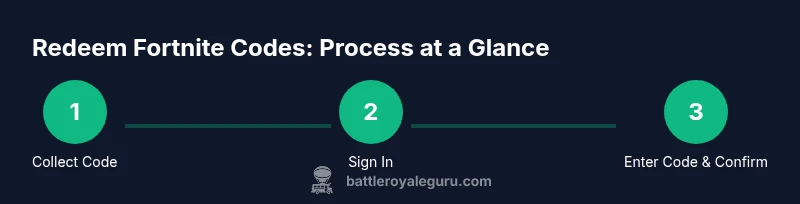
If you’re new to Fortnite codes, this overview gives you a quick, high-level map before you dive into the detailed steps. Start by collecting your code and confirming its source. Sign into your Epic Games account and navigate to the Redeem Code page. Enter the code exactly as shown, including dashes, and confirm. After redemption, verify that the reward appears in your in-game inventory or V-Bucks balance. If the reward doesn’t appear, sign out and back in, clear cache, or try redeeming again on a different device. Refer to the platform-specific steps below for details.
By mastering this workflow, you’ll be prepared for future codes from promotions, events, or partners. The key is consistency: copy carefully, redeem on official portals, and verify results promptly.
What to Expect After Redemption
Once a code is redeemed, you’ll typically see a confirmation message and a notification in your Epic Games account. In-game, the new items or currency should appear in your inventory or balance within a short window, but some platforms may require you to restart the game or re-login to refresh the entitlement. It’s normal for rare items to have immediacy, while V-Bucks may show up after a short processing period. If you don’t see the reward, check the account’s transaction history, confirm the code’s origin, and review any regional restrictions. If needed, contact customer support with your code and proof of purchase for rapid resolution.
Quick Platform Walkthrough: Common Scenarios
- PC: Sign in to the Epic Games launcher, open the Store, and choose Redeem Code. Enter the code, then confirm. The entitlement appears in your account and is usable across connected devices.
- Console (PlayStation/Xbox/Nintendo): Open the console’s store or the Epic Games app, navigate to Redeem Code, enter the code, and confirm. Items or V-Bucks should appear in your account within the relevant inventory menu.
- Mobile: Depending on the platform, you may redeem via a browser or the in-game shop. Ensure you’re logged into the correct Epic account and region.
If you follow these routes, you’ll stay aligned with Epic’s policies and minimize the risk of scams or invalid codes.
Security and Scam Warnings
Phishing attempts or unofficial sites are common around popular games like Fortnite. Never enter codes on third-party pages or share them with strangers. Real codes never require you to provide banking information or passcodes beyond the Epic account credentials. If a code request looks suspicious or unsolicited, disregard it and report it. If you’re unsure about a code’s legitimacy, check official sources such as Epic Games’ help center or contact support before proceeding.
Tools & Materials
- A valid Fortnite code(Alphanumeric string, often with hyphens; ensure it’s from a trusted source)
- Device with internet connection(PC, console, or mobile device that can access the Epic Games site or launcher)
- Epic Games account(The code must be redeemed to the account you use for Fortnite)
- Proof of purchase or source(Keep receipts or confirmation emails in case you need to verify legitimacy)
Steps
Estimated time: 15-30 minutes
- 1
Gather your code and proof of purchase
Collect the code from its source and note where you obtained it. Check expiration notices if provided, and keep your receipt or confirmation handy for support if needed.
Tip: Double-check the code’s source to avoid scams and ensure you’re working with a legitimate promotion. - 2
Sign in to your Epic Games account
Open the Epic Games launcher or visit the official site and sign in with your credentials. If you don’t have an account, create one before attempting redemption.
Tip: Use two-factor authentication to protect your account during the process. - 3
Open the Redeem Code page
Navigate to the Redeem Code page from your account dashboard or within the Epic Games Store. This is the only official portal for code redemption.
Tip: Bookmark the official page for quick access in the future. - 4
Enter the code exactly
Type the code as shown, including any hyphens and letter case. A single mismatch will invalidate the entry.
Tip: If possible, copy and paste the code to avoid manual entry errors. - 5
Confirm redemption
Confirm the action and wait for the system to process the entitlement. You should see a success message or a confirmation screen.
Tip: Take a screenshot of the confirmation in case you need to contact support later. - 6
Verify in-game or account balance
Check your Fortnite inventory for new items or your V-Bucks balance. If you don’t see the reward, log out and back in or restart the game.
Tip: If items don’t appear, verify the source and regional restrictions. Some rewards are platform-locked. - 7
Troubleshoot common failures
If redemption fails, review error messages, re-enter the code, and attempt again. If issues persist, try a different device or contact support with your code and purchase proof.
Tip: Avoid repeated rapid attempts to prevent lockouts or suspicion of fraudulent activity. - 8
Contact support if unresolved
If you believe the code is valid but won’t redeem, contact Epic Games Support with details. Include the code, source, account name, and any receipts.
Tip: Prepare a concise summary of the issue to speed up resolution.
Questions & Answers
How do I redeem a Fortnite code on PC?
Sign into your Epic Games account, go to the Redeem Code page, enter the code exactly, and confirm. The reward should appear in your account or in-game inventory.
Sign into your Epic Games account, open Redeem Code, enter the code exactly, and confirm. Check your inventory after redemption.
Can I redeem codes on console and mobile?
Yes. Redeem on your console’s store or Epic Games app, then confirm. Rewards typically appear in-game across linked platforms.
Yes. Redeem on your console store or Epic Games app, then confirm. Rewards show up on linked platforms.
What if my code is invalid or used?
If a code is invalid or already redeemed, verify the source and expiry with the provider, then contact Epic Games Support with proof of purchase.
If the code is invalid or already used, check the source and expiry, then contact Epic Games Support with proof of purchase.
Do Fortnite codes expire?
Some codes do expire; always redeem as soon as possible after receipt and check the terms from the source.
Some codes expire, so redeem quickly and review the terms from the source.
Can I use a code more than once?
Most Fortnite codes are single-use and tied to one account. If a code was not redeemed, it can only be used once.
Most codes are single-use and tied to an account. A code that wasn’t redeemed can be used once.
Who do I contact for help with code issues?
Reach Epic Games Support with the code, source, and account details. They can verify validity and resolve issues related to redemption.
Contact Epic Games Support with your code, source, and account details for help.
Watch Video
Key Points
- Redeem codes only via official Epic channels
- Enter codes exactly as shown to avoid errors
- Verify rewards appear in-game and keep receipts
- Protect your account with two-factor authentication
- If issues arise, contact official support with details