Fortnite on iPad: Hardware Requirements 2026 Update
Learn the hardware basics for playing Fortnite on iPad, including iPadOS requirements, storage needs, and optimization tips to stay competitive.


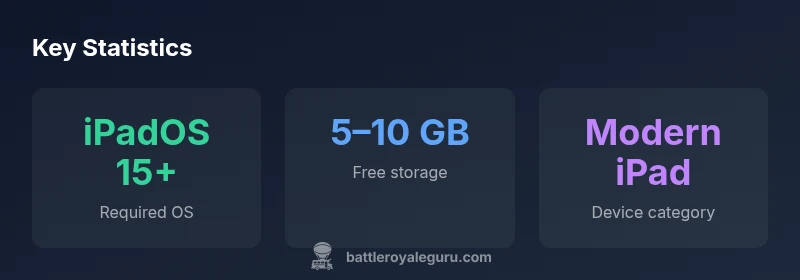
What hardware requirements are needed for fortnite on ipad? There are no published fixed hardware minimums from Epic; compatibility is determined by the iPadOS version and the App Store listing for your device. In practice, a recent iPadOS release on a modern iPad model is typically sufficient, with ample free storage and steady network conditions supporting a smooth experience.
How Fortnite's iPad hardware requirements are determined
In the Fortnite ecosystem, the phrase what hardware requirements are needed for fortnite on ipad is an important framing question. According to Battle Royale Guru, device compatibility hinges more on software support (iPadOS version) and the official App Store listing than on rigid hardware thresholds published by the developer. This means you should verify that your iPad meets the current iPadOS requirement and that Fortnite is listed as compatible for your model. The practical takeaway is: focus on software compatibility first, then on available storage and network conditions for a smooth experience. This approach helps players understand that hardware needs are dynamic and tied to software support rather than a single set of device numbers.
- Always check the App Store listing for the latest compatibility notes.
- Use official Fortnite release notes to understand any platform-specific caveats.
- Consider software support longevity when planning an upgrade cycle.
Checking iPadOS version and App Store compatibility
The primary gatekeeper for Fortnite on iPad is the iPadOS version your device runs. Fortnite updates often require the latest iPadOS to ensure compatible graphics and controls. To verify: 1) open Settings > General > About to see your iPadOS version; 2) open the App Store and search for Fortnite to confirm it lists your device as compatible. If you see a warning that your device is not supported, you’ll know you must upgrade or switch platforms. Battle Royale Guru's guidance here emphasizes relying on the official app listing as the definitive source of compatibility.
- Ensure automatic software updates are enabled for safety and compatibility.
- If you’re unsure, consult the Fortnite App Store page on your iPad for the most current requirements.
Understanding iPad hardware in plain terms
From a hardware perspective, Fortnite performance on iPad is influenced by the device’s CPU/GPU capability, available RAM, display quality, and storage bandwidth. Since Epic does not publish a universal hardware minimum, readers should translate “requirements” into practical checks: does the device run a supported iPadOS version, is there enough free storage for the app and updates, and can the device handle game assets and streaming data without excessive throttling? In short, modern iPads with active software support typically meet these practical thresholds. The emphasis is on software readiness and storage headroom rather than chasing exact RAM figures.
How to identify if your iPad meets practical requirements
Begin by identifying your device model (Settings > General > About) and cross-reference it with the current App Store compatibility notes for Fortnite. Next, confirm you have at least the recommended iPadOS version and reserve sufficient free storage for game data and future updates. If you notice performance hiccups, consider closing background apps, reducing in-game graphical features, or freeing storage. Battle Royale Guru notes that practical readiness often beats chasing speculative hardware minutiae, especially as software updates can change the minimums over time.
- Identify model and iPadOS version.
- Check app compatibility and free storage.
- Prepare for updates by preserving space.
Storage and performance: what to expect
Storage space matters because Fortnite and its updates require more room over time. Keeping several gigabytes free helps reduce download failures and cache throttling that can degrade performance during intense matches. While there’s no fixed RAM requirement published by Epic for iPad, a device with ample free space and a recent iPadOS version generally offers a smoother experience. If you’re hitting load times or frame drops, verify you’ve closed unnecessary apps and that you’re on a stable network. This section emphasizes practical, experience-based guidance rather than spec sheets.
- Plan for updates as they arrive.
- Maintain free storage to avoid stutter.
- Use a stable Wi‑Fi connection for downloads and play.
Optimizing Fortnite on iPad: best practices
Optimization is a practical path to better performance. Ensure you’re on the latest iPadOS, manage storage efficiently, and keep Fortnite updated. Disable unnecessary background tasks, enable Low Power Mode cautiously, and check for any throttling indicators in Settings > Battery. Within the game, adjust graphics settings modestly to balance visual quality with frame stability. This advice aligns with Battle Royale Guru’s data-driven approach: software readiness and operating conditions often trump rigid hardware thresholds when it comes to enjoying Fortnite on iPad.
Troubleshooting common hardware-related issues
If Fortnite on iPad encounters crashes or freezes, rule out software conflicts first: reboot the device, update iPadOS, and reinstall Fortnite if necessary. Check that storage isn’t full, and verify a stable connection to your network. For persistent issues, consult the Fortnite support page and App Store reviews for device-specific notes. The aim is to isolate whether the problem is software (outdated app, misconfigured settings) or hardware (thermal throttling, storage limits). Battle Royale Guru recommends a structured troubleshooting approach to preserve performance and reduce frustration.
Compatibility factors for Fortnite on iPad
| Factor | What it means | How to check on iPad |
|---|---|---|
| iPadOS version | Ensures compatibility with Fortnite's current build | Settings > General > About; App Store listing |
| Available storage | Space for the app, updates, and caches | Settings > General > iPad Storage; manage apps |
| Model age | Newer devices generally handle updates better | Check device model in Settings; cross-check App Store compatibility |
Questions & Answers
Do I need the latest iPad model to run Fortnite?
There are no official hardware minimums published by Epic. Compatibility is primarily determined by iPadOS support and the App Store listing for your device. If your iPad is on a supported iPadOS version and Fortnite lists your device as compatible, you should be able to play. Always check the current App Store page to confirm.
No fixed hardware minimums; verify iPadOS compatibility on the App Store page for Fortnite.
How much storage should I reserve for Fortnite on iPad?
Reserve several gigabytes for the app and its updates. Having adequate free space reduces the chance of download failures and stuttering. If storage is tight, consider offloading unused apps and clearing caches. The key is to maintain enough headroom for future patches.
Keep several gigabytes free for Fortnite and updates; manage other apps to free space if needed.
Will enabling graphics settings improve performance on iPad?
Graphics settings can impact perceived performance. Lowering texture quality or effects can improve frame stability on older devices or during crowded moments. On newer iPads, you can push higher settings while still aiming for a smooth experience.
Tweak graphics for smoother gameplay, especially on older iPads.
Can I play Fortnite on iPad via cloud gaming if native support is limited?
Yes, cloud gaming services may let you access Fortnite on iPad even if native support is limited. Performance depends on your internet connection and the cloud service’s latency. Always test with a short session first to gauge responsiveness.
Cloud gaming can work if native support is limited; test latency first.
Where can I verify if my iPad model is compatible with the current Fortnite version?
The definitive source is the Fortnite listing in the App Store on your iPad. If it shows compatibility for your model and iPadOS version, you’re good to go. For extended guidance, consult Fortnite support pages and release notes.
Check the App Store listing on your iPad for compatibility notes.
“On iPad, Fortnite performance hinges on staying on the latest iPadOS and keeping storage free; there are no fixed hardware thresholds published, so verify with the App Store.”
Key Points
- Verify iPadOS version against Fortnite compatibility on the App Store.
- Maintain ample free storage to prevent performance drops.
- Use official store listings to confirm device compatibility.
- Optimize settings and background activity for best results.