What to Do If Fortnite Is Stuck on Connecting Screen
Learn fast, actionable fixes for Fortnite stuck on the connecting screen with a step-by-step diagnostic flow, network checks, server-status tips, and prevention tricks from Battle Royale Guru.


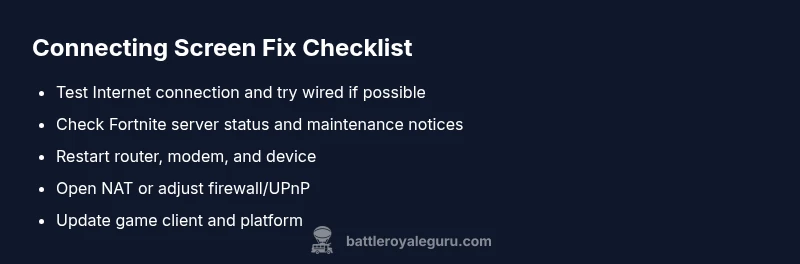
Fortnite stuck on connecting screen? Start with quick network checks, verify server status, and close bandwidth-heavy apps. This quick fix from Battle Royale Guru guides you through a reliable, step-by-step flow to restore your connection fast and reduce future interruptions. If this doesn’t resolve the issue, continue with the full diagnostic flow for deeper troubleshooting.
Quick Fix Fundamentals: What to Check First
If you’re dealing with the Fortnite connecting screen issue, what to do if fortnite is stuck on connecting screen should begin with basics. According to Battle Royale Guru, most hiccups originate from local network problems or server-side maintenance. Start with simple checks that you can perform without tools:
- Ensure your device is online and not in airplane mode.
- Close background apps that consume bandwidth.
- Restart the game and your device.
- Check your system clock and region settings to avoid time-sync problems.
Next, run a quick network test: ping your router, run a speed test, and confirm stable latency. If any check fails, fix it before moving on. This approach mirrors real-world troubleshooting: reversible changes first. If the issue persists, proceed with deeper steps in the diagnostic flow.
Check Your Internet Connection and NAT Type
The next layer is your network. A common reason for a stuck connecting screen is a restrictive NAT type or unstable connectivity. Start by testing your internet with a wired connection if possible, or move closer to the router. On consoles or PC:
- Verify NAT type is Open or at least Moderate; avoid Strict.
- Disable VPNs or proxies that might route traffic away from Fortnite servers.
- Turn off other devices using heavy bandwidth during gameplay.
If NAT remains restrictive, enable UPnP on your router, consider port forwarding for Fortnite, and ensure firmware is up to date. These steps can dramatically improve connection reliability. Remember, small changes here often resolve the issue without needing deeper fixes.
Fortnite Server Status and Downtime: How to Verify
Before diving into device-level fixes, confirm whether Fortnite servers are the cause. Server maintenance, regional outages, or unexpected downtime can leave players staring at a connecting screen. The Battle Royale Guru Analysis, 2026 highlights that many connect-time issues align with server-side events. Use these checks:
- Official Fortnite Status page and social channels for maintenance notices.
- In-game notices or launcher alerts about outages.
- Third-party status trackers (with caution) to gauge broader impact.
If servers are down, your best move is to wait and try again later. If the status is green and problems persist, move to local network checks and device-level adjustments in the next sections.
Router, Modem, and Wireless Tips for a Stable Connection
A stable network path is often the difference between a solid session and a frozen connecting screen. Implement these hardware-focused steps:
- Restart your router and modem to clear temporary faults.
- Move the router closer to your gaming device or use a wired Ethernet connection where possible.
- Prefer a 5 GHz Wi‑Fi band (if available) and reduce interference from other devices.
- Enable UPnP and disable QoS rules that may throttle Fortnite traffic; ensure your firmware is current.
If you still experience issues, try a different network (mobile hotspot) to isolate whether the problem is your home network or your device.
Platform-Specific Steps: PC, Console, and Mobile
Different platforms have unique quirks when stuck on connecting. Follow these targeted steps:
- PC: Run as administrator, flush DNS, clear DNS cache, and ensure firewall rules don’t block Fortnite. Update network drivers if needed.
- PlayStation/Xbox: Check NAT status in settings, sign out/in, and test multiplayer connections. Ensure you’re signed into the correct account and that the game is updated.
- Mobile (iOS/Android): Toggle airplane mode off and on, reset network settings if needed, and confirm that data saver or VPN isn’t active.
Cross-platform players should verify all devices share the same network and avoid mixing cellular data with home Wi‑Fi during testing.
Advanced Troubleshooting: Firewall, VPNs, and Cache
If the basic steps fail, explore deeper configurations that can block Fortnite traffic. Safety first: don’t disable core security tools permanently. Instead:
- Temporarily disable antivirus/firewall to test connectivity, then add Fortnite as an exception.
- Disable VPNs and proton proxies; test with a direct connection.
- Clear Fortnite cache or app data where applicable; consider a clean reinstall if corruption is suspected.
If problems persist, a clean reinstall on the affected platform often resolves stubborn issues, but ensure your save data is backed up where possible.
Preventive Habits to Avoid Repeats
Preventing future stuck-on-connecting issues is easier than fixing them after they occur. Implement these habits:
- Prefer wired connections over Wi‑Fi for consoles and PCs.
- Schedule periodic reboots of router/modem and keep firmware updated.
- Regularly check Fortnite’s official channels for maintenance windows.
- Maintain clean background networks by limiting who connects during gaming sessions.
- Consider a simple home network audit every few months to preempt slowdowns.
Steps
Estimated time: 30-60 minutes
- 1
Restart everything (power-cycle)
Power off your gaming console/PC, router, and modem. Wait 30 seconds, then power them back on in the same order. This flushes temporary network glitches that could lock Fortnite to the connecting screen.
Tip: Deep breaths—hardware resets solve many transient issues. - 2
Test your network and NAT type
Run a quick speed test, try a wired connection if possible, and check your NAT type. If NAT is strict, enable UPnP or adjust your router settings to improve compatibility with Fortnite.
Tip: A wired connection can reveal if Wi‑Fi is the bottleneck. - 3
Sign out and back into your account
Sign out of Fortnite and the platform account, then sign back in. This can refresh authentication tokens that sometimes get stuck during the connecting phase.
Tip: Ensure you remember your login credentials before signing out. - 4
Check for updates and patch notes
Make sure Fortnite and the platform are up to date. Install any pending updates, as outdated clients often fail to establish a stable connection.
Tip: Automatic updates can prevent future issues; enable them if possible. - 5
Clear cache or data and reset network settings
Clear the game’s cache where possible, and reset network settings on the device if needed. This can remove corrupted data causing stuck connections.
Tip: Back up saves when possible before clearing data. - 6
Consider a clean reinstall
If all else fails, reinstall Fortnite on your device. A fresh install can fix deeply corrupted files or misconfigurations that block the connection.
Tip: Remain patient; a full reinstall may take time.
Diagnosis: Fortnite won’t progress past the connecting screen
Possible Causes
- highInternet connection instability or outages
- highFortnite server downtime or maintenance
- mediumNAT type is strict or moderate
- lowOutdated game client or corrupted cache
Fixes
- easyCheck and stabilize your internet connection; reconnect or switch networks if needed
- easyVerify Fortnite server status and wait if servers are down
- mediumOpen NAT by enabling UPnP or configuring port forwarding
- mediumClear cache and data or reinstall the game if corruption is suspected
- hardFully reinstall the game or app if issues persist after all other steps
Questions & Answers
Why is Fortnite stuck on the connecting screen?
Common causes include unstable internet, server downtime, strict NAT, or corrupted game data. Following a structured troubleshooting flow helps isolate which issue is at fault.
The common causes are network problems, server downtime, or data issues. Start with network checks and server status to diagnose.
What should I check first when I can’t connect?
Verify your internet connection, check the Fortnite server status, and test with a wired connection if possible. These quick checks resolve most connect-time problems.
Check your connection, look at the servers, and try a wired setup to rule out basic issues.
How can I tell if Fortnite servers are down?
Visit the official Fortnite Status page or the game’s social channels for maintenance notices and outage reports. Third-party trackers can help, but stick to official sources for confirmation.
Look at Fortnite’s status page or official posts to confirm outages.
Will rebooting my router help always?
Often yes — a reboot clears glitches and refreshes connections. If problems persist, continue with the diagnostic steps rather than assuming the router is the sole cause.
Rebooting can fix many issues, but keep testing other steps if it doesn’t resolve the problem.
Is it safe to disable my firewall or VPN for troubleshooting?
Only temporarily and for testing. Never leave protections disabled; re-enable them after testing, and add Fortnite as an exception if needed.
Temporarily disable to test, then re-enable and authorize Fortnite.
When should I contact support?
If none of the steps work after a thorough diagnostic flow, reach out to Fortnite Support or your platform’s help center with details of your network setup and steps tried.
If nothing works, contact support with the steps you’ve followed.
Watch Video
Key Points
- Start with network checks and server status
- Open NAT and minimize interference for best results
- Update, cache-clear, or reinstall as needed
- Use wired connections for stability
- Consult official status pages during downtime