Fortnite for Xbox One: A Practical How-To Guide
Learn how to set up Fortnite on Xbox One, link your Epic Games account, and optimize performance with this step-by-step guide. Includes crossplay tips and common troubleshooting.


You will set up Fortnite for Xbox One, link your Epic Games account, and optimize settings for smooth play. This guide covers required hardware, account linking, game updates, and basic troubleshooting for common Xbox One issues. By the end, you’ll be ready to jump into Battle Royale with confidence. No prior Fortnite experience is required; this article assumes you own an Xbox One and a valid Xbox Live connection.
What you’ll need to play fortnite for xbox one
To get started with fortnite for xbox one, gather the essential hardware and account prerequisites, then verify your network conditions. According to Battle Royale Guru, starting with the basics streamlines setup and reduces delays during launch. The items below cover everything you need before you boot the game.
- Xbox One console with a stable power supply
- TV or monitor with an HDMI input
- A fast, reliable internet connection (prefer wired Ethernet when possible)
- An Xbox controller with a comfortable grip and responsive buttons
- An active Xbox Live account (for online features) and an Epic Games account to link later
- A headset with a microphone for in-game communication
- Optional but recommended: external storage if your drive is limited and a high-quality HDMI cable
Note: Ensure your Xbox One system software is up to date. Keep a spare controller battery and a quiet play area to minimize distractions.
Getting your account ready: linking your Epic Games account to Xbox
Playing fortnite for xbox one requires an Epic Games account to access cross-platform features, cosmetics, and progression. Start by confirming you can sign into both services with a single, shared email. The Battle Royale Guru team recommends linking your Epic Games account to your Xbox profile early so you don’t run into prompts during matchmaking. If you already play on PC or mobile, this linkage keeps your purchases and progress unified across devices.
Steps to link: sign in to the Epic Games launcher, navigate to account settings, select Connections, and choose the Xbox option. You’ll be prompted to sign in to your Microsoft account and authorize the connection. After linking, verify that your in-game name, purchases, and progress show up on both platforms.
Installing and updating fortnite on xbox one
With your accounts ready, proceed to install Fortnite from the Microsoft Store. Fortnite on Xbox One is a free-to-play experience, but the initial download can be sizable, so ensure you have sufficient storage and a stable connection. After installation, launch Fortnite and allow it to update if a patch is available. Keeping the game updated is essential for accessing recent seasons, weapons, and map changes that affect strategy and building.
If you encounter update failures, pause other bandwidth-heavy applications, restart your console, and try again. Check the Xbox Live service status if updates fail repeatedly, as server-side issues can delay downloads. Regular updates ensure you’re playing the latest version with optimized performance and bug fixes.
Optimizing in-game settings for performance on xbox one
Performance is critical for Fortnite on Xbox One, especially when building quickly in high-stress moments. Start with a balance between resolution and frame rate: aim for a stable 60 FPS if you’re on a model that supports it, or prioritize smooth gameplay if you’re on an older console. Adjust display settings such as brightness and contrast to reduce eye fatigue, and disable motion blur to improve reaction times. Lower post-processing effects, shadows, and view distance if you notice frame drops during chaotic battles. The goal is consistent input responsiveness and fluid movement rather than the sharpest possible image.
Additionally, set audio to a level where footsteps and gunfire are distinct. Use headset audio to better hear opponents approaching. If you’re playing in a room with distractions, enable Do Not Disturb on your console to minimize interruptions during a tense match.
Understanding crossplay and privacy controls on xbox one
Crossplay expands matchmaking pools, letting you team up or compete with players on different platforms. On Xbox One, you can enable or disable crossplay in the in-game settings depending on your preference. If you want the widest possible pool of teammates, keep crossplay on; if you prefer console-only lobbies, turn it off. Privacy settings also matter: review who can view your profile, join your parties, or message you, and adjust accordingly. The balance between openness and safety depends on your comfort level and the age of players you encounter.
Remember that crossplay can affect latency and hit registration due to network routing differences. If you notice persistent lag when playing with non-console players, try updating your network hardware or switching to a wired connection for more stable performance.
Common issues and troubleshooting on xbox one
Fortnite on Xbox One can present a few recurring issues, especially around account linking, updates, and online connectivity. If you can’t sign in to Epic Games, re-check your account connections and try re-linking. For stuttering or dropped frames, optimize in-game settings and ensure your console firmware is updated. If you experience matchmaking delays, test your network with a speed test, run a wired connection, and check your router for QoS settings that could be prioritizing other devices.
If voice chat isn’t working, verify headset connections and permissions in Xbox settings. Some issues stem from temporary outages; in those cases, waiting a short while and retrying often resolves the problem. Keep system software and apps updated for best compatibility with Fortnite’s latest features.
Strategies for different play styles on console
Console players typically favor precise thumbstick aim and rapid building. Adapt your control setup to your playing style: adjust sensitivity to land shots quickly, enable building hotkeys on the controller, and consider toggling auto-materials to build efficiently under pressure. Practice in Creative mode to fine-tune building techniques, edit speed, and weapon swaps. Strategy is personal, but consistent practice and deliberate warmups can improve your overall consistency in Battle Royale.
For aggressive players, prioritize smooth rotation and short-range weapons; for defensive players, master high ground control and resource management. Remember to use audio cues— Footsteps, gunfire, and chest sounds can tell you where enemies are and how they’re approaching.
Safety, accounts, and parental controls for fortnite on xbox one
Protecting young players is essential when playing Fortnite on Xbox One. Enable parental controls to limit playtime, in-game purchases, and chat options if necessary. Keep Epic and Xbox accounts secure with a strong password and two-factor authentication where available. Be mindful of in-game purchases and the potential for scams; only use official stores and monitor notifications for suspicious activity. Following these practices helps maintain a safe and enjoyable gaming environment for players of any age.
Tools & Materials
- Xbox One console(Ensure power supply is stable and the latest system update is installed)
- TV or monitor with HDMI(HDMI cable must be in good condition and connected to the console)
- Internet connection (wired preferred)(A wired Ethernet connection provides lower latency than Wi-Fi)
- Xbox controller(Consider an extra controller for shared play or test sessions)
- Epic Games account(Needed to link progress and cosmetics across platforms)
- Xbox Live account(Required for online multiplayer features)
- Headset with microphone(Improves in-game communication with teammates)
- External storage (optional)(Helpful if your console hard drive is nearly full)
Steps
Estimated time: 25-40 minutes
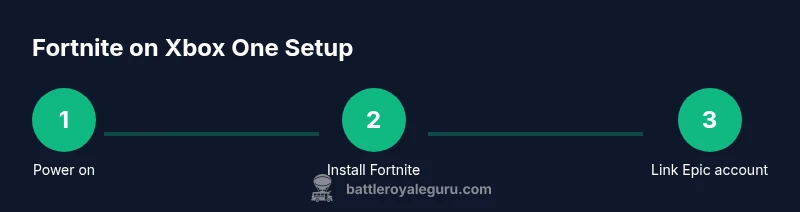
- 1
Power on Xbox One and sign in
Power on your console, select your profile, and ensure you have an active connection to Xbox Live. This step confirms you can access the Microsoft Store and sign in to Epic Games later. Having a stable profile ready saves time during installation and linking.
Tip: If you’re prompted for updates, allow them to finish before proceeding. - 2
Install Fortnite from Microsoft Store
Open the Microsoft Store, search for Fortnite, and initiate the download. The game is free-to-play, but the download size can be large. Ensure you have enough storage space before starting.
Tip: Choose a wired connection if possible to speed up the download and reduce interruptions. - 3
Launch Fortnite and link Epic Games account
Launch the game and follow prompts to sign in with or link your Epic Games account. Linking ensures progression and cosmetics transfer across platforms. If you already use Fortnite on PC or mobile, linking saves you from starting over.
Tip: If you’re asked to confirm, use the Epic account that holds your progress. - 4
Check for updates and patches
After linking, check for any available updates or patches and install them. Updates often contain balance changes, bug fixes, and new content. Ensure your console stays connected during the update process.
Tip: Restart the game after updates to ensure changes take effect. - 5
Configure display and performance settings
Adjust resolution, frame rate, and visual effects to balance image quality with smooth gameplay. On Xbox One, prioritize a steady 60 FPS where possible and reduce shadow or post-processing quality if needed to prevent frame drops.
Tip: Turn off motion blur to improve reaction time during combat. - 6
Set crossplay and privacy preferences
In Fortnite settings, decide whether to enable crossplay. If you want broader matchmaking, enable crossplay; otherwise, keep it console-only. Review Xbox privacy settings to control who can contact you or join your games.
Tip: Start with crossplay on and adjust based on your experience and comfort level. - 7
Test in a practice or casual match
Enter a Battle Royale or Creative match to test controls, building mechanics, and network reliability. Use this session to fine-tune sensitivity and building speed to your preferences.
Tip: Practice building in Creative mode to build faster under pressure. - 7
Secure your account and enable safety features
Given the online nature of Fortnite, enable two-factor authentication and review parental controls if necessary. Regularly monitor account activity to protect progress and purchases.
Tip: Use a unique password and avoid sharing account details.
Questions & Answers
Do I need an Epic Games account to play Fortnite on Xbox One?
Yes. You sign in with or link an Epic Games account to your Xbox profile to access progression, purchases, and cross-platform features. If you already play on PC or mobile, linking ensures your items carry over.
Yes. You need an Epic Games account or a linked one to play and access cross-platform features.
Why is Fortnite running slowly on my Xbox One?
Performance drops are usually caused by outdated software, high in-game settings, or a weak network. Update the game, lower some visual settings, and connect via Ethernet for best results.
Update the game, reduce settings, and use a wired connection to improve speed.
Can I play Fortnite with a keyboard and mouse on Xbox One?
Fortnite on Xbox One supports some keyboard and mouse configurations, but functionality may vary by game mode and peripheral. Check in-game options for supported peripherals and sensitivity settings.
Yes, some keyboards and mice are supported; check the in-game options for compatibility.
How do I enable crossplay between Xbox and PC or PlayStation?
Crossplay can be turned on or off in Fortnite’s settings. Enabling it broadens matchmaking pools, while disabling it limits play to compatible platforms.
Crossplay can be toggled in settings to suit your preference.
How do I link my Epic Games account to Xbox One?
Open Fortnite, access the account linking option in the in-game menu, and follow the prompts to sign in to your Epic Games account and authorize the link.
Use the in-game menu to link your Epic Games account to Xbox.
What is the best controller setup for Fortnite on Xbox One?
Start with a comfortable sensitivity, enable building hotkeys if available, and practice edit speeds in Creative mode to improve performance during tense fights.
Experiment with sensitivity and practice builds in Creative mode for faster edits.
Watch Video
Key Points
- Prepare your hardware and accounts before launching
- Link Epic Games account to Xbox for cross-platform progress
- Optimize settings for consistent performance
- Use crossplay wisely and adjust privacy controls as needed