How to Clear Fortnite Shader Cache: A Practical Guide
Learn how to safely clear Fortnite shader cache to reduce stuttering, improve load times, and fix graphical glitches. Step-by-step for PC, consoles, and mobile with tips, backups, and troubleshooting.


Clearing Fortnite shader cache can reduce stuttering, improve load times, and fix shader glitches that appear after patches. This quick guide covers platform-specific steps, safety tips, and how to verify performance gains. Follow the steps to refresh your shaders and regain smoother gameplay across PC, console, and mobile.
What shader cache is and why you should care
Fortnite, like many modern games, compiles shaders on the fly to render scenes efficiently. The shader cache stores these compiled shaders so the next time you load a scene, Fortnite can reuse them rather than recompiling from scratch. Over time, updates, driver changes, or patches can make cached shaders obsolete or corrupted, which may cause stuttering, longer load times, or odd visual glitches. Clearing the shader cache forces Fortnite to recompile shaders from scratch, which often restores smoothness and consistency. This process is safe when done correctly and does not affect your core save data. The goal is to give the game a clean slate for shader code, so new shaders can compile cleanly during the next startup and early gameplay sessions.
Why this matters for Fortnite players: after major updates, shader compilation can lag behind, causing stutter during first matches. By clearing the cache, you allow your system to rebuild shaders with the new data, which can eliminate long cold-start times and reduce micro-stutters during intense gunfights or rapid movements.
As you follow this guide, you’ll see that the underlying principle applies broadly: shader cache maintenance helps ensure your GPU spends less time chasing stale data and more time rendering your battles at stable frame rates. According to Battle Royale Guru analysis, active shader maintenance tends to correlate with fewer post-patch stutters across platforms, especially on PC. This is part of broader performance hygiene for Fortnite players who want reliable FPS.
Note on platform differences: the exact file paths and menu locations vary by PC, console, and mobile, but the core idea remains the same: identify the shader cache, delete it, and allow Fortnite to rebuild it on next launch.
Platform differences: PC, consoles, and mobile considerations
On PC, shader cache files are stored in a user-specific location and can be deleted safely without affecting your game progress. You’ll typically delete these shader files and then relaunch Fortnite to trigger re-compilation. On consoles like PlayStation and Xbox, the shader pipeline is managed by the system, but a cached shader set can still become stale after updates. A soft reset or a quick power cycle often triggers a fresh shader build on next boot. Mobile devices (iOS and Android) also maintain shader caches to optimize rendering; clearing them will cause the game to rebuild shaders the next time you play, which may temporarily impact initial frame rates but usually yields smoother performance over subsequent sessions. For all platforms, avoid clearing caches during a patch install or while updates are still applying, as partial writes can lead to inconsistent results.
When to skip clearing: if you’re not seeing any stutter, long load times, or shader glitches, clearing the cache may not be necessary. If you recently updated drivers or piped in a new display setting, a cache clear can help, but it’s not a universal fix.
Safety precautions and backups before clearing shader cache
Before taking any action, back up important data and ensure Fortnite is fully closed. Clearing shader cache is safe and non-destructive to your core saves, but it’s good practice to back up game settings or configurations you’ve customized outside of the cloud—especially if you’re tweaking video settings heavily. Make sure your device is on a stable power source and has enough free disk space, since deleting shader files will free some space, and recombining them later will temporarily use more as shaders are rebuilt. If you use external tools or mods, disable them to ensure a clean rebuild. Finally, ensure you’re connected to the correct Fortnite account so that new shaders align with your current game state and inventory.
Step-by-step: PC (Epic Games Launcher) method
This section provides a straightforward, repeatable set of actions to clear Fortnite shader cache on PC. It’s designed for players using Windows or macOS, though the path to the shader cache folder may differ slightly between systems. If you’re unsure about exact paths, use the search feature in your file browser to locate the Fortnite shader cache directory after closing the game. This procedure focuses on removing old shader data so Fortnite can recompile shaders afresh on startup.
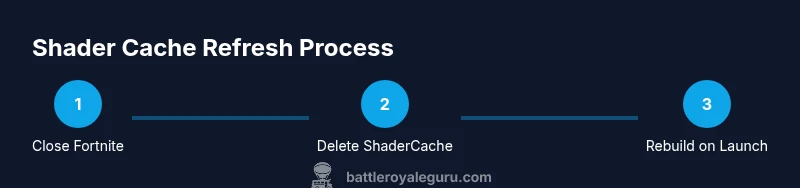
- Close Fortnite and the Epic Games Launcher. Ensure both are not running in the background. This prevents files from being locked during deletion. Tip: Use Task Manager (Windows) or Activity Monitor (macOS) to confirm there are no Fortnite or Epic Games processes active.
- Locate the shader cache folder. Open your user directory, navigate to the Fortnite-related shader storage, and identify folders containing cached shader files. If you aren’t sure of the exact location, search for terms like “ShaderCache” or “Fortnite” within your user profile. Tip: If your system shows multiple user profiles, delete only the ones under your active account.
- Delete the shader cache contents. Remove all files inside the shader cache directory, leaving the directory structure intact. This step resets the shader data so Fortnite can rebuild it on next startup. Tip: If you’re worried about deleting something you shouldn’t, move the folder to a temporary backup location first rather than deleting outright.
- Restart your PC and relaunch Fortnite. Allow the game to initialize shaders from scratch. This initial run may experience more shader work than usual, as the GPU compiles new shaders for your current settings. Time estimate: 5–10 minutes for initial startup and shader build. Tip: If you have a lot of background tasks, closing other programs can speed the rebuild.
- Sign in and start a quick match. Play a few minutes to give Fortnite a chance to compile and cache the newly generated shaders. You should notice smoother loading and fewer stutter events as the new shader data is cached. Pro tip: If you queued into a large squad or a busy region, a few matches may be enough to complete shader compilation for your typical play scenarios.
- Assess performance and re-adjust if needed. If stuttering persists after several matches, revisit your graphics settings and ensure drivers are up to date. If issues persist even after repeated shader rebuilds, consider a driver reset or a clean install of Fortnite. Time estimate for this step: 10–15 minutes in typical cases.
Step-by-step: Console and mobile methods
Consoles and mobile devices differ from PC, but the same principle applies: clearing the shader cache prompts the system to rebuild shaders on the next launch. This can reduce stutter and improve stability after patches. While steps vary by platform, the general approach is to close Fortnite, power-cycle the console or device, and relaunch to trigger a fresh shader build. On consoles, performing a full power cycle (shut down completely, then turn back on) is more effective than a quick reboot. On mobile, ensure your device isn’t battery-saver constrained during the initial shader rebuild, and consider charging if the device runs hot. After relaunch, play a short session to let shader compilation proceed in the background. If you experience longer-than-usual first-launch hints or post-patch stutters, repeat the process after ensuring the patch is fully installed.
Platform-specific tips:
- PlayStation/Xbox: Do a full power cycle to flush the pipeline, then launch Fortnite and let it recompile shaders during the first few matches.
- Mobile (iOS/Android): Run the game after charging, and avoid heavy tasks during the first 5–10 minutes of gameplay as shaders rebuild.
- Cross-platform note: You’ll typically see the biggest gains after your first couple of matches post-clear, as new shaders are compiled and cached.
Be mindful that the shader rebuild may temporarily increase GPU load during the initial run, but this tends to stabilize quickly as caches populate.
Aftercare: verifying results and troubleshooting
Once the cache rebuild is complete, monitor for stuttering, texture pop-in, or long load times. If the issues recur after another patch or driver update, a second cache clear can help. Verify that your graphics drivers are up to date and that Fortnite is set to your preferred performance profile. For best results, run a few matches in different environments (competitive, Creative, and Battle Royale) to confirm consistent shader performance. If you still notice anomalies, consider reverting to a previous driver version or checking Fortnite’s known-issues page for patch-specific guidance.
Tools & Materials
- Fortnite installation via Epic Games Launcher(Ensure you are signed in to the correct account)
- PC or console with Fortnite supported hardware(Windows 10/11 or console OS; meet minimum specs)
- Stable internet connection(Required for re-downloads and shader caching)
- Sufficient free disk space(2–4 GB free space recommended for shader rebuilds)
- Power source or uninterrupted power(Battery backup or plugged-in device reduces risk during cache rebuild)
Steps
Estimated time: 20-35 minutes
- 1
Close Fortnite and the Epic Games Launcher
Exit the game and launcher completely. Ensure no Fortnite or Epic background processes are running to avoid locked files during deletion.
Tip: Use Task Manager (Windows) or Activity Monitor (macOS) to verify all related processes are closed. - 2
Open the shader cache folder for Fortnite
Navigate to your user profile and locate the Fortnite shader cache directory. If unsure, use the search function to find folders containing 'ShaderCache' or 'Fortnite'.
Tip: Only delete the files inside the shader cache folder, not the folder itself. - 3
Delete shader cache files
Remove all shader data inside the cache folder to force a full rebuild on the next launch.
Tip: If you’re nervous about data loss, copy the folder to a temporary backup location first. - 4
Restart your device or PC
A full restart ensures no residual processes hold the cache, and helps the system apply new shader data efficiently.
Tip: A cold boot can speed up the initial shader compilation on startup. - 5
Launch Fortnite and let shaders recompile
Open Fortnite, sign in, and start playing. The first few matches rebuild shaders in the background.
Tip: Give it 5–10 minutes of play in-game to complete the rebuild for typical scenes. - 6
Evaluate performance and adjust if needed
If stuttering persists or new issues appear, check for driver updates and verify game files. Re-run the process if patch changes are significant.
Tip: Keep a note of any performance changes after patches for future reference.
Questions & Answers
What is shader cache in Fortnite and why clear it?
Shader cache stores compiled shaders to speed up rendering. Clearing it forces a fresh compile, which can reduce stutter and long initial load times after patches.
Shader cache holds precompiled shaders to speed up rendering. Clearing it makes Fortnite rebuild shaders, reducing stutter after updates.
Will clearing shader cache delete my Fortnite progress or settings?
No. Clearing the shader cache affects only rendering shaders, not your saves or account settings. Your progress and cosmetics remain intact.
No, your progress and settings are safe. Shader cache is only shader data used for rendering.
Is it safe to clear shader cache on consoles?
Yes. The process is safe on consoles; expect a brief period of shader rebuilding after you relaunch Fortnite.
Yes, it's safe on consoles. You may see a short shader rebuild when you start the game again.
How often should I clear Fortnite shader cache?
Only after major patches or when you notice stubborn stuttering, long load times, or graphical glitches. Regular clearing is not required for normal play.
Only after big patches or noticeable issues. Usually not needed after every update.
Will clearing shader cache improve FPS immediately?
Improvements are usually noticeable after a short rebuild period, especially during the first few matches post-clear. Results vary by system.
You’ll often see smoother gameplay after a few matches as shaders rebuild, but it can vary by hardware.
What should I do if stuttering continues after clearing the cache?
Check for driver updates, verify game files, and consider repeating the cache clear after ensuring patches are fully installed. If problems persist, consult Fortnite known-issues or support.
If stuttering remains, update drivers, verify files, and retry the cache clear after patches are installed.
Can clearing the shader cache affect crossplay matchmaking?
Shader rebuilds occur on the local device and do not alter matchmaking logic. You should not experience changes to your crossplay behavior.
Cache clearing doesn’t change matchmaking rules; it mainly affects rendering performance.
Watch Video
Key Points
- Clear shader cache after major Fortnite patches for best results
- Follow platform-specific steps to avoid data loss
- Rebuild shaders with a short play session to verify improvements
- Keep drivers up to date to maximize shader performance