How to Get Rid of Packet Loss in Fortnite: A Practical Guide
Learn practical, battle-tested steps to reduce packet loss in Fortnite. From wired connections and firmware updates to Fortnite-specific settings and ISP tweaks, this guide helps you restore stable latency and smooth gameplay. Battle Royale Guru analyzes fixes that actually work in 2026.


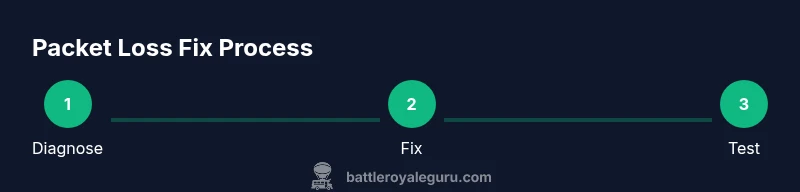
According to Battle Royale Guru, getting rid of packet loss in Fortnite requires a small, targeted set of steps: diagnose the source, then apply proven fixes across your network, device, and Fortnite settings. Here are practical, step-by-step actions you can take today to reduce lag and improve your gameplay. These steps cover common culprits from Wi‑Fi interference to server routing, and include quick tests to confirm improvement.
Understanding Packet Loss and Fortnite
Packet loss happens when data packets traveling between your device and Fortnite servers fail to reach their destination. In practice, you’ll notice rubbery hit registration, stuttering, or sudden spikes in latency. Fortnite relies on precise timing to synchronize your actions with the server, so even a small loss can ruin a moment during a skirmish. The Battle Royale Guru team notes that packet loss is rarely caused by a single factor; it’s usually a chain of issues spanning your home network, your device, and the game client. By understanding the common culprits, you can tackle the problem in a structured way and avoid chasing phantom issues.
Quick checks to diagnose packet loss
To confirm you’re dealing with packet loss rather than temporary server hiccups, start with a few quick checks. Use in-game latency indicators, perform continuous pings to major Fortnite servers, and compare results across wired and wireless connections. Note the times where the gameplay noticeably degrades and correlate them with your network activity (upload/download, other devices streaming, or VPN use). If latency spikes consistently exceed baseline by more than a few milliseconds, you’re likely experiencing packet loss rather than a one-off blip.
Network-side fixes you can implement
The strongest improvements usually come from stabilizing your home network. Ensure your router firmware is up to date and reboot your modem and router in a cadence that matches your ISP’s recommendations. Prioritize your Fortnite device in the router’s QoS settings, disable unnecessary background traffic, and consider replacing aging hardware if it’s older than five years. If you share the network with others, schedule gaming during low-traffic windows to reduce contention and jitter. For many players, these changes cut packet loss by a meaningful margin.
Fortnite-specific settings to reduce latency
Within Fortnite, lowering graphics and shadow settings can reduce local processing load and help with frame pacing, but the real win comes from stabilizing latency. Set the game to a fixed framerate and enable buffering options that reduce stutter. Toggle the automatic in-game bandwidth limiter off if it caps your uplink speed; instead, set a realistic cap near your measured uplink. Also consider enabling the “Use Offline Anarchy” option only if you’re sure you’re not playing online; this helps you test settings in a controlled environment. These tweaks can help you ride out minor network fluctuations more gracefully.
Router and ISP adjustments
If you’re still seeing packet loss after local fixes, expand your view to the wider network. Connect via a wired Ethernet path directly to your modem or router, ideally with a category 6 (or better) cable. Check your DNS settings for reliability (Google DNS or Cloudflare DNS can improve responsiveness in some regions). If your ISP has data caps, throttling, or peering issues, you might experience persistent packet loss on Fortnite. Contacting your ISP to report the problem and request route optimization can yield improvements, particularly if many users in your area are affected. The Battle Royale Guru analysis shows that provider-side routing is a common source of latency for online games.
In-game troubleshooting and testing methods
Experiment with different servers if you have that option, and systematically test each change you make. Use traceroute/ping tools to visualize hops and detect where latency spikes occur. Run repeat tests with and without VPNs, and record results to Identify whether you’re fighting local congestion or broader routing problems. Also verify that Windows/macOS firewalls or security software aren’t misclassifying Fortnite traffic as suspicious. Document the results to decide whether you should pursue further network changes or contact support.
When to contact support and what data to collect
If packet loss persists after exhausting basic fixes, collect a concise data package for support: a timeline of when issues occur, a few minutes of continuous ping results to Fortnite servers, your router/firmware version, and any changes you’ve implemented. Include your measured latencies, jitter, and whether the issue occurs on wired or wireless connections. Share your testing results with your ISP and Epic Games support to help them reproduce the issue. The more precise the data, the faster you’ll receive targeted guidance.
Realistic expectations: what changes you can reasonably expect
Not every instance of packet loss can be eliminated quickly; some cases require longer-term network improvements. If you’ve stabilized your home network and Fortnite settings, you should see fewer latency spikes and smoother gameplay within hours to days, not minutes. In environments with persistent ISP routing problems or extreme congestion, improvements might be gradual. Use the steps in this guide as a baseline plan and adapt as you gather data from your own tests. The Battle Royale Guru team notes that results can vary by region and provider, so treat this as a systematic, repeatable process rather than a one-time fix.
Tools & Materials
- Ethernet cable (Cat6 or better)(At least 1.5 meters; shielded recommended for congested spaces)
- Router firmware updated(Check manufacturer site and apply latest stable release)
- Device drivers for network adapter(Update on PC; macOS updates include networking components)
- Access to router admin panel(Know login, adjust QoS, port forwarding, and firewall if needed)
- Ping/latency testing tools(Built-in or online tools (ping, traceroute, pathping))
Steps
Estimated time: 60-120 minutes
- 1
Reproduce and document the issue
Play multiple Fortnite matches and note when packet loss symptoms occur. Record timestamps, affected regions, and any concurrent network activity. This baseline helps you measure improvement after each fix.
Tip: Use the in-game latency HUD and keep a short log of observations. - 2
Switch to a wired connection
Connect your PC/console directly to the router with a Cat6 cable. Disable Wi‑Fi while testing to eliminate interference. Wired connections dramatically reduce jitter and packet loss compared with wireless.
Tip: If your device lacks a built-in Ethernet port, use a dedicated USB-to-Ethernet adapter and disable wireless temporarily. - 3
Update firmware and device drivers
Update your router firmware and the network adapter drivers on your gaming device. Reboot after updates to ensure changes take effect. Updated firmware often includes QoS improvements and bug fixes that reduce packet loss.
Tip: Check release notes for QoS and NAT improvements; avoid beta firmware unless you know the risks. - 4
Adjust Fortnite-specific in-game settings
Lower graphics settings and set a stable frame rate. Disable background apps that may use bandwidth or CPU. Test with a fixed latency target and enforce capped uplink when needed to prevent sudden changes in bandwidth.
Tip: Record FPS and latency during tests to correlate with changes. - 5
Test with alternate networks
If possible, test on a different network (mobile hotspot, neighbor’s Wi‑Fi) to determine if the issue is home-network related. Compare latency and packet loss results to your baseline.
Tip: Keep testing consistent by using the same server and same test duration. - 6
Enable QoS and minimize background traffic
Configure QoS to prioritize Fortnite traffic (UDP ports used by Epic Games) and limit other devices’ bandwidth during gaming. Close background updates and backups while testing.
Tip: Document QoS settings so you can revert if needed. - 7
Run latency tests and validate improvements
Use ping/traceroute to Fortnite servers and compare results before and after fixes. Look for reduced average latency, lower jitter, and fewer dropped packets.
Tip: Create a simple before/after chart to visualize progress. - 8
Decide on next steps
If improvements plateau, consider professional help from your ISP or Epic Games support. Share your data and logs to get targeted recommendations.
Tip: Keep expectations realistic; some issues are routing-based and outside your control.
Questions & Answers
What is packet loss in Fortnite and why does it happen?
Packet loss occurs when data packets fail to reach Fortnite servers. This can cause rubber-banding and lag. Causes include local network congestion, router issues, ISP routing, and server-side hiccups.
Packet loss means some data doesn’t reach Fortnite servers, causing lag and rubber-banding. It can be due to your network, router, or ISP routing.
How can I tell if packet loss is happening on my end?
Run continuous ping tests to Fortnite servers while gaming. Compare wired vs. wireless results and watch for dropped packets or high jitter. If your latency spikes persist, you likely have end-user packet loss.
Run continuous ping tests and compare wired and wireless connections to see if packets are being dropped.
Will using a VPN help packet loss in Fortnite?
A VPN can sometimes stabilize routing for some players, but it can also introduce more latency. Use it to test routing if you suspect ISP peering issues, otherwise avoid it during normal play.
VPNs can help in rare cases if routing is the problem, but they often add latency. Test with and without a VPN.
Is wired Ethernet always better than Wi‑Fi for Fortnite packet loss?
In most cases, yes. Wired Ethernet reduces interference and jitter compared to Wi‑Fi. If wired isn’t possible, optimize Wi‑Fi with a 5 GHz band and a strong signal.
Wired connections are usually better for stability; if you must use Wi‑Fi, optimize for signal and band selection.
How long does it take to see improvements after changes?
Improvements can appear within hours after changes, but some issues depend on ISP routing and congestion. Re-run tests after each major change to confirm impact.
You can see improvements within hours, though some routing issues take longer to stabilize.
Should I contact my ISP or Epic Games support?
If you’ve exhausted home-network fixes, contact both your ISP and Epic Games support with test results, logs, and a description of the problem. They can investigate routing or server-side issues.
If home fixes don’t help, reach out to your ISP and Epic Games with data to get routing or server issues checked.
Watch Video
Key Points
- Start with a wired connection to reduce packet loss.
- Update firmware/drivers and adjust Fortnite settings for stability.
- Test across networks and document results before escalating.
- Prioritize Fortnite traffic with QoS if available.