Fortnite Matchmaking Error: Troubleshooting Guide
Urgent, practical troubleshooting guide to fix Fortnite matchmaking errors. Learn quick checks, step-by-step fixes, and prevention tips to reconnect fast. From server status to network settings, Battle Royale Guru guides you to a reliable resolution.


Most Fortnite matchmaking errors come from server outages, network hiccups, or a restrictive NAT. Start with quick, low-effort fixes: check the official server status, restart Fortnite and your router, and disable any VPNs or proxies. If you still can’t join, test a different network, verify game files, and install any pending patches. This guide walks you through a reliable, 2-minute decision tree to restore play.
Understanding Fortnite Matchmaking Error
If you're wondering what to do if fortnite says matchmaking error, you're not alone. This error can appear when the lobby system cannot pair you with a match due to server status, NAT restrictions, or local network hiccups. The Battle Royale Guru team emphasizes that most players recover quickly with a focused sequence of checks and fixes. In our 2026 analysis, server outages and NAT-related blocks are common culprits, but a methodical approach almost always restores matchmaking. Acting quickly reduces downtime and gets you back into games with less frustration.
Immediate Quick Fixes You Can Try Now
Start with the simplest actions first. This is the fastest path to a fix, and often resolves the issue without deeper troubleshooting. Do these steps in order and stop if something works.
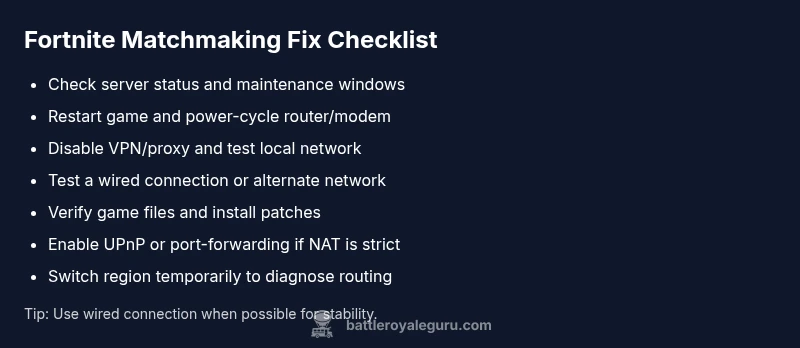
- Check Fortnite server status on the official status page and social channels; if there is an outage, you’ll need to wait.
- Restart Fortnite, then power cycle your router and modem to clear transient network issues.
- Disable any VPNs or proxies that may route traffic through distant regions.
- If you’re on a console, reboot the console; on PC, restart the launcher and relaunch Fortnite.
- If possible, test a different network (mobile hotspot or friend’s Wi‑Fi) to determine whether the problem is your home network.
- Verify the game files or reinstall the launcher if issues persist.
- Ensure you’re on the latest patch and enabled automatic updates. These quick wins fix many common cases and minimize downtime.
Pro tip: keep a small notebook of what you tried and when, so you don’t duplicate steps.
Common Causes and How to Diagnose
Fortnite matchmaking errors can stem from several root causes. Common culprits include server outages or maintenance, a strict or moderate NAT, interfering firewall settings, VPNs or proxies, and corrupted or outdated game files. In Battle Royale Guru Analysis, 2026, server status and NAT-related blocks are among the most frequent triggers. Start by ruling out external factors before delving into device settings. If you’ve confirmed servers are healthy, move on to your home network and device configuration as the next priority.
Checking Fortnite Server Status and Regions
Before diving into device tweaks, confirm whether the issue is widespread. Visit the official Epic Games status page to verify outages, region-specific incidents, and maintenance windows. If your region is impacted, you may see the error across all modes. If services look healthy, consider regional routing and whether crossplay is enabled, as some settings can influence matchmaking. If you’re traveling or using multiple networks, note the time zone and regional changes to correlate with any outages.
Network Troubleshooting and Best Practices
A systematic approach helps you isolate the cause. Begin with a wired connection, disable VPNs, and test latency with a simple ping test to a nearby server. Ensure your firewall allows Fortnite traffic. If NAT type is strict, use UPnP or port-forwarding according to your router’s manual. Keep drivers and firmware updated, and avoid multitasking on the same network during gameplay. If you can, isolate devices on a dedicated gaming network to avoid interference from other streaming or downloads.
Prevention and Best Practices
To minimize future matchmaking hiccups, enable automatic updates for Fortnite and your operating system, maintain a clean network, and monitor changes after each patch. Regularly reboot your router to refresh routing tables, and keep an eye on Epic Games server status for any announced maintenance. Documentation of changes helps you reproduce a fix if the issue returns, and learning the pattern reduces downtime. The smoother your setup, the quicker you’ll bounce back from errors.
Steps
Estimated time: 30-45 minutes
- 1
Check server status
Open the official Fortnite server status page and your social channels to confirm whether there is a known outage or planned maintenance. If there is, note the times and come back later. If services are green, proceed to the next step.
Tip: Bookmark the status page for quick checks. - 2
Restart Fortnite and device
Fully exit Fortnite and relaunch it. If you still see the error, reboot your PC/console. A fresh session clears minor cache issues that can cause matchmaking failures.
Tip: Always quit to the desktop before relaunching. - 3
Power cycle networking gear
Unplug your modem and router for at least 60 seconds, then plug them back in and wait for the lights to stabilize. This resets your network path and can clear transient blocks.
Tip: If you have a separate modem and router, cycle both. - 4
Test a wired connection
If possible, connect directly via Ethernet. A wired connection reduces latency and packet loss, which helps Fortnite matchmaking succeed.
Tip: Avoid using wireless repeats during testing. - 5
Disable VPN/proxy
Turn off any VPNs or proxies that might route you through distant regions. Fortnite can reject or misroute matches when nonstandard paths are detected.
Tip: Only re-enable VPN for testing purposes if you must debug routing. - 6
Check NAT type and enable UPnP
Login to your router and verify NAT type is open or moderate. Enable UPnP if available, then apply and reboot the router. If needed, forward common Fortnite ports per your device manual.
Tip: Typical Fortnite ports include 3074 (UDP/TCP) and related services. - 7
Verify game files and patches
Open the launcher and run a file verification or repair. Install any pending patches to ensure client-server compatibility and matchmaking integrity.
Tip: Restart the launcher after verification completes. - 8
Switch regions to test routing
Temporarily switch your region in the Epic Games launcher or in-game settings to see if routing to a different data center resolves the issue.
Tip: Return to your original region after testing if needed. - 9
Contact support if needed
If the error persists after all fixes, contact Epic Games support with a summary of steps and any error codes. They can review account flags or server-side routing.
Tip: Provide platform, ping, and a step-by-step log to speed up help.
Diagnosis: Fortnite shows 'Matchmaking Error' when trying to join a match.
Possible Causes
- highServer outage or maintenance
- highNAT type is strict or moderate
- mediumVPN/proxy or geoblocked IP
- highUnstable home network or Wi‑Fi interference
- mediumOutdated or corrupted game files / launcher cache
- lowRegional routing or crossplay conflicts
Fixes
- easyCheck official server status and recent maintenance announcements
- easyPower cycle modem/router, then restart Fortnite and the launcher
- easyDisable VPNs/proxies and reconnect to a local network
- easyTest a wired connection or different network to rule out home-network issues
- easyVerify game files and install pending patches
- mediumEnable UPnP or port-forwarding for Fortnite NAT improvement
- mediumSwitch regions temporarily to test routing stability
- mediumContact Epic Games support if the issue persists after fixes
Questions & Answers
What is a Fortnite matchmaking error and what does it mean?
A matchmaking error occurs when the game cannot pair you with a lobby due to server, network, or device issues. Start with server status checks, then test your network and verify game integrity before escalating to support.
A matchmaking error means Fortnite can't pair you with a game. Start by checking servers, then test your network and verify the game files.
How do I check Fortnite server status?
Visit the official Fortnite status page and Epic Games' social channels to see if there are outages or maintenance. If outages are reported, wait for the all-clear before retrying.
Check the official status page to see if there are outages or maintenance.
Can I play on a different region to bypass the error?
Switching regions can help if routing issues exist, but may introduce higher latency. Use it as a diagnostic test rather than a permanent solution.
Trying another region can help test routing, but it may add latency.
Does rebooting help?
Yes. Rebooting your devices and network gear clears temporary states that can cause matchmaking failure and often resolves the issue.
Rebooting can clear many small network glitches.
What should I do if none of the fixes work?
If none of the fixes work, document your steps and contact Epic Games support. There may be account flags or server-side issues requiring direct assistance.
If fixes fail, contact support with details.
Is using a VPN allowed to fix matchmaking?
Fortnite discourages VPNs; using one can trigger mismatches or even bans. Avoid VPNs for matchmaking unless troubleshooting is absolutely necessary.
VPNs are risky for matchmaking; avoid them.
Watch Video
Key Points
- Check server status first and test your network.
- Restart devices and disable VPNs to rule out routing issues.
- Verify files and ensure you have the latest patch installed.
- Try a wired connection for stability.
- If fixes fail, contact Epic Games support with details.