How to Fix Fortnite Matchmaking Error #1: Complete Tutorial
Learn practical, battle-tested steps to fix Fortnite matchmaking error #1. This comprehensive guide covers network checks, device tweaks, DNS changes, and escalation tips with expert insights from Battle Royale Guru to get you back into matches quickly.


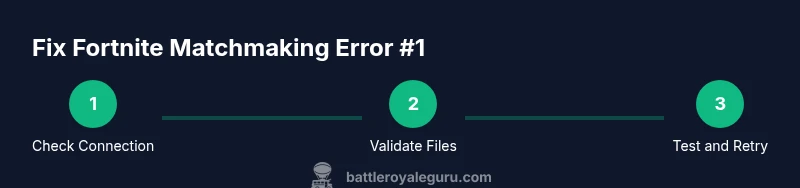
Learn how to fix Fortnite matchmaking error #1 by performing a guided sequence of network checks, device updates, and account verifications. This quick answer outlines the essential steps you’ll take before diving into deeper troubleshooting, including checking your internet, clearing caches, validating game files, and testing alternate connections. Keep these steps handy for fast results.
How Fortnite matchmaking error #1 manifests and why it happens
Fortnite matchmaking error #1 is typically a connectivity or server-related issue that prevents you from entering a match. Symptoms include a stuck loading screen, a persistent 'could not connect' message, or long delays in the matchmaking queue before an error appears. According to Battle Royale Guru, this error often stems from transient network hiccups on the user's side, local router congestion, or temporary server-side congestion during peak hours. Identifying these root causes helps you prioritize fixes that are most likely to work, avoiding wasted time on unrelated steps. Understanding these triggers also gives you a framework for diagnosing the issue quickly so you can move from guesswork to proven fixes. This section outlines the common triggers and provides a diagnostic approach you can apply across devices and platforms.
Prerequisites for fixes
Before starting, assemble a few essentials so you can test changes without interruption. Ensure you have access to your router settings, your Fortnite login credentials, and a device that can run the launcher reliably. From the Battle Royale Guru perspective, prepare a quick baseline by noting your typical ping, download/upload speeds, and whether the error replicates across platforms. Have a wired Ethernet option handy if possible, and decide in advance whether you will test on a different network (mobile hotspot) to isolate ISP-related issues. Finally, bookmark the Epic Games status page to confirm whether Fortnite servers are experiencing issues, so you aren’t chasing a problem you cannot fix on your end.
Quick checks you can perform to rule out obvious culprits
Begin with low-effort, high-impact checks. Run a quick speed test and compare results to your usual performance; a sudden drop may point to local network instability. Reboot your router and modem, then reconnect with a fresh session. Check for a Fortnite or Epic Games launcher update and verify game files if the option exists. If you use a VPN or proxy, disable it while testing to confirm it isn’t triggering the error. Finally, try signing in on another device using the same network to see if the issue is device-specific. These steps help you distinguish between home network problems and broader Fortnite-side issues.
Core fixes at the network and device level
With a stable baseline, apply core fixes in a logical sequence. Start by ensuring a solid wired connection for PCs and consoles; Wi‑Fi can be influenced by distance, interference, and router settings. Update your network drivers and ensure your router firmware is current. Clear any caches related to Fortnite and the launcher, and run a file integrity check for the game. If the problem persists, temporarily bypass VPNs or proxies and test with default DNS settings before considering alternatives. Document any improvements to gauge what works for your setup.
DNS, caches, and server routing: deeper adjustments
Sometimes the path between you and Fortnite’s servers needs a nudge. Change DNS to a fast, widely used resolver (for example, 8.8.8.8 and 1.1.1.1) and flush DNS on your device. In some cases, flushing the DNS cache or renewing your IP helps refresh the route. If you’re technically inclined, consider a lightweight router reset and a temporary port-forwarding rule inspired by Epic Games’ guidance. Remember to test after each change to isolate what actually affects your matchmaking experience.
Clearing caches and verifying game files on PC and consoles
Corrupted cache files or outdated assets can trigger login or matchmaking hiccups. On PC, use the launcher’s repair or verify options, then clear local Fortnite caches if available. On consoles, uninstalling and reinstalling the game may be necessary but should be a last resort due to download sizes. Always back up save data where possible before cleaning caches. After each procedure, launch a test match to observe whether the error reappears.
VPNs, proxies, and platform-specific considerations
Some users route traffic through VPNs or proxies, which can interfere with matchmaking. Disable any VPNs during testing, and ensure your routing follows your platform’s recommended practice. Console players should also check NAT type (open/strict) and adjust UPnP settings if needed. If you must use a VPN for other reasons, switch to a provider with Fortnite-optimized routing and verify that the error does not recur when the VPN is off. For cross‑platform players, ensure your accounts are properly linked and that there are no region mismatches blocking matches.
When to escalate and what to report to support
If the error persists after the above steps, collect detailed telemetry before contacting support. Note your device model, OS version, network type (wired/wireless), and approximate timestamps of when you encountered the error. Include any error codes shown by Fortnite, your network test results, and the steps you took. Contact Epic Games Support or your platform's customer service with this information. The Battle Royale Guru Team recommends keeping a structured report to accelerate diagnosis and fix implementation.
Common pitfalls and best practices to avoid
Avoid jumping between steps out of order; fixes often build on previous successes. Do not uninstall and reinstall multiple times in quick succession unless you exhaust other options. Be mindful of large downloads during peak hours, which can cause temporary latency spikes. Finally, avoid sharing account credentials or sensitive information publicly; keep diagnostics within official support channels. Following these practices will help you converge on a solution faster and reduce downtime.
Tools & Materials
- Stable internet connection(Wired Ethernet preferred for PC; strong Wi‑Fi acceptable on console)
- Fortnite launcher and game files updated(Check for updates and verify integrity)
- Router/modem with up-to-date firmware(Power cycle before applying fixes)
- DNS change option (e.g., 8.8.8.8 / 1.1.1.1)(Useful for DNS troubleshooting)
- VPN or proxy temporarily disabled(Test baseline without VPN)
- Alternative network (mobile hotspot)(Isolate ISP-related issues)
Steps
Estimated time: 60-75 minutes
- 1
Check baseline connectivity
Run a quick network test to measure ping, download, and upload speeds. Compare results to your typical performance to spot anomalies. This establishes whether the problem is likely network-related or something else.
Tip: Pro tip: Use a wired connection when possible for a stable baseline. - 2
Reboot router and modem
Power cycle both devices for 30–60 seconds and allow them to reconnect fully. A fresh session can clear temporary routing issues that block matchmaking.
Tip: Pro tip: After reboot, reconnect directly to your gaming device with a wired link if available. - 3
Restart Fortnite and sign back in
Close the launcher completely, reopen it, and sign back into your account. This clears session data that could be causing the error to linger in memory.
Tip: Pro tip: Ensure you’re launching the latest version of the game. - 4
CheckEpic server status
Visit the Epic Games status page or official Fortnite channels to confirm there’s no ongoing outage. If servers are down, you’ll need to wait until service resumes.
Tip: Pro tip: If services are degraded, do not expect instant fixes on your end. - 5
Verify game files / repair
Use the launcher’s verify/repair feature to check for corrupted or missing files and repair them automatically.
Tip: Pro tip: Make sure the game is not running during the verification. - 6
Test with a wired connection
Switch from Wi‑Fi to a wired Ethernet cable to minimize interference and improve stability during testing.
Tip: Pro tip: If you must use Wi‑Fi, minimize interference by placing the router closer to your device. - 7
Disable VPNs/proxies
Temporarily disable any VPN or proxy setup to rule out routing as a cause. Try again with the default route.
Tip: Pro tip: If you must use a VPN for privacy, test with it off first to confirm a baseline works. - 8
Change DNS and flush DNS cache
Set DNS to 8.8.8.8 and 1.1.1.1, flush the DNS cache, and reboot the device if needed. A clean DNS cache can resolve routing issues.
Tip: Pro tip: After changing DNS, test a fresh connection by restarting the game. - 9
Renew IP and test alternative network
Release/renew your IP via command prompts or settings to refresh your route to Fortnite servers. If possible, test on a mobile hotspot to rule out ISP-related problems.
Tip: Pro tip: Keep a record of results from each network test to compare outcomes. - 10
Validate platform NAT settings
On consoles, check NAT type and UPnP. Open NAT generally improves matchmaking performance and reduces errors.
Tip: Pro tip: Rebalance router QoS settings to prioritize gaming traffic. - 11
Consider a reinstall as a last resort
If all else fails, uninstall and reinstall Fortnite. This should be a last resort due to download sizes and time.
Tip: Pro tip: Back up save data if applicable. - 12
Document and escalate if necessary
Record the steps you took and the outcomes, then contact Epic Games Support or your platform’s support with the details.
Tip: Pro tip: A structured report speeds up diagnosis and fixes.
Questions & Answers
What is Fortnite matchmaking error #1 and when does it occur?
Error #1 typically indicates a connectivity or server-side hiccup that prevents you from joining a match. It often shows up as a failure to connect during the queue or after loading into a lobby. Most fixes focus on network health, device readiness, and server status checks.
Error #1 usually means there’s a connectivity or server hiccup. Try basic network checks and then follow the step-by-step guide for the full fix.
Does Epic Games' server status affect this error?
Yes. If Epic’s servers are experiencing outages or congestion, you may repeatedly see error #1. Always check the official Fortnite status page before applying fixes on your end.
Check Epic’s status page to see if servers are down before troubleshooting further.
Will using a VPN fix the problem?
A VPN can sometimes worsen matchmaking by routing traffic through additional nodes. Disable any VPNs during testing to establish a baseline, and then reintroduce VPNs only if you have a compelling reason and the VPN provider offers optimized routes.
Usually, VPNs hinder matchmaking; disable them to test a baseline.
Is clearing cache safe on consoles and PCs?
Clearing caches is generally safe and can resolve corrupted data. On PCs, use the launcher repair/verify feature; on consoles, consider reinstalling as a last resort after other steps.
Clearing cache is safe and often effective, use the built-in options first.
Can this error occur on all platforms?
Yes, matchmaking errors can affect PC, console, and mobile players. The fixes are platform-agnostic in many cases, focusing on network health, DNS, and server status checks.
This can happen across platforms, so follow cross-platform steps.
How long does it typically take to resolve?
Resolution time varies by cause. Simple network tweaks may fix it within tens of minutes, while more involved issues could take longer or require escalation.
Time depends on the root cause; many fixes are quick, some require support.
Watch Video
Key Points
- Follow a methodical, step-by-step approach
- Differentiate network issues from game/server problems
- Verify game integrity before deeper fixes
- Test changes with documented results
- Escalate with a structured report when needed