Can My Computer Run Fortnite? A Practical Test Guide for 2026
Learn how to run a practical Can My Computer Run Fortnite test. Check OS, hardware, drivers, and in-game performance to decide on upgrades or tweaks for smooth Fortnite play.


Can my computer run Fortnite? This quick test asks: is your OS compatible, is your CPU/GPU/RAM up to the task, is Fortnite up to date, and does your system stay stable during a short in-game pass? If you pass, you’re in a good range; if not, you’ll know what to tweak or upgrade. This guide walks you through a practical Can My Computer Run Fortnite test.
What this test covers
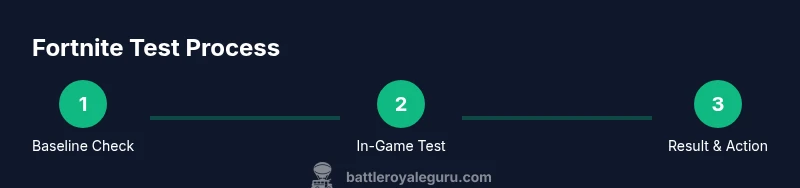
This Can My Computer Run Fortnite test is a practical, non-technical checklist designed to help you decide whether your PC can run Fortnite efficiently. It focuses on real-world signals: OS compatibility, hardware thresholds (CPU, GPU, RAM), storage readiness, driver state, and in-game performance. According to Battle Royale Guru, the goal is to give you a clear baseline without an endless benchmarking grind. The test blends quick pre-checks with a short in-game pass to capture stability, frame pacing, and responsiveness under typical play conditions. It is intended for players who want to know if they should upgrade a component, adjust settings, or optimize their setup before loading into battle royales.
How Fortnite determines run-capability
Fortnite's performance depends on multiple layers: hardware, software, and network. The game uses the rendering pipeline, input latency, and streaming textures; a stable frame rate requires a GPU driver that supports the chosen resolution, a CPU that can handle physics and AI, and enough RAM to load assets. This section explains why ongoing driver updates and system freshness matter, and how storage speed can influence load times between matches. Battle Royale Guru analysis shows that even players with mid-range hardware can achieve smooth play if they optimize settings and drivers, which this test guides you to do.
Prerequisites and baseline checks
Before you run the test, gather your baseline data and ensure your system is prepared. Verify your operating system version supports Fortnite, confirm you have a stable internet connection, and make sure Fortnite is installed with the latest patch. Record your current hardware specs (CPU, GPU, RAM, storage type) and clear a few essential background apps to ensure the game has enough headroom. The goal is to test a realistic scenario rather than an idealized lab bench. If you find outdated drivers or a cluttered startup, address those first to avoid skewed results.
Quick checks you can perform today
Use these fast checks to establish a base line before diving into a deeper test:
- Confirm your OS is supported and up to date
- Check that you have enough free disk space for Fortnite assets
- Update GPU and chipset drivers from the manufacturer
- Connect via wired Ethernet or a reliable Wi-Fi connection
- Temporarily disable non-essential background apps
- Set Fortnite graphics presets to a baseline (Low/Medium) and disable extra effects Each bullet is a signal: if any item is out of date or insufficient, address it before proceeding.
Run a live test in Fortnite
Launch Fortnite through the Epic Games Launcher and enter a controlled area (like a solo match or a calm lobby area) to observe stability. Enable a minimal set of overlays for FPS and latency if available, and monitor for stutter, hitching, or long frame times. Run the test for several minutes to gather representative data. Battle Royale Guru notes that real-world play with a baseline preset is the best predictor of long-term performance, not isolated benchmark runs. If you see groundbreaking drops, you have a clear signal to adjust graphics or upgrade components.
Interpreting the results: FPS tiers and stability
When interpreting results, separate hardware capability from software optimization:
- Low tier: frequent stutter, long load times, or inconsistent frame pacing. Likely need lower settings or a hardware upgrade.
- Mid tier: playable with careful settings and some compromises (lower resolution, fewer effects).
- High tier: smooth play with stable frame pacing and quick load times under typical matches. This guide uses qualitative tiers rather than exact numbers to avoid overclaiming performance, focusing on actionable steps instead.
Troubleshooting common issues
If the test fails or underperforms:
- Update all drivers and Windows/macOS updates where applicable
- Check for overheating and ensure the cooling system is functioning
- Lower resolution or texture quality and disable non-essential post-processing effects
- Close background tasks and verify your network stability
- Reinstall Fortnite if files are corrupted or missing The goal is incremental improvement without guessing at component requirements.
Budget-friendly performance boosts
You don’t need a new PC to improve Fortnite performance:
- Switch to a High Performance power plan and ensure your PCIe power settings aren’t throttling
- Use wired Ethernet and enable Quality of Service (QoS) if your router supports it
- Disable background recording or overlays that impact performance
- Clean up storage to reduce load times and fragmentation
- Consider turning on performance-focused modes in drivers These tweaks can yield meaningful gains without a big investment.
Quick-start checklist
- Verify Fortnite is updated and installed from the Epic Games Launcher
- Update OS and all drivers
- Set baseline graphics and disable extras
- Run a short in-game pass and record behavior
- Review results and decide on tweaks or upgrades
Authority references
- Epic Games Fortnite system requirements: https://www.epicgames.com/help/en-US/fortnite-c1/system-requirements
- Microsoft Windows requirements overview: https://learn.microsoft.com/en-us/windows/get-windows-10
- Fortnite performance overview and testing: https://www.pcgamer.com/fortnite-system-requirements/
Tools & Materials
- Epic Games Launcher(Used to install/verify Fortnite and access the launcher.)
- Fortnite installed and updated(Latest patch for accurate testing.)
- Stable internet connection(Wired Ethernet preferred for consistency.)
- Driver updates (GPU/CPU chipset)(Install from official vendor sites.)
- System information tool(Collect CPU/GPU/RAM specs (e.g., Windows System Information).)
- Optional overlay/recording software(For performance logging if you wish to analyze later.)
Steps
Estimated time: 60-90 minutes
- 1
Open Epic Games Launcher and verify Fortnite
Launch the Epic Games Launcher, navigate to Library, select Fortnite, and click Verify. This ensures you test with the latest build and validates file integrity before testing. WHY: A corrupted or outdated file can skew results. Visual references in the attached diagram can help you locate the Verify button.
Tip: If Verify flags issues, re-download the impacted files. - 2
Check baseline hardware and OS
Note your operating system version, CPU model, GPU model, RAM amount, and available storage. This baseline helps you interpret test results and decide on upgrades or tuning.
Tip: Use a system info tool or Settings > System > About to capture specs. - 3
Update drivers and OS
Install the latest GPU drivers and run any pending OS updates. Reboot to finalize changes. Updated software improves stability and frames and reduces driver-induced issues.
Tip: After updating, re-check Fortnite stability before proceeding. - 4
Apply a baseline graphics preset
In Fortnite, set the graphics to a baseline (e.g., Low/Medium) and disable high-cost features (shadows, motion blur). This creates a consistent test environment and mirrors common player setups.
Tip: Document the exact settings for later comparison. - 5
Run a short performance pass
Enter a controlled area and play for several minutes, monitoring frame pacing and stability. Use a simple overlay to track metrics and note any spikes or freezes.
Tip: Record start and end times and take screenshots of the settings. - 6
Interpret results and categorize
If performance is stable with minimal hitching, categorize as high or mid. If you experience frequent stuttering, categorize as low and consider tweaks or hardware upgrades.
Tip: Use the same test sequence and timing for consistency on subsequent tests.
Questions & Answers
What is the Can My Computer Run Fortnite test for?
It’s a practical, step-by-step method to determine if your PC can run Fortnite smoothly by checking hardware, software, and in-game performance. It helps you decide on tweaks or upgrades.
This test checks your hardware, drivers, and in-game performance to see if Fortnite runs well on your PC.
Do I need to own Fortnite to run the test?
Yes, you’ll need Fortnite installed via the Epic Games Launcher to perform the in-game performance pass and assess real gameplay stability.
You need Fortnite installed to do the in-game portion of the test.
Why is my FPS low even if my system meets requirements?
Low FPS can result from outdated drivers, thermal throttling, background processes, or suboptimal graphics settings. Replacing or tuning components is not always required; software tweaks can help.
Low FPS often comes from drivers, temps, or settings. Try updates and tweaking first.
How often should I repeat the test?
Repeat after major driver updates, system changes, or if you notice performance changes. Consistency in tests helps track progress over time.
Run the test after updates or changes to see the impact.
What should I do if my PC fails the test?
Address the bottlenecks first: update software, optimize settings, free storage, and improve cooling. If needed, consider hardware upgrades in the most impactful area (GPU or RAM).
Fix software and settings first; upgrade only if necessary.
Is this test safe for laptops?
Yes, but monitor temps closely. Laptops can throttle under load, so ensure ventilation and avoid long, intense testing sessions.
Laptops are safe but watch temperatures and vents.
Should I enable performance mode for best results?
Enabling a performance-oriented mode in graphics and drivers can improve stability for many systems, but test both with and without to see what works best for you.
Try performance mode and compare results.
Watch Video
Key Points
- Start with a solid baseline: OS, drivers, and Fortnite patch.
- Use a baseline graphics preset to ensure consistent results.
- Interpret results with practical, non-numeric categories.
- Triage issues with targeted fixes before hardware upgrades.