Fortnite Computers: A Practical Guide to Peak PC Performance
Learn how to optimize fortnite computers for higher FPS, smoother gameplay, and stability with practical hardware targets, OS tweaks, in-game settings, and testing methods. This guide from Battle Royale Guru covers steps you can apply today to improve Fortnite performance on PC.


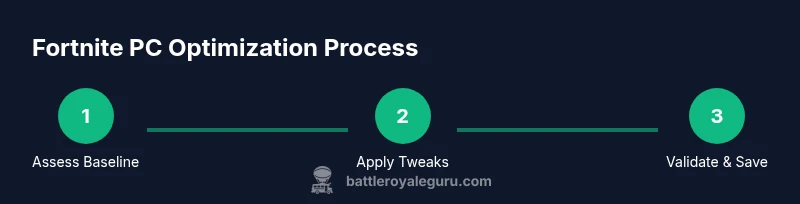
You’ll optimize Fortnite computer performance by selecting hardware baselines, tuning Windows/macOS settings, and applying in-game and driver tweaks. This guide covers hardware targets, system tweaks, and practical steps to boost FPS and reduce stuttering, with safety warnings. You’ll also learn trade-offs between performance and visuals, plus how to test stability. This quick path helps you start improving gameplay immediately.
Why Fortnite Computers Performance Matters
For Fortnite players, the experience hinges on smooth, responsive gameplay. The way your fortnite computers are configured affects not just frame rates but input latency, stuttering, and even match-making responsiveness in high-action moments. In this guide from Battle Royale Guru, we break down practical, real-world steps to improve FPS without sacrificing essential visuals. You’ll learn how small changes to hardware baselines, OS behavior, and in-game settings compound into noticeably better performance. The goal is consistent, reliable performance across common combat scenarios, so you can focus on aiming, building, and outplaying opponents rather than chasing frame drops.
Hardware Baselines for Fortnite
Understanding how Fortnite uses system resources helps you choose sensible upgrades. Most players do well with a balanced setup that provides stable frame rates without pushing power draw or cost. Consider a modern CPU, a capable GPU, and sufficient RAM to keep Fortnite running smoothly alongside background processes. Storage speed matters for quick world loading, while a solid cooling solution helps prevent thermal throttling during long sessions. The exact mix depends on your target resolution and refresh rate, but the principle is to avoid bottlenecks where CPU, GPU, or memory wait on each other. Craft a baseline you can test and improve over time, rather than chasing the fastest hardware in the market.
Windows/macOS Tuning for Fortnite
System software can quietly steal performance if misconfigured. On Windows, enable Game Mode, set a high-performance power plan, close unnecessary background apps, and disable overlays during play. On macOS, ensure energy-saving features stay off during gaming sessions and keep background processes minimal. Regularly update your OS and drivers to ensure optimal compatibility with Fortnite and your GPU vendor’s tools. Utilities like task manager or activity monitor help you spot processes that spike CPU or memory usage. The key is to minimize software-induced latency while maintaining system stability for long gaming sessions.
In-Game Settings for Maximum FPS
In-game options have a direct impact on frame rate and responsiveness. Start with fullscreen mode to reduce borderless window overhead. Set a reasonable render scale, avoid excessive post-processing, and disable motion blur or film grain to reduce unnecessary image processing. Lower view distance if you see pop-in, but balance this with your preferred visibility in fights. Textures, effects, shadows, and anti-aliasing all influence GPU load, so tweak one category at a time and test in a real match. Remember that higher FPS helps more in competitive play than ultra-high visuals in most scenarios.
Drivers, Overlays, and Software Bloat
Keeping drivers current is foundational. Install the latest GPU driver and chipset updates from the manufacturer’s site or your system vendor, and avoid beta software unless you’re comfortable testing. Overlays from recording or streaming software can add latency; disable them when gaming. Uninstall or disable unused utilities that actively run in the background and take CPU cycles. Regularly cleaning up startup programs reduces load times and improves responsiveness in Fortnite. If you’re unsure whether a tool helps, try a temporary disable-and-test approach to quantify impact.
Monitoring Performance Safely
Use lightweight monitoring to track FPS, frame-time consistency, temperatures, and fan speeds. Tools like MSI Afterburner, RivaTuner, or vendor-provided utilities offer per-frame timing data and temperature readouts. Track several matches to get a representative sample; avoid chasing a single spike as a measure of performance. Look for a steady frame-time curve and temperature that stays within safe limits for your hardware. Document changes and results so you can reproduce improvements and rollback if needed.
Troubleshooting Common Issues
If you experience stutter, dizzy gameplay, or frequent drops, check for background tasks consuming CPU or I/O resources. Disable unnecessary startup apps, set Fortnite as a high-priority process, and verify disk health and fragmentation on HDD systems (defragmentation helps traditional HDDs but not SSDs). If input lag is persistent, verify that your monitor’s refresh rate and V-Sync settings align with your GPU output. Network stability can also masquerade as performance problems; test on a wired connection and ensure Discord/VoIP apps aren’t congesting bandwidth during play.
Budget Upgrades vs Longevity
Upgrading hardware is a balance between immediate gains and future-proofing. For many players, modest upgrades to a faster GPU, more RAM, or a cooler CPU can yield meaningful improvements without breaking the bank. Consider your display resolution and refresh rate to decide where to invest: higher resolutions demand more GPU power, while higher refresh rates benefit from CPU/GPU balance. Factor in power consumption, acoustics, and heat output when planning upgrades to avoid diminishing returns.
Testing, Validation, and Maintenance
After applying changes, test with several Fortnite sessions in different maps and modes to confirm improvements are consistent. Document each change and its effect on FPS, stuttering, and load times. Schedule periodic rechecks after driver updates or game patches, as optimizations can shift with updates. Keeping a simple changelog helps you reproduce successes or revert changes that don’t perform as expected. The aim is stable, repeatable performance rather than a one-off boost.
Tools & Materials
- PC with discrete GPU(A modern GPU is essential for stable Fortnite performance at higher settings or resolutions.)
- Operating system (Windows 10/11 or macOS current)(Keep updated; enable gaming-specific settings where available.)
- Latest graphics driver(Download from GPU vendor’s site for best compatibility.)
- Fortnite installed and updated(Ensure the game and launcher are current to test changes.)
- Performance monitoring software(MSI Afterburner, RivaTuner, or vendor tools for FPS/temps.)
- Wired network connection(Optional but improves consistency in online play.)
Steps
Estimated time: 60-90 minutes
- 1
Prepare your system
Audit your current setup: confirm Fortnite is updated, back up settings, and close nonessential programs. This initial check prevents conflicts as you apply tweaks and helps you measure impact accurately.
Tip: Create a quick baseline by recording current FPS and frame times before changes. - 2
Update drivers
Install the latest GPU and chipset drivers from the manufacturer’s site. Restart after installation to ensure all changes take effect and avoid lingering compatibility issues.
Tip: Test a few matches after a driver update to confirm improvements aren’t offset by new bugs. - 3
Adjust OS power settings
Switch to a high-performance power plan, disable unnecessary background services, and ensure Game Mode (Windows) is enabled when gaming. This reduces system throttling during play.
Tip: Turn off background indexing during gaming sessions to minimize disk I/O spikes. - 4
Tweak Fortnite graphics
Set Display to Fullscreen, adjust render scale, and minimize post-processing effects. Start with medium view distance and low shadows; progressively test for a balance between clarity and FPS.
Tip: Disabling motion blur reduces GPU work and can noticeably improve responsiveness. - 5
Enable performance monitoring
Run a lightweight FPS/temperature monitor while playing to collect data on how changes impact frame times and thermals. Note any thermal throttling.
Tip: Record a 10-minute play session to capture a representative sample of performance. - 6
Test stability
Play multiple matches across maps and modes to verify improvements are consistent. If lag spikes appear, isolate potential culprits (background apps, network fluctuations, or overheating).
Tip: If instability appears, roll back the most recent change and retest. - 7
Consider safe upgrades
If performance remains below target, evaluate a modest hardware upgrade that aligns with your display needs, power budget, and future-proofing goals.
Tip: Prioritize upgrades that reduce bottlenecks rather than just increasing polygon counts. - 8
Document changes
Maintain a changelog detailing each adjustment and its effect on FPS and stability. This makes it easier to reproduce success and troubleshoot future issues.
Tip: Keep a simple table: change, observed result, date, and notes. - 9
Maintain and re-test
Periodically re-test after game patches or driver updates to ensure your setup remains optimized. Revisit settings if the game updates dramatically.
Tip: Schedule a quarterly check-in to refresh performance data.
Questions & Answers
What FPS improvement can I expect on a typical Fortnite PC?
Improvements vary by hardware and settings, but you should experience smoother gameplay and fewer stutters after aligning OS, drivers, and in-game options. Always test across multiple maps and modes.
Expect smoother gameplay and fewer stutters after tuning OS, drivers, and in-game settings, but results vary by your hardware.
Do I need to upgrade hardware to improve Fortnite performance?
Upgrading can help, especially if your system is older or bottlenecked by the GPU or CPU. Start with a balanced upgrade plan aligned to your display resolution and desired frame rate.
A balanced upgrade plan can help, especially if your system bottlenecks performance at your chosen resolution.
Are driver updates safe for Fortnite performance?
Driver updates are generally beneficial for performance and compatibility. Always obtain drivers from the official vendor site and reboot after installation.
Driver updates are typically good for performance; download from the official site and reboot afterward.
Will enabling Windows Game Mode hurt other apps?
Game Mode prioritizes Fortnite resources while gaming, but some applications may temporarily lose CPU time. Use it during play if you notice gains in stability.
Game Mode focuses resources on gaming, which can improve stability during play.
Will these tweaks affect other games?
Some tweaks, like disabling overlays or adjusting performance modes, can benefit other games too, but results will vary. Re-tune for each title if you play multiple games regularly.
Tweaks can help other games, but you may need to re-tune for each title.
Watch Video
Key Points
- Establish a solid hardware baseline before tweaking settings.
- Tune OS and in-game options to balance visuals and FPS.
- Monitor performance with lightweight tools and test across scenarios.
- Document changes and re-test after updates or patches.