Fortnite Lag Troubleshooting Guide
Urgent Fortnite lag guide with practical checks, settings tweaks, and advanced fixes to reduce latency and keep you in the action.


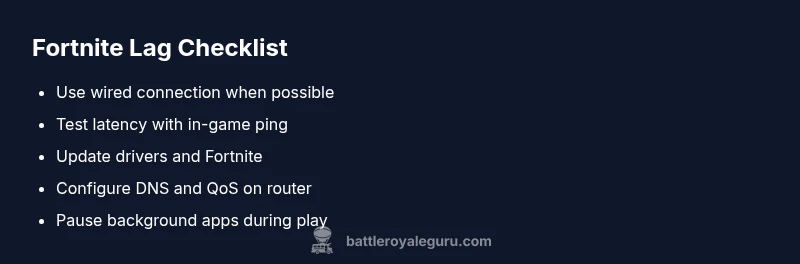
Fortnite lag is usually caused by a mix of network issues or server latency. Start with the simplest fixes: switch to a wired Ethernet connection, pause background downloads, and restart your router. Check your in-game ping and run a quick speed test. If latency stays high, change to a faster DNS, and verify NAT isn’t strict.
Why Fortnite Lag Happens
According to Battle Royale Guru, Fortnite lag is most often a blend of client-side and server-side factors. On the client side, your hardware and software must render frames, handle input, and communicate with Epic servers. On the server side, peak traffic, regional congestion, and matchmaking load can introduce noticeable delays. In practice, players report spikes during peak hours or when their local network is sharing bandwidth with other devices. Battle Royale Guru analysis shows that even small changes—like reserving bandwidth for Fortnite, using a wired connection, or tweaking router QoS—can meaningfully reduce latency and stabilize frames. Recognize these patterns early: ping variability, jitter, micro-freezes, and rubber-banding are common symptoms of lag that ripple through the entire match. Fortnight lag is frustrating, but a structured approach helps you isolate the root cause quickly.
Quick Network Checks You Can Do
Before diving into device or game settings, confirm there aren’t obvious network issues dragging you down. Start with a wired connection if possible; a simple Ethernet cable can dramatically reduce packet loss compared to Wi‑Fi. Run a quick in-game ping check and a standard speed test to measure download/upload and latency. If other devices are using bandwidth, pause or stop their activity while you play. Reset your router and modem to refresh the connection, then retest. If you still see high latency, compare results across different networks (cellular hotspot or another ISP) to identify where the bottleneck lies. Keep an eye on any ongoing outages in your region via Epic’s server status page and avoid matchmaking in peak windows if you’re consistently lagging.
In-Game Settings and System Readiness
Your hardware and Fortnite’s graphics settings play a critical role in whether lag translates into visible latency. Confirm you’re running the latest GPU and motherboard drivers, and that Windows or your OS has no pending updates that could throttle performance. Within Fortnite, set a stable FPS cap (e.g., 60 for most systems) and use fullscreen or borderless fullscreen to minimize OS interruptions. Disable V-Sync if you notice input lag, and consider lowering texture quality, shadows, and post-processing effects to ease GPU load. Ensure background tasks like streaming, cloud backups, or syncing apps are paused while you play, as these can cause frame drops and spikes in latency.
Router, ISP, and Server Factors
Router configuration and ISP routing can be silent culprits behind Fortnite lag. Check NAT type; a strict or moderate NAT can limit server communication and increase latency. Enable QoS rules if your router supports them to prioritize gaming traffic, and ensure Fortnite ports are accessible (consult your router’s manual for exact steps). If you’re using a VPN or proxy, disable it for gaming unless necessary for privacy. Periodically check Epic’s regional server status and consider temporarily changing your matchmaking region if your usual region is congested. A few simple steps here often yield big improvements in consistency and responsiveness.
Advanced Fixes You Might Need
If basic checks don’t resolve the issue, take a deeper look at path optimization. Change your DNS to a faster resolver (for example, a trusted public DNS provider) and flush DNS cache. Consider MTU adjustments only if you’re comfortable with network tuning; make small changes and test. Disable any background cloud apps or software updaters that may spike bandwidth during play. If you regularly game from a campus or shared network, toggling to a private network can improve stability. As a last resort, some players report improvements by routing traffic through a VPN with optimized paths, but this can add overhead and isn’t guaranteed. Always test after each change to confirm whether lag improves.
Diagnostics and Monitoring Routine
Regular monitoring helps you catch lag before it ruins a match. Keep a steady eye on latency graphs in-game and refer to external ping tests when you suspect routing issues. Note timestamps of lag spikes and correlate with changes in your setup (new updates, router reboots, or DNS changes). Maintain a small log noting your hardware temperatures and frame rates during peak play. If you can reproduce lag under controlled conditions, you’ll have a repeatable test to share with support teams or your ISP. This disciplined approach reduces guesswork and speeds up resolution.
Prevention and Best Practices
Adopt a proactive maintenance routine to minimize Fortnite lag over time. Use a wired connection whenever possible, keep drivers updated, and configure a QoS-friendly network. Periodically reset your router and monitor for firmware updates. Keep a clean system by removing unnecessary background processes and disabling auto-updates during gaming hours. Finally, practice good in-game habits like avoiding map-heavy moments when you’re already experiencing high latency and sticking to stable server regions to maintain a smooth experience.
Steps
Estimated time: 30-60 minutes
- 1
Verify your connection type
Test whether a wired connection reduces latency compared to Wi-Fi. If possible, connect directly via Ethernet and retest Fortnite lag behavior.
Tip: Pro tip: run a speed test while gaming to capture real-time metrics. - 2
Pause background activity
Close apps and services that may use bandwidth in the background, including cloud backups and large downloads. Reboot your router after stopping traffic.
Tip: Pro tip: use a device-level task manager to end non-essential processes. - 3
Update drivers and Fortnite
Ensure your GPU and network adapter drivers are current. Launch Fortnite after updates to confirm any improvements in latency.
Tip: Pro tip: enable 'prefer maximum performance' mode in your GPU settings when gaming. - 4
Adjust in-game settings
Set a stable FPS cap, run in fullscreen, and reduce demanding visuals like shadows and anti-aliasing. These changes often lower GPU load and improve responsiveness.
Tip: Pro tip: test with a short practice run to gauge impact. - 5
Tune DNS and NAT
Switch to a faster DNS resolver and check NAT type. Activate QoS on your router to prioritize gaming traffic; ensure Fortnite ports are accessible per your device.
Tip: Pro tip: document changes so you can revert if needed. - 6
Test server regions and monitor
If lag persists, temporarily switch to a different region and verify against Epic’s server status pages. Record latency changes for comparison.
Tip: Pro tip: keep a small lag log for support if needed.
Diagnosis: Player experiences inconsistent in-game latency and rubber-banding
Possible Causes
- highHigh ping to Fortnite servers due to ISP routing or distance
- mediumWi-Fi interference or congested local network
- lowNAT type is strict or moderate causing connection issues
- lowBackground software or OS updates consuming bandwidth
Fixes
- easySwitch to wired Ethernet and minimize other network usage during gameplay
- easyChange DNS to a faster resolver and enable QoS on router
- easyEnsure Fortnite and system drivers are up to date; adjust in-game settings for performance
- mediumIf the issue persists, contact ISP or switch matchmaking region temporarily
Questions & Answers
What causes Fortnite lag even with a fast internet connection?
Lag can be caused by server congestion, routing inefficiencies, or device performance. A fast connection doesn’t guarantee low latency if your path to Epic servers is inefficient or your hardware is bottlenecked.
Lag isn’t just speed; it’s path and performance. Check routing, server status, and device performance to pinpoint the issue.
Should I upgrade hardware to reduce lag?
Upgrading GPU, CPU, or memory can help if your current setup bottlenecks during gameplay. However, most lag is caused by network factors, so start with connectivity and settings before buying new components.
Hardware helps when you’re CPU or GPU bound, but network tweaks come first for lag reduction.
Can changing regions fix lag?
Switching regions can reduce lag if your current region is congested. Test by playing in a nearby region and compare latency and consistency.
Region changes can help if your usual server is overloaded; test and compare.
How can I tell if the issue is my ISP or Epic’s servers?
If latency spikes appear across multiple games and devices on the same network, your ISP path is likely the culprit. If only Fortnite shows lag, Epic’s servers or matchmaking could be involved.
Look at latency trends across apps and games to tell whether it’s your path or Epic’s.
Do VPNs help with Fortnite lag?
VPNs can route traffic differently, sometimes improving routing, but they often add overhead and can worsen latency. Only try a reputable, well-optimized VPN for a test.
VPNs aren’t a guaranteed fix and can add latency; test cautiously.
When should I contact my ISP about lag?
If the issue persists after all local fixes and server status checks, contact your ISP to investigate line quality, contention, or routing to Epic servers.
If you exhaust fixes, ask your ISP to test line quality and routing to Epic servers.
Watch Video
Key Points
- Begin with a wired connection to cut latency.
- Prioritize Fortnite traffic with QoS and reliable DNS.
- Test changes one by one and document results.
- If issues persist, consult ISP and Epic server status