What Causes Fortnite Lag and How to Fix It (2026)
Diagnose and fix Fortnite lag with a practical, step-by-step troubleshooting guide. Learn common causes, quick checks, and proven fixes to reduce ping, FPS drops, and stuttering.


The most likely causes are network latency, insufficient FPS headroom, and background apps hogging resources. Start with a quick fix: restart your router, set Fortnite to a wired connection, and close bandwidth-heavy programs. If the issue persists, move to in-game adjustments and test your connection using a ping tool today.
What is causing Fortnite lag?
If you're wondering what causes fortnite to lag, the answer is usually a mix of network latency, insufficient local FPS headroom, and background processes competing for resources. According to Battle Royale Guru, most lag stems from a combination of an unstable connection, limited hardware headroom, and software conflicts on your device. The goal is to reduce the time data takes to travel and to ensure your PC or console can render frames smoothly. In practice, you want to map symptoms to root causes: ping spikes, frame drops, and stuttering are often connected, not separate issues. By recognizing the pattern—whether it happens in crowded lobbies, during fast-paced combat, or while streaming—you can narrow down the likely culprits faster and apply targeted fixes. This approach keeps you focused on concrete actions rather than broad guesses and aligns with practical strategies Battle Royale Guru recommends for real players.
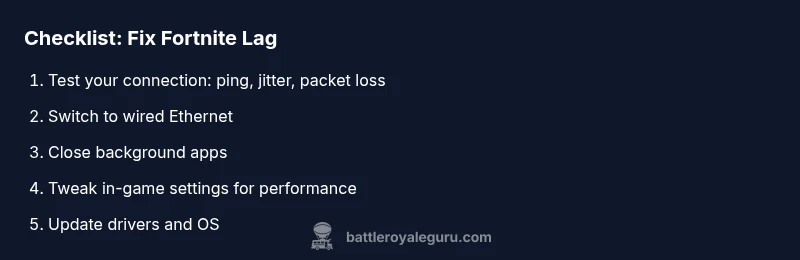
Understanding lag starts with a simple checklist: is your ping high, do you see jitter, or are there momentary freezes? Each symptom points to different roots, from network routing to local resource contention. Keep a log of when lag spikes occur; timing can reveal whether server load, peak usage times, or a particular map is involved. Treat lag as a signal that something on your setup or in the network path is throttling performance, not a mysterious game defect. Armed with this view, you can tackle fixes in a structured way and avoid wasting time chasing unrelated tweaks.
What is causing Fortnite lag?
If you're wondering what causes fortnite to lag, the answer is usually a mix of network latency, insufficient local FPS headroom, and background processes competing for resources. According to Battle Royale Guru, most lag stems from a combination of an unstable connection, limited hardware headroom, and software conflicts on your device. The goal is to reduce the time data takes to travel and to ensure your PC or console can render frames smoothly. In practice, you want to map symptoms to root causes: ping spikes, frame drops, and stuttering are often connected, not separate issues. By recognizing the pattern—whether it happens in crowded lobbies, during fast-paced combat, or while streaming—you can narrow down the likely culprits faster and apply targeted fixes. This approach keeps you focused on concrete actions rather than broad guesses and aligns with practical strategies Battle Royale Guru recommends for real players.
Steps
Estimated time: 30-60 minutes
- 1
Verify basics and reproducibility
Start with a clean baseline. Reboot your PC/console and router, then launch Fortnite to see if lag still appears. Note the time of day and whether another device on the network is consuming bandwidth. This helps confirm the issue is reproducible and not just a one-off spike.
Tip: Document the exact conditions when lag occurs (time, map, teammates, background apps) to identify patterns. - 2
Switch to a wired connection
If you’re on Wi-Fi, switch to a wired Ethernet connection for lower and more stable latency. If wiring isn’t possible, try 5 GHz with a clearer channel and minimize physical interference. A stable link often reduces ping spikes and stutter.
Tip: Use a short, high-quality Ethernet cable and keep it away from power cables to reduce interference. - 3
Close bandwidth-heavy apps
Close or pause any programs that use significant bandwidth in the background (cloud backups, streaming, large updates). These can surge latency even when you’re not actively using them in-game.
Tip: Use Task Manager (Windows) or Activity Monitor (Mac) to identify and quit bandwidth hogs. - 4
Optimize in-game settings for performance
Lower graphics settings to increase FPS headroom. Key changes include reducing view distance, shadows, post-processing, and turning off motion blur. Ensure V-Sync is disabled if you’re chasing smoother frame pacing.
Tip: Start with a modest reduction and test how the game feels before dialing down further. - 5
Update drivers and software
Keep your GPU drivers, motherboard chipset, and OS up to date. Driver updates can fix performance bottlenecks and improve overall stability during gameplay.
Tip: Check manufacturer websites or use automatic updater tools for the latest versions. - 6
Test latency and regional factors
Use built-in Fortnite diagnostics or external tools to test ping and jitter. Consider changing regions or waiting for off-peak times to see if server load is a factor.
Tip: If you see consistent high latency to your current region, switching regions may improve playability. - 7
Escalate if needed
If lag persists after all basic fixes, contact your ISP for line tests or Epic Support for server-side diagnostics. Document your tests, settings, and timestamps to speed up help.
Tip: Professional help is advised when consistent latency remains after thorough DIY troubleshooting.
Diagnosis: Fortnite experiences consistent lag or stuttering during gameplay
Possible Causes
- highHigh latency or jitter on network connection
- mediumInsufficient local resources (CPU/GPU/RAM) or background processes
- mediumServer-side regional issues or matchmaking latency
- lowOutdated drivers or software conflicts
Fixes
- easyTest network with ping/trace routes; switch to wired Ethernet or optimize Wi-Fi channel
- easyClose background apps, adjust in-game settings, and update drivers
- easyChange region in Fortnite, use downtime to check server status
- mediumIf problems persist, contact ISP or Epic Support for advanced diagnostics
Questions & Answers
Why is Fortnite lagging on my PC?
Common causes are network latency, insufficient system resources, and background programs. Check ping, close nonessential apps, and verify drivers and game settings.
Fortnite lag on PC is usually due to a mix of network delay, limited system resources, or background apps. Start by checking your ping and closing unnecessary programs.
Will upgrading hardware help Fortnite lag?
Upgrading CPU/GPU/RAM can help if your hardware is a bottleneck, especially at higher settings. Pair with updated drivers and optimized game settings for best results.
Hardware upgrades can help if your computer is bottlenecked, especially when you’re pushing higher graphics settings.
Can a VPN reduce Fortnite lag?
VPNs can sometimes help if your ISP throttles traffic to game services, but they often add extra hops and increase latency. Test carefully.
A VPN might help in rare cases, but it usually adds ping. Test both with and without VPN to compare.
How do I know if Fortnite servers are the issue?
Check official server status pages and social channels. If multiple regions are affected or latency spikes align with server maintenance, the issue is likely on Epic’s side.
Server issues show up across regions and times; check status pages for the latest updates.
Is ping the same as latency in Fortnite?
Ping is part of latency and measures round-trip time to the server. Latency also includes processing time on your device and the server.
Ping is a component of latency, which also includes your device and server processing time.
Should I change my Fortnite region settings?
Changing regions can reduce latency if your default region is congested. Switch regions briefly to compare performance, then revert if needed.
Try different regions to see if performance improves, but use this as a test, not a permanent change.
Watch Video
Key Points
- Test basics first: clean boots and baseline connection
- Prefer wired network to reduce latency
- Close unnecessary apps to free resources
- Tune in-game settings for better FPS headroom
- If persistent, escalate with ISP or Epic Support