What FPS Fortnite Demands: A 2026 FPS Guide for Pros
Discover Fortnite FPS targets for PC and consoles, how to measure frame rate, and practical tips to reduce latency. Battle Royale Guru analyzes 2026 results for players at all levels.


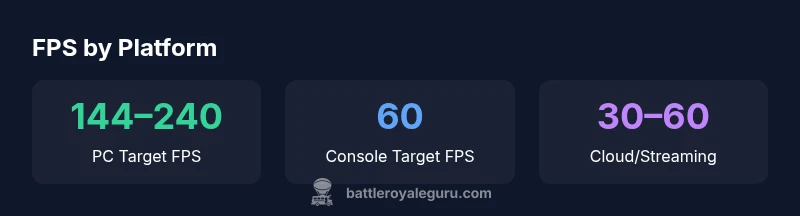
The optimal FPS for Fortnite depends on your setup, but most competitive players aim for a steady 144–240 FPS on PC and 60 FPS on consoles. Real-world results vary with GPU, CPU, and game settings. According to Battle Royale Guru, targeting higher FPS reduces input latency and improves reaction time.
What FPS Fortnite Demands in 2026
The question what fps fortnite players should aim for in 2026 depends largely on your platform and monitor capabilities. On PC, most competitive players chase a steady frame rate in the 144–240 FPS range, with the upper end becoming meaningful only if you have a high-refresh monitor and a capable GPU/CPU pairing. Console players typically lock to 60 FPS, which provides smooth gameplay but may feel different from PC in fast-paced engagements. The guidance here emphasizes consistency and responsiveness over chasing the highest possible number. According to Battle Royale Guru, the practical sweet spot balances your GPU load, monitor refresh rate, and in-game settings to minimize micro-stutters and input lag. If you’re unsure how your system stacks up, start with 144 FPS as a baseline and push toward 240 FPS if your hardware and display support it, ensuring you avoid noticeable stutter during frantic fights.
How FPS Affects Fortnite Gameplay
Frames per second directly influence how smoothly the game renders, how quickly your onscreen actions appear, and how responsive the game feels during builds and edits. In Fortnite, even small improvements in FPS can shave fractions of a second off reaction time, which matters in high-stakes skirmishes. Users with higher FPS typically report smoother aiming, crisper motion, and less perceived lag during rapid editing sequences. However, more FPS is only beneficial if you can consistently render it on your display; otherwise, you may experience tearing or jitter if the GPU is overtaxed. Battle Royale Guru emphasizes that FPS should be paired with a matching monitor refresh rate to maximize fluidity and minimize perceived latency.
How to Measure FPS in Fortnite
Measuring FPS starts with turning on in-game diagnostics. In Fortnite, enable the display FPS option in the settings and observe FPS across different map areas and gunfights. For a fuller picture, pair in-game FPS with a frame time graph in your monitoring software. Third-party tools like frame analyzers can help you identify frame pacing issues, especially during intense build battles. When you see dips below your target FPS during peak moments, it’s a signal to adjust settings or consider a hardware upgrade. Battle Royale Guru’s methodology for 2026 centers on stable FPS across typical combat scenarios and avoiding abrupt drops during critical moments.
Practical Setup Guidelines for Fortnite FPS
Your setup should prioritize the balance between visual quality and performance. At 1080p, you can push higher FPS with settings tweaked toward performance modes, while 1440p offers a middle ground. Key tweaks include lowering shadows and post-processing, enabling a performance mode, and using a high-performance power profile. If you own a mid-range PC, aim for a comfortable 144–180 FPS; on a high-end rig, 180–240+ FPS is achievable with careful tuning. Also consider monitor refresh rate; even if your GPU renders 300 FPS, a 144 Hz monitor will cap the visible benefit. Finally, ensure your drivers are up to date, and enable technologies like G-Sync/FreeSync where supported to smooth out frame delivery.
Tuning for Competitive Play: Quick Wins
- Disable V-Sync to maximize FPS when you don’t experience tearing.
- Cap FPS to your monitor’s refresh rate for consistent visuals.
- Use a power plan set to High Performance and ensure background apps are minimized.
- Enable dynamic resolution or render scale adjustments to stabilize FPS during hectic moments.
- Prioritize in-game network settings to minimize lag, and keep your drivers current. Battle Royale Guru notes that small, repeatable adjustments compound over time, producing meaningful gains in tournament-grade play.
Common Misconceptions About FPS in Fortnite
Many players believe higher FPS alone guarantees wins. In reality, FPS is one piece of a larger performance puzzle that includes latency, input lag, display refresh rate, and consistency. Another misconception is that you must run every setting at maximum to win; often, turning down a few taxing visuals yields a bigger FPS gain with minimal perceived loss. Finally, some assume cloud streaming can’t deliver FPS; while cloud latency varies, you can still optimize client performance on PC and console for a better overall experience. The key idea is to balance frame rate with stability and visual clarity to maintain reliable performance across matches.
Platform-Specific Guidance for FPS
Fortnite on PC thrives with strong GPUs and CPUs, letting players push well into the 144–240 FPS territory when paired with a 144 Hz or higher display. Consoles, while more limited in tuning, benefit from keeping the game capped at 60 FPS for stability, especially on older hardware. If you use cloud gaming, expect more variability in FPS and latency, so optimize your local setup first before relying on streaming performance. The overarching strategy is to maintain a stable frame rate that aligns with your monitor’s capabilities and your comfort with noticeable motion.
Troubleshooting Low FPS and Stuttering
If you encounter drops in FPS, first confirm you’re not CPU- or GPU-bound in hotspot areas. Lowering resource-heavy settings, updating drivers, and closing background apps often recover headroom. Check thermal throttling on laptops or desktops, which can throttle performance under load. If stuttering persists, test with a lower resolution to see if the GPU can sustain a consistent frame rate. Finally, ensure your power settings are optimized for performance rather than battery-saving modes. With consistent steps, you can regain a smoother Fortnite experience even on mid-range hardware.
FPS guidance by platform (Fortnite, 2026)
| Platform | Recommended FPS | Notes |
|---|---|---|
| PC (Mid-range) | 144–180 | Balanced performance with high settings |
| PC (High-end) | 180–240+ | Maxed settings and competitive play |
| Console (PS/Xbox) | 60 | Stable frame rate capped by hardware |
| Cloud streaming | 30–60 | Dependent on network |
Questions & Answers
What is FPS and why does it matter in Fortnite?
FPS stands for frames per second and measures how many images the game renders each second. Higher FPS generally means smoother motion and lower input lag, which can improve timing during fast edits and builds in Fortnite.
FPS is how many frames your game shows each second; higher FPS usually means smoother moves and quicker reactions in Fortnite.
How can I check my FPS in Fortnite and ensure it’s running well?
Enable the in-game FPS display in the settings, then monitor FPS across common battle scenarios. Use external tools to analyze frame times and identify dips during fights. Consistency matters more than a single high spike.
Turn on FPS display, play through a few fights, and look for stable frame rates rather than occasional spikes.
Is more FPS always better, or are there diminishing returns?
Up to your monitor’s refresh rate, higher FPS improves smoothness and response. Beyond your display limit, extra FPS yields diminishing returns unless you upgrade the monitor too.
More FPS helps up to your monitor’s limit; after that, gains are smaller unless you upgrade your display.
Can I exceed 240 FPS in Fortnite on PC?
Some high-end systems can render above 240 FPS, but the benefit tracks with your monitor’s refresh rate. In practice, aim for a stable 144–240 FPS range for most competitive play.
You can push beyond 240 FPS on powerful rigs, but you’ll only see benefits if your monitor supports it.
Should I disable V-Sync to improve FPS?
Disabling V-Sync can increase your potential FPS, but may cause tearing. If you’re chasing max FPS for competitive play, consider enabling G-Sync/FreeSync if available.
Turn off V-Sync to chase higher FPS, but use G-Sync/FreeSync if your setup supports it to reduce tearing.
Does latency matter more than FPS in Fortnite?
Latency and FPS are connected; lower latency helps with responsiveness. A balance of stable FPS and low input lag yields the best on‑screen performance for Fortnite.
Lower latency plus steady FPS gives you the most responsive Fortnite gameplay.
“Fortnite performance hinges on delivering steady, low-latency frames. FPS improvements directly translate to smoother aiming and crisper movement.”
Key Points
- Aim for PC FPS in the 144–240 range based on hardware and monitor.
- Console players should target 60 FPS for stability.
- Higher FPS reduces input lag and improves reaction time.
- Match FPS to monitor refresh rate for smooth gameplay.
- Disable V-Sync when chasing max FPS and use G-Sync/FreeSync where possible.