Why Fortnite Overheats Xbox: Troubleshooting Guide
Discover why Fortnite overheats your Xbox and follow a step-by-step guide to improve ventilation, firmware updates, and cooling. Battle Royale Guru delivers practical fixes.


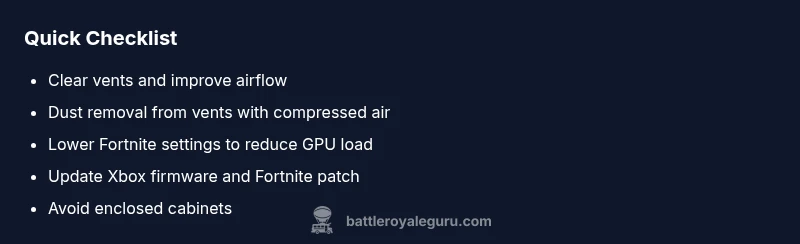
Most Xbox overheating during Fortnite is due to restricted ventilation or dust buildup, plus long gaming sessions in enclosed spaces. Start with these quick steps: 1) move the console to open air, 2) clear vents with a can of compressed air, 3) ensure the Xbox isn’t in a cabinet, 4) reduce in-game settings and cap frame rate, 5) check for system updates and clean power cables.
Why Fortnite Overheats the Xbox
Fortnite is a demanding game that pushes the Xbox's CPU and GPU during high-action scenes, especially on higher resolutions and frame rates. When you couple this load with limited airflow, dusty vents, or a cramped play space, the console's internal temperatures can climb quickly. In many cases, the problem isn't a defective component but a cooling bottleneck that builds up during extended sessions or while streaming. The Battle Royale Guru team has observed that overheating incidents correlate with poor ventilation and household environments that trap heat. If your Xbox feels hotter than usual after a match, you're not alone; the fix is usually straightforward and hardware-friendly, focusing on airflow, settings, and maintenance rather than parts replacement. Stay methodical, and you can often cool things down within a single gaming session.
Quick checks you can do before deep troubleshooting
Before you dive into more involved steps, run through these fast checks:
- Ensure the console sits in an open area with several inches of clearance on all sides.
- Make sure vents are free of dust and fabric, and that nothing is blocking airflow behind or beneath the unit.
- Confirm the power supply and cables are intact and not warm to the touch during play.
- Check room temperature; hot rooms dramatically raise ambient temps around the console.
- Verify both Xbox system and Fortnite are up to date.
- Consider temporarily lowering in-game quality to reduce GPU load if temps spike during intense scenes.
How ambient conditions affect cooling
Ambient temperature and air circulation around the Xbox significantly influence cooling efficiency. In small rooms, sealed entertainment centers, or shelves with poor ventilation, the console’s heat has fewer places to dissipate. Even with a healthy cooling fan, heat can accumulate if air isn’t moving freely. Short-term fixes include relocating the console to a cooler, more open spot and using a small fan to improve air movement around the cabinet. In the long term, ensure the gaming setup is in a well-ventilated room with comfortable temperature and humidity.
Fortnite settings and their impact on temps
Fortnite’s performance sliders directly affect how hard the Xbox works. Higher resolutions, faster frame rates, and intensive post-processing tax the GPU. If you frequently experience heat during battles, start by dialing back:
- Frame rate cap to 60fps or lower if your display supports it.
- Resolution scaling to a balanced level (not the absolute highest).
- Turn off or lower shadow quality, motion blur, and anti-aliasing where possible.
- Enable performance mode that prioritizes stability over ultra visuals if your console version supports it.
Lowering these settings can dramatically reduce peak temperatures and maintain smoother gameplay during long sessions.
Cleaning vents and improving airflow
Dust accumulation is a leading cause of overheating. A simple cleanup ritual can restore airflow:
- Power off the console and unplug it from the wall.
- Use a can of compressed air to blow out vents from multiple sides. Hold the can upright and use short bursts; never shake it or spray liquid.
- Vacuum nearby dust from the surrounding area, and wipe the exterior with a dry microfiber cloth.
- Check for stagnant air behind the console or inside enclosed shelving and increase clearance if needed.
- Do not spray water or cleaners near electrical parts.
Regular cleaning every few months can keep temps in a safe range and extend the device’s life.
Firmware updates and system maintenance
Firmware updates optimize thermal management and system stability. Ensure both your Xbox firmware and Fortnite are up to date:
- Go to Settings > System > Updates & downloads and install any available updates.
- Check Fortnite for in-game patch notes that discuss performance fixes.
- If you use external accessories, verify drivers and firmware are current.
- Resetting network settings or a clean boot can sometimes reduce background load that contributes to heat.
Keeping software current reduces the risk of software-related thermal throttling and improves overall performance.
Safe play practices and short-term remedies
When heat spikes during a session, consider these immediate steps:
- Pause and allow the console to cool with the power off for 10–15 minutes.
- Move to a cooler room or stabilize airflow with a fan.
- Shorten sessions and schedule breaks to prevent sustained high temps.
- Avoid stacking controllers, routers, or other heat-producing devices on or around the Xbox.
- If using a cabinet, ensure at least 2–3 inches of ventilation clearance and a door that isn’t closed during gameplay.
Taking breaks and maintaining proper airflow dramatically reduces risk during marathon gaming sessions.
Long-term prevention strategies
Develop a routine to prevent overheating before it starts:
- Place the Xbox in an open, well-ventilated area with unobstructed sides.
- Schedule regular cleaning of vents and surrounding area every 2–3 months.
- Use a modest, steady ambient temperature in the gaming room and avoid direct sunlight.
- Keep firmware and game patches up to date and review patch notes for cooling-related fixes.
- Consider a small stand or riser to improve air circulation beneath the console.
- Monitor in-game performance and adjust graphics aggressively when you notice rising temperatures.
With a proactive approach, you’ll minimize thermal issues and maintain consistent performance across sessions.
What to do if the issue persists
If overheating continues after completing the above steps, escalate your troubleshooting:
- Compare temperatures with a room thermometer and ensure ambient temps aren’t the root cause.
- Try a different power outlet and remove any non-essential USB devices during gaming to reduce load.
- Consider a factory reset after backing up your data, only if software-related issues are suspected.
- If temperatures remain high, contact Microsoft Support for hardware diagnosis options, as there could be a component-level issue.
Steps
Estimated time: 60-90 minutes
- 1
Power cycle and inspect vents
Power off the Xbox, unplug it, and give vents a quick visual inspection. If you see dust, use compressed air to blow it out from multiple angles. Reconnect and boot up to check temps.
Tip: Always unplug before cleaning; never spray liquid. - 2
Relocate to better airflow
Move the console to a location with free space around all sides. Avoid enclosed shelves and ensure there is a couple of inches of clearance behind and on the sides.
Tip: Use a small fan to improve airflow if the room is warm. - 3
Tune Fortnite settings
Open Fortnite and reduce texture quality, shadows, and post-processing. Cap the frame rate to 60fps if possible to reduce GPU load, especially in crowded scenes.
Tip: Test after each change to gauge impact on temps. - 4
Update software
Check for and install the latest Xbox firmware and Fortnite patch. Updates can include performance and thermal management improvements.
Tip: Always backup data before major updates. - 5
Clean the surrounding area
Dust buildup around the console can recirculate heat. Vacuum the area and make sure nothing sits directly on top of vents.
Tip: Keep the area dry and free of liquids. - 6
Test and monitor
Play a controlled session (30–45 minutes) and monitor surface temperature and fan behavior. Look for sustained heat or noise changes.
Tip: If temperatures stay high, stop playing and let it rest. - 7
Know when to seek help
If temperatures remain elevated after these steps, contact Microsoft Support or a qualified technician for hardware assessment.
Tip: Document temperatures and steps you took for faster diagnosis.
Diagnosis: Console overheats during extended Fortnite sessions
Possible Causes
- highDust buildup blocking vents
- highBlocked ventilation due to cabinet or clutter
- mediumHigh ambient room temperature
- mediumSustained high GPU/CPU load from graphics settings
Fixes
- easyClean vents with compressed air and increase clearance around the console
- easyMove the Xbox to an open area and improve room airflow
- easyLower in-game graphics settings and cap frame rate
- easyUpdate system and Fortnite to latest versions
- hardIf problems persist, perform a factory reset after backup or contact support
Questions & Answers
What is the first thing I should check when my Xbox overheats during Fortnite?
Start by ensuring vents aren’t blocked and the console has open air. Move it away from walls, then clean dust from the vents before testing with reduced settings.
Clear the vents and improve air flow, then test with lower settings to see if temps drop.
Can Fortnite settings affect console temperature?
Yes. Higher frame rates and resolutions increase GPU load and heat. Reducing graphics quality and capping frame rate typically lowers temps.
Yes—pushing high graphics settings can heat the console, so try lower settings.
Is dust buildup common on Xbox and how should I clean it safely?
Dust buildup is common. Unplug the console, use compressed air in short bursts from multiple angles, and avoid liquids.
Dust buildup happens often; unplug and clean vents with compressed air carefully.
When should I seek professional help?
If overheating persists after basic cleaning and updates, contact Microsoft Support for hardware diagnosis or a repair assessment.
If it still overheats after trying these steps, it’s time to get professional help.
Will moving the Xbox to a cooler room help?
Yes. A cooler room with better airflow reduces ambient heat and helps the console dissipate heat more effectively.
Yes, a cooler room helps the console stay cooler during play.
Does powering off periodically help cooling?
Yes. Giving the console breaks allows heat to dissipate and can prevent thermal throttling during long sessions.
Yes—taking breaks lets the system cool down and regain stability.
Watch Video
Key Points
- Check ventilation first and clear vents
- Lower GPU load by lowering Fortnite settings
- Keep firmware updated and avoid enclosed spaces
- Clean surrounding area and dust regularly
- Seek professional help if temps remain high