Fortnite Multiplayer Split Screen: A Practical Guide for Local Co-Op
Learn how to enable and troubleshoot Fortnite multiplayer split screen on supported consoles. A practical, step-by-step guide with platform caveats, tips, and troubleshooting from Battle Royale Guru.


Fortnite multiplayer split screen lets two players share one screen on supported consoles, handling local co-op play and progression. This guide covers platform support, enabling steps, limitations, and practical troubleshooting to get you gaming together quickly.
What Fortnite multiplayer split screen is
Fortnite multiplayer split screen is a local co-op feature that lets two players share a single screen on a compatible console, each controlling their own character and progressing in most game modes. In practice, players sit together on the same couch with two controllers and enjoy cooperative play without separate devices. The Battle Royale Guru team found that couch co-op remains a popular way to play, especially among friends and families who want to experience battles side by side. This feature is generally distinct from online two-player modes, which rely on separate devices or accounts. While split-screen adds social value, its availability and performance can vary with platform and patch notes, so be prepared for occasional mode restrictions or UI changes after updates.
In Fortnite, the second player usually signs in with their own Epic Games account on the same device. Some game modes or maps may not support split screen, and changes with patches can affect which modes are available. If you’re trying this for the first time, expect some trial and error as you confirm compatibility with your platform and game version.
According to Battle Royale Guru insights, teams who plan couch sessions should verify that both players have active accounts and are ready to log in before launching the game. With those basics in mind, you can move on to platform specifics and setup steps.
Platform support and prerequisites
Fortnite split screen is a platform-dependent feature. It is generally available on major consoles, with some variations across generations and regions. The typical prerequisites include a compatible console, two functioning controllers, and two active Epic Games accounts signed in on the same system. PC players usually don’t have official split-screen support, as Epic Games has focused local co-op on console formats. Users should also ensure their game is updated to the latest patch, since older builds can remove or alter split-screen availability. Finally, be aware that not all game modes support split screen; some competitive or creative experiences may require separate devices or accounts. Keeping a close eye on patch notes will help you plan which modes you can play side-by-side.
From a practical standpoint, confirm you have a TV or monitor with adequate screen space and two HDMI inputs if you’re using a single display. Adequate space, comfortable seating, and a short session timer can help prevent fatigue during longer couch sessions.
Preparing your console and accounts
Before trying split screen, make sure your hardware and accounts are ready. Update the console firmware and Fortnite to the latest version to ensure compatibility. Sign in the primary player on the primary account, then have the second player sign in on their own Epic Games account or a guest account if the console supports it. Connect both controllers and test basic input in a non-game menu to confirm responsiveness. Verify network settings are stable and that the console is connected to the internet, especially if any modes require online matchmaking or updates. Finally, clear any active overlays or energy-saving modes that could interrupt gameplay and confirm there’s enough storage for the game data tied to both players.
How to enable split screen (overview)
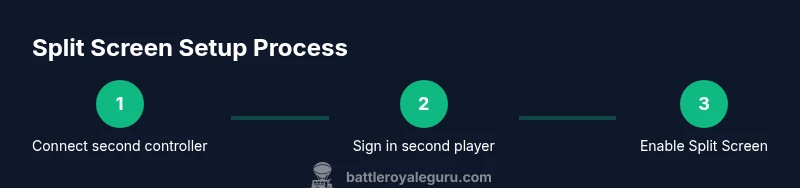
The exact steps to activate split screen can vary by platform and game version, but the general flow remains similar across consoles. Start Fortnite and reach the lobby with the first player signed in. Have the second controller connected and sign in to the second Epic account. Look for the Split Screen button or prompt in the lobby screen; select it to enable local co-op. Once both players are recognized, you’ll see the second player’s screen alongside the first. From here, you can choose a mode that supports split screen and begin playing. Always verify any platform-specific requirements, such as the need for a secondary sign-in or the availability of certain modes.
Modes that support split screen
Split-screen support is typically available in Duos and some limited modes, but not all game modes are compatible. Duos commonly allow two players on one screen, while Squads and certain competitive playlists may be restricted or unavailable in split-screen scenarios. Seasonal changes can also impact mode availability, so what works in one season might not be available in the next. If you’re unsure whether a mode supports split screen, check the in-game mode description or patch notes from Epic Games. Using split screen can be a great way to learn maps and practice teamwork in a relaxed setting before venturing into larger online matches.
Common limitations and platform differences
Platform differences mean you might experience reduced screen real estate, minor latency changes, or slightly lower frame rates when split-screen is active. Some modes may lock out split screen entirely, and certain crossplay settings could influence which players you encounter. If you want to preserve performance, consider reducing visual effects or adjusting resolution scaling, especially on older consoles. Finally, remember that split screen is a social feature built into Fortnite’s couch co-op experience; it’s not a guaranteed or universal option across all patches and modes.
Troubleshooting common issues
If the second player doesn’t appear in the lobby, verify both accounts are signed in on the same device and that the account permissions allow local co-op. If you see an error message, take note of the error code and consult Fortnite patch notes or Epic Games support for guidance. Ensure both controllers are connected and responsive, and that the second user has been granted proper access on the console. If the split-screen option doesn’t appear at all, you may be dealing with an incompatible mode or a regional restriction. In some cases, restarting the game or rebooting the console resolves the issue.
Tips for smoother performance and better couch play
Proactively reduce potential lag by using a wired connection where possible and keeping both controllers charged. Disable unnecessarily heavy background apps on the console, and ensure the TV settings don’t introduce input lag (game mode on, low motion blur if applicable). Position players to minimize screen overlap and use a pleasant seating arrangement to prevent neck strain during long sessions. If you’re sharing a single display, consider setting up clear on-screen boundaries to help both players stay engaged and avoid accidental screen swaps.
Safety, parental controls, and account management
For younger players, set up appropriate parental controls and monitor in-game purchases and chat behavior. If your household shares a console, establish ground rules for online interactions and screen time. Keep Epic Games accounts secure with strong passwords and enable two-factor authentication. When converting a casual session into a longer gaming night, use the built-in spanned-screen option thoughtfully to maintain a healthy balance between gaming and other activities.
Quick-start checklist before your first session
- Update Fortnite to the latest patch on the console.
- Sign in two players on the same device with active Epic Games accounts.
- Connect two controllers and verify input works in menus.
- Confirm split-screen mode is available for your selected game mode.
- Ensure a stable internet connection if you plan to join online components of the match.
Performance optimization and final recommendations
If you’re primarily focused on local co-op with a friend, split screen remains a fantastic way to play Fortnite together. Use it to practice teamwork, map knowledge, and communication strategies in a relaxed setting. If you encounter consistent performance issues, revisit your display settings and consider isolating this mode to shorter sessions to avoid fatigue. The Battle Royale Guru team recommends experimenting with different modes to find the best balance between visuals and gameplay comfort for your setup.
Tools & Materials
- Console or PC with Fortnite installed(Ensure the system is on and updated to the latest patch)
- Second controller(Wireless or wired according to console compatibility)
- TV/monitor with HDMI input(One display that supports split-screen exposure)
- Two active Epic Games accounts(Both players sign in on the same device for local co-op)
- Stable internet connection(Required for online matchmaking or updates; optional for pure local modes)
- Latest Fortnite patch(Patch notes determine mode availability and bug fixes)
Steps
Estimated time: 5-15 minutes
- 1
Connect second controller and sign in
Power on the console and connect the second controller. Sign in the second player with their Epic Games account or a guest profile if supported. This ensures the second player is recognized by the system before launching Fortnite.
Tip: Test the controller input in a system menu to confirm responsiveness before starting. - 2
Launch Fortnite and reach the lobby
Start the game with the primary account and wait for the lobby to load. The second player should still be ready with their controller connected and signed in.
Tip: If the second player doesn’t appear, recheck sign-ins and controller pairing. - 3
Initiate split-screen mode
In the lobby, look for the Split Screen option and select it. The second player should be prompted to join the session. Confirm both players are displayed on-screen.
Tip: If the option isn’t visible, verify mode compatibility and patch version. - 4
Choose a compatible mode
Select a battle mode that supports split screen, typically Duos, and begin matchmaking if online play is involved. Local practice runs can start with non-online modes if available.
Tip: Some modes may limit split-screen or require different permissions; choose accordingly. - 5
Adjust settings and readiness
Set the display layout, audio balance, and any accessibility options that improve comfort for both players. Confirm both screens are visible and synchronized.
Tip: Enable game mode on your TV for reduced input lag. - 6
Start playing and monitor performance
Enter the match and play. If you notice lag or desync, pause and adjust resolution scaling or revert to a simpler graphics preset.
Tip: Keep sessions shorter if you experience fatigue or screen fatigue.
Questions & Answers
Is Fortnite split screen available on PC?
Official split-screen support is primarily for consoles. PC users typically don’t have a built-in local split-screen option, though Epic Games' policies can evolve with patches and platform changes. Always check the latest patch notes.
Right now, split-screen is mainly a console feature; PC users should verify updates to see if it changes.
Can I play Squads in split screen?
Split-screen support is most common in Duos. Some modes, including certain squads or competitive playlists, may be unavailable in split-screen. Check mode details in-game or via patch notes for current availability.
Most split-screen play happens in Duos; squads may not be supported in this mode.
Do I need an online subscription for split screen?
Online service requirements depend on your platform. Many consoles require an active subscription for online play, but local split-screen play itself can work with or without a subscription, depending on mode. Confirm with your console’s service policies.
Online subscriptions may be required for online play, but local split screen depends on the mode and platform.
What happens if a player signs out during a match?
If a player signs out, the split-screen session may end or revert to a single-player view for that moment. Rejoin using the same account to continue play, or restart the session from the lobby.
Signing out usually ends split-screen; sign back in to resume.
Will split-screen affect performance?
Split-screen can impact performance, potentially reducing resolution or frame rate depending on hardware. Optimizing settings and choosing modes that are less demanding can help maintain smoother play.
Yes, expect some performance trade-offs; adjust settings for smoother gameplay.
Is there a workaround if split screen isn’t available?
If split screen isn’t available on your platform or patch, consider online co-op or local single-player sessions with a secondary player using a different device. Always verify mode options and patch notes.
If not available, try online co-op or single-player sessions with another device.
Watch Video
Key Points
- Verify platform compatibility and patch version before trying split screen.
- Sign in two accounts and enable split screen in the lobby.
- Choose Duos or compatible modes to enjoy local co-op.
- Optimize performance with wired connections and reduced graphics settings.
- Keep expectations flexible due to mode limitations and patches.