How to Check Fortnite Hours: A Practical Guide
Learn how to check Fortnite hours across PC, console, and mobile platforms. This educational guide covers official data, interpretation, safety, and practical steps to manage playtime effectively.


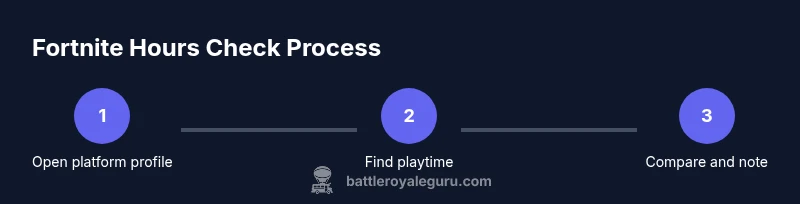
To check fortnite hours, review playtime on your platform profile (PC/Launcher, PlayStation, Xbox, or Nintendo) and, if available, your Epic Games account activity. You can also use trusted third‑party trackers for estimates. This guide shows step‑by‑step methods for each platform.
Why You Might Want to Check Fortnite Hours
Knowing how to check fortnite hours helps you monitor your gaming habits, set healthy play targets, and track progress toward in-game challenges or personal goals. For competitive players, hours can reveal time spent practicing specific modes, such as Arena or Creative, and help you balance ranked play with rest. From a wellness perspective, keeping an eye on total playtime supports safer gaming habits and helps you avoid burnout. According to Battle Royale Guru, keeping a transparent view of your hours empowers players to make informed decisions about when and how long to play, which is especially important during busy seasons or new updates.
Where Fortnite Hours Live Across Platforms
In most cases, Fortnite hours are distributed across several platforms rather than stored in a single, unified location. Your PC or console profile may display hours for individual games, while Epic Games account activity can show recent play time tied to your account. Because there is no universal, centralized 'Fortnite hours' dashboard, you’ll need to check each platform to assemble a complete picture. Battle Royale Guru analysis in 2026 indicates that cross‑platform hours are commonly found in separate sections on major platforms, with variations in how recently the data refreshes.
Check Fortnite Hours on PC/Steam/Epic Games Launcher
If you primarily play on PC via the Epic Games ecosystem, start by signing into your Epic Games account. Navigate to your account management area and look for sections like 'Account' or 'Activity' where play time may be displayed. Some users may see a dedicated 'Hours played' metric in their profile, while others will rely on the launcher’s activity log. If your data isn’t visible there, check the official Epic Games website’s account page, where recent activity is sometimes summarized. Always ensure you are viewing data tied to your own account and adjust privacy settings if you share data publicly.
Check Fortnite Hours on PlayStation
On PlayStation consoles, hours are often surfaced through your PSN profile in the Games section, listing time spent on each title. Open your profile, select Games, and locate Fortnite to view the hours attributed to that title. If your PlayStation profile doesn’t display per‑title playtime, you may need to enable data sharing for your gaming activity or use the console's built‑in activity feed. Remember that hours can lag behind real time by a few hours or days depending on syncing schedules.
Check Fortnite Hours on Xbox
Xbox Live profiles typically show per‑game playtime in the Games & Apps section or on your gamer profile page. Navigate to your profile, choose Games, and look for Fortnite to see the hours logged. If you don’t see hourly data, verify that your privacy settings allow sharing of gaming activity, and note that some data may be hidden for younger accounts or regional configurations. Cross‑check with Epic account activity if you have linked accounts.
Check Fortnite Hours on Nintendo Switch
On Nintendo Switch, Fortnite hours may appear under your user profile’s Activity or on the Nintendo Switch Online account page if linked. Open your user page, select Fortnite from the list of games, and review the time played. If hours aren’t visible directly in the Switch UI, you may rely on Epic Games account activity if you’ve linked your Nintendo account, or use a trusted third‑party tracker with caution.
Interpreting the Hours: What Do They Mean?
Hours show how long you’ve spent playing Fortnite, but they don’t directly measure skill or win rate. Use hours to identify patterns—e.g., whether you’re spending too much time in Creative vs. ranked modes—and set practical targets. Seasonal changes and event modes can shift playtime, so compare hours across similar periods to get meaningful insights. Remember that each platform may refresh data at different intervals, so don’t panic if numbers don’t line up exactly across devices.
Privacy, Visibility, and Safety of Your Hours
Your playtime data is sensitive, because it reveals how you spend time online. Most platforms let you control who can see your activity (public, friends, or private). Review privacy settings on each platform and adjust them to match your comfort level. If you’re sharing data with a friend or a squad, agree on boundaries to protect your privacy while still staying in sync about play sessions.
Third-Party Trackers: Pros, Cons, and How to Use Them Safely
Third‑party trackers can estimate Fortnite hours by aggregating data from connected accounts or by analyzing public activity. While they can fill gaps when official data is incomplete, their accuracy varies and they may not capture all play sessions. Use reputable trackers, read privacy policies, and avoid exposing sensitive information. Treat tracker estimates as supplementary evidence rather than definitive counts.
Managing Hours to Prevent Burnout: Practical Tips
If you want to maintain a healthy balance, set a weekly playtime target and schedule breaks. Use reminders to pause after a fixed period, rotate game modes, and include non‑gaming activities in your routine. Tracking rather than policing can help you reflect on your goals, stay motivated, and prevent fatigue. The goal is sustainable enjoyment, not rigid restriction.
Common Pitfalls and Troubleshooting
If you notice discrepancies between platforms, ensure your accounts are properly linked and that privacy settings allow data sharing where needed. When hours aren’t displaying, check for app updates, re‑log into platforms, and review network permissions. If the problem persists, consult official support for your platform and consider using Epic Games’ account page for a separate activity view.
Next Steps: Using Hours to Improve Play
Turn your hours into a learning plan: allocate time to review replays, practice specific mechanics, and set weekly improvement goals. Pair hours with a qualitative review—note what you learned and which modes you enjoyed most. Over time, you’ll translate playtime into tangible skill gains and strategic growth.
Tools & Materials
- Internet connection(Stable broadband recommended for syncing data across platforms)
- Compatible device(PC with Epic Games launcher or a console/handheld with Fortnite installed)
- Accounts(Epic Games account; corresponding PSN/Xbox Live/Nintendo Switch Online accounts)
- Official platform apps/pages(Access to Epic Games website, PlayStation profile, Xbox profile, or Nintendo account data)
- Privacy settings review(Optional but recommended to manage who can see your hours)
Steps
Estimated time: 20-30 minutes
- 1
Open Epic Games account page
Sign in to your Epic Games account on the official website and navigate to the Activity or Accounts section to locate recent play time. If the data is not visible, proceed to platform-specific checks below. This establishes a baseline using your primary account.
Tip: If you’ve linked multiple accounts, ensure you’re viewing activity for the correct Epic ID. - 2
Check PC/Launcher play time
In the Epic Games Launcher or on the account dashboard, look for any visible 'Hours played' or recent activity indicators associated with Fortnite. Note refresh delays and regional differences in what counts as play time.
Tip: Refresh the page after a few minutes if data seems out of date. - 3
View Playtime on PlayStation
On PS4/PS5, open your profile, go to Games, and locate Fortnite to review hours if the platform displays per-title playtime. If not visible, review privacy settings or use the PSN activity feed.
Tip: Make sure your PSN profile is set to show game activity publicly if you want to compare with others. - 4
View Playtime on Xbox
Navigate to your Xbox profile, select Games, and look for Fortnite to see hours. If data isn't shown, verify data sharing settings and regional configurations.
Tip: Consider signing out and back in to refresh linked data. - 5
View Playtime on Nintendo Switch
Check your Nintendo profile or the Nintendo Account activity page for Fortnite time, or rely on Epic account activity if linked. Data refresh intervals apply.
Tip: Linking accounts early helps keep cross‑platform data consistent. - 6
Compare across platforms
Aggregate hours from each platform to form a complete picture. Note that time zones and refresh schedules can create minor mismatches between data sources.
Tip: Document your observations in a simple log to spot trends. - 7
Consider privacy settings
Review who can see your hours and adjust privacy settings across platforms. Public hours aren’t necessary for personal tracking and can be restricted.
Tip: Set a balance between visibility and privacy that fits your comfort level. - 8
Use trusted third‑party trackers with caution
If you rely on trackers, pick reputable tools and review their data policies. Treat estimates as supplementary, not definitive.
Tip: Avoid sharing sensitive account information with tracker apps. - 9
Set a weekly hours target
Define a reasonable weekly target and schedule reminders to take breaks. A consistent routine prevents burnout and supports better learning.
Tip: Pair time targets with qualitative goals (e.g., improve aim, learn a new mode). - 10
Review and adjust goals
At the end of each week, review what activities consumed most time and adjust your goals to stay aligned with your playstyle and wellness priorities.
Tip: Celebrate progress and recalibrate if needed to maintain balance. - 11
Troubleshoot mismatches
If numbers don’t align across platforms, verify linked accounts, refresh data, and check for platform outages or maintenance windows.
Tip: Document dates of mismatches to help support investigations. - 12
Plan next steps
Translate hours into an action plan: targeted practice, coaching, or squad activities to improve performance and enjoyment.
Tip: Always tie play time to a concrete goal for meaningful progress.
Questions & Answers
Where can I see my Fortnite hours on console?
On consoles, Fortnite hours are typically shown in your profile's game list. If per‑title playtime isn’t visible, adjust privacy settings or use the console activity feed to view recent play sessions.
On consoles, check your profile under Games to see hours for Fortnite. If you don’t see it, review privacy settings or use the activity feed.
Are PC hours the same as console hours?
Not always. Hours may refresh at different intervals on PC and consoles. For a comparable view, use your Epic Games account activity when possible and note any delay between sources.
PC hours and console hours may refresh at different times, so use Epic account activity for a cross‑check and note any delays.
Can third‑party trackers be trusted for Fortnite hours?
Third‑party trackers can provide estimates when official data is incomplete. Verify their privacy policies, use reputable tools, and treat their numbers as supplementary only.
Third‑party trackers can give estimates, but they aren’t always exact. Use reputable tools and treat their numbers as estimates.
Do hours update in real time?
Hours rarely update in real time. Most platforms refresh data every few hours or daily, depending on syncing schedules and outages.
Hours don’t update instantly; expect refreshing every few hours or daily depending on the platform.
Is there a way to export Fortnite hours data?
Some platforms allow exporting activity data, or you can copy hours from each source into a personal log. Epic Games’ account page may offer downloadable records where available.
Some platforms let you export activity data or copy it into a log. Check Epic’s account page for downloadable records where available.
Watch Video
Key Points
- Check each platform’s playtime page for accurate hours.
- Compare platform data with Epic account activity for consistency.
- Be mindful of refresh delays and privacy settings when sharing hours.
- Use hours to inform a balanced, goal‑driven play routine.